
This guide takes you from an empty project to a finished game you can hand to a friend. Follow it step by step and you will have made everything in it yourself, in Glyphweft Studio: the art, a walking hero, a rat, the treasure, the sounds and the music, the level, the screens, and the C# that makes it a game.
The game is Last Match. You go down into a dark cellar with one candle. Treasure lies all around: coins, goblets and a crown. Pick up what you can and get back to the stairs before the candle burns out. Only what you carry out counts. A rat scurries about the cellar, and if it reaches you it snuffs a few seconds off your candle. Somewhere deep inside lies a spare match.
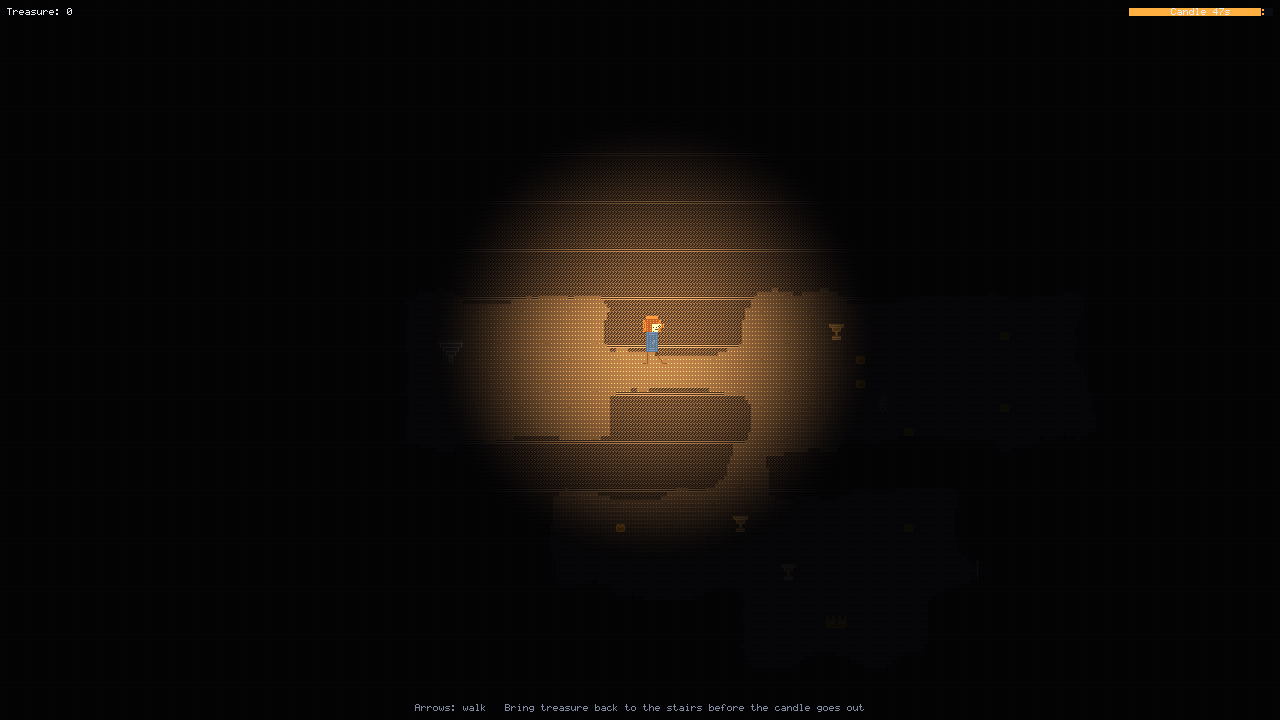
What you need: Glyphweft Studio, and the .NET 8 SDK (Studio uses it to build and play games; its setup offers to fetch it). Allow two or three hours; you can stop after any step, save, and carry on later.
How the guide is laid out: each part ends with something you can see. Words in bold are buttons, menus and
fields in Studio. Where you type a value, it is written like this; in Studio's forms, press Enter after typing to
keep it. A letter in brackets, such as (B), is the key for a tool. The Studio manual explains every editor in full, and the
Engine manual every part of the engine the code uses.
Contents: 1 The project, 2 The cellar's stone, 3 The hero, 4 The rat, 5 Treasure and things, 6 The treasure table, 7 The level, 8 Sounds, 9 Music, 10 The screens, 11 The code, 12 Play it, 13 Make it yours, 14 Build the game.
1. The project#
- Start Glyphweft Studio. On the Start page, click New project....
- Choose Empty game (the first starting point). Under the view, keep Top-down.
- Name it
Last Match, choose a folder for it (your Documents is fine), and click Create.
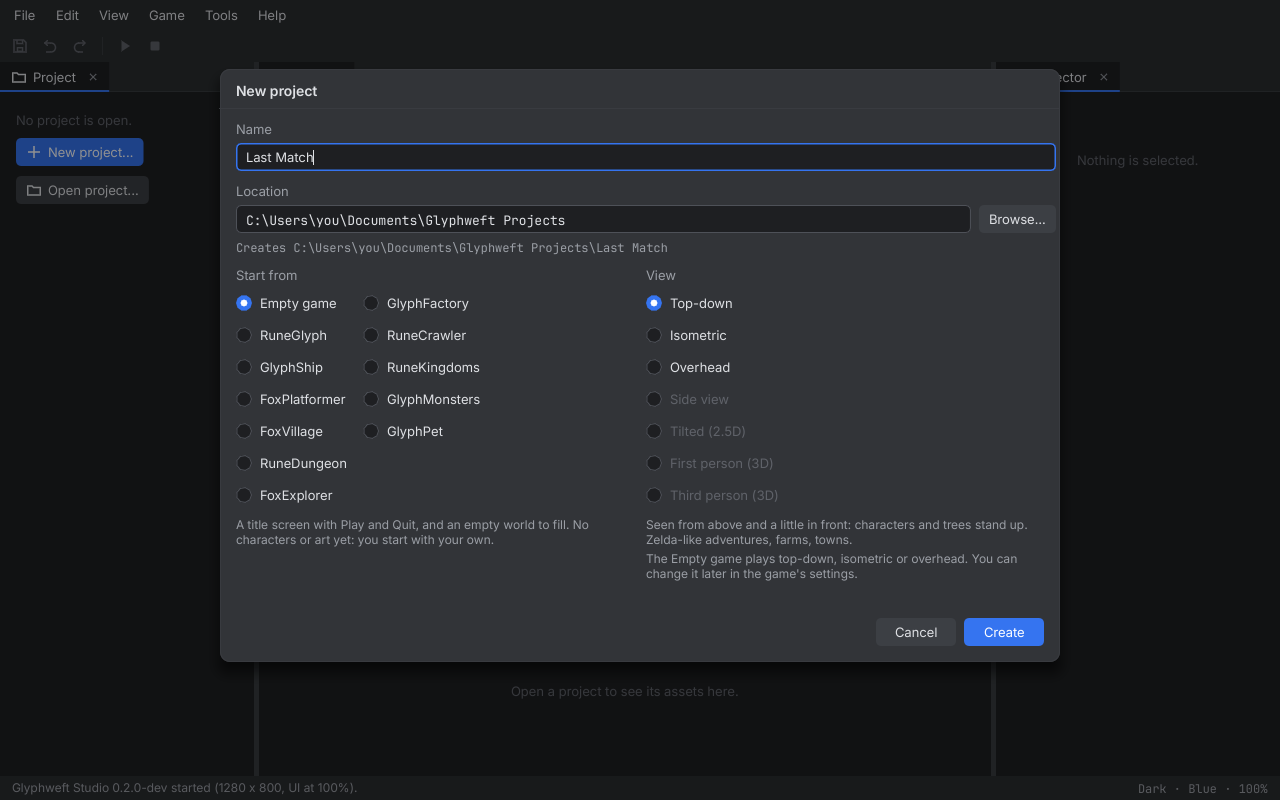
Studio makes the project and opens it. The Project panel on the left shows its files:
assetsholds everything the game shows and plays: art inart, the world inworld, screens inui, the keys ininput. Studio puts what you make in the right folder for you.Program.csis the game's C#: the title screen and a scene that shows the world.glyphweft.jsonis the game's settings: its title, window size, cell size and the like. Double-click it to change them in a form.LastMatch.csprojis the .NET project that builds it. You won't need to touch it.
Press Play (F5). Studio builds the game and runs it in its own window: a title screen with Play and Quit, and behind Play an empty floor you can scroll with the arrow keys. Press Esc to go back to the title, and close the window. That is the empty game; the rest of the guide fills it.
2. The cellar's stone#
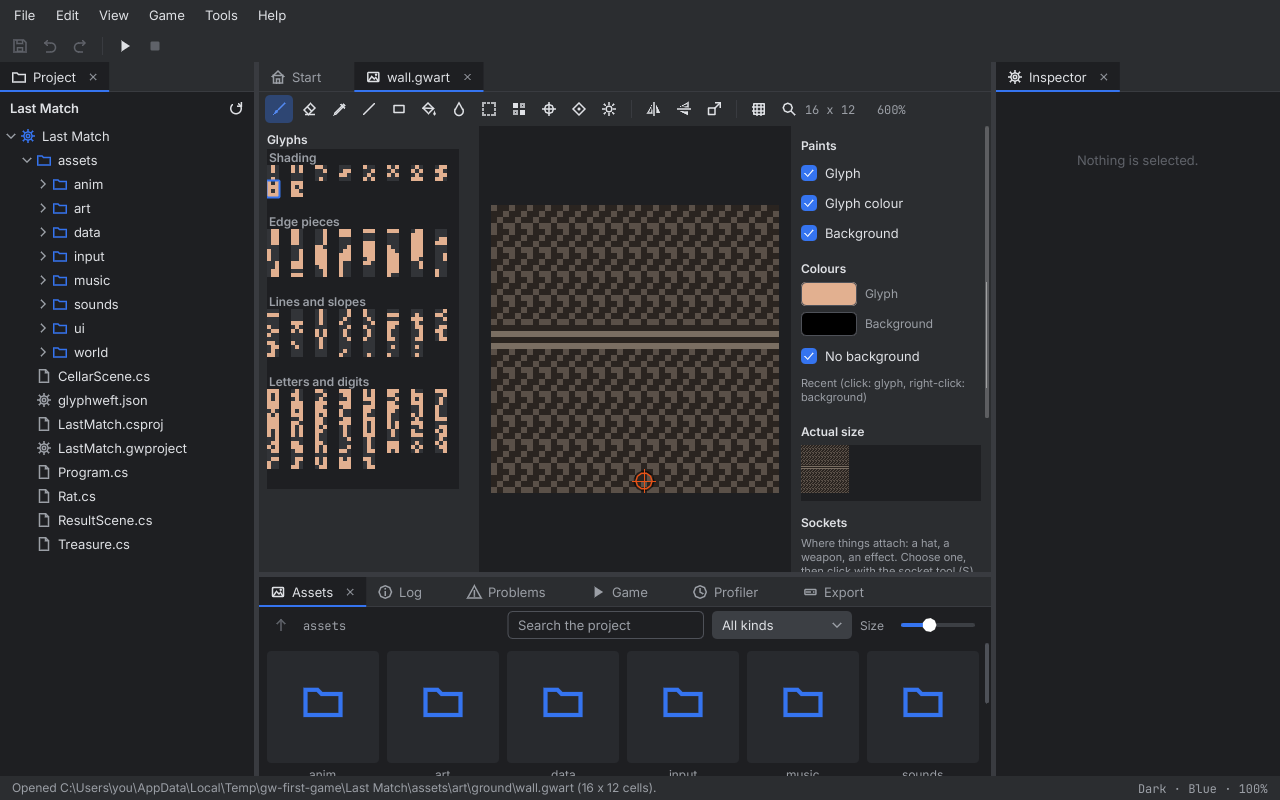
Everything in Glyphweft is drawn with glyphs: letters, digits and signs, each with its own colour and a background colour, in small cells. A world is made of tiles; each tile is drawn with a piece of glyph art, its texture, repeated across the ground. The empty game already has a floor texture. The cellar needs stone for its walls.
- File, New glyph art... In the dialog, set the folder to the project's
assets/art/ground(Browse... finds it), name itwall, and make it 16 x 12 cells, the same size as the floor. Click Create; it opens in the art editor. - Draw rough stone. Choose the pencil (B). In the panel on the right, set the Glyph colour to a grey-brown such
as
#5A5048and the Background to a darker one such as#2A2420. In the glyph palette on the left, pick a rough glyph such as#or%, and paint the whole art: drag across it, or choose the fill (K) and click once. - Add some cracks and stones: a lighter colour (
#7A6E62) with=and-for the joints between blocks, and a few.and,in a darker colour. The Actual size box on the right shows it as the game will. - The floor needs to be lighter than the walls, or the candle won't show where you can walk. Double-click
assets/art/ground/floor.gwartin the Project panel and fill it with a sandy stone: glyph.in#9A8A70on a background of#5A4E40, with a few,and:scattered in a darker brown. - File, Save all (Ctrl+S).
3. The hero#
The hero is an animation: pictures that play one after another, a set of them for each direction the hero faces. You can draw the hero yourself, or paste the ready-made drawings below. They are made of layers, one for each colour: the hood, the face, the tunic and the legs. You paste them one on top of the other, each in its own colours.
How to paste a layer, every time:
- Set the brush's colours to the layer's: click the Glyph swatch on the right and type the glyph colour, and the same for the Background (or tick No background where the layer says so).
- Copy the layer here: the whole block, its blank lines at the top too (they put the layer at the right height). The copy button on the block copies all of it.
- Click the art, press Ctrl+A (select everything) and Ctrl+V. Pasted text becomes glyphs in the brush's colours, a character a cell, pasted at the top left. Its spaces stay empty, so the layers already there show through.
Now the hero:
- File, New animation... Folder
assets/anim, namehero, first clipwalk, Four directions (left mirrors right), 2 frames, 10 x 12 cells. Create. - The animation editor shows the clip's frames along the bottom and the directions on the left. Choose down and double-click the first frame: it opens in the art editor. Paste these four layers into it, in this order:
Hero facing down: hood, glyph #5A3820, background #8A5A34:
   ____
  /####\
  |    |
  \    /
Hero facing down: face, glyph #3A2418, background #F0C8A0:
   o..o
   .--.
Hero facing down: body, glyph #2C4478, background #3C5A9A:
   #==#
  /####\
 / #### \
   ####
   #==#
Hero facing down: legs, frame 1, glyph #4A3420, No background:
   |  |
  /    \
 _|    |_
- Frame 2 is the same hero with the legs together. Press Ctrl+A and Ctrl+C to copy frame 1. Go back to the animation, double-click frame 2, and press Ctrl+A and Ctrl+V: a copy. Choose the select tool (M), drag over the bottom three rows (the legs) and press Delete. Then paste the new legs:
Hero facing down: legs, frame 2, glyph #4A3420, No background:
   |  |
   |  |
  _|  |_
- Choose right in the animation and do the same: frame 1 from these four layers, then frame 2 as a copy of it with the bottom three rows deleted and the frame 2 legs pasted.
Hero facing right: hood, glyph #5A3820, background #8A5A34:
   ____
  /####\
  |##   |
  \##  /
Hero facing right: face, glyph #3A2418, background #F0C8A0:
     ..o
     .-
Hero facing right: body, glyph #2C4478, background #3C5A9A:
   #==#
   ####
   ##\#
   ####
   #==#
Hero facing right: legs, frame 1, glyph #4A3420, No background:
   |  \
   |   \
  _|    \_
Hero facing right: legs, frame 2, glyph #4A3420, No background:
   |  |
   |  |
   |__|_
- Choose up (the hero from behind: no face). Frame 1 is this hood, then the body and the frame 1 legs you used facing down; frame 2 is its copy with the frame 2 legs facing down.
Hero facing up: hood, glyph #5A3820, background #8A5A34:
   ____
  /####\
  |####|
  \####/
- Left is drawn for you: it mirrors right.
- Press Play (Space) in the animation's toolbar to watch the walk, and all directions (A) to see every side.
- The hero also stands still. Choose down, then New clip..., name it
idle: it starts with a copy of the frame shown, the hero standing. That is all an idle needs for now. - File, Save all.
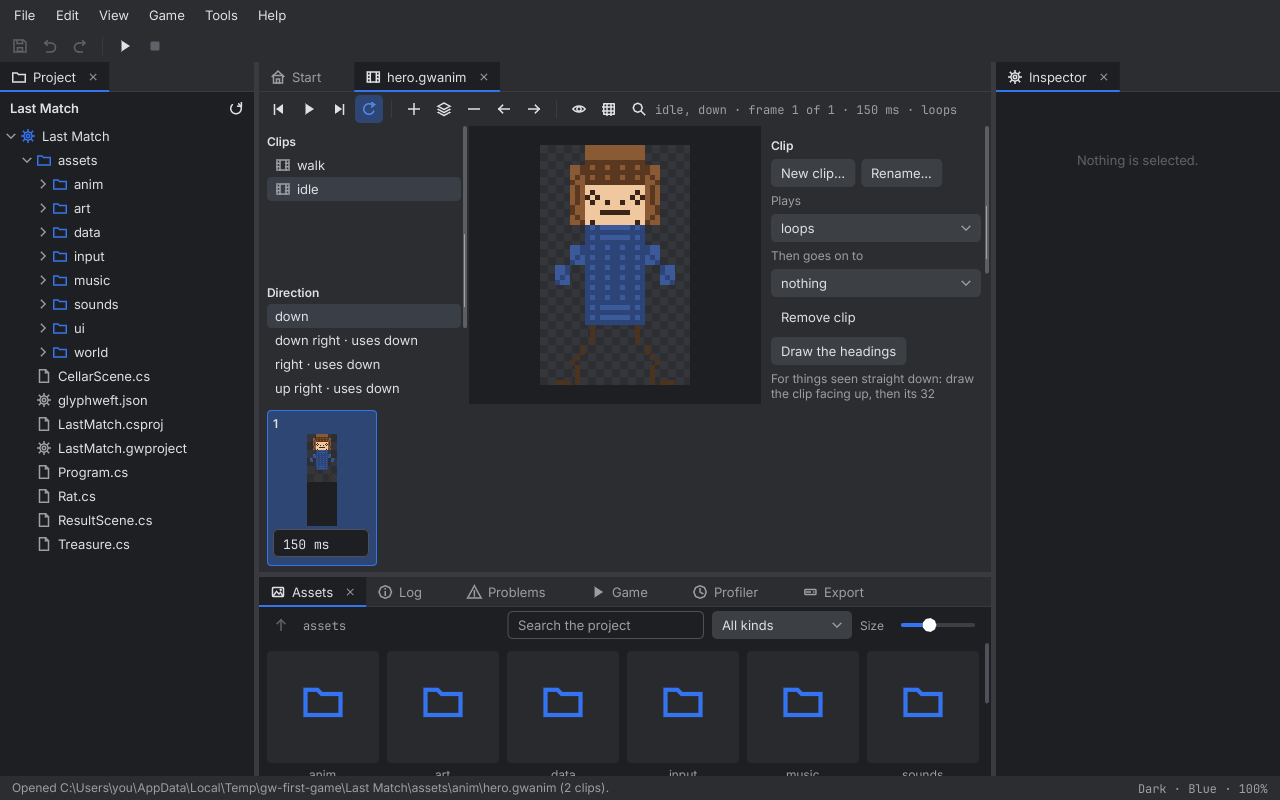
Tip: you don't have to use these drawings. Draw your own hero with the pencil (B) instead, or change these: the art editor's pencil, fill (K) and eyedropper (I) work on pasted cells like any others. A clear outline and two or three colours read better at this size than a lot of detail, and you can redraw any picture at any time: the game picks it up.
4. The rat#
The rat is an animation too, but a small one: two pictures, used whichever way it runs.
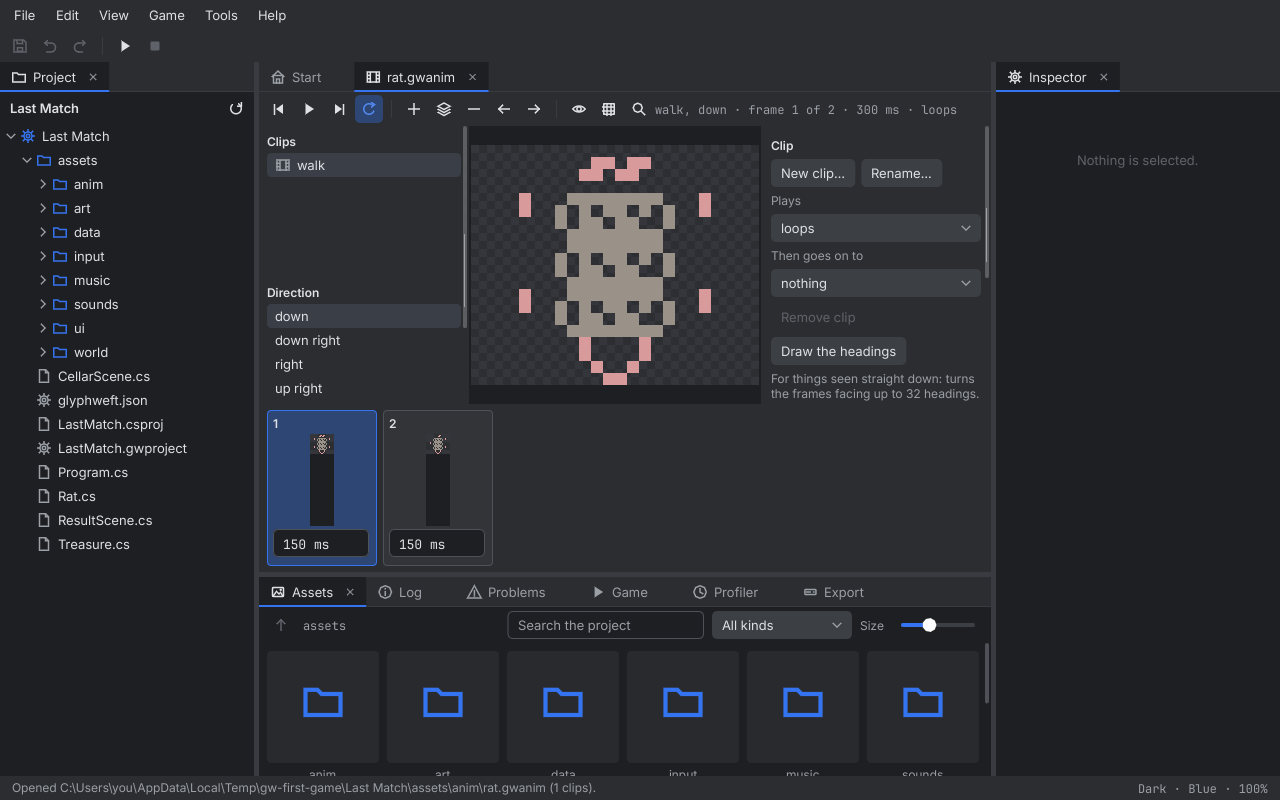
File, New animation... Folder
assets/anim, namerat, clipwalk, Facing down only, 2 frames, 8 x 5 cells. Create. Facing down only means one set of frames for every direction, which suits a small scurrying thing seen from above.The animation editor shows its two frames along the bottom. Double-click the first: it opens in the art editor.
Set the brush's colours first: the Glyph colour to a mouse grey,
#9A9288, and tick No background.Copy this drawing (select it here and press Ctrl+C), then in the art editor press Ctrl+A and Ctrl+V. Text you paste turns into glyphs in the brush's colours, one character a cell, with the spaces left empty. It is the rat seen from above, its nose at the bottom: a tail (
~~), a body ((@@)), four feet (') and a pointed nose (\/).Rat, frame 1:
Code example Plain text~~ '(@@)' (@@) '(@@)' \/Now the colours. Choose the pencil (B), untick Glyph under Paints so it only changes colours, set the Glyph colour to a pink,
#D89A9A, and click the tail, the four feet and the nose. Tick Glyph again.Back in the animation, double-click the second frame and do the same with this one: the feet have moved and the tail swings the other way, so the two frames together make it scurry.
Rat, frame 2:
Code example Plain text~ (@@)' '(@@) (@@)' \/Press Play (Space) in the animation's toolbar: the rat scurries on the spot. If you'd rather draw your own rat, do: any two frames of the same size work, as long as the feet are near the bottom middle, where it stands.
File, Save all.
5. Treasure and things#
Five small pieces of glyph art, all in a new folder. In the Project panel, right-click assets/art, choose New
folder, and name it things. Then right-click things, New, Glyph art... for each one in the table, and
paste its drawing below into it as you did the hero's layers: its colours on the brush, then Ctrl+A and Ctrl+V.
| Name | Size (cells) | What it is |
|---|---|---|
coin |
3 x 2 | a gold coin |
goblet |
5 x 4 | a gold cup on a stem |
crown |
7 x 3 | a gold crown with a red jewel (two layers) |
match |
2 x 5 | a wooden stick with a red tip (two layers) |
stairs |
8 x 6 | stone steps going up, the way out |
The coin, glyph #FFE070, background #C89020:
/o\
\_/
The goblet, glyph #FFF0A0, background #D0A040:
\===/
 \_/
  |
 ===
The crown, glyph #FFE070, background #C89020:
^ ^ ^ ^
|=====|
\_____/
The crown's jewel, glyph #FF4040, No background:
*
The match: its stick, glyph #E8D0A0, No background:
|
|
|
|
The match: its tip, glyph #FFE0A0, background #E04030:
o
The stairs, glyph #C8C0B0, background #6A6258:
________
|______|
 |____|
  |__|
   ||
   ''
Save all. These are only pictures so far. The next steps say what they are worth and where they lie.
6. The treasure table#
How much each kind of treasure is worth is data, not art, so it goes in a table: one row for each kind, one column for each thing you know about it. The game reads the table; you can change the numbers without touching the code.
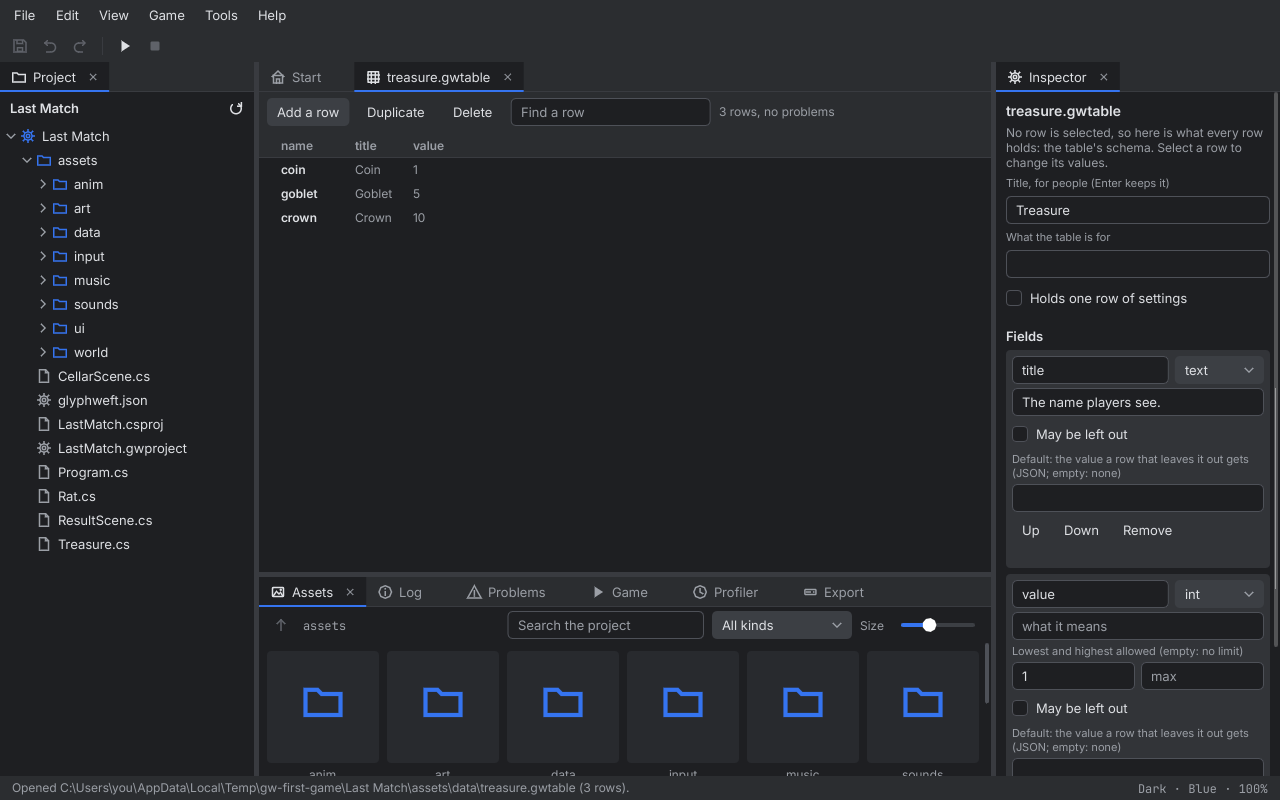
- File, New table... Name it
treasureand click Create. Studio makes the table inassets/data, where the game looks for its tables, and opens it in the table editor. With no row chosen, the Inspector shows the table's schema: the fields every row has. It starts withtitle, the name players see. - In the Inspector, Add a field: name
value, type int. Under Lowest and highest allowed, type1in the first box: a treasure is worth at least one. - In the table, Add a row for each kind and fill in its fields:
| Row | title | value |
|---|---|---|
coin |
Coin |
1 |
goblet |
Goblet |
5 |
crown |
Crown |
10 |
- File, Save all. A row that is missing something shows a warning mark until it is filled in.
7. The level#
Now the cellar itself. You will make a new world, give it a solid stone tile, paint the rooms, and place the treasure, the match, the stairs and the rat.
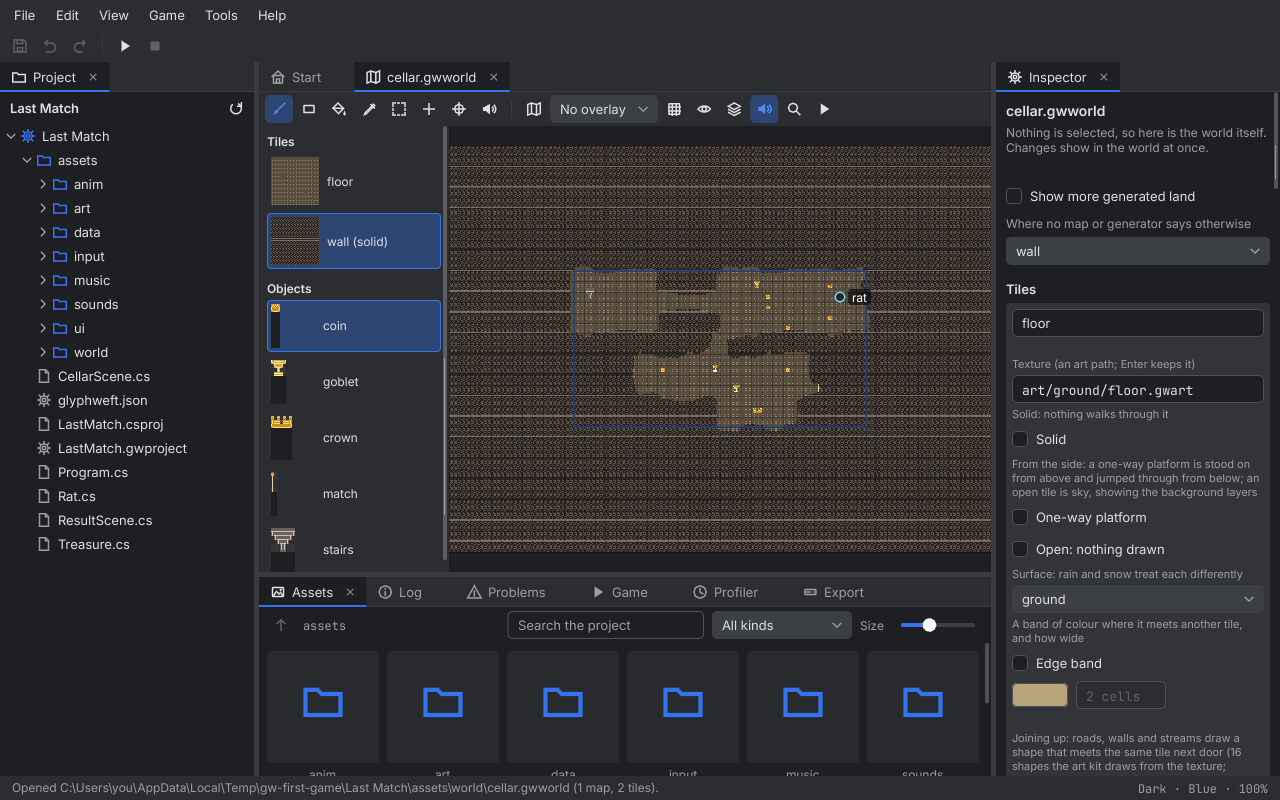
- File, New world... Name it
cellar, take its tile and object types fromstart.gwworld, leave the generator off, and Create. It opens in the world editor: the floor, everywhere. - With nothing selected (press Esc), the Inspector shows the world's settings. Under Tiles, Add a tile type
named
wall. In its card, typeart/ground/wall.gwartas its Texture (Enter keeps it) and tick Solid: nothing walks through it. - Still in the world's settings, at the top, set Where no map or generator says otherwise (the default tile) to
wall. Now the whole world is stone, and you dig the cellar out of it by painting floor. - Choose floor in the tile palette and the brush, and paint the cellar as in this plan. Each character is one
tile:
#is stone (leave it), every other character is floor. The top left corner of the plan goes at the world's origin, the cross where the view starts.
##############################
#........######..............#
#........######...g......c...#
#.S................c......r..#
#..................c.........#
#........######..........c...#
#........######......c.......#
##############..##############
##############..##############
#######.................######
#######..c....g......c..######
#######.................######
#######.........g.......m#####
###############.......########
###############...C...########
###############.......########
##############################
There is a room by the stairs (S) on the left, a passage east into a bigger room, a narrow way down to a long
room below, and a small room at the bottom with the crown (C). The spare match (m) is in the far corner of
the long room.
- The letters are things to place. First tell the world what they are: in the world's settings, under Objects,
Add an object type for each of
coin,goblet,crown,matchandstairs, and set each one's art to its picture inart/things(art/things/coin.gwartand so on). The game knows treasure by these names: an object named after a row of the treasure table is treasure. - Choose the Object tool (O), pick a type in the palette, and click in the middle of its tile: a coin on each
c, a goblet on eachg, the crown onC, the match onm, and the stairs onS. - The rat starts at a spawn point. Choose the Spawn tool (P) and click on the
rtile. The first spawn point a world gets is calledhero; rename itratin the Inspector. - File, Save all.
8. Sounds#
Glyphweft makes its sounds itself, from waves you shape in the sound designer: no recordings needed.
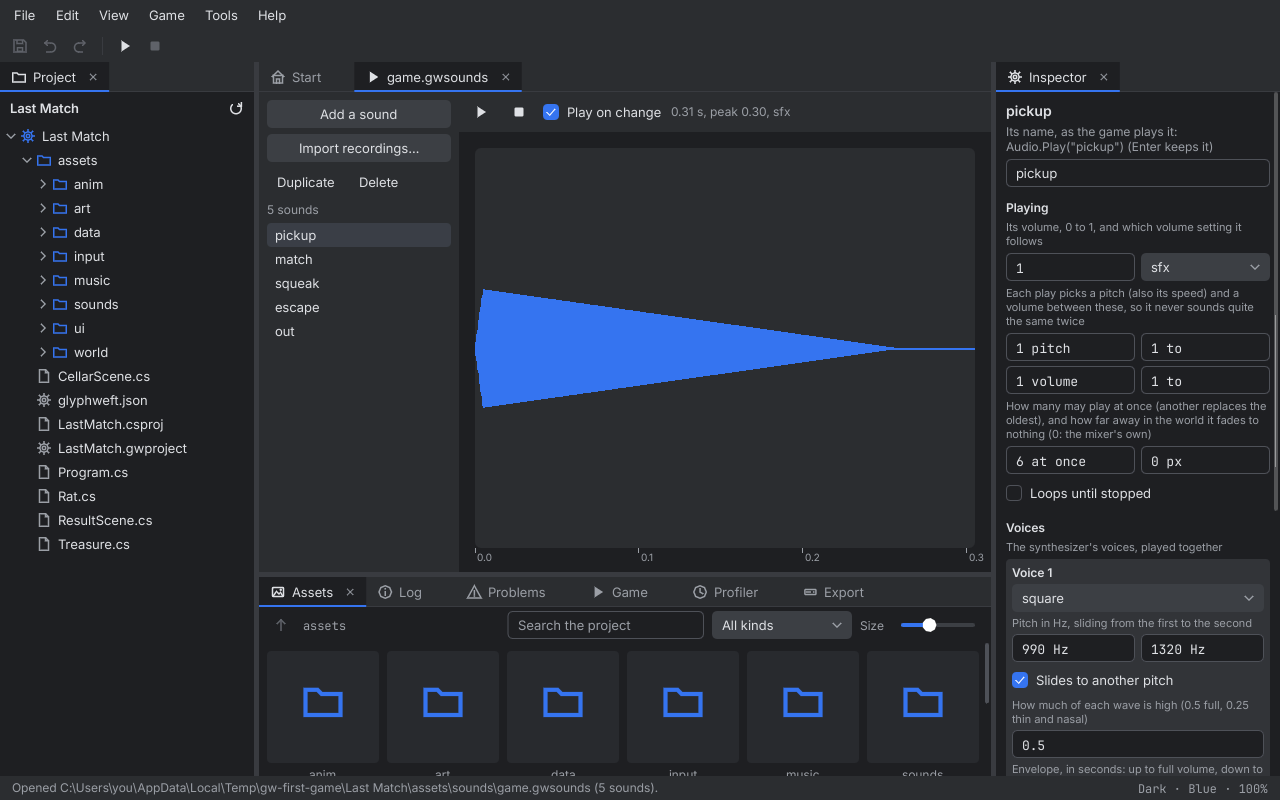
- File, New sounds... Folder
assets/sounds, namegame, Create. It starts with one sound,blip. - Rename
bliptopickup. This is the chime for treasure: wave square, frequency from990to1320, decay0.25, volume0.3. Press Play to hear it, and change it until you like it. - Add a sound for each of the others, and shape it as below. These values are a starting point; trust your ears.
| Sound | When | Wave | Frequency | Decay | Volume |
|---|---|---|---|---|---|
match |
the spare match | triangle | 400 to 1200 |
0.6 |
0.35 |
squeak |
the rat bites | square | 1800 to 2600 |
0.12 |
0.25 |
escape |
out with the treasure | sine | 523 to 1046 |
0.8 |
0.4 |
out |
the candle goes out | noise | 900 to 120 |
0.9 |
0.45 |
- File, Save all.
9. Music#
- File, New music... Folder
assets/music, namecellar, Create. A new piece has three instruments (lead, bass and kick) and one empty pattern,a, of four bars. - Choose bass and click notes into the piano roll: a slow, low line suits a dark cellar. Try one long note at the start of each bar, stepping down: C, A, F, G. Choose lead and add a few quiet high notes between them.
- Press Play to hear the pattern loop. It plays over and over in the game.
- File, Save all.
10. The screens#
Two screens: the HUD over the cellar (the treasure you carry and the candle), and the result when the run ends.
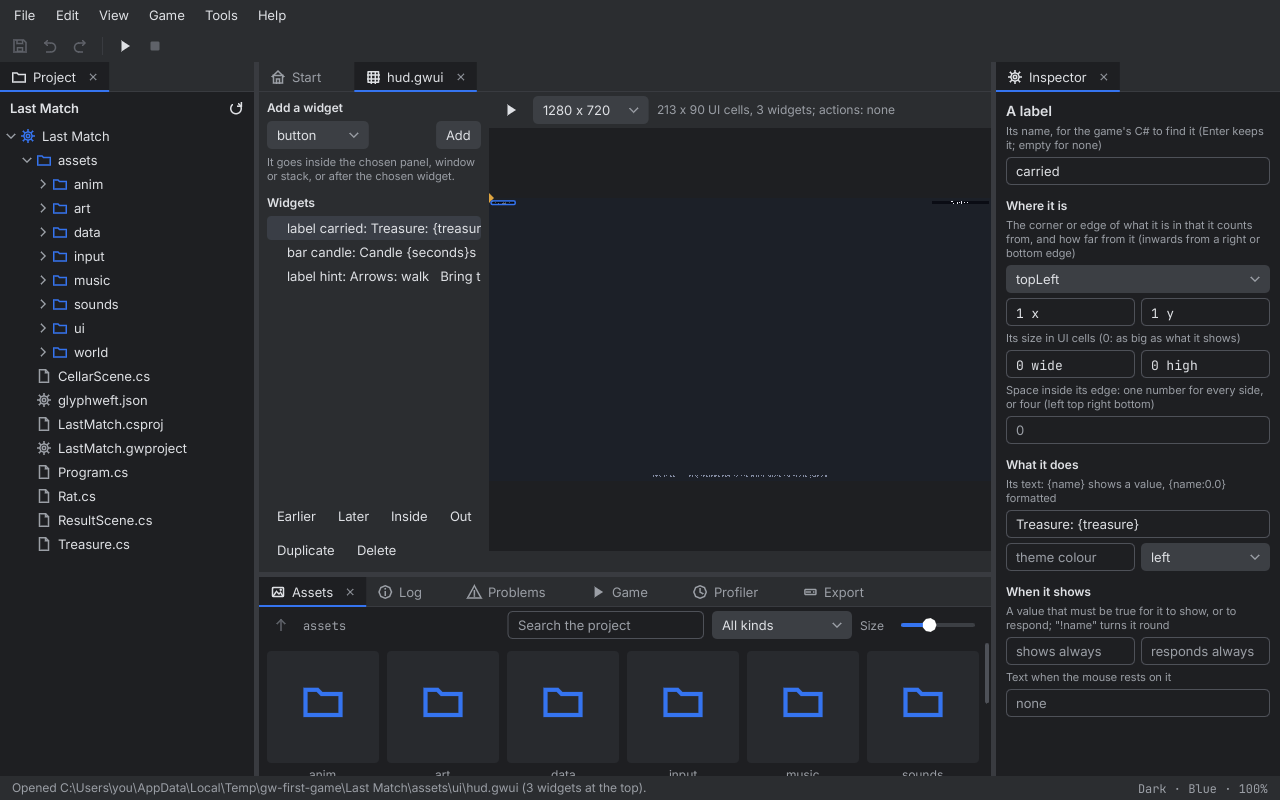
The HUD. File, New screen..., name it hud, Create. It opens in the screens editor: the screen in the
middle, its widgets on the left, the chosen widget's settings in the Inspector. Add three widgets with Add a
widget and set them in the Inspector:
- A label named
carried, anchored top left, at11, its textTreasure: {treasure}. Words in braces are values the game fills in;{treasure}will be what you carry. - A bar named
candle, anchored top right, at11, size241, its valuecandleand its textCandle {seconds}s, colour#FFB040. A bar shows a value from 0 (empty) to 1 (full). - A label named
hint, anchored bottom, at01, its textArrows: walk Bring treasure back to the stairs before the candle goes out, colour#828AA0.
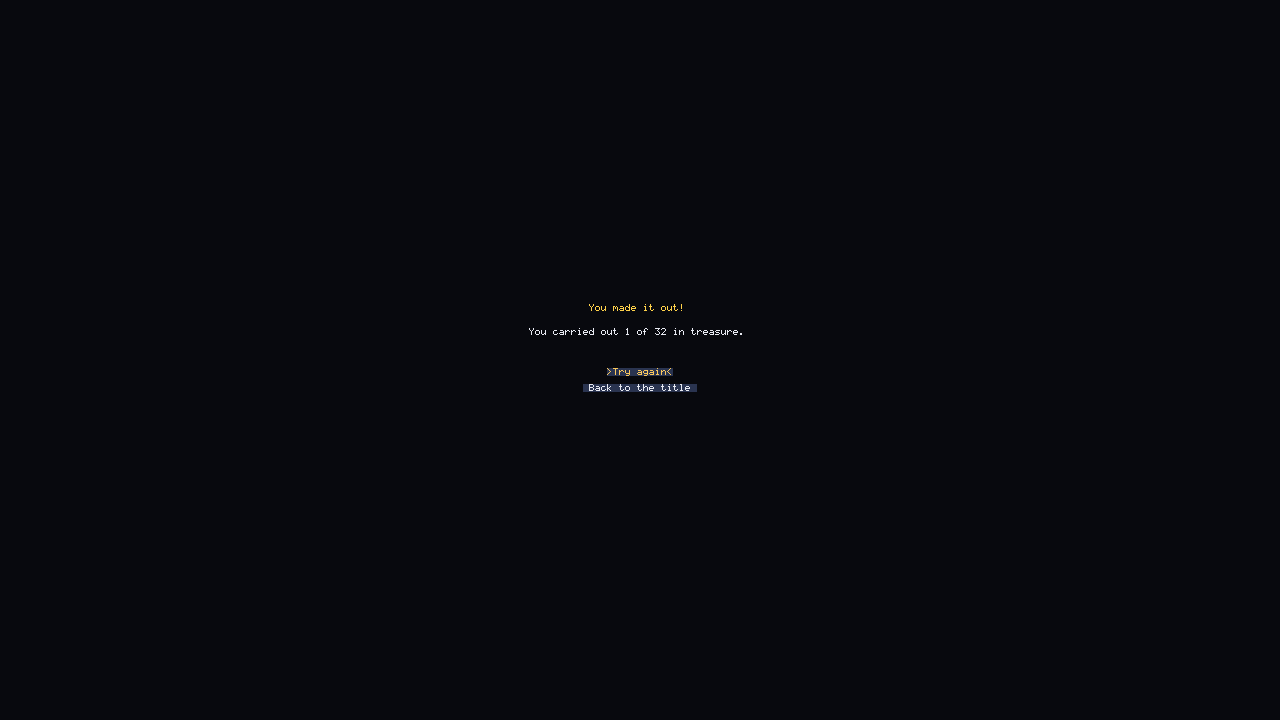
The result. File, New screen..., name it result. Its background colour (with no widget chosen) #08090E.
Add:
- A label named
heading, anchored center, at0-6, text{heading}, colour#FFD24A. - A label named
score, anchored center, at0-3, text{score}. - A button named
again, anchored center, at02, textTry again, actionagain, and tick In the accent colour. As the first button on the screen it starts chosen, so Enter presses it. - A button named
title, anchored center, at04, textBack to the title, actiontitle.
Save all. A button doesn't do anything by itself: its action is a name the game's code answers to, as you will see next.
11. The code#
Now the rules. Everything you have made so far is data; the C# says what happens: how the hero walks, what picking something up does, how the candle burns, and when the run ends. You will add four files and change a few lines.
To add a file, right-click the project (the top of the Project panel), New C#, Class..., type its name and
click Create. It opens in Studio's code editor with an empty class. Select everything in it (Ctrl+A) and type or
paste the code below in its place. Each listing starts with the file's name. If you named your project something
other than Last Match, change namespace LastMatch to your game's namespace, and LastMatchHost to its host class
(both are near the top of Program.cs: Studio named them after your game).
Treasure.cs is the shape of a row of the treasure table, and of a thing lying in the cellar:
// Treasure.cs: a row of the treasure table, and a thing to pick up
using coettools.Glyphweft.World;
using Microsoft.Xna.Framework;

namespace LastMatch
{
	/// <summary>A row of assets/data/treasure.gwtable: a kind of treasure. The game reads the table into these.</summary>
	public sealed class TreasureKind
	{
		public string Title { get; init; } = "";
		public int Value { get; init; }
	}

	/// <summary>Something lying in the cellar to pick up: a treasure, or the spare match (no kind).</summary>
	public sealed class Pickup
	{
		public required WorldObject Thing { get; init; }
		public TreasureKind? Treasure { get; init; }
		public Vector2 At => Thing.Position;
	}
}
Rat.cs is the rat: it runs one way for a second or two, then picks another, and turns off a wall when it meets one.
// Rat.cs: a rat that wanders the cellar
using coettools.Glyphweft.Animation;
using coettools.Glyphweft.World;
using Microsoft.Xna.Framework;

namespace LastMatch
{
	/// <summary>The rat: runs one way, then another, never through walls.</summary>
	public sealed class Rat
	{
		// the part of the rat that bumps into walls: a small box round its feet, in world pixels
		private static readonly RectangleF Feet = new(-6, -4, 12, 6);
		private readonly Random _random = new(7);
		private Vector2 _heading;
		private double _turnIn;

		public Rat(Animator anim, Vector2 at)
		{
			Anim = anim;
			At = at;
		}

		public Animator Anim { get; }
		public Vector2 At { get; private set; }
		public float Speed { get; init; } = 55;

		public void Update(WorldMap map, double dt)
		{
			// time to pick a new way to run
			_turnIn -= dt;

			if (_turnIn <= 0)
			{
				double angle = _random.NextDouble() * Math.PI * 2;
				_heading = new Vector2((float)Math.Cos(angle), (float)Math.Sin(angle));
				_turnIn = 1 + _random.NextDouble() * 1.5;
			}

			Vector2 before = At;
			At = Collision.Move(map, At, _heading * Speed * (float)dt, Feet);

			// it hardly moved: a wall is in the way, so turn soon
			if (Vector2.Distance(before, At) < Speed * dt * 0.5f) _turnIn = Math.Min(_turnIn, 0.1);

			Anim.FaceTowards(_heading);
			Anim.Play("walk");
			Anim.Update(dt);
		}
	}
}
CellarScene.cs is the game itself. Make it with New C#, Scene... this time, named CellarScene, and
replace what it holds with this. A scene is one part of the game with its own Update (the rules, every frame)
and Draw (the picture, every frame).
// CellarScene.cs: the cellar, the candle, the treasure and the rat
using coettools.Glyphweft.Animation;
using coettools.Glyphweft.Assets;
using coettools.Glyphweft.Core;
using coettools.Glyphweft.Data;
using coettools.Glyphweft.Diagnostics;
using coettools.Glyphweft.Effects;
using coettools.Glyphweft.Scenes;
using coettools.Glyphweft.UI;
using coettools.Glyphweft.World;
using Microsoft.Xna.Framework;

namespace LastMatch
{
	/// <summary>
	/// The cellar: walk with the arrow keys, walk over treasure to pick it up, and get back to the stairs before the
	/// candle burns out. The rat bites seconds off the candle; the spare match adds some.
	/// </summary>
	public sealed class CellarScene : Scene
	{
		// the numbers to play with: how long the candle lasts, what the match and the rat do, how fast the hero walks
		private const double CandleSeconds = 50, MatchSeconds = 20, RatBite = 5;
		private const float WalkSpeed = 80;

		// the part of the hero that bumps into walls: a small box round the feet
		private static readonly RectangleF Feet = new(-6, -4, 12, 6);

		private readonly Camera _camera = new();
		private readonly Lighting _lighting = new() { Ambient = new Vector3(0.06f, 0.06f, 0.1f), MaxLight = 2.2f };
		private readonly FloatingTexts _texts = new();
		private readonly List<Pickup> _pickups = new();
		private readonly WorldMap _map;
		private readonly WorldView _view;
		private readonly Animator _hero;
		private readonly Rat? _rat;
		private readonly UiScreen _hud;
		private readonly Vector2 _stairs;
		private readonly int _total;
		private Vector2 _heroAt;
		private double _candle = CandleSeconds, _sinceBite = 10, _clock;
		private int _carried;
		private bool _over;

		public CellarScene(LastMatchHost host) : base(host)
		{
			Point cells = new(World.CellWidth, World.CellHeight);
			_map = WorldFormat.Load(Assets, WorldPath, cells);
			_view = new WorldView(_map, Assets, cells, Host.Settings.View);

			// what's lying about: an object named after a row of the treasure table is treasure; "match" and "stairs" are themselves
			Dictionary<string, TreasureKind> kinds = GameTables.Load(Assets)["treasure"].Read<TreasureKind>().ToDictionary(k => k.Key, k => k.Value);

			foreach (WorldObject thing in _map.ObjectsIn(new RectangleF(-10000, -10000, 20000, 20000)).ToList())
			{
				if (thing.Kind is string kind && kinds.TryGetValue(kind, out TreasureKind? treasure)) _pickups.Add(new Pickup { Thing = thing, Treasure = treasure });
				else if (thing.Kind == "match") _pickups.Add(new Pickup { Thing = thing });
				else if (thing.Kind == "stairs") _stairs = thing.Position;
			}

			_total = _pickups.Sum(p => p.Treasure?.Value ?? 0);

			// the hero starts on the stairs (or, from Studio's Play from here, where you asked); the rat at its spawn point
			_heroAt = Host.PlayAt ?? _stairs;
			_hero = new Animator(Assets.Animation("anim/hero.gwanim"), "idle", Direction.Down);

			if (_map.Spawns.Any(s => s.Name == "rat")) _rat = new Rat(new Animator(Assets.Animation("anim/rat.gwanim"), "walk", Direction.Down), _map.Spawn("rat"));

			_hud = UiScreen.Load(Assets, "ui/hud.gwui");
			_camera.Position = _view.ToPlane(_heroAt);
			Log.Info("game", $"Into the cellar: treasure worth {_total}, {CandleSeconds:0} seconds of candle.");
		}

		// the world it plays: the cellar, or the one Studio's Play from here names
		private string WorldPath => Host.PlayWorld ?? "world/cellar.gwworld";

		public override void Enter() => Audio.PlayMusic("music/cellar.gwmusic");

		public override void Update(double dt)
		{
			if (Actions.Pressed("back"))
			{
				((LastMatchHost)Host).BackToTitle();
				return;
			}

			if (_over) return;

			_clock += dt;

			// walking: the arrow keys give a direction, and the walls stop the feet
			Vector2 move = new((Actions.Held("right") ? 1 : 0) - (Actions.Held("left") ? 1 : 0), (Actions.Held("down") ? 1 : 0) - (Actions.Held("up") ? 1 : 0));

			if (move != Vector2.Zero)
			{
				move.Normalize();
				_heroAt = Collision.Move(_map, _heroAt, _view.StepFor(move) * WalkSpeed * (float)dt, Feet);
				_hero.FaceTowards(move);
				_hero.Play("walk");
			}
			else
			{
				_hero.Play("idle");
			}

			_hero.Update(dt);

			// the candle burns down; when it goes out, so does the run
			_candle -= dt;

			if (_candle <= 0)
			{
				End(escaped: false);
				return;
			}

			// walk over a thing to pick it up
			foreach (Pickup p in _pickups.Where(p => Vector2.Distance(p.At, _heroAt) < 16).ToList())
			{
				_pickups.Remove(p);
				_map.RemoveObject(p.Thing);

				if (p.Treasure is TreasureKind t)
				{
					_carried += t.Value;
					Audio.Play("pickup");
					Say($"+{t.Value} {t.Title}", new Rgb(255, 210, 74));
					Log.Info("game", $"Picked up a {t.Title.ToLowerInvariant()} (+{t.Value}).");
				}
				else
				{
					_candle += MatchSeconds;
					Audio.Play("match");
					Say($"+{MatchSeconds:0} seconds", new Rgb(255, 160, 80));
					Log.Info("game", "Lit the spare match.");
				}
			}

			// the rat bites a few seconds off the candle, then leaves you be for a moment
			if (_rat is not null)
			{
				_rat.Update(_map, dt);
				_sinceBite += dt;

				if (_sinceBite > 2 && Vector2.Distance(_rat.At, _heroAt) < 14)
				{
					_sinceBite = 0;
					_candle -= RatBite;
					Audio.Play("squeak");
					Say($"-{RatBite:0} seconds", new Rgb(230, 90, 80));
					Log.Info("game", "The rat bit the candle.");
				}
			}

			// back on the stairs with treasure: out, and it counts
			if (_carried > 0 && Vector2.Distance(_stairs, _heroAt) < 20)
			{
				End(escaped: true);
				return;
			}

			// the HUD's values (assets/ui/hud.gwui shows them)
			_hud.Set("treasure", _carried).Set("candle", _candle / CandleSeconds).Set("seconds", Math.Ceiling(_candle));
			_hud.Update(Input, Ui, dt);
			_texts.Update(dt);
			_camera.Follow(_view.ToPlane(_heroAt), dt);
		}

		// a few words floating up from the hero
		private void Say(string text, Rgb colour) => _texts.Add(text, _heroAt + new Vector2(0, -50), colour, 1.2f, 20);

		// the run is over: out with the treasure, or lost in the dark
		private void End(bool escaped)
		{
			_over = true;
			Audio.Play(escaped ? "escape" : "out");
			Log.Info("game", escaped ? $"Escaped with {_carried} of {_total}." : $"The candle went out with {_carried} in hand.");
			Scenes.Reset(new ResultScene((LastMatchHost)Host, escaped, escaped ? _carried : 0, _total), Transition.Fade(0.6f));
		}

		public override void Draw()
		{
			_camera.Apply(World, Screen);
			CellBuffer cells = World.Cells;
			_view.DrawGround(cells, _camera.TopLeftCell);
			Point Cell(Vector2 at) => _camera.WorldToCell(_view.ToPlane(at));

			// the things in the cellar, the rat and the hero, back to front by their feet
			List<(float Depth, Action Draw)> drawn = new();

			foreach (WorldObject o in _map.ObjectsIn(_view.WorldArea(_camera.Visible(200))))
				drawn.Add((_view.Depth(o.Position), () => cells.DrawArt(Assets.Art(o.Art), Cell(o.Position).X, Cell(o.Position).Y)));

			if (_rat is not null) drawn.Add((_view.Depth(_rat.At), () => cells.DrawAnimation(Assets, _rat.Anim, Cell(_rat.At).X, Cell(_rat.At).Y)));

			drawn.Add((_view.Depth(_heroAt), () => cells.DrawAnimation(Assets, _hero, Cell(_heroAt).X, Cell(_heroAt).Y)));

			foreach ((float _, Action draw) in drawn.OrderBy(d => d.Depth)) draw();

			// the dark, and the candle's light round the hero: it shrinks as the candle burns down, and flickers
			float left = (float)Math.Clamp(_candle / CandleSeconds, 0, 1);
			_lighting.ClearLights();
			_lighting.Add(new Light(_heroAt + new Vector2(0, -20), new Rgb(255, 200, 130), 70 + 170 * left, 2.2f, flicker: 0.12f));
			_lighting.Apply(cells, _camera, _clock);

			// the layers above the world keep what was drawn last, so clear them every frame
			Detail.Cells.Clear();
			Ui.Cells.Clear();
			_hud.Draw(Ui, Detail);
			_texts.Draw(Ui, _camera);
		}
	}
}
ResultScene.cs shows the result screen you made and answers its buttons. Make it with New C#, Class...:
// ResultScene.cs: how the run went, and the buttons to play again or go back to the title
using coettools.Glyphweft.Scenes;

namespace LastMatch
{
	/// <summary>The result: assets/ui/result.gwui, its heading and score filled in, its buttons answered.</summary>
	public sealed class ResultScene : UiScene
	{
		public ResultScene(LastMatchHost game, bool escaped, int treasure, int total) : base(game, "ui/result.gwui")
		{
			Layout.Set("heading", escaped ? "You made it out!" : "The candle went out")
				.Set("score", escaped ? $"You carried out {treasure} of {total} in treasure." : "Everything you carried is lost in the dark.");

			// the buttons' actions, by the names you gave them in the screens editor
			Layout.On("again", game.Play).On("title", game.BackToTitle);
		}
	}
}
Program.cs: open it and make three changes, so the game uses your scene and your sounds.
In
OnLoad, add this as its first line, to load the sounds you made:C# example C#Audio.Load("sounds/game.gwsounds");In the same method, change
Scenes.Push(new PlayScene(this));toScenes.Push(new CellarScene(this));.In
Play(), changeScenes.Reset(new PlayScene(this), Transition.Fade(0.4f));toScenes.Reset(new CellarScene(this), Transition.Fade(0.4f));.
The old PlayScene further down is no longer used; leave it or delete it, as you like. Save all.
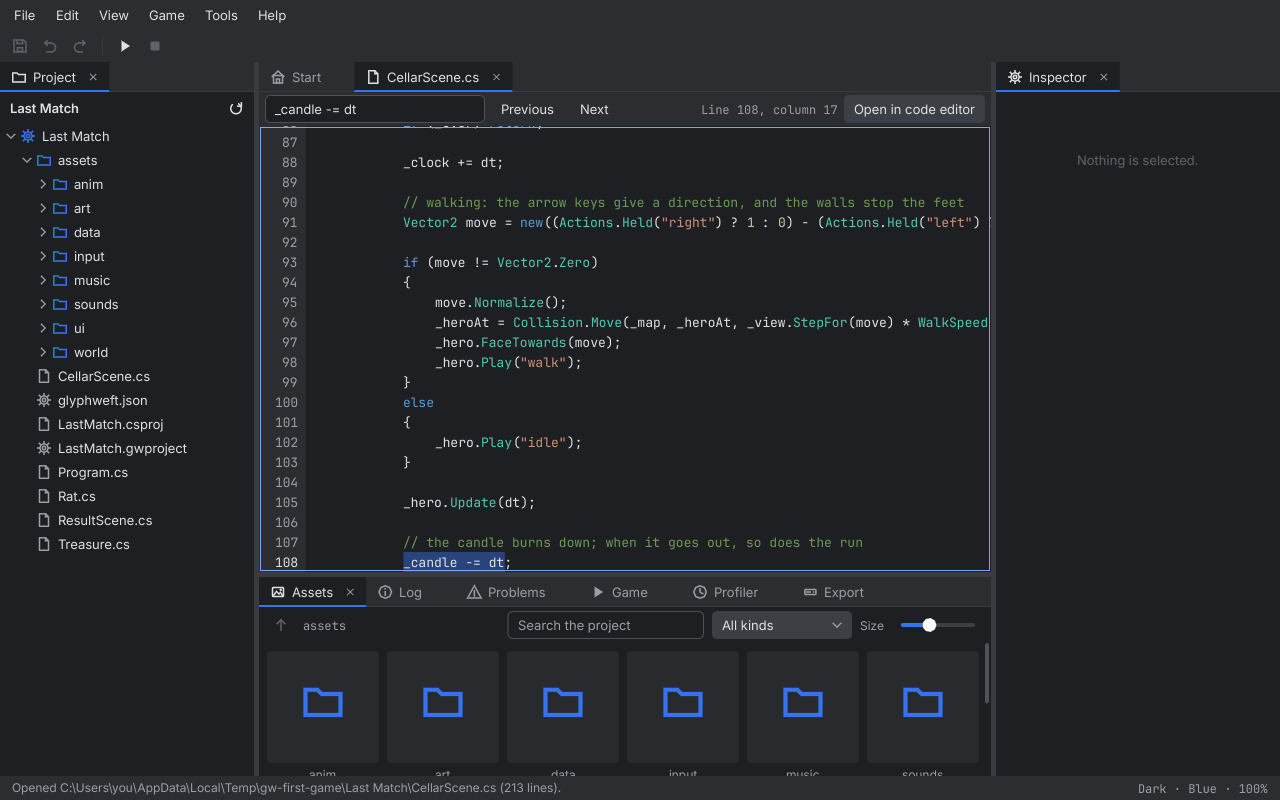
What the code does, in short:
- The constructor runs once, when the cellar opens. It loads the world you painted, reads the treasure table, and goes through the objects you placed: each one named after a table row becomes a pickup worth that row's value, the match becomes a pickup that adds time, and the stairs mark the way out.
- Update runs every frame (60 times a second). It moves the hero by the keys held (
Collision.Movestops the feet at walls), burns the candle down by the time since the last frame (dt), picks up anything the hero stands on, moves the rat and lets it bite, and ends the run on the stairs or when the candle is out. - Draw also runs every frame. It draws the ground, then the things, the rat and the hero from the back to the front, then darkens everything outside the candle's light, then the HUD on top.
- The names in quotes are the names you gave things in Studio:
"treasure"the table,"match"and"stairs"the object types,"rat"the spawn point,"walk"and"idle"the clips,"pickup"and the rest the sounds, and"treasure","candle"and"seconds"the HUD's values. If one doesn't match, the log says so.
12. Play it#
Press Play (F5). Studio builds the game; if the code has a mistake, the build stops, the Problems panel lists it with its file and line, and a double-click takes you there. Fix it and press Play again.
In the game: Play on the title, and you are on the stairs in the dark, the candle lighting a circle round you. Walk with the arrow keys. Walk over coins and goblets to pick them up; the HUD counts them. Watch the candle bar. Go back to the stairs before it runs out, and the result screen says what you carried out. If the candle goes out first, everything you carried is lost.
Things to check if something is wrong:
- The hero walks through walls. The
walltile type isn't ticked Solid, or the world's default tile isn'twall. - Nothing to pick up. The object types must be named exactly
coin,gobletandcrown, the same as the table's rows. - No sound. The sound names must match the code (
pickup,match,squeak,escape,out), andOnLoadmust loadsounds/game.gwsounds. - The log (the Log panel, or F12 in the game) says what went wrong, such as a sound or animation that isn't there.
13. Make it yours#
The game is yours to change now. Keep it running while you work: Studio sends each change you save to the running game, so you can try things without starting over.
- Tune it. The numbers at the top of
CellarScene.csset how it feels: a shorterCandleSecondsmakes it tense, a slowerWalkSpeedmakes every detour costly, a biggerRatBitemakes the rat a real danger. Change the treasure's values in the table; move the crown further away in the world. - Redraw. Open any picture and improve it; the game shows the new one at once.
- Footsteps. In the hero's walk, give each frame where a foot lands the event
step, add a shortstepsound (noise, a quick decay), and inUpdateplay it:foreach (string e in _hero.Update(dt)) if (e == "step") Audio.Play("step", 0.4f);in place of_hero.Update(dt);. - More cellar. Paint more rooms, put treasure further in, add a second rat (a spawn point
rat2, and a secondRatin the code). - A best score. The engine's saves (chapter 14 of the Engine manual) can keep the best haul between runs.
14. Build the game#
When it plays the way you want, make it something you can give away.
- Open the Export panel (beside the Game panel at the bottom).
- Under Platforms, tick Windows (and Linux or macOS if you like). Leave Self-contained (runs without .NET) ticked, so whoever plays it doesn't need to install anything.
- Press Check to have Studio look the project over, then Export. It builds the game for each platform and lists the results with their size.
- Open folder shows the result:
export/win-x64in your project holdsLastMatch.exeand everything it needs. Zip the folder and send it to a friend.
Double-click LastMatch.exe: your game starts on its own, without Studio. You made a game.
Last updated 2026-10-25.