
Glyphweft Studio is the editor for making Glyphweft games. This manual explains every part of it: the window, projects and files, each editor and tool, playing and exporting, and walk-throughs for RuneGlyph and the starters. Every picture shows Studio editing RuneGlyph, the small game new projects can start from. How the engine itself works, what each file holds and how a game's C# uses it are in the Engine manual; file formats are specified in FILE_FORMATS.md.
New to Glyphweft? Make your first game takes you from an empty project to a finished game, Last Match, step by step: art, animations, a data table, a level, sounds, music, screens and the C#.
Contents: 1 Getting Studio, 2 The window, 3 Projects, 4 Assets and files, 5 Saving, undo and redo, 6 The game's code, 7 Playing and exporting, 8 The art editor, 9 The animation editor, 10 Models, 11 The world editor, 12 Data tables, 13 Effects, 14 Weather, 15 Sounds, 16 Music, 17 Screens, 18 Dialogue, 19 Quests, 20 Texts, 21 The game's settings and controls, 22 Walk-throughs, 23 Settings, logs and screenshots, 24 How Studio draws its interface.
1. Getting Studio#
Glyphweft Studio is the editor for making Glyphweft games: it makes and opens projects, draws glyph art and animations, builds models, paints worlds, edits game data, effects, weather, sounds, music, screens, dialogue and quests, and plays and exports the game, all drawn by the engine itself so what you see is what the game shows. Start it from an installed build (below), or build it from the repository and start it with (in the repository's folder):
dotnet run --project src\Glyphweft.Studio
Studio's builds#
A build of Studio runs on its own, with no repository and no .NET installed:
dotnet run --project tools\Glyphweft.Release -- dev
dev, rc or stable picks the kind of build. It goes to D:\Builds\Glyphweft Studio, into Development,
Release Candidate or Stable, in a folder named by its version: Glyphweft Studio 0.2.0-dev.1, then -dev.2 and
so on (a release candidate is 0.3.0-rc.1, a stable release just 0.3.0). The version comes from the repository
(<Version> in Directory.Build.props, 0.2.0-dev today); --version 0.3.0 builds another one, to try the release
candidate and stable kinds, --number 4 picks the number and --out folder another place. Each build carries the
engine in its engine folder (the runtime's source, the build targets, the game template and the icon tool), so New
project works and new games are built against that engine; making and playing games still needs the .NET 8 SDK. Each
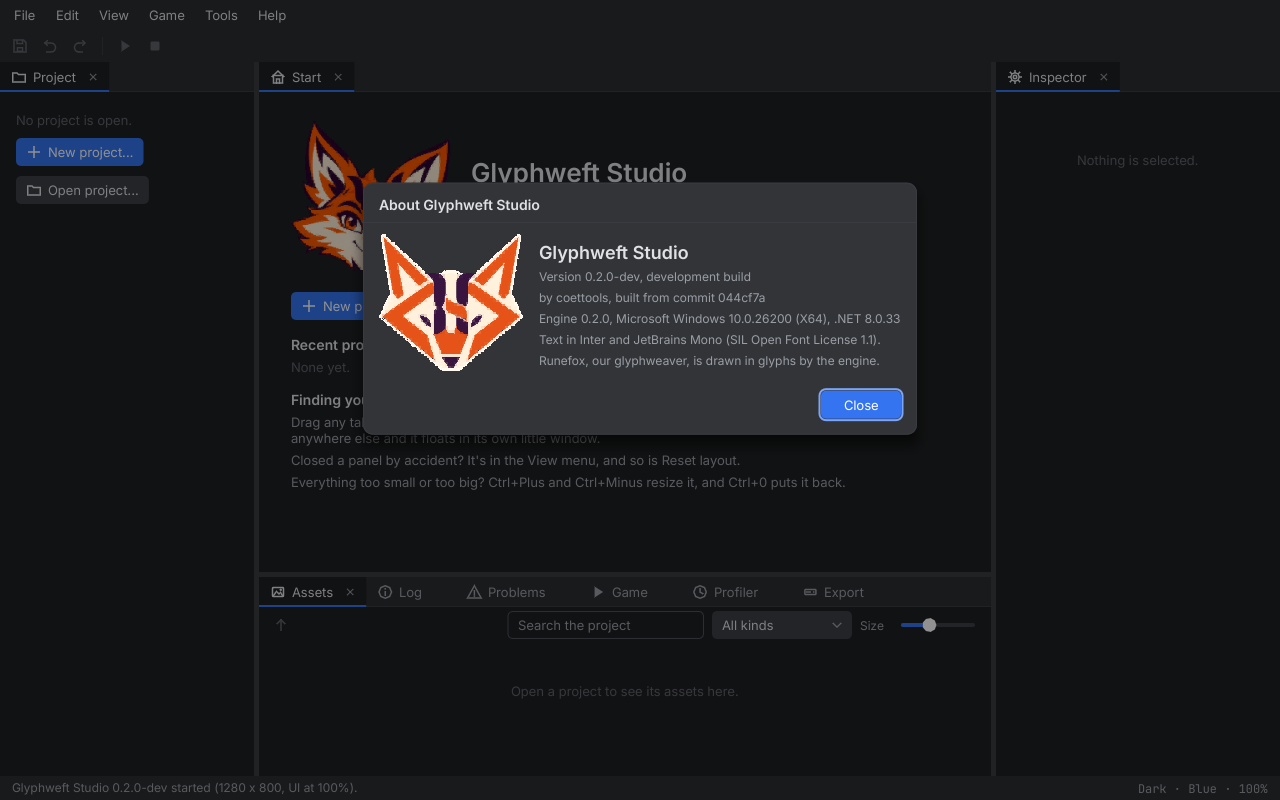
build also has SHA256SUMS.txt, a checksum for every file in it. Help, About shows the version, what kind of build
it is ("development build", "release candidate" or "stable release") and the commit it was built from.
Installing Studio#
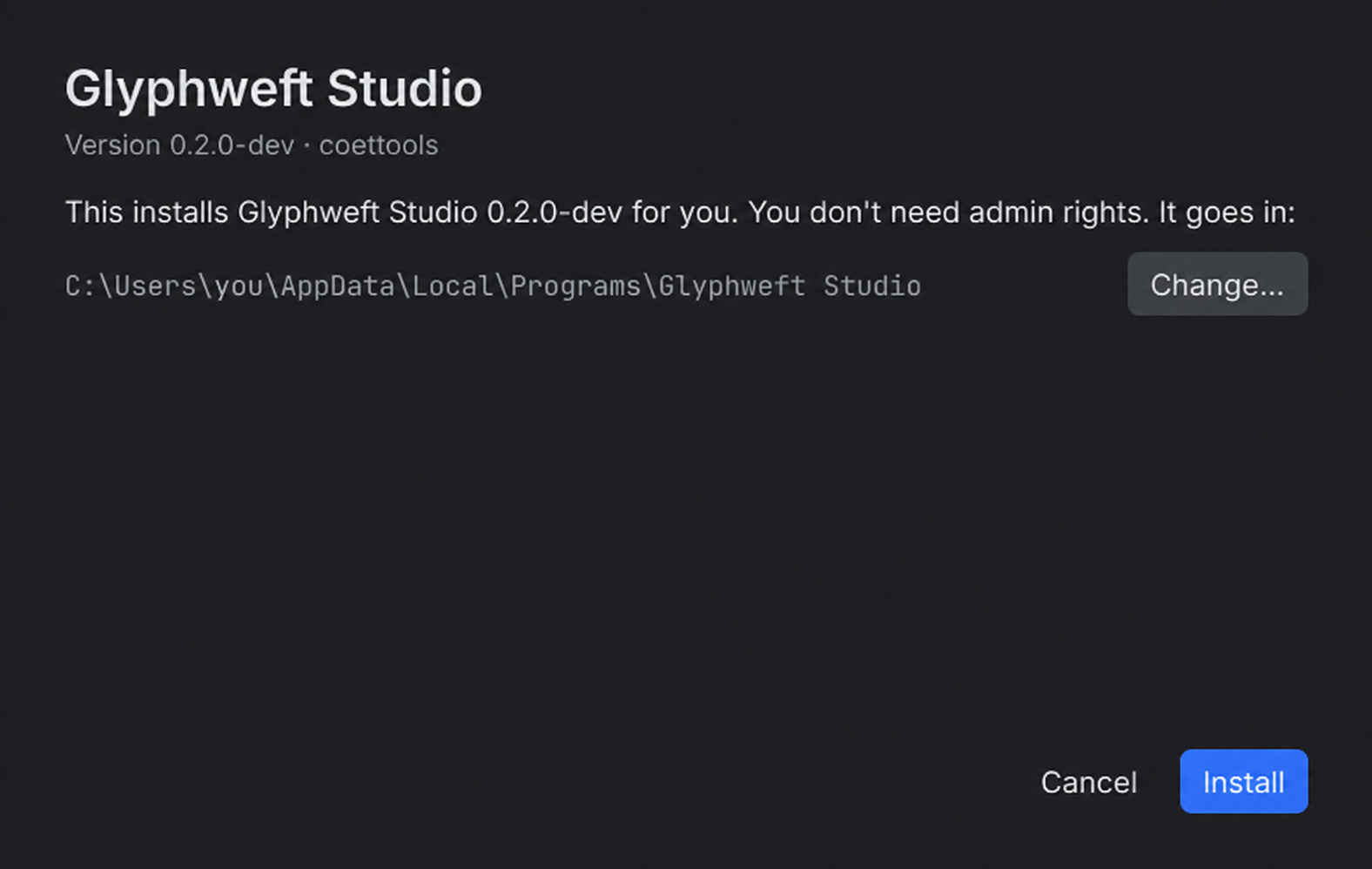
A stable build comes with its installer beside it, GlyphweftStudio-0.3.0-win-x64.exe, and a
.sha256 file with its checksum (--setup makes one for any build). Double-click it: the window says what it installs
and where, by default AppData\Local\Programs\Glyphweft Studio in your user folder, so no admin rights are needed.
Change... picks another folder, and Studio goes in a Glyphweft Studio folder inside the one you pick. Setup
won't install over a folder that has other files in it, and a folder that needs admin rights is refused with a
message. Install unpacks Studio, checks every file against its checksum, and only then puts it in place, so a
damaged download changes nothing. A newer version installs where the old one is and replaces it; your settings and
projects are kept, since they live in your own folders. Setup adds a Start menu shortcut and an entry in Windows'
installed apps, and ends with Launch Studio. When the .NET 8 SDK is missing, it says so: Studio opens without it,
but needs it to play and export games, and Get the .NET SDK opens Microsoft's download page. To remove Studio, use
Windows' installed apps list or run uninstall.exe in its folder: it removes Studio, its shortcut and its entry,
and leaves your settings and projects. If Studio is still open, nothing is removed and it asks you to close it first.
--quiet installs or removes without a window. If setup's window can't open at all, a Windows message box says why
instead of setup quietly closing. The installer isn't signed yet, so Windows SmartScreen may warn on
first run. A test makes a stable build with its setup, installs it into a test folder, has the installed Studio make
and build a new project from its own engine, and removes it again, checking that only the project is left.
2. The window#
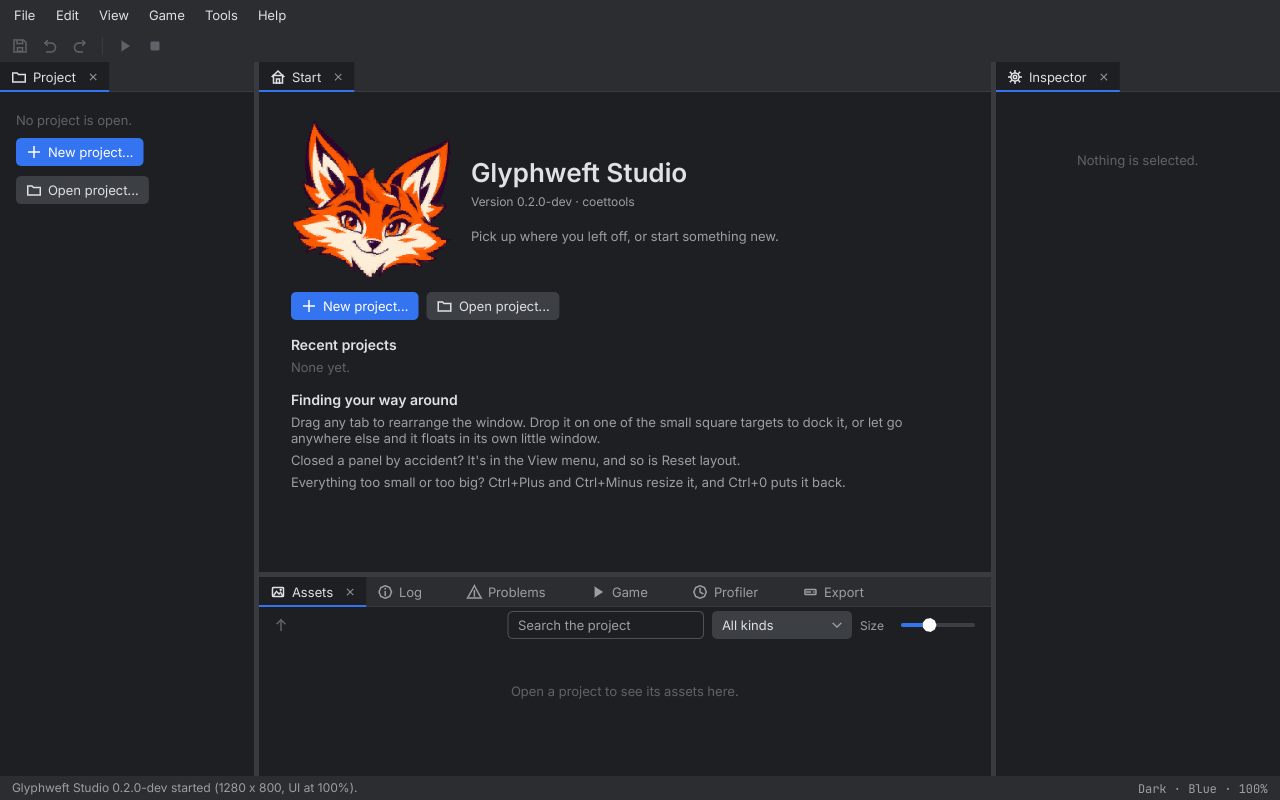
Studio always starts maximized. Its window has a menu bar, panels and a status bar:
- Project (left) shows the open project's files; Inspector (right) the properties of what is selected.
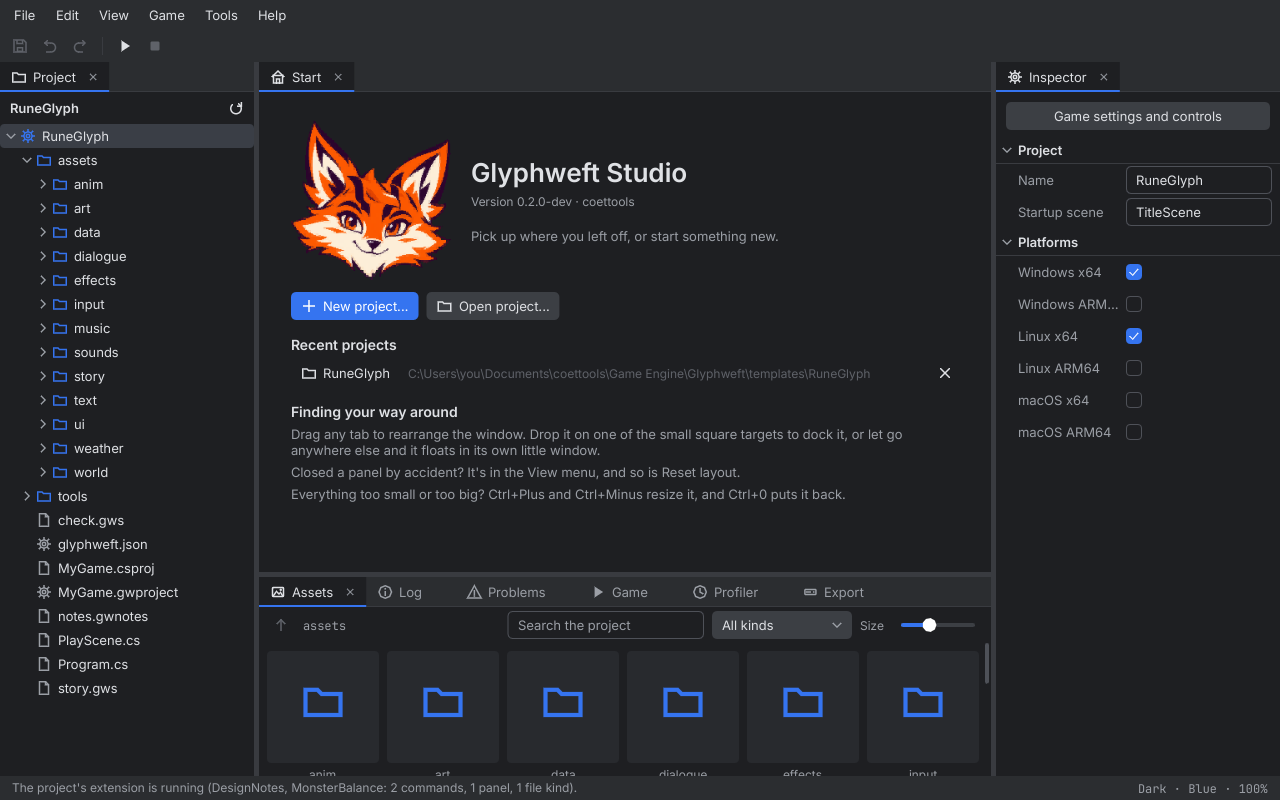
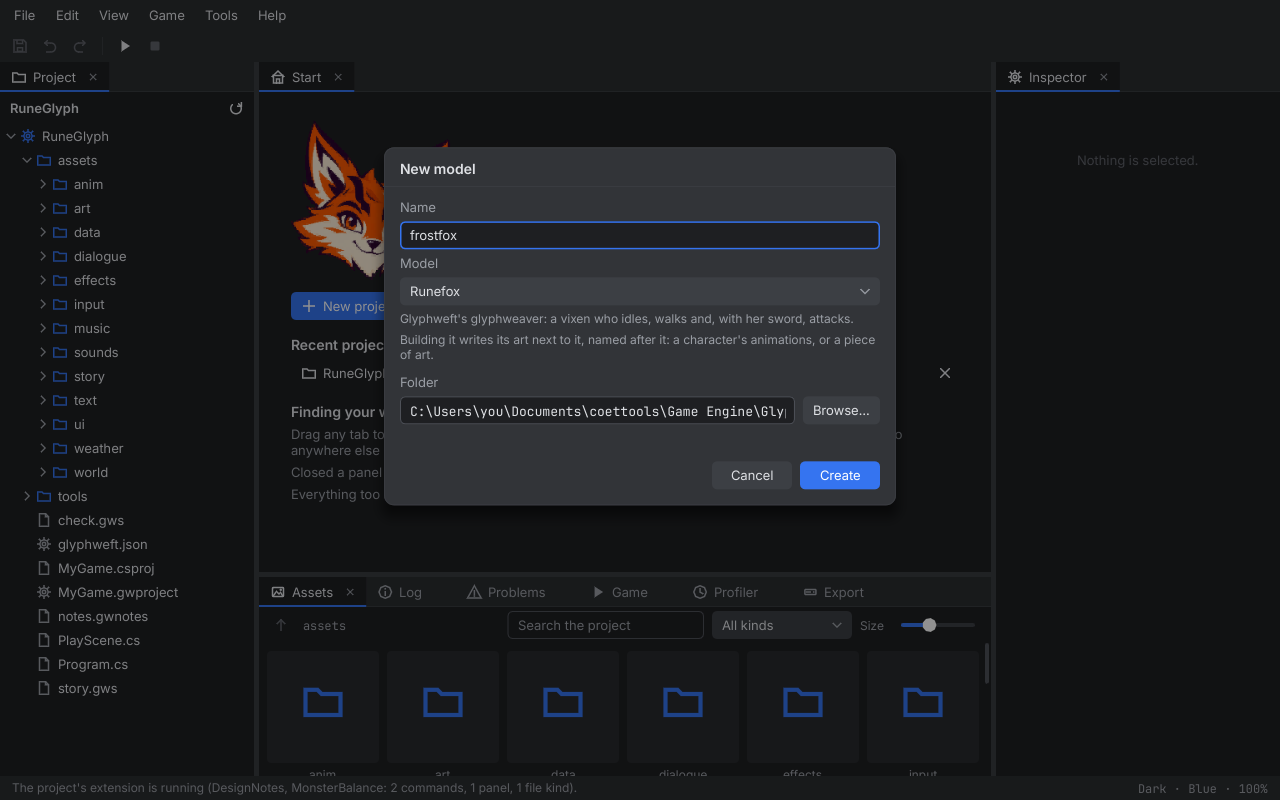
- Start (middle, where documents open) has Runefox, Glyphweft's glyphweaver, beside the title (her character head as glyph art, drawn by the engine), New project, Open project, your recent projects and a few tips for getting around the window. A recent project whose folder has gone says so in its row; clicking it explains and offers Find it... or Take it off the list. The × at the end of a row, or Take it off the list in its right-click menu (with Open and Show in Explorer), removes it from the list and leaves the folder alone.
- Assets (bottom, next to Log) shows the open project's assets as tiles.
- Log and Problems (bottom): the log shows what Studio does, newest at the bottom. Choose what it shows with Show (everything, info and above, warnings and errors, errors only), select lines and press Ctrl+C to copy them, and Clear empties it. Problems will list what is wrong in a project.
- Game, Profiler and Export (bottom, beside them): playing the game and its figures, how long each of its frames takes, and exporting it (all in chapter 7).
- The status bar shows the latest message on the left and the theme, accent and UI scale on the right.
Text that does not fit its space is never cut off mid-letter: sentences wrap, and names and paths that are too long end in "…" (hover for the whole thing where there is a tooltip).
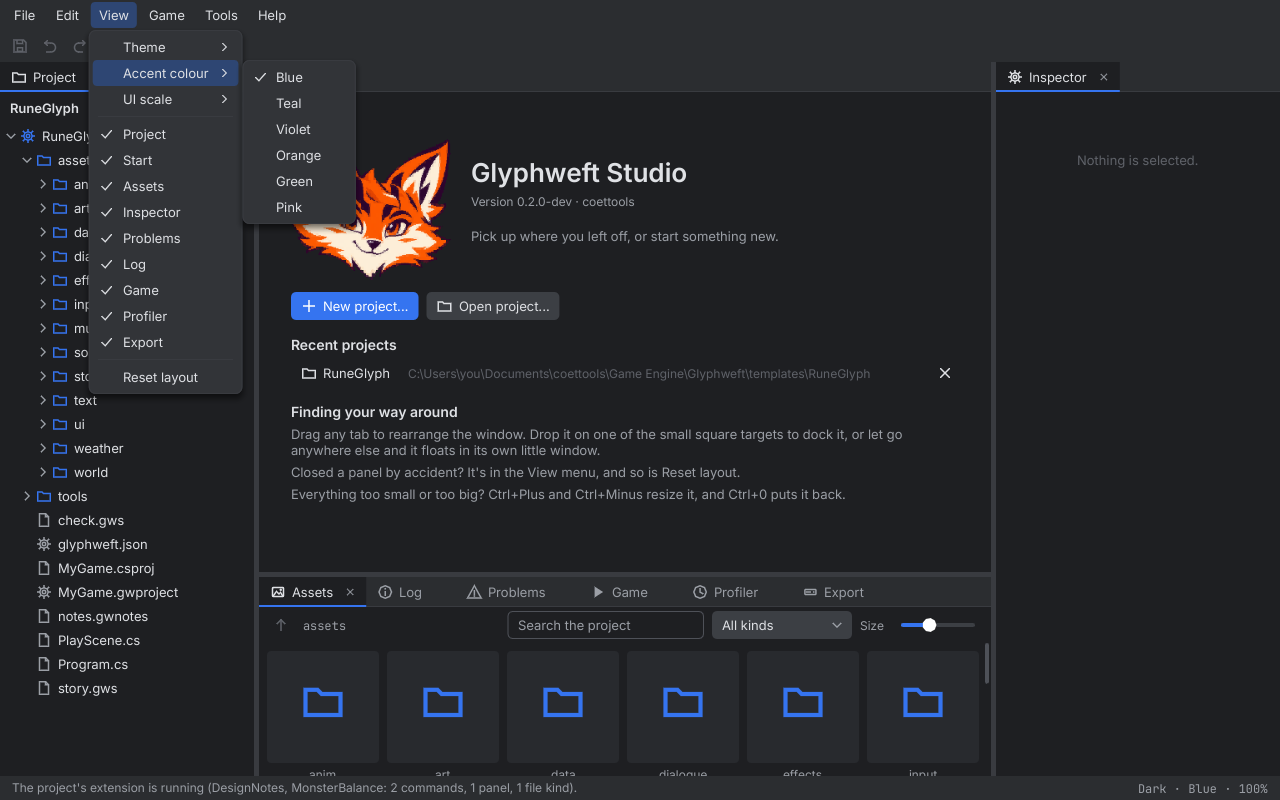
Panels move as you like: drag a tab onto another panel's tabs, onto a drop guide to dock it beside a panel or along an edge of the window, or anywhere else to float it; drag the handles between panels to resize them. The View menu sets the theme (dark, light or high contrast), the accent colour and the UI scale (75% to 200%; Ctrl+Plus, Ctrl+Minus and Ctrl+0 work anywhere), shows and hides each panel, and resets the layout. Help opens the Keyboard shortcuts tab (Ctrl+K) and the log folder, and shows the About box; Edit has Undo and Redo; Game has Play, Stop and Build; Tools has the project's own tools, from its Studio extension (see Studio extensions in chapter 6); File, Exit (or Alt+F4) closes Studio.
The keyboard#
Everything in Studio can be done without the mouse. Tab and Shift+Tab move from control to control, Enter or Space presses the one with the focus (its outline shows which), and the Menu key or Shift+F10 opens its right-click menu. F6 moves to the next panel (the Project panel, the document in front, the Inspector, the panels along the bottom) and Shift+F6 back; Ctrl+Tab brings the next open document to the front and Ctrl+Shift+Tab the one before; Alt on its own opens the menu bar, where the arrow keys, Enter and Esc work. In the art, world and screen editors the arrow keys move a keyboard cursor over the canvas (Shift: four cells at a time; the view follows it), and Enter uses the tool there, as a click would: the pencil paints that cell, the paint tool that tile. When something is chosen (a selection in the art editor, an object in the world, a widget on the screen) the arrows move it instead, as they always have. The fields of the table, dialogue, quest, sound, music, effects and weather editors, and the Inspector's, are all reached with Tab.
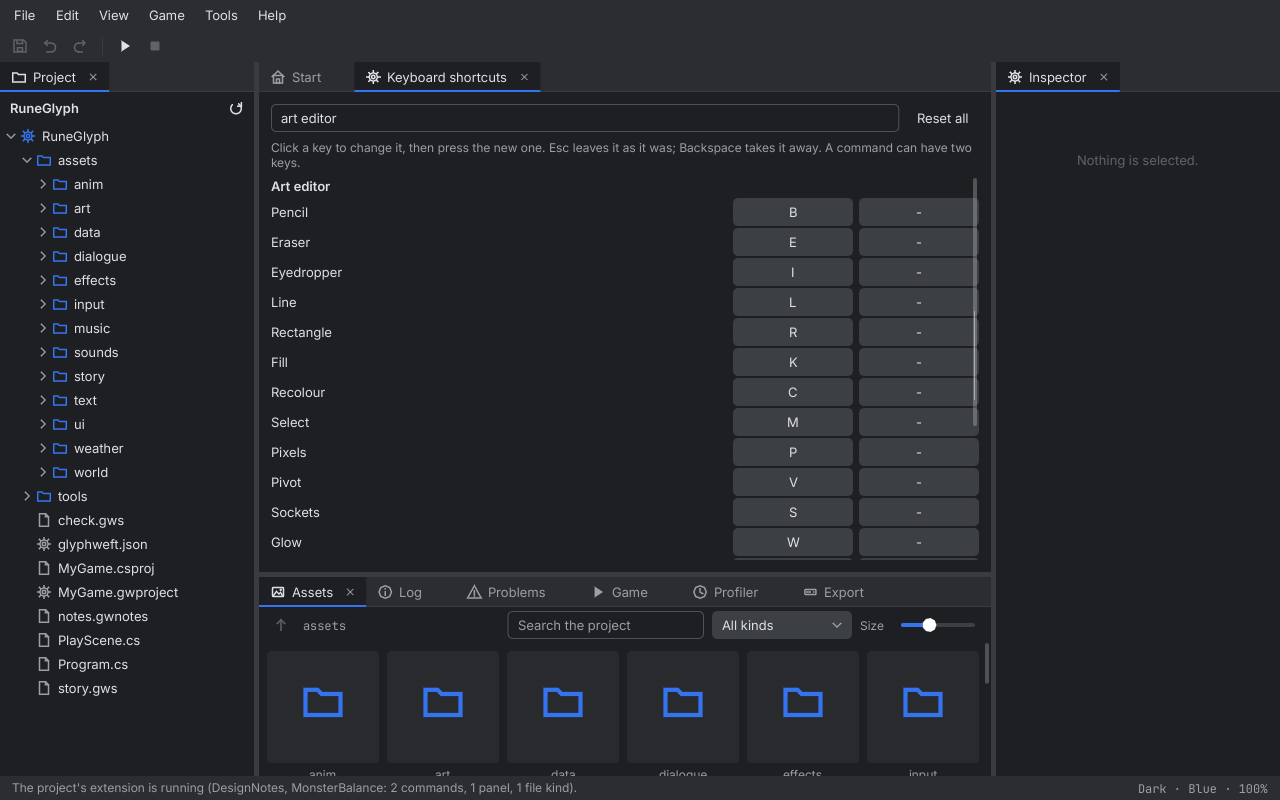
Help, Keyboard shortcuts (Ctrl+K) opens a tab with every command that has keys, grouped by where it works: Studio (everywhere), the Project and Assets panels, the canvas, and each editor. Type in the search field to find a command by what it does, its group or its key. To change a key, click it (or Tab to it and press Enter), then press the new one: Esc leaves it as it was, and Backspace takes the key away. Each command can have two keys. If another command that works in the same place already has the key, the tab says which, and Assign anyway gives it to the one you chose and takes it from the other (the same key in two different editors is fine: B is the art editor's pencil and the world editor's paint). Reset beside a command puts its usual keys back, and Reset all every command's. The menus, tooltips and toolbar show the keys you chose, and Studio keeps them in its settings. This manual names the usual keys. The arrow keys, Tab, Enter, Esc and the keys of text fields and the code editor always do what they do and aren't in the list.
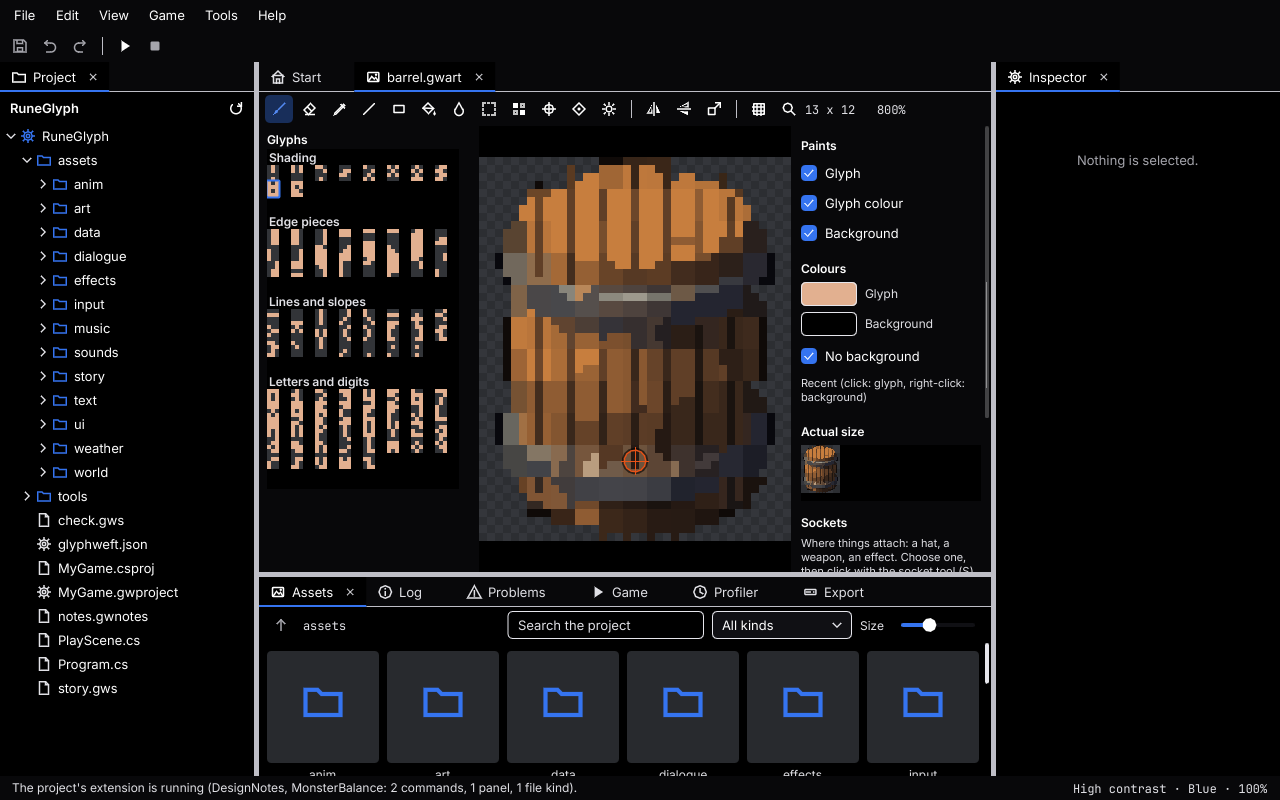
View, Theme, High contrast draws Studio with black backgrounds, white text, bright borders round every button, field and list, and a thick yellow outline round what has the focus. Every text and border is at least seven times brighter than what it is drawn on (the strictest contrast the web's accessibility guidelines ask for). The accent colour still marks what is chosen.
3. Projects#
A Studio project is one game: a folder with its .gwproject file, the game's C# project and its
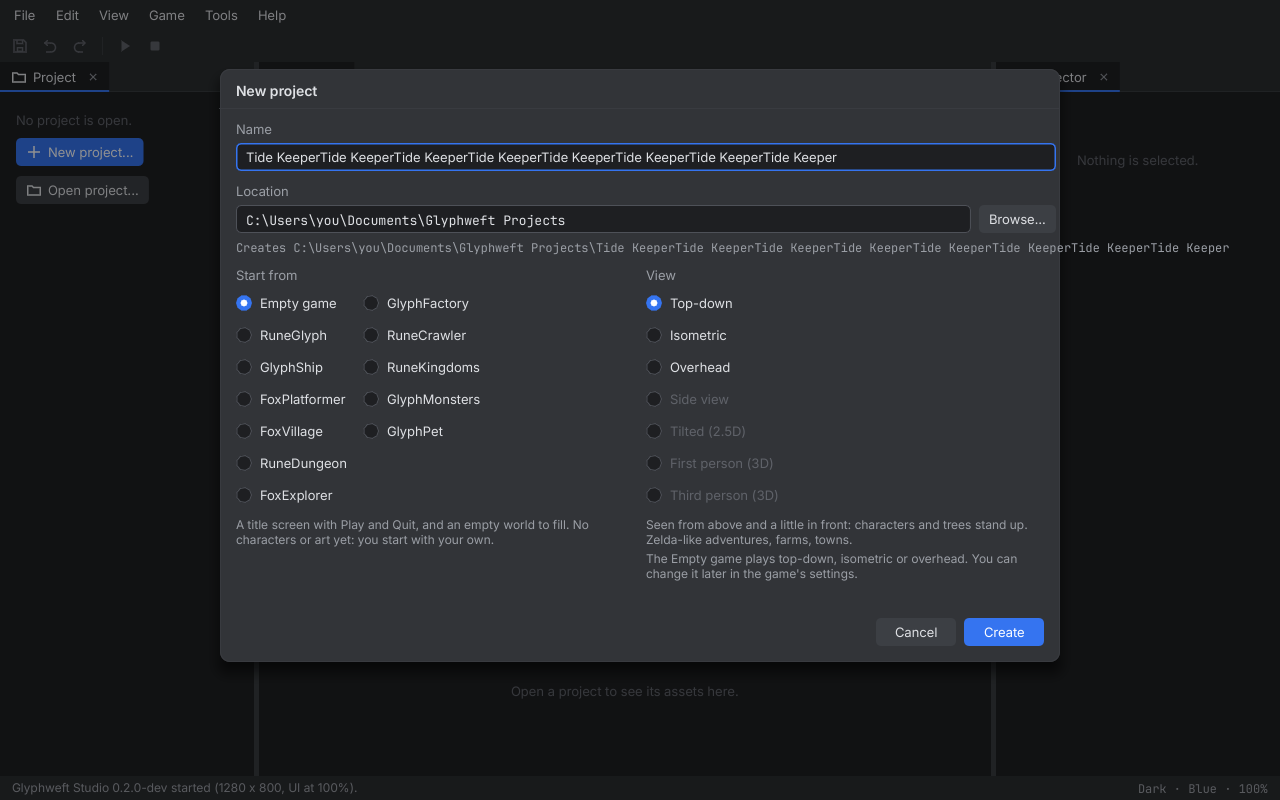
assets. File, New project (Ctrl+Shift+N) asks for a name, a location (by default
Documents\Glyphweft Projects) and what to start from; the one chosen says what it holds below the list:
- Empty game (chosen to begin with): a title screen with Play and Quit, and an empty world of plain floor. The arrow keys move the view and Esc goes back to the title. There are no characters and no art except that floor, so you start with your own.
- RuneGlyph: a small, complete game. Runefox walks a forest clearing to Elder Bram's hamlet, takes on his quest,
fights the skeleton in the west woods and brings the thread home, as night falls and the weather changes; it saves,
and every screenshot in these manuals comes from it (see RuneGlyph in the Engine
manual). Change it, or take it apart to see how a game is put together. It also has
check.gwsandstory.gws, input scripts that play the game by themselves and take a screenshot at each step; your game doesn't need them. - GlyphShip: a small ship in deep space, seen straight down. It turns, fires its engines and bounces off
tumbling rocks, and everything in it turns to any heading (see The GlyphShip starter). It
has its own
check.gwstoo. - FoxPlatformer: Runefox in a little platformer level seen from the side. She runs, jumps onto ledges and planks and drops through them, with hills and mountains behind (see The FoxPlatformer starter).
- FoxVillage: Runefox in a village seen tilted, in perspective. Houses stand up round a square with a well, the woods grow smaller into the distance, and she walks round and behind it all and swings her sword (see The FoxVillage starter).
- RuneDungeon: a dungeon seen through the hero's eyes. Stone rooms under a low ceiling, a skeleton guarding a key, and a locked door to open with it (see The RuneDungeon starter).
- FoxExplorer: Runefox seen from behind, exploring old ruins in the woods; she walks and swings her sword, and the camera follows her round the broken walls (see The FoxExplorer starter).
Beside those, in a second column, five kinds of game, each its playable core (see The kind-of-game starters):
- GlyphFactory: a factory to build on open land; drills dig ore, belts carry it, inserters feed the furnaces, and the plates go to the depot until you reach the goal.
- RuneCrawler: a dungeon crawl seen at an angle; click to walk and fight, throw fire bolts and drink potions on the way through the graveyard to the Bone Lord.
- RuneKingdoms: a turn-based war for an island; found cities, train settlers and soldiers, explore through the fog and take the Red Kingdom's cities.
- GlyphMonsters: choose a first wildling and meet wild ones in the tall grass; fight them in turn-based battles, catch them with orbs, and rest at the healer.
- GlyphPet: a pet to look after in its room, from an egg to one of three grown-ups.
It also asks for the game's view, the one chosen saying what it is for:
- Top-down (chosen to begin with): seen from above and a little in front, so characters and trees stand up. For adventures, farms and towns.
- Isometric: diamond tiles seen from a corner. For action RPGs, strategy and city builders.
- Overhead: straight down. Ships, cars and creatures turn to any heading, with no front or back. For space shooters, racers and arenas.
- Side view: from the side, with gravity: running, jumping, ledges and platforms, hills behind. For platformers.
- Tilted (2.5D): a camera leaning toward the ground, which narrows into the distance; walls stand up and nearer things are larger. For adventures and towns with depth.
- First person (3D): through the hero's eyes, with walls all round, and a ceiling or the sky above. For dungeon crawls and shooters.
- Third person (3D): the same 3D world, seen from behind the hero, who is always on the screen. For exploring and action adventures.
Each starting point lets you choose the views it plays in, and the dialog says which: the empty game plays in all
three of the first views, RuneGlyph top-down or isometric (Runefox faces eight directions, not headings),
the GlyphShip starter overhead, the FoxPlatformer starter from the side, the FoxVillage starter tilted, RuneDungeon in
the first person and FoxExplorer in the third; RuneCrawler plays isometric, and the other kinds of game top-down. The choice is kept as "view" in the game's glyphweft.json; change it later in the game's
settings (open glyphweft.json). A world of the project opens in the world editor in that view (a tilted one
tilted: see Tilted in chapter 11, and Tilted view in chapter 8 of the Engine manual; a 3D one flat with
a 3D preview beside it: see 3D in chapter 11).
It makes a new folder named after the project from the one you pick: Tide Keeper becomes TideKeeper.gwproject and TideKeeper.csproj with the namespace TideKeeper, and the window title "Tide Keeper". The
new game points at the engine Studio was built from (the GlyphweftEngine property in its .csproj), and builds and
runs on its own. Open project (Ctrl+Shift+O) opens a .gwproject file; Open recent lists the last ten
(so does the start page); Close project closes it and its documents.
The Project panel then shows the project and its files: the asset folders, the project's own other folders (a
scripts folder for code, say; not the build's bin, obj and export, or hidden folders) and the game's own files
(a .gwart's .gwcolors goes with it, so only the .gwart is listed). Double-click a .gwart to view it; the circling arrow
reads the files again. Select the project (the top line) to edit its settings in the Inspector: its name, the
startup scene and the platforms it exports to. The Problems panel lists what is wrong with the project and its assets
(missing files, broken references), each with its file; its tab shows how many.
4. Assets and files#
The Assets panel#
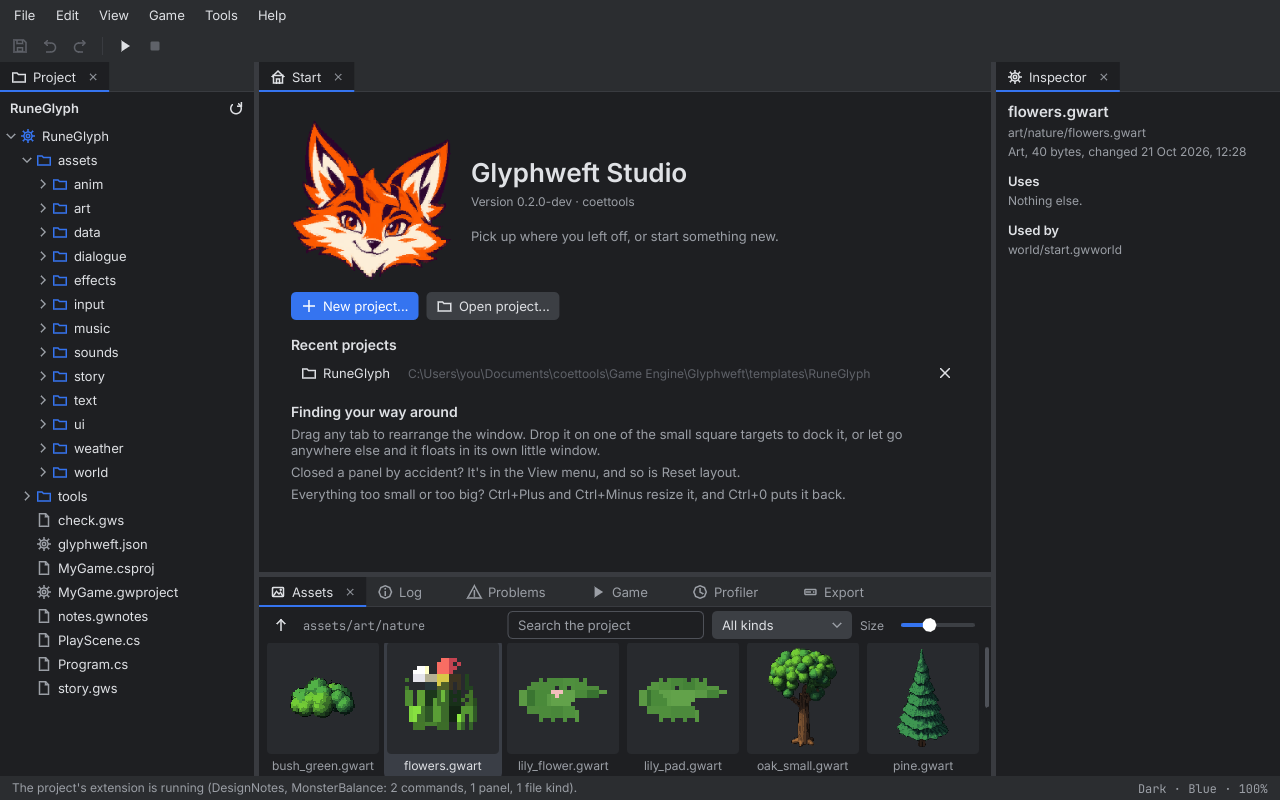
The Assets panel shows one folder at a time. Glyph art shows as a thumbnail the engine draws, exactly as the game would, and an animation shows its first frame; other files show what kind they are. A small warning mark means the asset has problems. Double-click a folder (or press Enter) to go in, and use the up arrow or Backspace to come back out. Double-click art to open it in the art editor. Type in the search box to look through the whole project, and pick a kind to see only, say, animations or data tables. The slider changes the size of the tiles. Click an asset to see its details in the Inspector: its path and size, what it uses, what uses it, and anything wrong with it. Choosing a folder in the Project panel opens it here too.
Right-click menus#
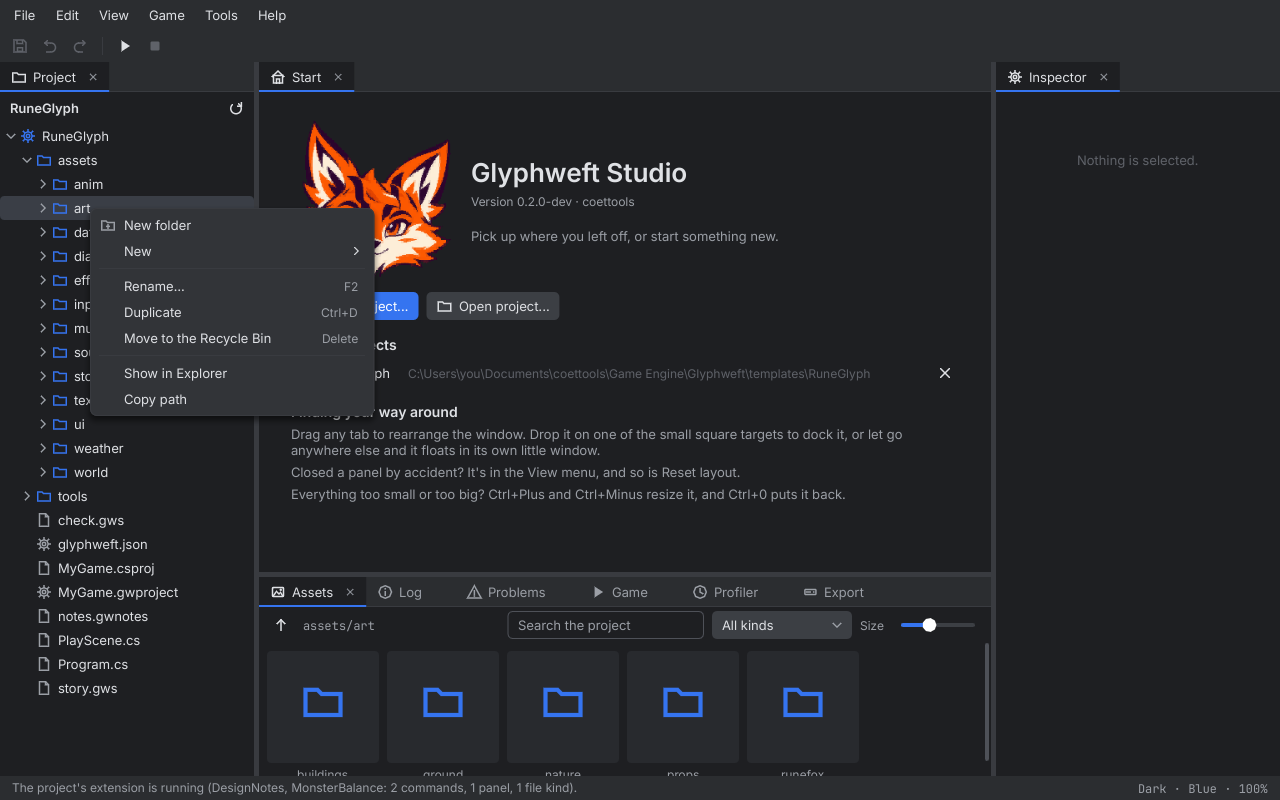
Right-click a file or folder in the Project or Assets panel (or press Shift+F10 or the Menu key on the selected one) for what can be done to it:
- On a folder: New folder (it asks for the name straight away), and New glyph art, animation, model, world, sounds or music in that folder.
- On a file: Open, which uses its editor. Text Studio has no editor for (a
.gwmap,.json,.xmlor.csv) opens in the code editor, and anything else (a picture, a sound) opens in its usual program. Double-clicking does the same. Open in its usual program is there too. - On both: Rename... (F2), Duplicate (Ctrl+D), Move to the Recycle Bin (Delete), Show in Explorer and Copy path. In the Assets panel, a right click on empty space is for the folder shown.
Renaming glyph art renames its .gwcolors file with it, and duplicating or deleting it takes both. A copy goes beside
the original as floor copy.gwart (then floor copy 2.gwart).
Rename everywhere#
When other files use what you rename (a world that uses the art as a tile, say), the rename dialog names them and has Change them to the new name too, ticked to begin with: the files are changed to name the new place, each written the way it was (an asset path stays an asset path, and an animation's frames are still written from the animation's folder). Untick it to leave them alone; the Problems panel then lists them until you change them. C# code that names an asset in a string isn't changed. A delete names the files that use it too.
Moving by dragging#
Drag a file or folder in the Project panel onto a folder (or onto a file in it) to move it there; the row it would go onto is outlined. In the Assets panel, drag a tile onto a folder tile, or onto a folder in the Project panel. Files that use it are changed as for a rename. A folder can't go inside itself.
A file that is open is closed and, after a rename or move, opened again at its new place; one with unsaved changes stops it until you save or close it (and so does a file that uses it with unsaved changes of its own). The project's own folder and its asset folders can't be renamed, moved, copied or deleted from here, since the project file names them.
Undoing file changes#
Renames, moves, new folders, copies and deletes are steps of their own history. With the Project or Assets panel in use, Edit, Undo (Ctrl+Z) and Redo (Ctrl+Y) take them back and make them again: undoing a rename or move changes the files that use it back too, undoing a delete puts it back from the Recycle Bin, undoing a copy takes the copy away (deleted when it is still just like the original, else to the Recycle Bin), and undoing a new folder removes it while it is still empty. When a document is in use instead, the Edit menu still has Undo the file change and Redo the file change, naming the step. If a step can't be taken back (the Recycle Bin was emptied, say, or something else now has the name), Studio says why.
Right-click a document's tab for Save (just that one), Close (Ctrl+W), Close the others, Close all, Show in the Project panel, Show in Explorer and Copy path; a panel's tab has Close.
Right-click a line in the Log to copy it (or everything shown), open the asset it names, clear the log, or open the folder of the log files. Right-click a problem in Problems to open what it is about, copy it, or copy every problem.
5. Saving, undo and redo#
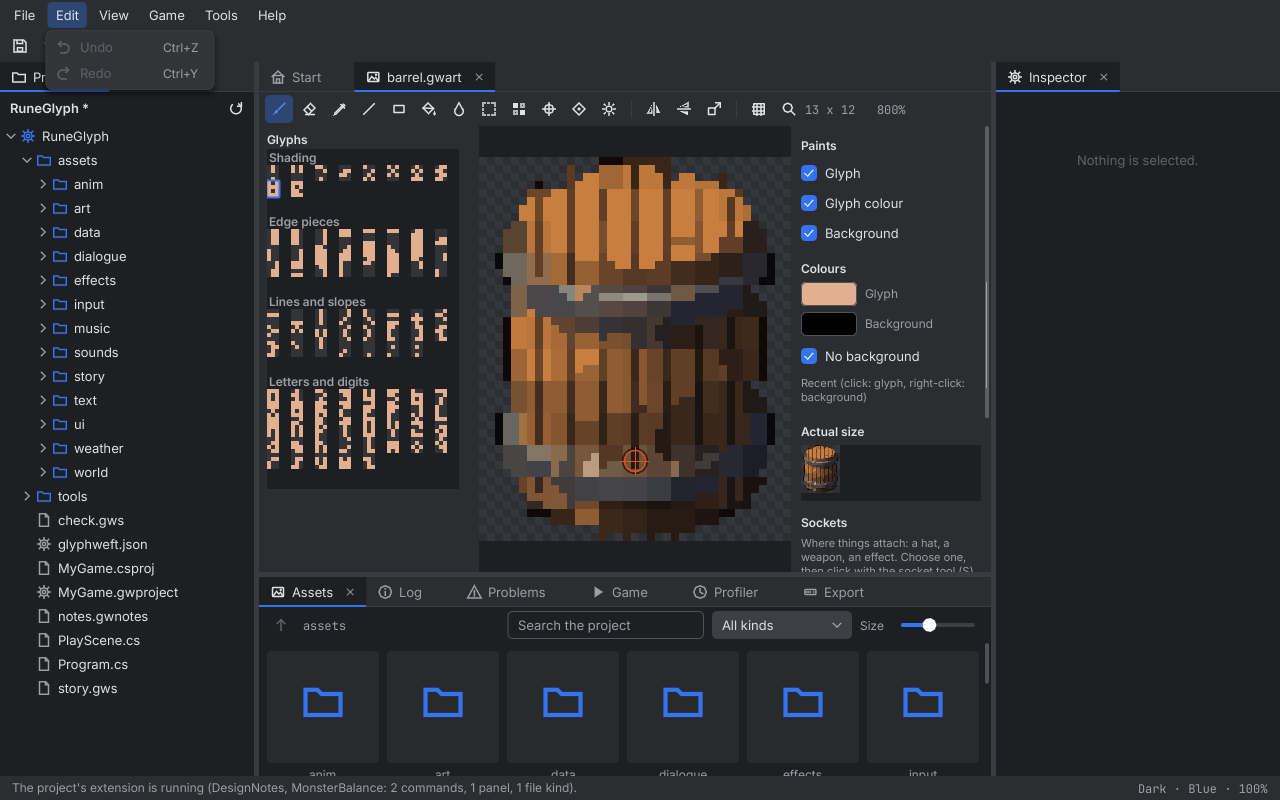
Changes are kept until you save: the window title and the Project panel show *, and File, Save all (Ctrl+S)
writes everything. Other open editors show what you saved straight away: a world shows a tile's art saved in the
art editor, and so does a screen that uses it. They also pick up files changed outside Studio, within half a second.
A document whose own file changes outside Studio (in another editor, or a git pull) is read again, if you have no
changes in it; if you have, it is left as it is, and the Log says that saving it replaces the other version.
Edit, Undo (Ctrl+Z) takes back the last change and Redo (Ctrl+Y or Ctrl+Shift+Z) makes it
again; the menu names the step ("Undo Change the startup scene"). Typing in one field is one step, and every editor
will undo the same way (a stroke of the brush, however long, is one step). Undoing back to what was saved makes the
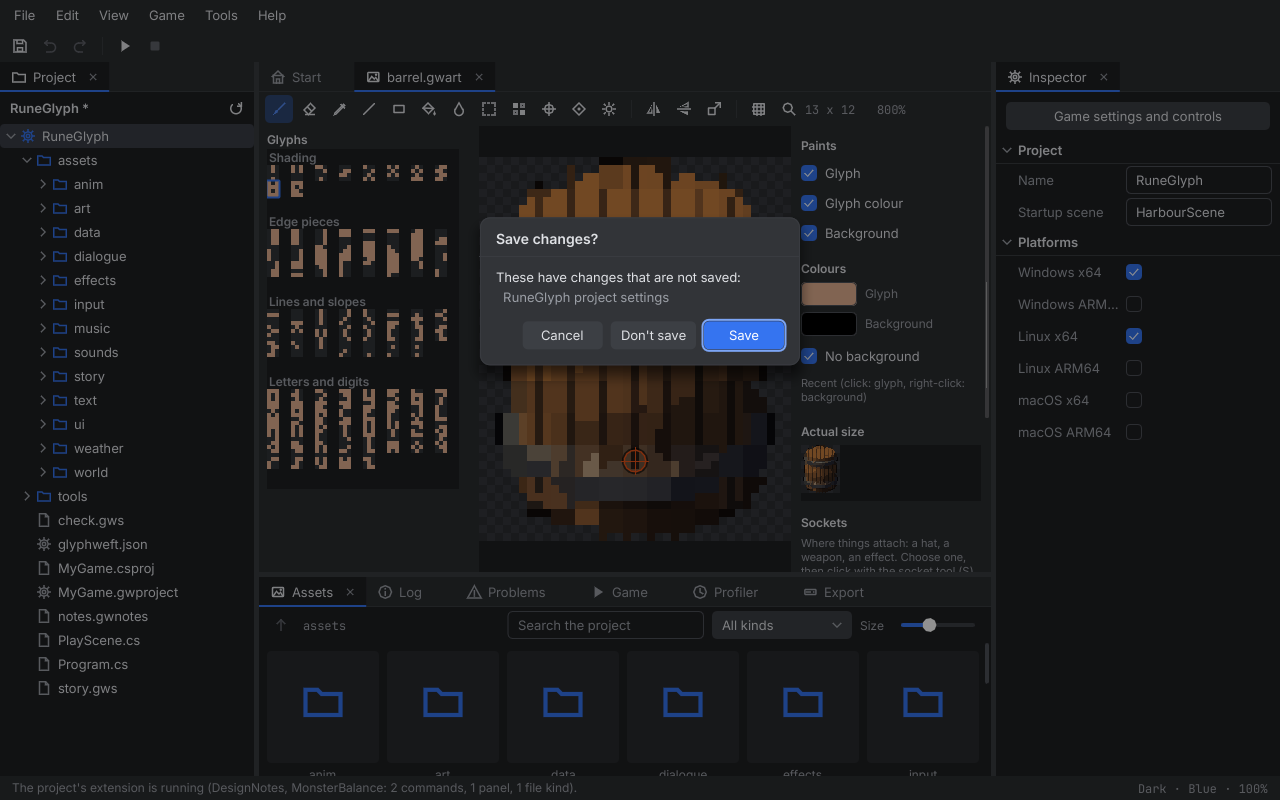
project unchanged again. In a text field that has the focus, Ctrl+Z undoes typing in that field first. Closing the project, opening another or quitting with unsaved changes asks first: Save saves
and goes on, Don't save goes on without saving, Cancel (or Esc) stays.
6. The game's code#
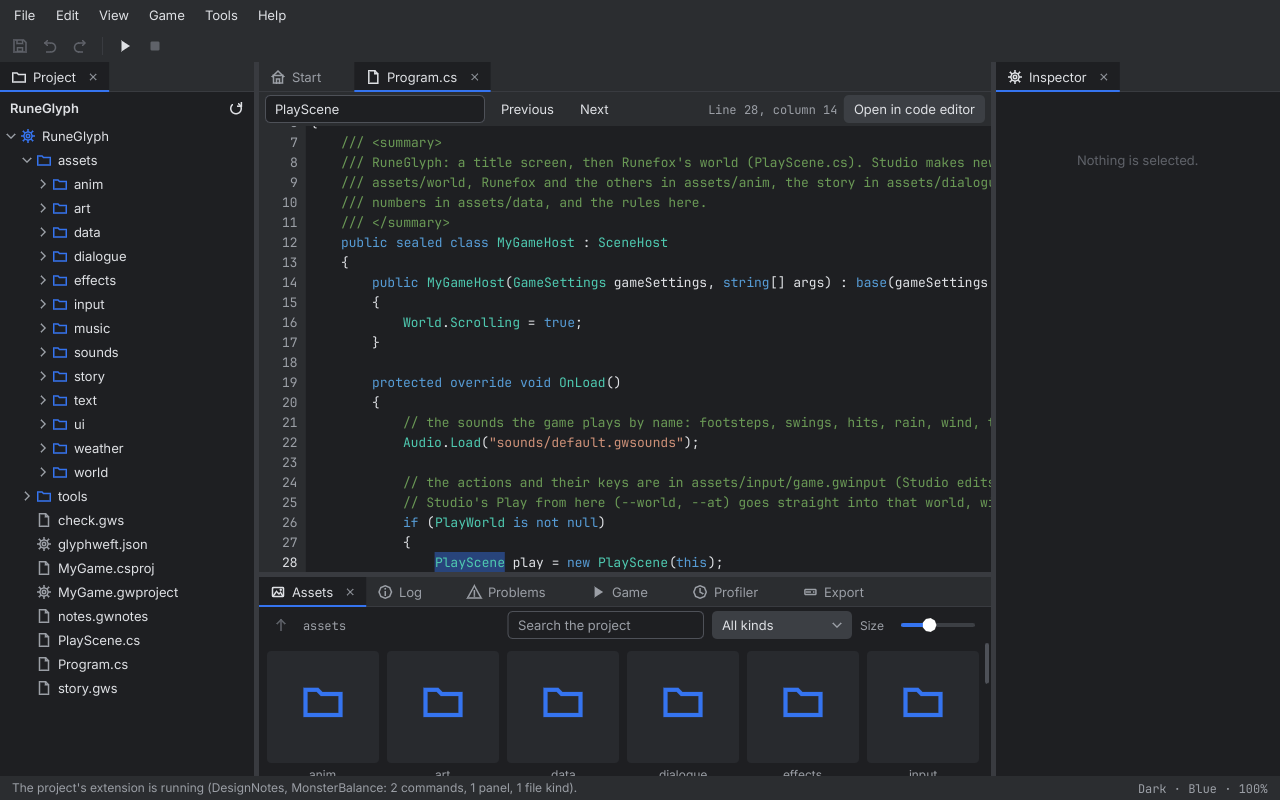
Double-click Program.cs (or any .cs file, the .csproj, an input script, a .md or .txt)
in the Project panel to open it in Studio's code editor: line numbers, C# in colour, and the line and column of the
caret above it. Type as in any editor. Arrows, Home and End move (Ctrl moves by word, or to the start or end of the
file); Shift selects; Enter keeps the line's indent, and adds a step after a line ending in {. Tab indents (with
lines selected, all of them; Shift+Tab takes a step off). Ctrl+C, Ctrl+X and Ctrl+V copy, cut and paste; with nothing
selected they take the whole line. Ctrl+A selects everything, and a double click selects a word. A click in the line
numbers selects that line. Ctrl+F goes to the find field; Enter or F3 finds the next match, Shift+F3 the one
before, and Esc goes back to the code. Ctrl+Z undoes a word of typing, a run of deleting, or a paste at a time. Ctrl+S
saves, keeping the file's own line endings and byte order mark.
Open in code editor opens the file in the editor Windows uses for it: VS Code, Visual Studio or Rider, with IntelliSense and debugging that Studio doesn't have. Without one set, it uses VS Code if it's installed (at the line you are on), else Notepad. Work in both if you like: when the file changes in the other editor, Studio shows the new version straight away. If you have changes in Studio too, it keeps them and says that saving replaces the other version.
After a build (Play, or Game, Build), errors and warnings are marked in the code: the line number turns red (or yellow for a warning) with a dot beside it, and a wavy line runs under the code. Rest the mouse on the line to read the error. Double-click a build error in the Problems panel to open the file at its line and column; double-click an asset's problem to open that asset.
To add code, right-click a folder outside the asset folders (the project itself, say) and choose New C#:
- Class... makes an empty class.
- Scene... makes a scene with its
UpdateandDraw. A scene is part of the game, such as a level, a map or a menu; start it withScenes.Push(new Cave(this))from the host.
Both use the game's namespace, and the new file opens in the code editor.
Studio extensions: the project's own tools#
A project can add to Studio with its own C#: put .cs files in its tools/studio folder. Studio builds them into a
small library when the project opens (with dotnet build, in the background, so the project opens straight away) and
runs them. An extension can add commands to the Tools menu, panels docked beside the Inspector, and file kinds of
its own that open in its own editor tab. The game never sees this folder: it isn't built into the game or exported.
An extension's C# runs on your computer like any program, so Studio asks before it runs one: Run it or Don't run it, once for each project, and it remembers. Projects you make with New project, and the starters that come with Studio, run without asking. Tools, Stop running the extension and Run this project's extension change your answer later.
When you save a change to the extension's C# (in Studio's code editor or another one), Studio builds it again within a
second and swaps it in; its panels come back where they were. When the build fails, nothing of the extension runs and
the Problems panel lists each error with its file and line (tools/studio/MonsterBalance.cs:51: CS0103: ...); the
project stays open, and the next save tries again. Tools, Build the extension again builds it on request. An
extension that throws as it starts is reported the same way; a command that throws is said in the log and Studio
carries on.
An extension is a public class deriving from StudioExtension; Studio makes one and calls its Start. Everything it
can reach is on IStudio:
| Member | What it does |
|---|---|
ProjectFolder, ProjectName, AssetFolders |
The open project. |
AddCommand(text, run) |
A command in the Tools menu. |
AddPanel(id, title, make) |
A panel, listed in the Tools menu (which shows and hides it); make builds its content once, from Studio's controls (Column, Label, Button, TextField, ListView and the rest). |
ShowPanel(id) |
Shows one of its panels. |
AddFileKind(".gwnotes", name, open) |
Files with that extension open in its editor: a class deriving from ExtensionDocument, which calls Changed() when there is something to save and writes the file in Write(). Save all saves it. |
Open(path) |
Opens a file in its editor, as a double-click would. |
Log(text), Say(text) |
A line in the log; a message in the status bar. |
Override Stop to let go of anything of your own; Studio takes away the commands, panels and file kinds itself. An
extension can use the engine's own classes too (read the game's tables, art or settings), and the .NET libraries;
other NuGet packages aren't available to it.
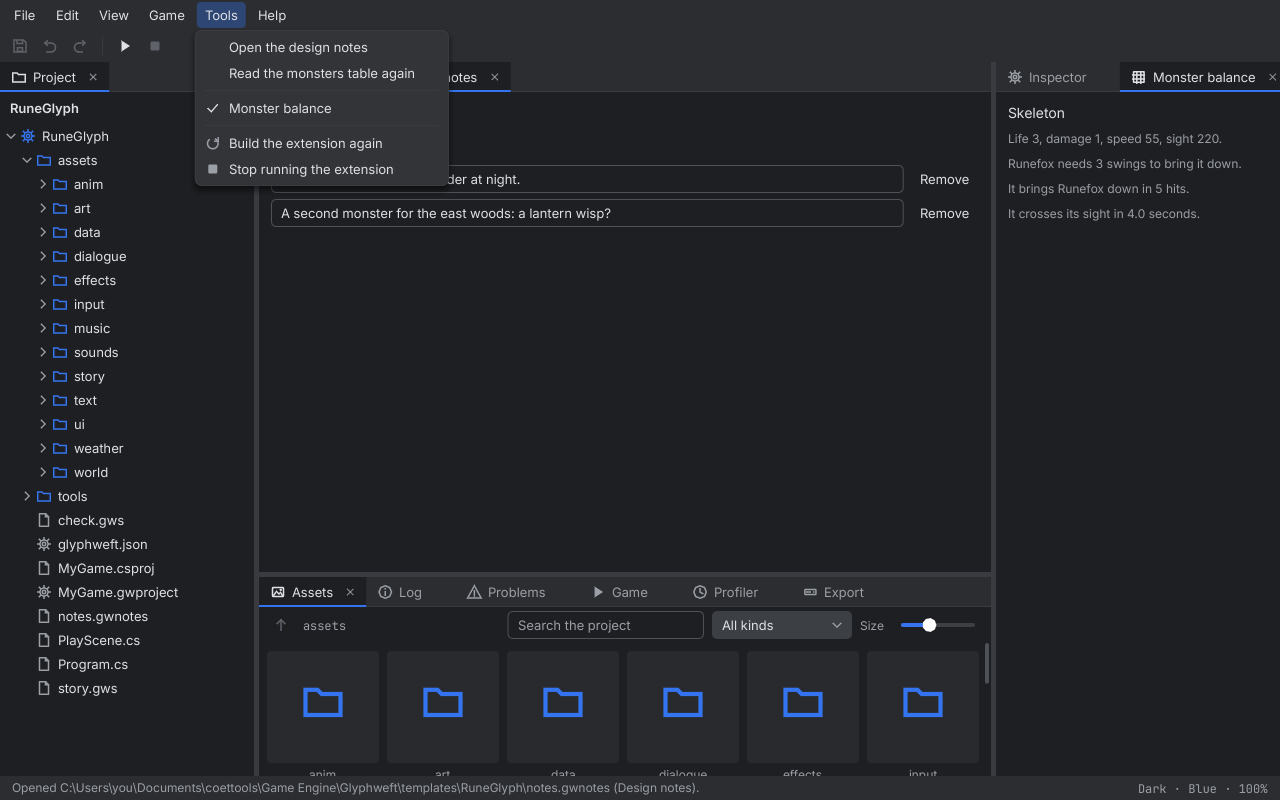
RuneGlyph's extension shows each part. tools/studio/MonsterBalance.cs adds a Monster balance panel: each monster
in data/monsters.gwtable with how many swings Runefox needs and how many hits bring her down, and a command that
reads the table again. tools/studio/DesignNotes.cs adds design notes (notes.gwnotes, a note a line) with an editor
of their own and Open the design notes.
public sealed class MonsterBalance : StudioExtension
{
	public override void Start(IStudio studio)
	{
		studio.AddPanel("balance", "Monster balance", () => new Label("Skeleton: 3 swings"));
		studio.AddCommand("Read the monsters table again", () => studio.ShowPanel("balance"));
	}
}
7. Playing and exporting#
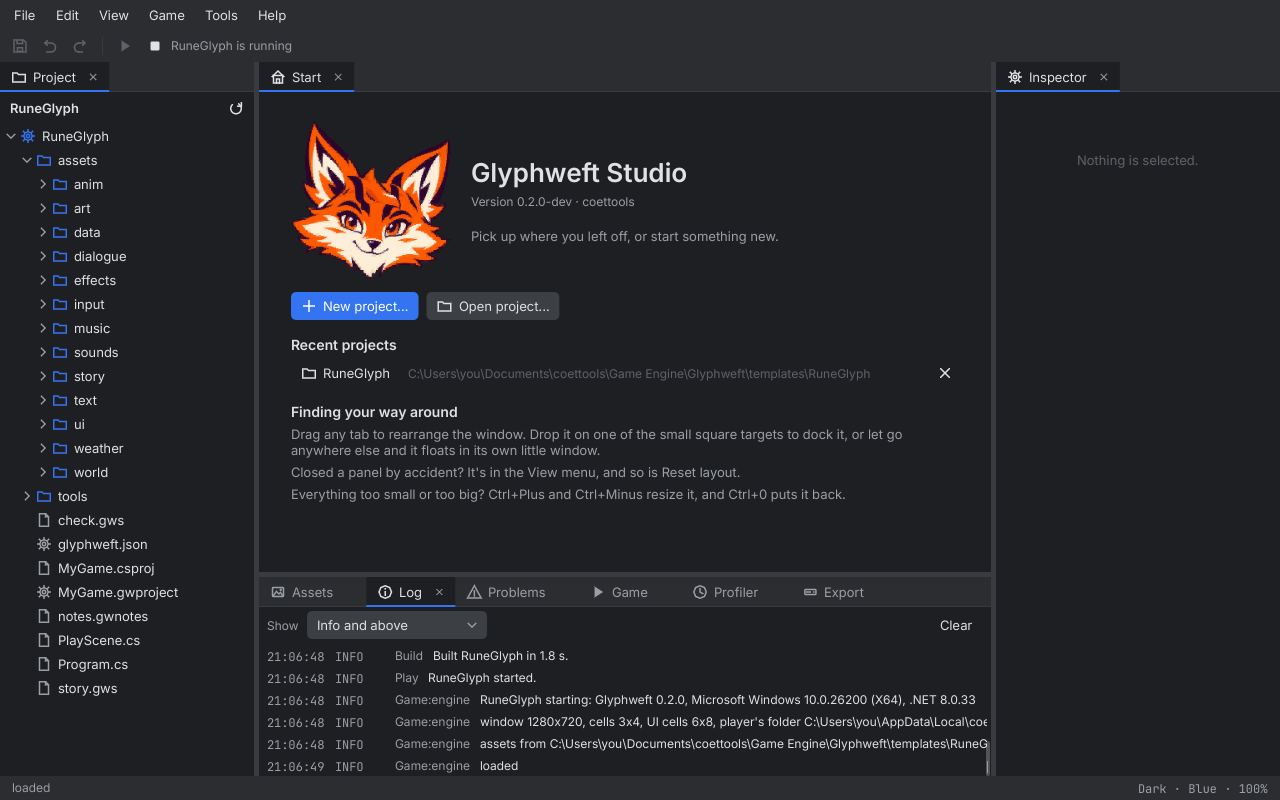
Play (F5, the triangle on the toolbar, or Game, Play) saves everything, builds the game and starts it in its own
window. The Log panel comes to the front: first the build (Building Tide Keeper..., then how long it took), then
everything the game logs, as it happens, marked Game: and the part of the game it came from. Stop (Shift+F5,
the square) ends the game, and closing Studio ends it too. Game, Play from here (Ctrl+F5, or the triangle in the
world editor's toolbar) starts the game in the world being edited, at the middle of the view: the game is given the
world and the spot (--world, --at), and one that plays that world skips its title and starts there. Game,
Restart (Ctrl+Shift+F5) stops the game and plays it again the way it was last started. Game, Build
(Ctrl+Shift+B) only builds. If the build fails, its errors go to the Problems panel with the file and line, and the
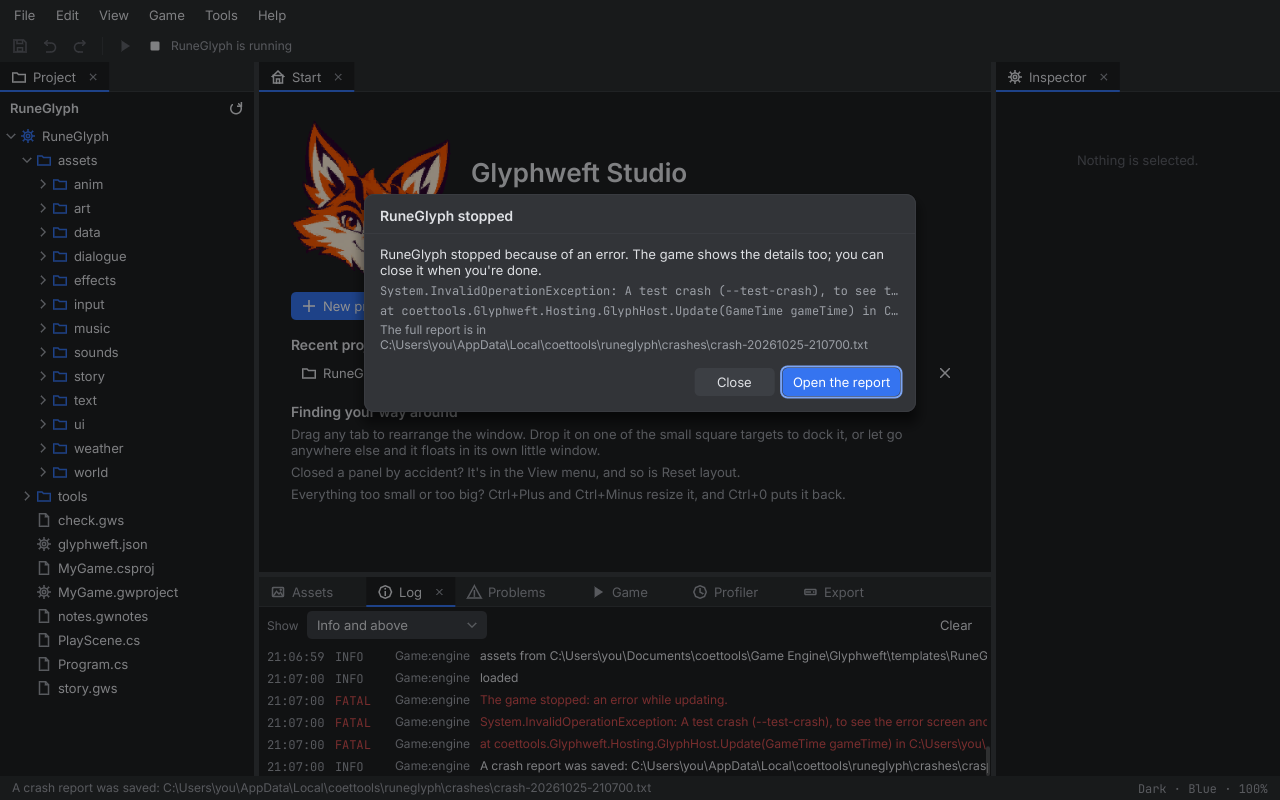
game does not start. If the game stops because of an error, it shows what went wrong in its own window, and Studio
shows the error too, with a button that opens the full crash report and, when the error names an asset (a table, a
world, some art), one that opens it. Its log lines are marked FATAL in the Log panel.
A log line that names an asset shows the name in the accent colour; double-click it (or press Enter on it) to open
the asset in its editor. The Game panel, beside the log, has Play, Restart and Stop, and while the game runs it
shows how the game is doing, once a second: frames a second, the frame time (and the worst of the last second), the
drawing time and the cells drawn, and below them what the scene in front reports (the objects drawn and the lights in
view, for example, from its Metrics). While it runs, Screenshot has the game save a screenshot and Record
clip has it start a GIF clip (the button then says Stop clip), as F2 and F8 do in the game itself; they go into
the game's screenshots and clips folders, and the panel names the last one saved, with Show to open its folder
with it selected. It also lists the project's worlds, each with Open and Play it (the game starts in
that world at its own start), and its screens, each with Open.
The Profiler#
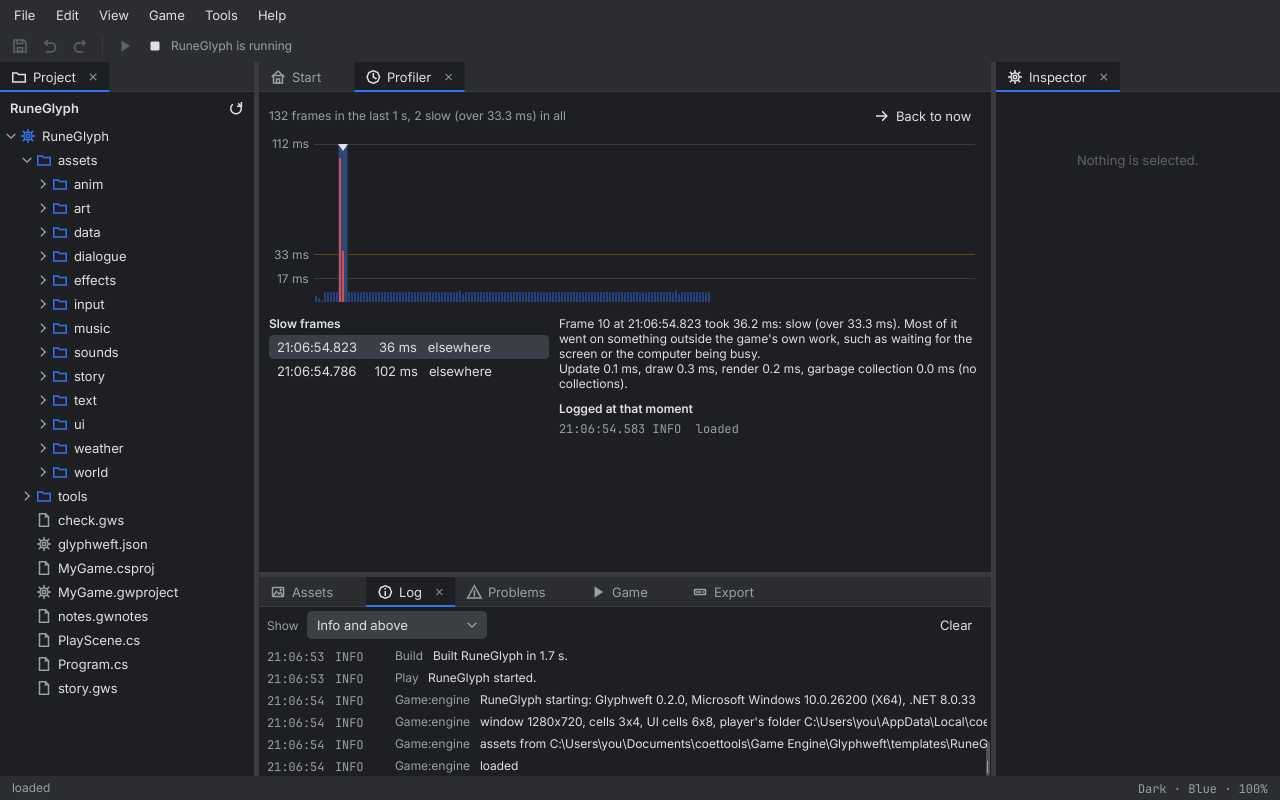
The Profiler panel, beside the Game panel (View, Profiler), shows how long each of the running game's frames takes. The game sends every frame's times, and the graph draws a bar a frame, newest on the right: in the accent colour when it was in time, amber when it went over the budget (16.7 ms at 60 frames a second) and red when it took over twice that. A red frame is a slow one, a hitch you'd see. The lines across mark the budget and twice it, and the scale grows to fit the tallest frame shown. The line above it says how many frames it has (the last five minutes) and how many were slow.
Click a bar, or drag across the graph, to choose a frame; the graph then stops following the game and holds still, and Back to now sets it following again. The wheel zooms in and out, Shift+wheel scrolls back and forth. With the graph focused, Left and Right step a frame, Ctrl+Left and Ctrl+Right jump to the slow frame before or after, Home goes to the oldest frame, End back to now, and Plus and Minus zoom.
Slow frames lists every slow frame of the run, newest first, with when it was, how long it took and what took most of it; choosing one chooses it in the graph too. Beside the list the chosen frame is set out: its number, time and length, the update, draw, render and garbage collection times (and how many collections ran), what most of it went on (the game's update, its drawing, rendering, garbage collection, or something outside the game such as waiting for the screen), and under Logged at that moment the lines the game logged while it ran. What the Profiler shows stays after the game closes, until you play it again. The same frames show in the game's own frame graph, under F3 in its window (chapter 21 of the Engine manual).
Editing while the game runs#
Press Play and keep working: the game shows your changes about a second later,
before you save. That goes for every editor: art and animations, tables and their schemas, worlds and their maps,
effects, weather, sounds, music, dialogue, quests and screens. Studio writes what each unsaved document would save
to a folder of its own, which the game reads on top of the project's assets, and the game reloads whatever changed
(its log says Reloaded anim/runefox/idle_down_0.gwart. or data/monsters.gwtable changed., for example). Your
files stay as they were until you save; saving, or undoing back to the saved state, puts the game back on the saved
files. When the game stops, Studio clears that folder. What a change does in the game is set out under Reloading
while the game runs in chapter 6 of the Engine manual.
Exporting#
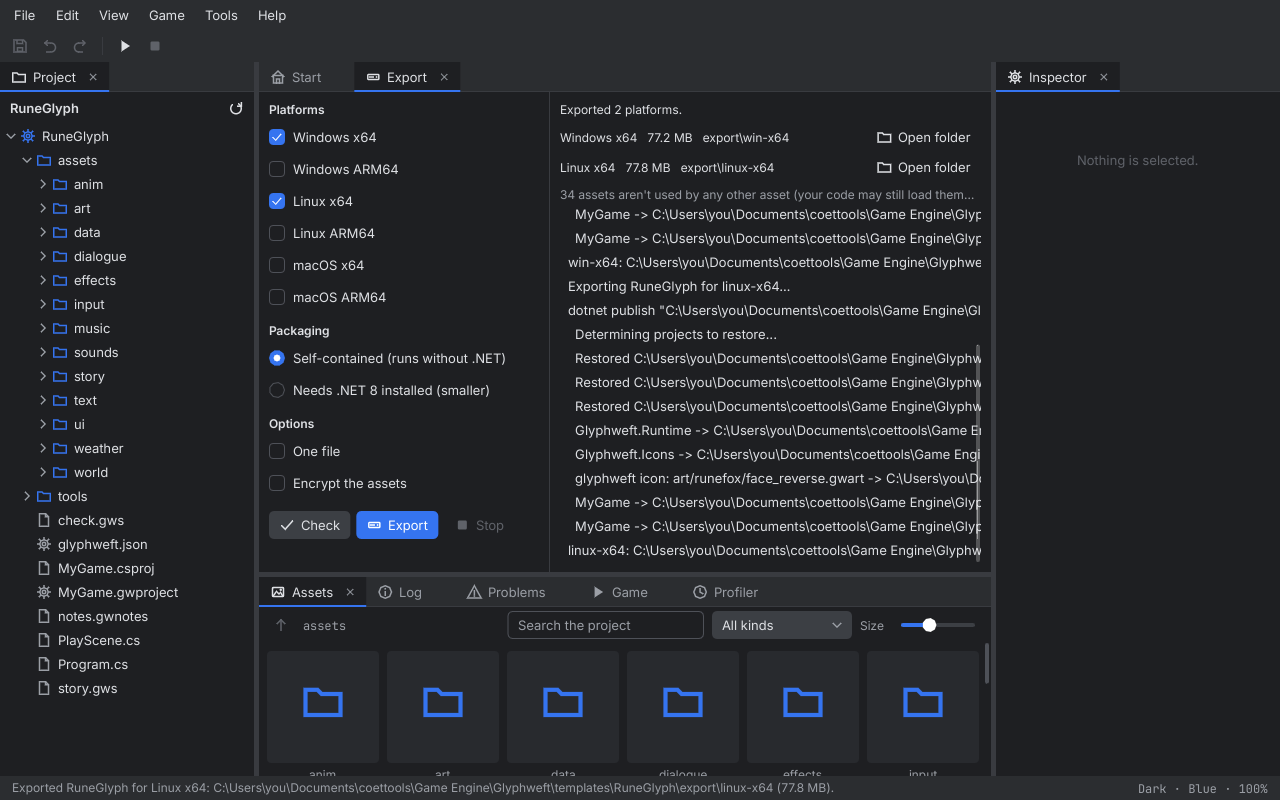
Game, Export brings the Export panel to the front (it sits beside the Game panel). Tick the platforms on the left; they are the project's own, the same ones as in its settings, so a change can be undone and is saved with the project. Choose the packaging: Self-contained brings .NET along, so the game runs on a machine without it (about 80 MB); Needs .NET 8 installed is much smaller but asks the player to install .NET. One file puts the game and its libraries into one executable. Encrypt the assets seals the asset pack.
Check saves everything and checks the project and every asset without exporting. Export saves, checks, and
when nothing is wrong publishes each platform in turn; Stop ends it. Problems the checks find are listed in red,
each with its file, and nothing is exported until they are fixed. Below them is a hint naming the assets that no
other asset uses; your code may still load them, so nothing is wrong with that. The output of dotnet publish
scrolls by as it runs. When it is done, each platform shows its size and folder (export\win-x64 in the project),
with Open folder; an earlier export there is replaced. The Log panel says the same. Play waits while an export
runs, and Export waits while the game runs. See Exporting a game in the Engine manual for what the folder holds.
8. The art editor#
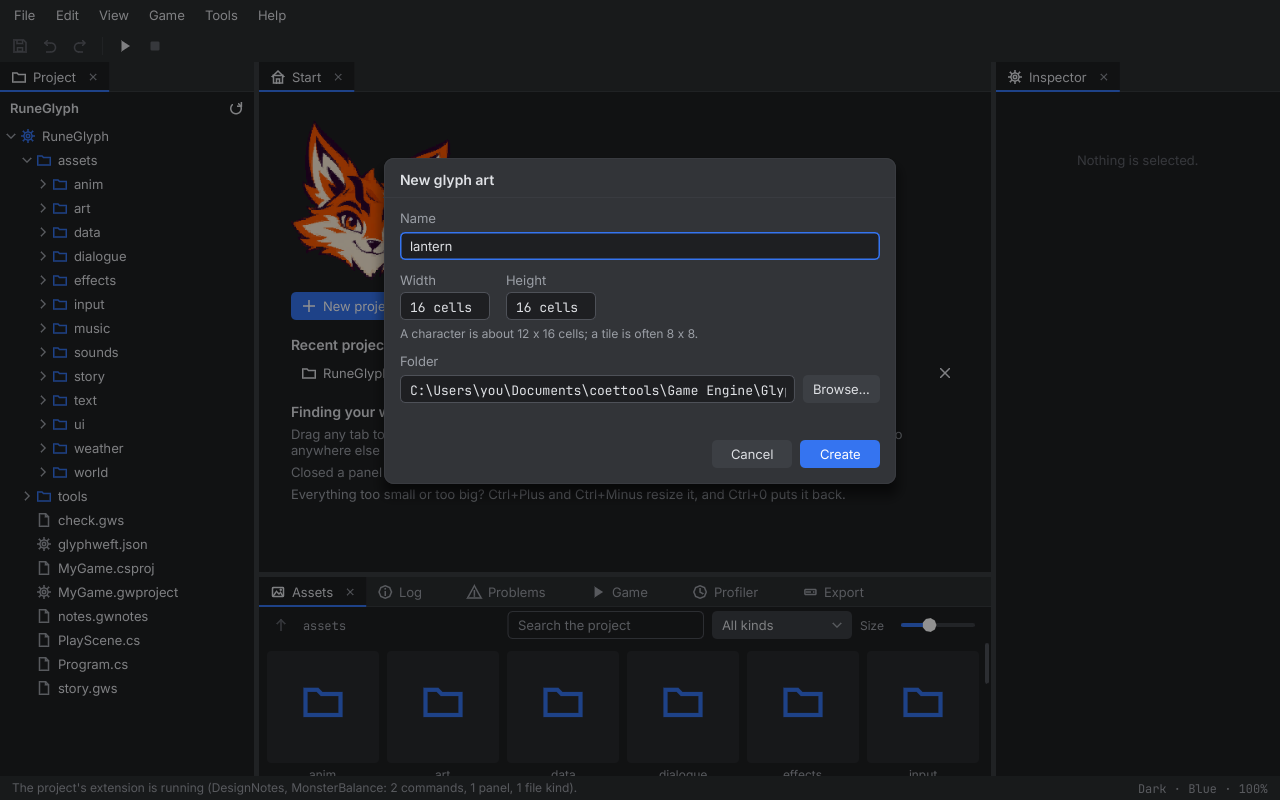
File, New glyph art (Ctrl+N) asks for a name, a size in cells and a folder (the project's
art folder when one is open), and opens the new, empty art. Its pivot starts at the bottom middle, where a character's
feet go. File, Open (Ctrl+O) opens existing .gwart files (each with its .gwcolors), animation sets (.gwanim),
models (.gwmodel) and worlds (.gwworld). Files named on the command line open too, and so do these files
double-clicked in the Project or Assets panel.
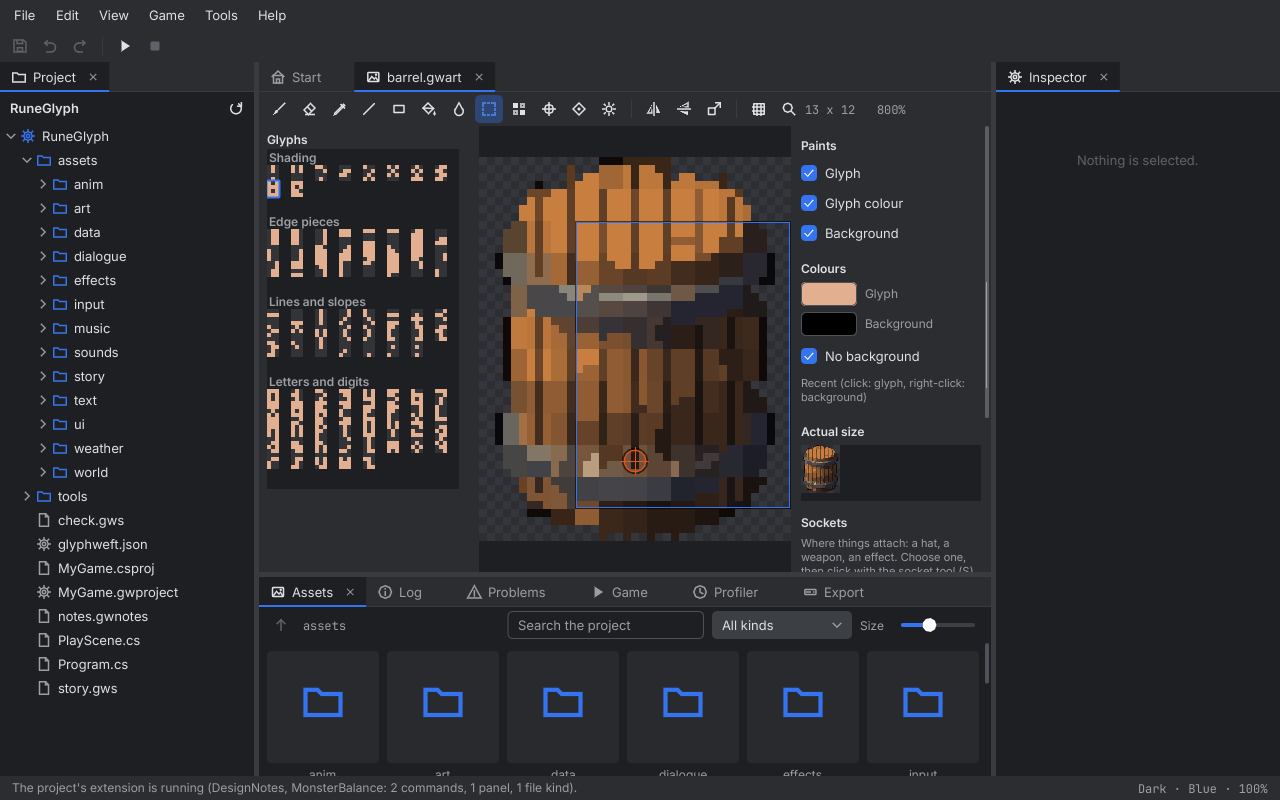
The art editor has its tools along the top:
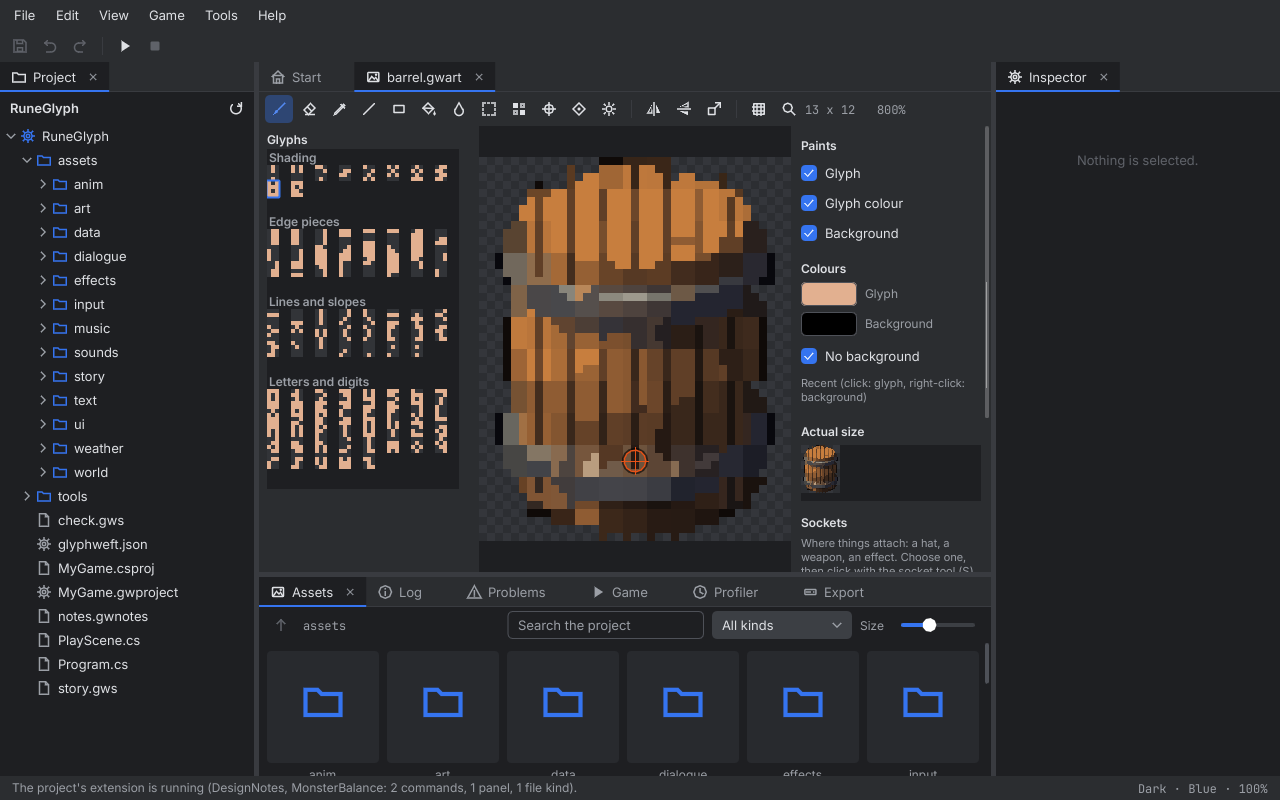
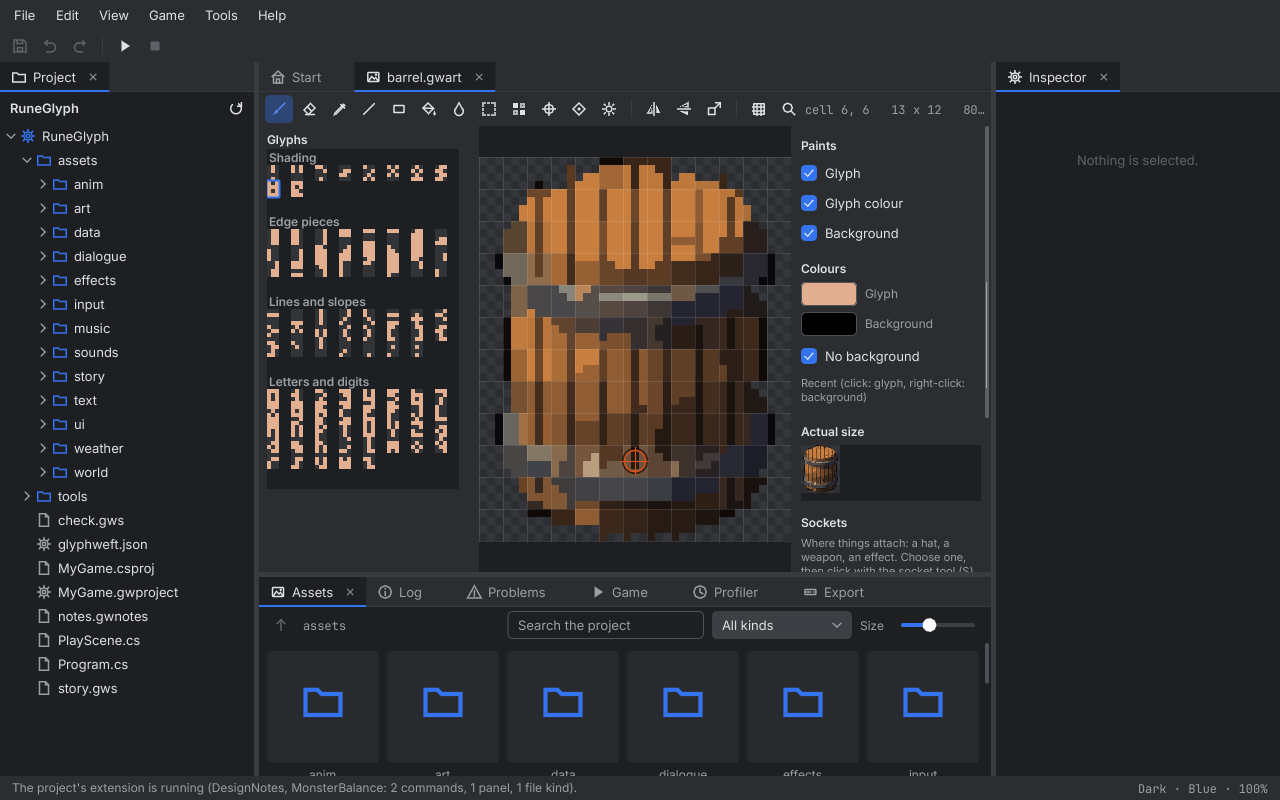
- Pencil (B) paints the brush into cells, eraser (E) clears them, and eyedropper (I, or hold Alt with the pencil) takes a cell's glyph and colours into the brush.
- Line (L) and rectangle (R) show where they will paint while you drag, and paint when you let go. Hold Shift as you let go of a rectangle to fill it.
- Fill (K) paints every joined cell that looks like the one you click. Recolour (C) gives every cell of the clicked colour the brush's colour, wherever it is.
- Select (M): drag a rectangle. Drag inside it to move what it holds, or nudge it with the arrow keys (Shift for
four cells). Ctrl+C copies, Ctrl+X cuts, Ctrl+V pastes (its empty cells leave what is below), Delete clears, Ctrl+A
selects everything and Esc lets go. Fill and recolour stay inside a selection. Text copied in another program (a
drawing in a guide, a text file) pastes as glyphs in the brush's colours, a line a row and a character a cell; its
spaces stay empty, and a character art can't hold (art is printable ASCII) pastes as
?. - Flip left to right (Shift+H) or top to bottom (Shift+V) mirrors the selection, or the whole art with its pivot
and sockets. Each glyph becomes its mirror image in the art font, so
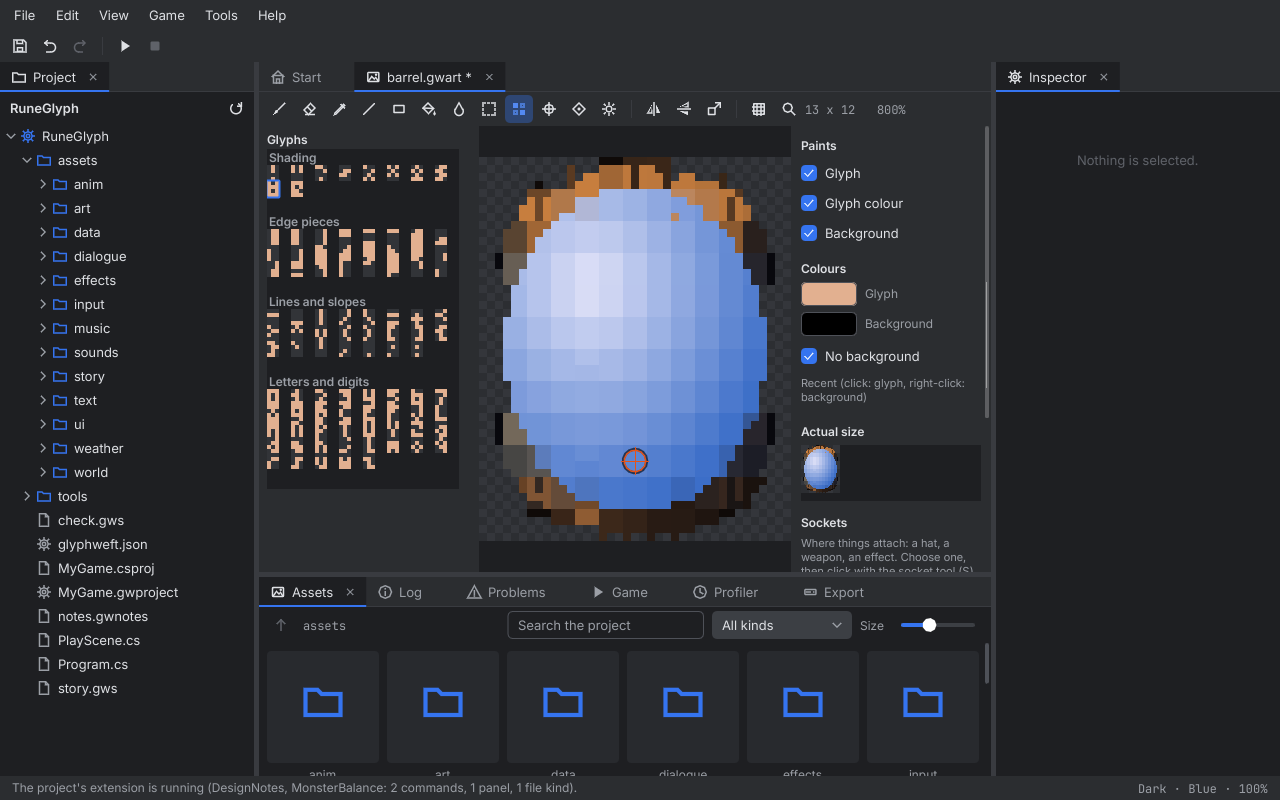
/turns into\and an edge piece on a cell's left moves to its right. - Pixel brush (P) is the easiest way to draw. Paint plain pixels, as in any pixel editor: each cell is 3 x 4 pixels, and as you paint, Studio turns every cell into the glyph and two colours that look most like your pixels (the art kit's glyph fitting). Outlines and shading then fall inside cells instead of stepping cell by cell. It paints in the glyph colour; Shift clears pixels and Alt picks a pixel's colour. A cell you then change with another tool starts again from its glyph.
- Pivot (V): click the cell the art stands on, the point a game places at the entity's position. It shows as an orange crosshair.
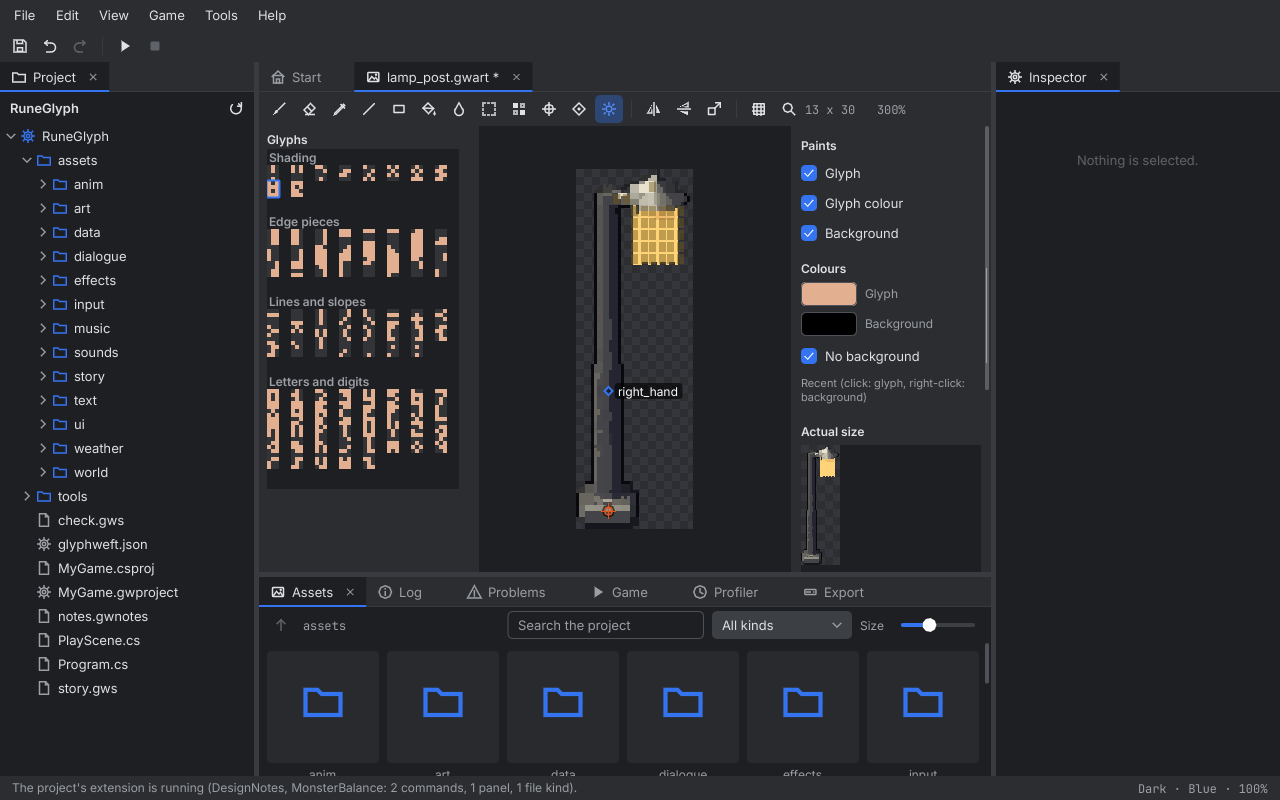
- Socket (S): sockets are named points where other art attaches, such as a hat, a weapon or a spell effect. Add one under Sockets on the right: type a name and press Add (or Enter). It starts at the pivot. Choose a socket in the list and click with the socket tool to move it; Remove deletes the chosen one. Sockets show as diamonds with their names.
- Glow (W) marks cells that give off their own light, like a lit window, a flame or a blade, so a game's lighting leaves them at full brightness. Drag to paint glow, and hold Shift to clear it. Glowing cells show in yellow while the tool is chosen. Empty cells have nothing to light, so the tool skips them.
- Canvas size sets a new width and height, and which side or corner the drawing stays against. Cells that no longer fit are cut off; undo brings them back.
On the right, Paints says what a stroke changes: the glyph, its colour, the background, or any mix. Untick Glyph to recolour without changing the shapes. On the left, the glyph palette shows every glyph of the 3x4 art font in the brush's colours, grouped into a shading ramp (least to most ink), edge pieces, lines and slopes, and letters and digits. Click one to paint with it. On the right are the brush's colours: click a swatch to pick a colour, or tick No background to paint glyphs without one. The colours you paint with collect under Recent: click one for the glyph's colour, right-click for the background. Below them, the art shows at actual size.
Art that the tilted view draws at several sizes lists them under Sizes at the bottom of the right-hand panel:
each size in per cent of the original and its file (oak_s40.gwart is the oak at 40%). The art kit draws them, and
a game seen tilted draws whichever is nearest to how big the thing stands on the screen. Click one to open it; each
is ordinary art, so touch it up like any other. Art with no other sizes shows no list.
A stroke, however long, is one step to undo, and so is every shape, fill, move, paste, flip, pivot move and
socket change. A fast drag still fills in every cell it crosses. The tab shows * until
you save (Ctrl+S), and closing it with unsaved changes asks first. Saving writes the .gwart and its .gwcolors in
their canonical form, the pivot, sockets and glow included.
The canvas is an engine canvas: the engine itself draws the art, exactly as a game would. It opens fitted to the panel. The wheel zooms about the mouse (25% to 6400%, whole steps above 100%), the middle or right button drags the view, and with the canvas focused F fits it again, 1 shows actual size, + and - zoom, and G shows the cell grid; the toolbar has the same. The toolbar's right end shows the cell under the mouse, the art's size in cells and the zoom. Transparent cells show a checkerboard. Close a document with its tab's × or a middle click. Documents are not part of the saved layout. A file that cannot be read opens nothing: a dialog and the log say what is wrong and where.
9. The animation editor#
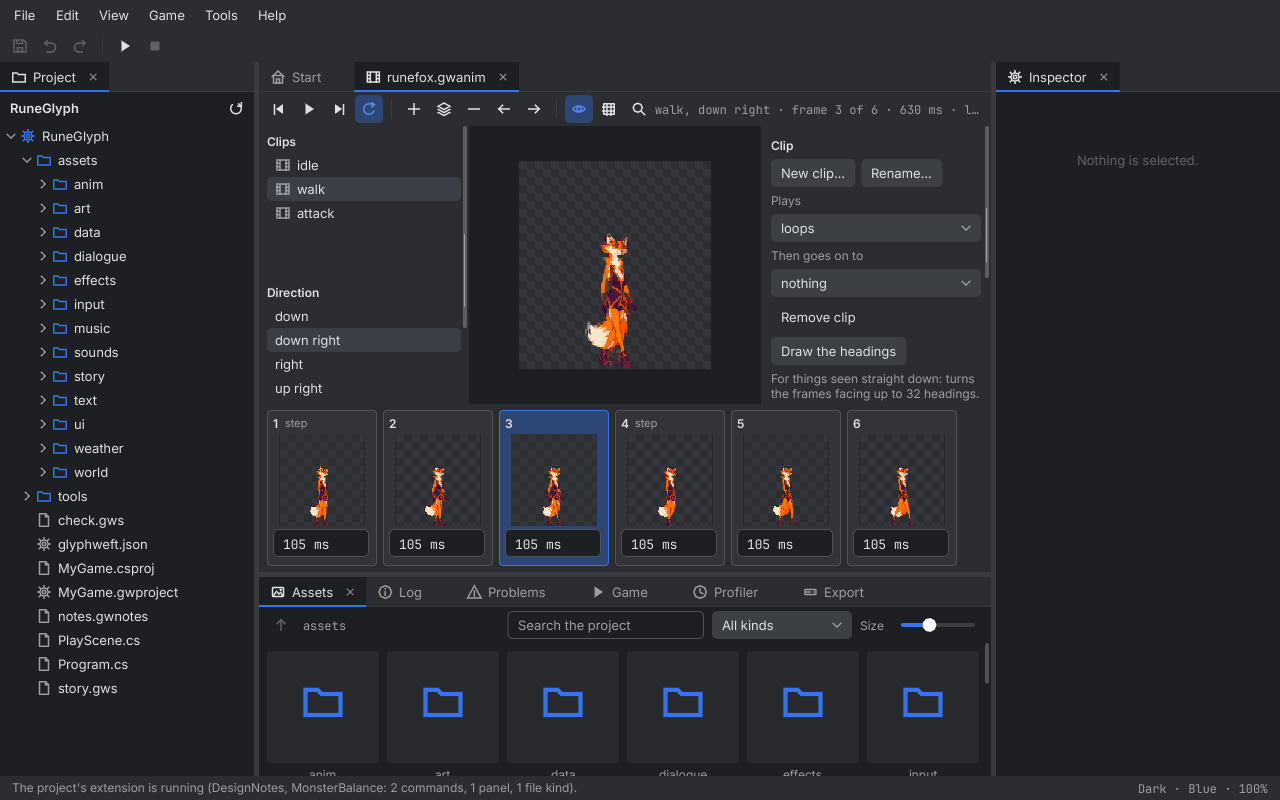
An animation set (.gwanim) opens in the animation editor. On the left are the set's clips
(idle, walk, attack) and the eight directions. A direction the set draws shows its name; one it fills by
mirroring the other side says so ("left · mirrors right"); one it has nothing for says "none". In the middle, the
preview plays the clip at real speed, every frame at the same pivot, so you see the motion and not the frames
jumping. The toolbar plays and pauses (Space), steps back and forward a frame (Left and Right, or comma and full stop;
Home goes to the first), and turns Loop on or off (L). With Loop off, playing stops on the last frame. A
ping-pong clip plays to and fro. The toolbar also shows the clip, the direction, the frame, the clip's length and how
it plays.
Along the bottom, the frame strip shows each frame drawn by the engine, its number and its events (such as
step), and its time in milliseconds. Type a time, or drag across the field (Shift for small steps); each change
is a step to undo, and the preview plays at the new speed at once. A mirrored direction shows, and changes, the frames
it mirrors. Click a frame to show it; double-click it to open its art in the art editor. Strokes you paint there
appear in the animation's preview and strip before you save them. Save (Ctrl+S) writes the .gwanim in its
canonical form, the same form the art kit writes. A set that cannot be read opens nothing: a dialog and the log say
what is wrong and where.
A set drawn at several sizes for the tilted view lists them under Sizes below the directions on the left, as the art editor does: click one to open that set. Each has the same clips with the same number of frames, drawn smaller or larger.
Building clips#
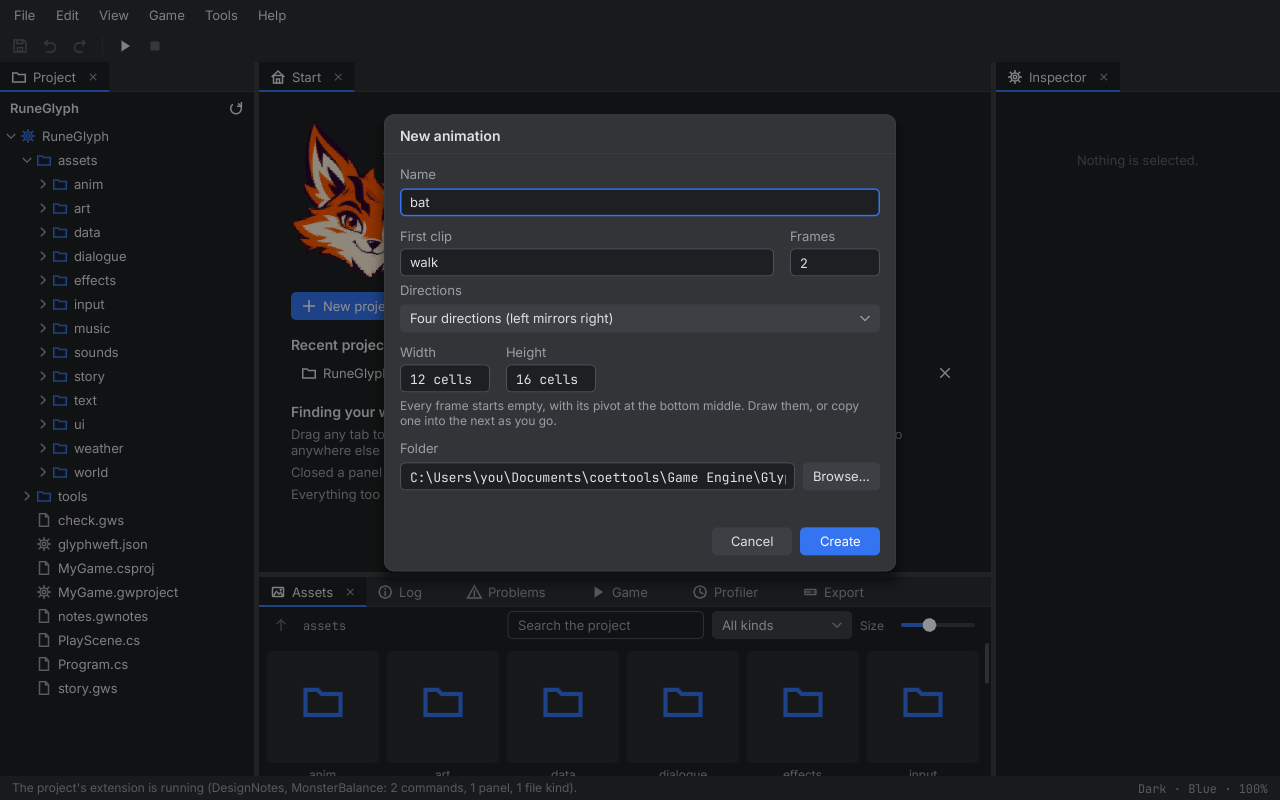
File, New animation asks for a name, a first clip (such as walk), how many frames, the
directions (facing down only; four, with left mirroring right; or eight, with the left side mirroring the right), a
frame size and a folder (the project's anim folder when a project is open). It writes the set and an empty art file
for every frame, in a folder named after the set (bat/walk_right_0.gwart), each with its pivot at the bottom middle,
and opens the set.
In the editor, the toolbar's frame buttons work on the frame shown:
- Add (Insert) puts an empty frame after it, the same size with the same pivot and sockets.
- Duplicate (Ctrl+D) puts a copy after it: its art (unsaved strokes too), time and size. Draw the change from there.
- Remove (Delete) takes the frame out of the clip. A clip keeps at least one frame.
- Earlier and later (Ctrl+Left, Ctrl+Right) move it along the clip.
A new frame's art goes in a file of its own next to the clip's other frames, named after the clip and direction
(walk_left_3.gwart). Undo takes the frame out of the set again, but files stay on disk. On the right:
- Clip: New clip (a name and one frame, a copy of the frame shown, facing down), Rename (in every direction, and in the clips that go on to it), Remove clip (every direction; a set keeps at least one clip), how it plays (loops, plays once, or plays to and fro), and what it goes on to when a clip that plays once ends (an attack going back to idle). Right-click a clip in the list for New clip..., Rename... and Remove.
- Direction: whether the clip is drawn facing this way or borrows another side's frames. A clip drawn only some ways (a side view's, facing right) opens facing one of them. Draw this direction gives a mirrored or borrowed direction frames of its own: copies of what it showed, turned round when it was mirrored, ready to draw differently. Remove this direction goes back to mirroring.
- Frame: the frame's art file and its events, typed as a list (
step, dust). A game hears them when the frame starts: footsteps, a hit, a sound. - Headings (the overhead view, where things turn to any angle): draw the clip facing up, then Draw the
headings. The art kit turns every frame to 32 headings (11.25 degrees apart), writes them beside the clip's frames
(
ship_fly_0_h8.gwartand so on) and gives the clip.h0to.h31with the same times, events and play mode; one step to undo, and the files stay. Drawn again, the headings are turned from heading 0, so touch that up first. Solid colours turn more cleanly than thin lines; touch up any heading by double-clicking its frame. A clip with headings shows a dial instead of the directions: a dot for every heading (filled where there is art), the one shown marked. Click or drag round it, or use the arrow keys, to choose one. Turn while playing goes round a step every tenth of a second as the clip plays.
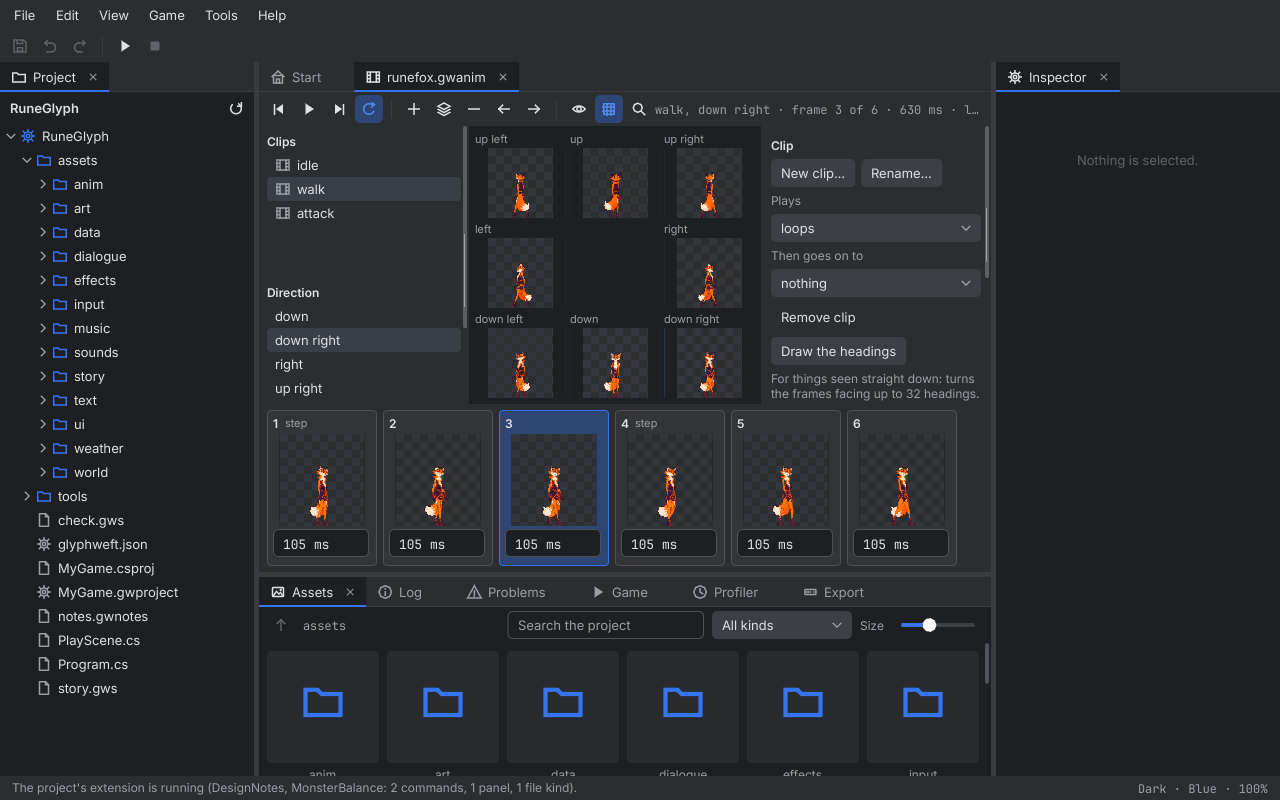
Onion skin (O, the eye) draws the frames before and after the one shown faintly under it, to line up a motion. All directions (A, the grid) shows the clip in all eight directions at once round a compass, playing together; click a direction to show it alone. Every change on this page is one step to undo.
Animations reach a running game the way art does: press Play and keep working, and the game shows a changed time, a new frame or a new clip about a second later, before you save. An animator already playing the set plays the new version straight away.
10. Models#
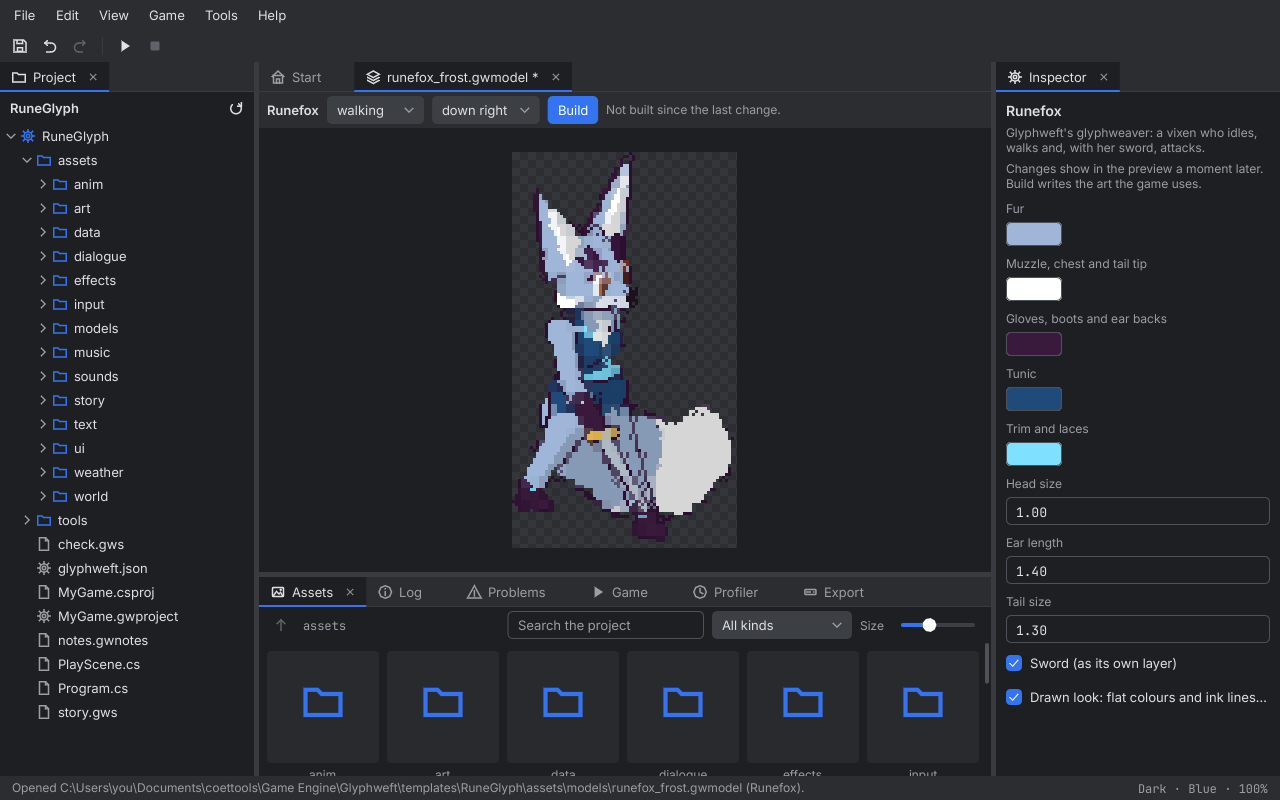
A model asset (.gwmodel) is art made by the art kit from settings rather than drawn by hand: one of the
kit's models with values for its parameters. File, New model asks for a name, which model and a folder:
- Runefox: Glyphweft's glyphweaver, an adult vixen. Fur, cream (muzzle, cheeks, chest, tail tip), gloves and boots, tunic, and trim colours; head size, ear length and tail size; and her sword, built as its own layer.
- Person: tunic or robe, trousers, skin and hair colours; hair style, hat, long robe, beard, cape and its colour, shoulder pads; and what they carry (nothing, a sword or a staff).
- Tree: an oak or a pine, a shape number (each grows a different tree), size, and leaf and bark colours.
A model opens with its parameters in the Inspector and a preview in the middle. Characters can be previewed
standing, walking or swinging, from each of the five drawn directions (the other three are mirrors). Change a
parameter and the preview is rebuilt a moment later, in the background, so Studio stays responsive; every change is
a step to undo. Build saves the model and writes its art next to it, named after it: a character's idle, walk and
(with a sword) attack in five directions as name.gwanim with its frames in name/, plus name_sword.gwanim for
the sword layer; or a tree as name.gwart. Open the built set in the animation editor like any other, or play it in
the game. A running game picks the new files up straight away. The Assets panel shows a model with what it was last
built into. See FILE_FORMATS.md for the file.
11. The world editor#
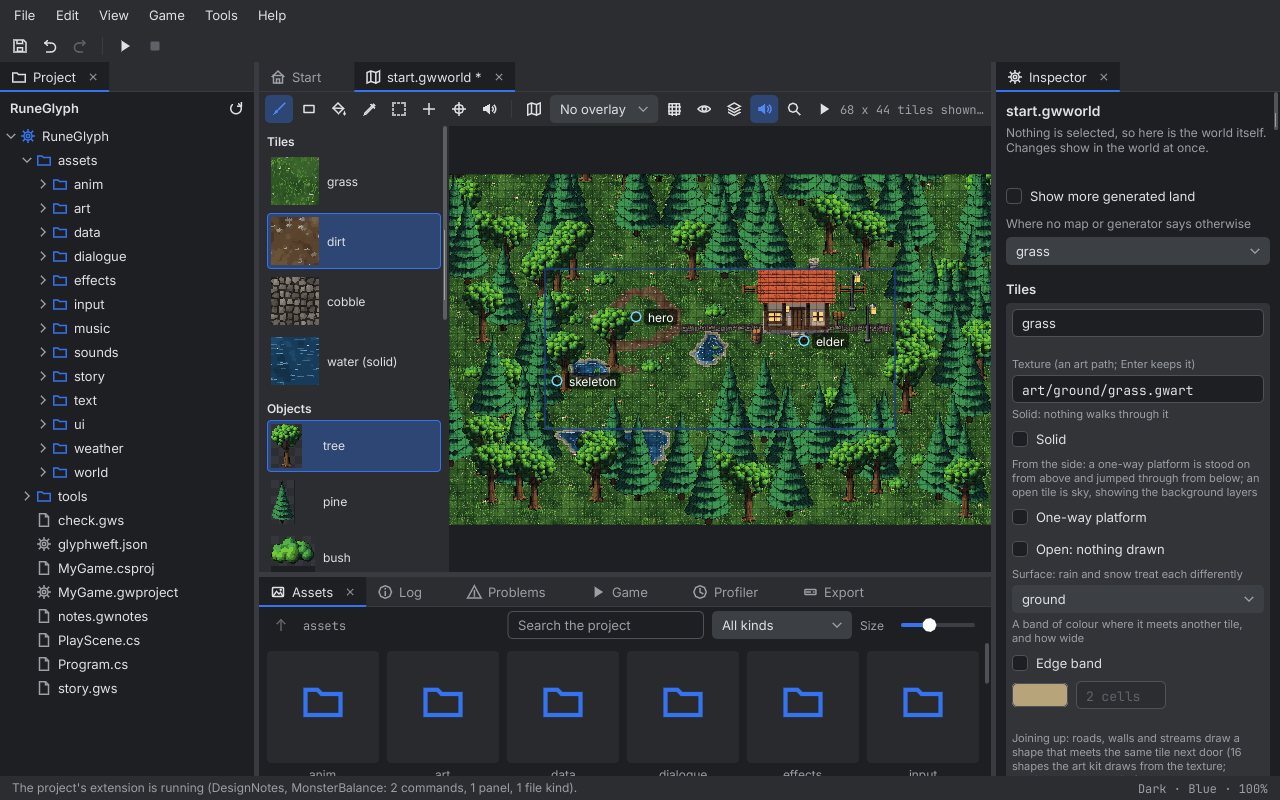
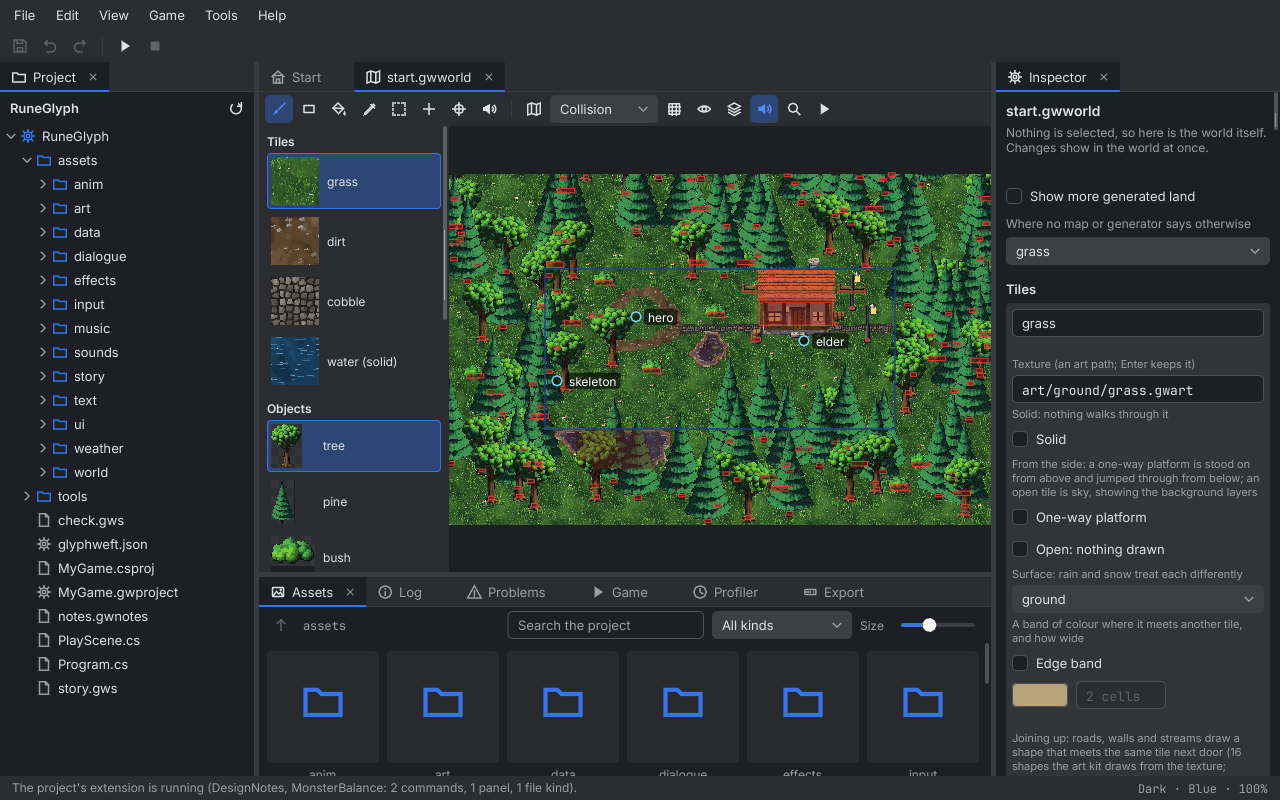
A world (.gwworld) opens in the world editor, drawn by the engine's own world renderer exactly as the
game draws it: the ground with its ragged borders and edge bands, moving water, and the trees and props standing on
it. It shows the world's hand-made maps (each with a border) and twelve tiles of the generated land around them. On
the left is the tile palette: each tile type with its texture. The tools:
- Paint (B) paints the chosen tile; a fast drag still covers every tile it crosses.
- Rectangle (R) paints a rectangle: drag from one corner to the other.
- Fill (K) paints every joined tile of the type you click (within the tiles shown), such as a whole path or pond.
- Eyedropper (I, or Alt with another tool) chooses the type of the tile you click.
What you paint goes into the world's maps, the .gwmap text files: a letter a tile, translated through the map's
legend. Paint outside a map and the map grows to take the tile in, keeping what was shown on the tiles it gains (land
the generator made becomes part of the map; its scattered trees there go). A world with no map gets one where you
first paint, named after the world. A tile type the legend has no plain letter for gets one. Painting over a tile
that held an object or a spawn point replaces it with plain ground. The toolbar shows the tile under the mouse, its
type, and whether a map or the generator made it; G shows the tile grid. A stroke, rectangle or fill is one step to
undo. Save writes the .gwworld and every .gwmap in their canonical form (comments in the world file are not
kept).
Objects and spawn points#
Below the tiles, the palette lists the world's object types with their art; choosing one picks the object tool.
Right-click a tile type in the palette for Paint with it, Rename..., Duplicate (a copy named grass_2,
chosen at once) and Remove; an object type has Place it and the same three, and a prefab Place it,
Rename... and Remove. A rename changes every use in the world, and a type still in use can't be removed: a
small dialog says where it is used. Each is a step to undo, as in the world's settings.
- Object (O) places the chosen object with its pivot where you click; hold Shift to stand it at the bottom middle of its tile, as a map letter would.
- Spawn (P) places a named start point:
herowhen the world has none yet, thenspawn,spawn2and so on. - Sound (S) places a looping sound on its own where you click, for a place with nothing to see: a river bend, the wind on a hill. It is shown as a speaker with its name, and when selected, a circle shows how far it is heard.
- Select (V) selects the object, spawn point or sound under the mouse; drag it to move it. With something selected, the arrow keys nudge it a pixel (Shift: a tile), H mirrors it, Q and E turn it a heading (11.25 degrees) when it turns, Delete removes it and Esc lets it go.
What you place is stored exactly, in the world file's placed, spawns and sounds lists, in world pixels. Objects and spawn
points that a map letter puts down can be selected too; moving or mirroring one places it exactly instead and leaves
plain ground in the map, and deleting one leaves plain ground. Objects the generator scattered can't be selected:
they change with its settings. C (the eye) draws every object's collider in red and its pivot as an orange cross;
spawn points always show with their names.
The Inspector shows the selection: where it stands (type to move it), Mirrored, its Heading (for an object placed exactly whose type turns, or any in an overhead world), where it came from, and Delete.
Things that turn (the overhead view)#
In the world's settings, an object type's Turns to headings has the art
kit turn its art, drawn facing up, to 32 headings beside it (ship_h0.gwart to ship_h31.gwart); touch any of them
up in the art editor, and Draw the headings again turns them afresh. Each placed one is then drawn with the
heading nearest its own. A world of an overhead game opens straight down: nothing stands in front of anything by
where it is, so objects are drawn in the world file's order.
From the side (the side view)#
A world of a side-view game opens from the side, as the game draws it: open tiles show the world's background layers behind the ground. In a tile type's card, Open: nothing drawn makes it sky (no texture; not solid, a platform or joined up) and One-way platform makes it something to stand on from above and jump through from below. The world's settings have a Background section: Add a layer takes an art path, and each layer has its art, how far away it is (1 moves with the ground, 8 hardly at all), where its top is, a colour below it, Nearer to draw it after the next one, and Remove. Every change is a step to undo.
Tilted (the tilted view)#
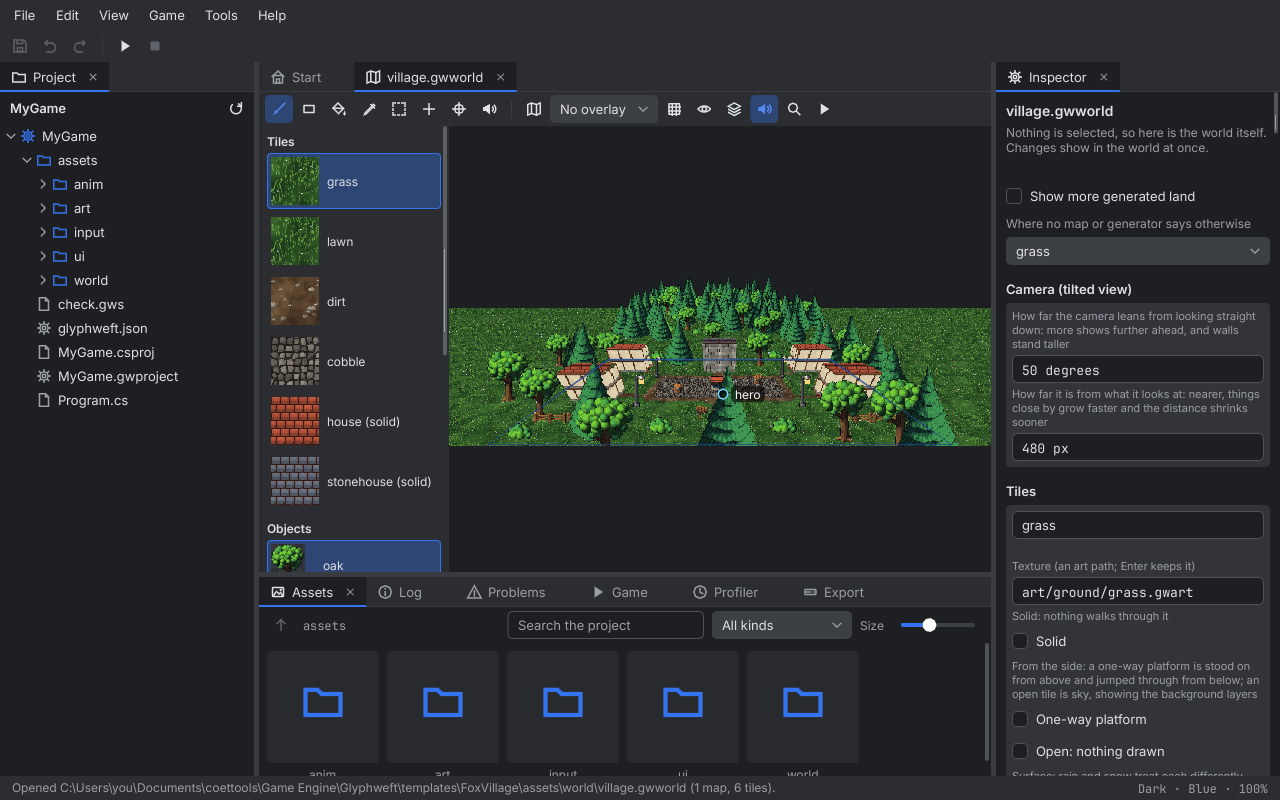
A world of a tilted game opens tilted, drawn by the engine's tilted view as the game draws it: the ground narrows into the distance, things nearer the bottom are drawn larger (each at the size of its art nearest to how big it stands), and tiles with a height stand up as walls, hiding what is behind them. The camera looks at the near edge of the maps, so all of them lie ahead of it, with a little land to either side and behind. Paint, fill, place, select and drag where you see things, as in the other views: a click finds the tile on the ground under the mouse, and an object is picked and outlined by its art at the size it is drawn. T still switches to the isometric view and back.
The world's settings have a Camera (tilted view) card: how far the camera leans from looking straight down (10 to 80 degrees; leaning more shows further ahead and makes walls stand taller) and how far it is from what it looks at (100 to 5000 pixels; nearer, things close by grow faster and the distance shrinks sooner). Each tile type's card has its height in pixels (0 lies flat) and the face art down its sides (an art path; left empty, its texture). A house is a tile type that stands up: its texture is the roof and its face the walls. Setting a height back to 0 drops its face. Every change shows at once and is a step to undo.
Each change draws the picture again (it isn't redrawn while nothing changes), so a large tilted world can take a moment to follow a stroke in a debug build of Studio.
3D (first and third person)#
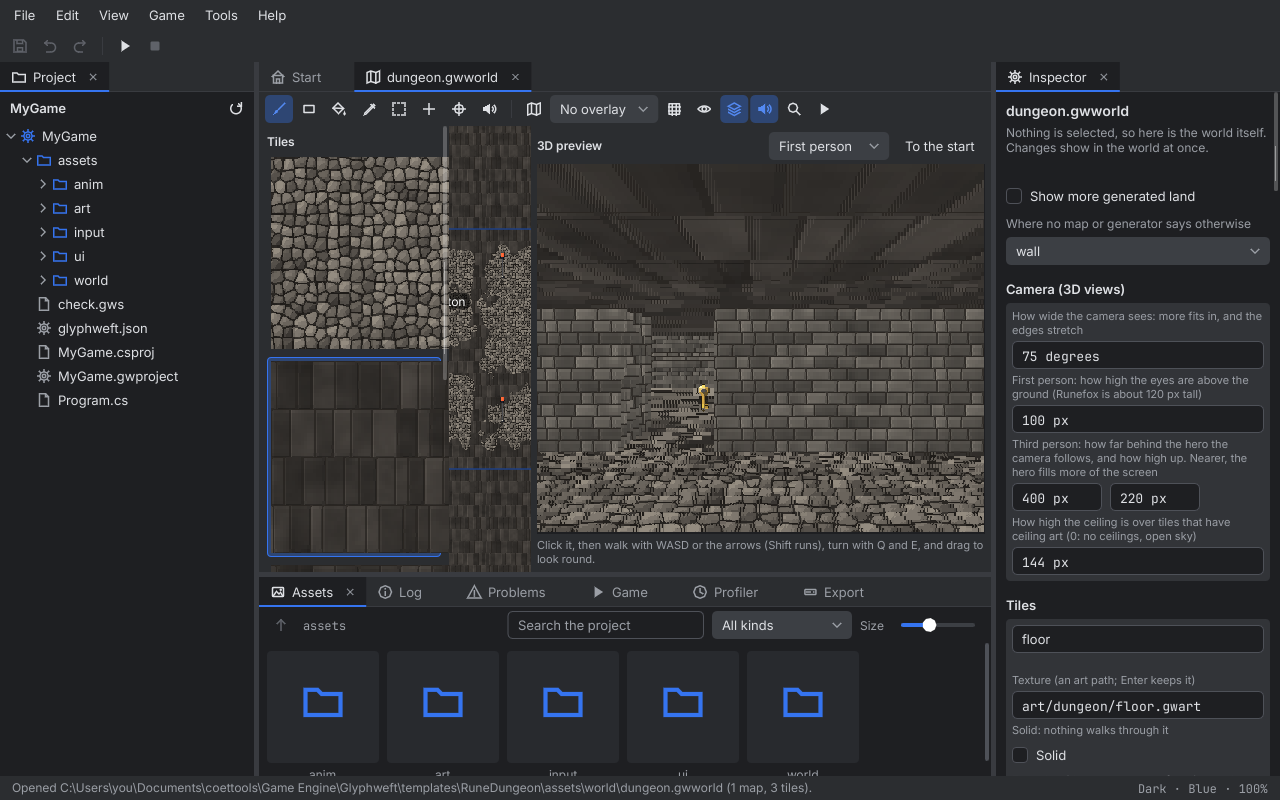
A world of a first- or third-person game opens flat, as you paint it, with a 3D preview beside the map: the world
as the game sees it, drawn by the engine's 3D view, from the hero's spawn point (or the middle of the maps). The
toolbar's layers button shows and hides it; above it, choose First person or Third person (Runefox is drawn
in front of the camera when the project has anim/runefox.gwanim), and To the start goes back to the spawn
point. Click the preview, then walk with W, A, S and D or the arrow keys (Shift runs), turn with Q and E, and drag
across it to look round and up or down. While it has the focus those keys are its own, so S doesn't choose the sound
tool. Every change shows in it at once: paint a wall and it stands in front of you. Where a game shows its sky (its
clear colour and background layers), the preview shows plain sky blue.
The world's settings have a Camera (3D views) card: how wide the camera sees (40 to 120 degrees), the first person's eye height, how far behind and how high up the third person follows (nearer, the hero fills more of the screen), and the ceiling height. Each tile type's card has its height and face (walls stand up from the map, as in the tilted view) and its ceiling: the art over it at the ceiling height, for a dungeon's roof; left empty, the tile is open to the sky. Every change is a step to undo.
For a spawn point, its name (Enter keeps a new one). For an object, its type's collider and the lights and
effects every object of that type has: add a light and set where it sits from the pivot, its colour, reach,
strength, flicker and whether it waits for night; add an effect by name (from a .gweffects file), where it comes
from, how many particles a second and whether it waits for night. Every change is a step to undo; dragging a number
is one step.
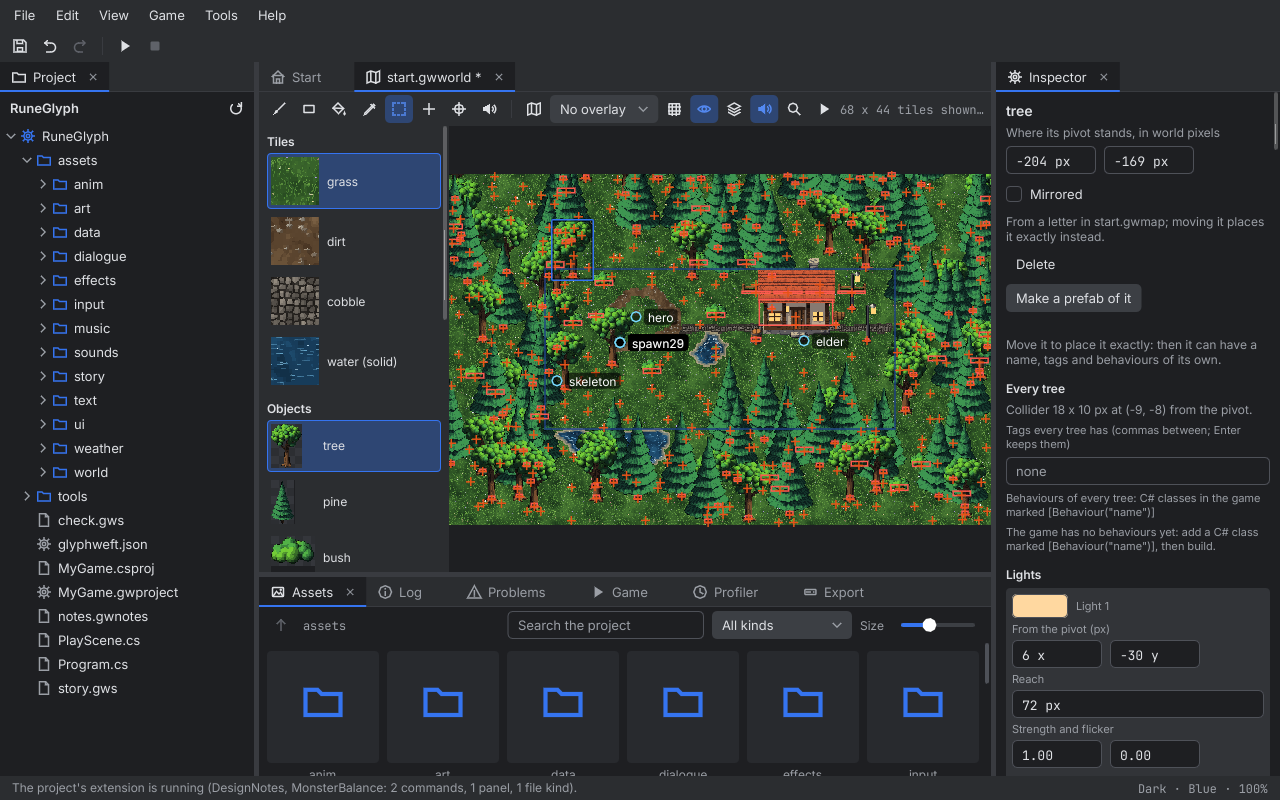
Names, tags and behaviours#
These link objects in a world to the game's code.
- Name: an object placed exactly can have one (unique in the world). The code finds it with
World.Find("gate"). - Tags: an object type can have tags for every object of that type (
tree), and a placed object can add its own (exit). The code finds every object with a tag withWorld.Tagged("enemy"). - Behaviours: what an object does, written as a C# class:
[Behaviour("door")]
public sealed class Door : Behaviour
{
	public string Key { get; set; } = "";
	public bool Locked { get; set; } = true;

	public override void OnTouch(object who)
	{
		if (!Locked || who is string held && held == Key) Object.Art = "art/door_open.gwart";
	}
}
Its public properties with setters are its settings: text, whole numbers, numbers, true or false, a choice from an enum, a point as [x, y], or a colour as "#RRGGBB". A behaviour can override:
Start(once, as its object comes into the game);Update(dt)(every frame);OnTouch(who)(when the game says something touches the object);OnRemoved.
It can reach its Object, the World, and the other behaviours (Behaviours.Get<Door>(other)), and Remove() takes
its object out of the world.
Build the game (Game, Build or Play): Studio then lists its behaviours in the Inspector.
- On a placed object, under This one: a name, its own tags, and Add a behaviour....
- On every object of a type, under Every door: its tags and behaviours.
Each behaviour shows its settings with a control for their kind: a text field, a check box, a number, a list of choices, x and y, or a colour. A setting you haven't set says it uses the default. A behaviour that isn't in the game's last build still shows, with what it has, so nothing is lost. An object that came from a map's letter gets a name, tags and behaviours of its own once you move it, which places it exactly.
In the game, new WorldBehaviours(map) makes the behaviours as the world comes into play. Call
Update(dt, camera.Visible(300)) every frame, and Touch(feetRect, "Runefox") to say who touches what. RuneGlyph
does this already, telling the behaviours when Runefox's feet touch something. A behaviour
the game hasn't got, a setting it hasn't got, or a value of the wrong kind goes to the game's log with the object's
name, and everything else still runs.
Sounds in the world#
An object type can make sounds too: in the Inspector, Add a sound and choose a loop
from the project's sounds files (every .gwsounds in its asset folders), where it comes from, its volume and whether
it waits for night. Every cottage in RuneGlyph then crackles at its hearth after dark. A sound you placed on its own shows the same choices, with where
it is. Only loops are heard in the world; choosing a sound that does not loop says so. While you work, the world's
loops play quietly round the middle of the view, louder as you scroll near them and from the side they are on. The
speaker button in the toolbar turns this on and off. A game hears them round its listener with Audio.RunWorld (see
Audio in chapter 12 of the Engine manual).
Prefabs#
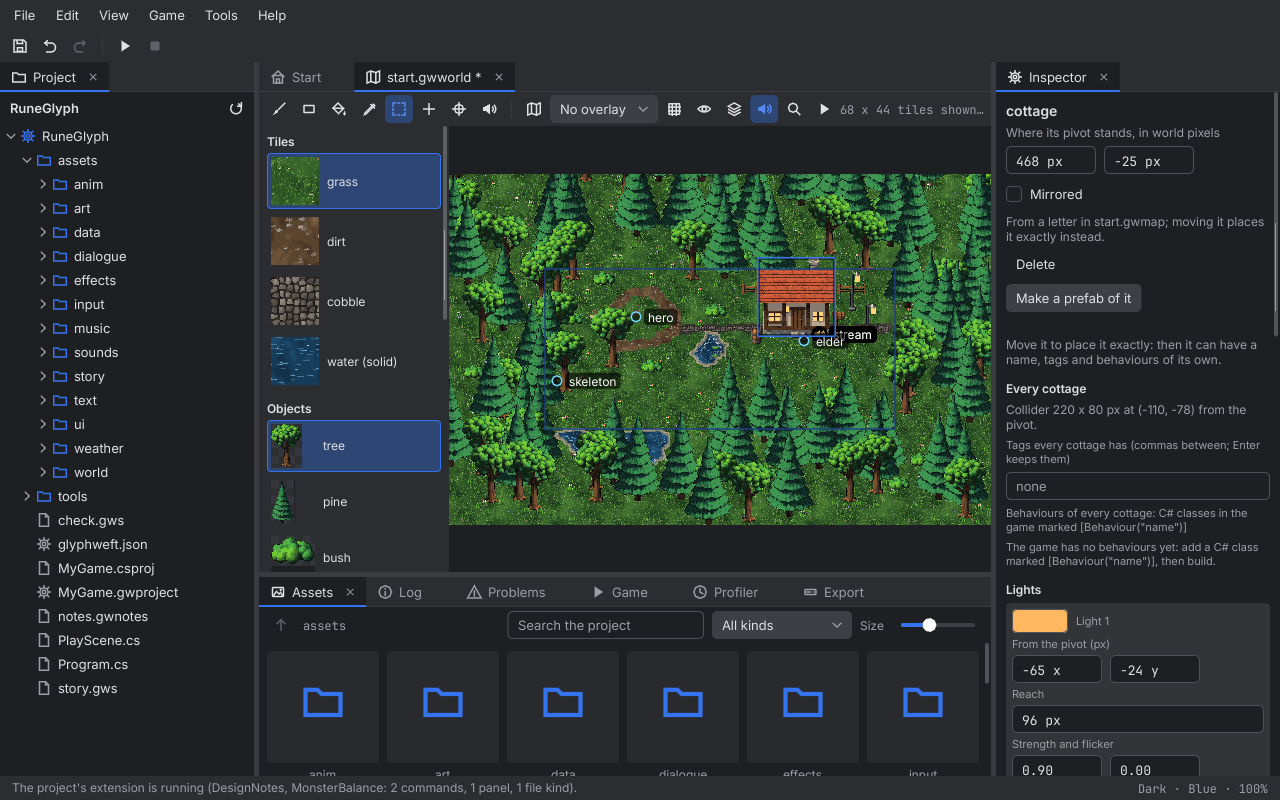
A prefab is several objects arranged together and placed as one: a campfire of logs, stones and fire, a market stall with its crates. Select an object and, in the Inspector, Make a prefab of it: give it a name and press Enter. The object becomes the prefab's first part, and the prefab is placed where the object stood. With a copy selected, the Inspector lists the prefab's parts: each part's object, where it stands from the prefab's pivot, and whether it is mirrored; Add a part and Remove change them. Changing a prefab changes every copy of it. Prefabs are listed in the palette under the objects: choose one, and the object tool places copies. A copy is selected, dragged, mirrored and deleted as one. In the world's settings (nothing selected), each prefab can be renamed, and removed once no copy of it is placed.
The world's settings#
With nothing selected (Esc), the Inspector shows the world itself; every change shows in the world at once and is a step to undo.
- Tiles: each tile type's name (Enter renames it, in every map, the generator and the default), its texture (an art path), whether it is solid, its surface (ground, water or lava: rain and snow treat them differently) and its edge band (a colour where it meets another tile, and how wide). A tile that moves, like water, keeps its movement. Add a tile type asks for a name and starts with the first type's texture.
- Objects: each object type's name (renamed everywhere too), its art, its collider, how much it sways in the wind, how much snow settles on its top and how far it bobs when it floats. Add an object type likewise.
- The default tile: what fills the world where no map or generator says otherwise.
- The generator: whether land grows beyond the maps, its seed, its layers (each puts a tile where the noise is below or above a level, in patches about so many tiles across; the first that matches wins) and its scatter (objects strewn over tiles of a type, with a chance per tile). Add and remove them as you like.
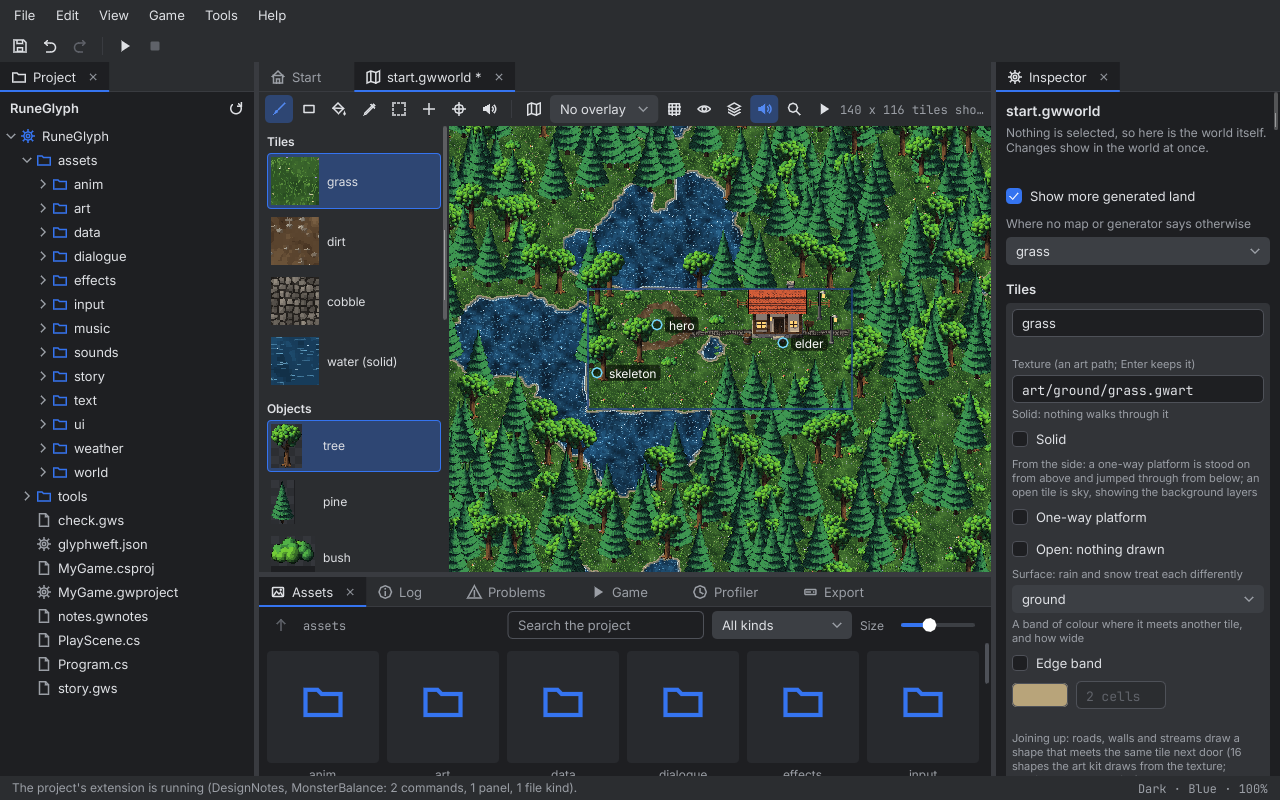
Remove refuses a type that is still used, and says where. A change that would leave a world the game cannot read (an art path that does not exist, for example) is not made; the Inspector and the log say why. Show more generated land shows far more of the world round the maps, to judge what the generator grows.
Joining up#
A tile type can join up with its neighbours, like a road, a wall or a stream. Each tile of it then draws
one of 16 shapes, chosen by which of its four sides touch the same type: a straight, a corner, a T, a crossroads or a
dead end. In the type's card, tick Joins up, choose how it is drawn (a path, narrow with a soft edge; a
channel, wider with a dark bank; or a wall, widest, lit along its top) and what it lies on (the ground shown
round the shape). The art kit draws the 16 shapes from the type's texture into a folder beside it
(art/ground/dirt_join/); they are ordinary art, so open them and repaint them as you like. Draw the shapes again
replaces them, in the style chosen. Joining shapes work in the game the same way; a road painted across grass needs no
other setting.
Views and overlays#
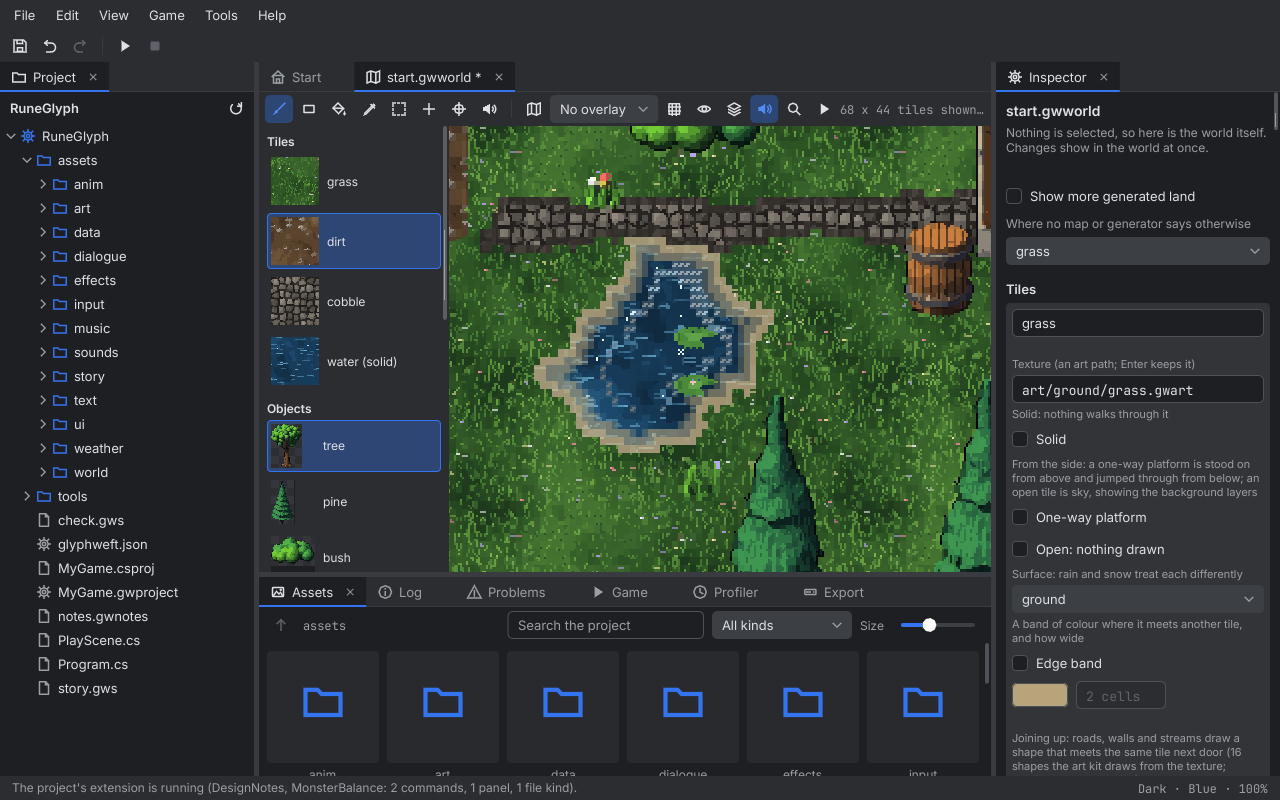
T (the map button in the toolbar) switches between the flat view, as a top-down game draws a
world, and the isometric view, as an isometric game draws one: tiles become diamonds and objects stand back to front by
depth. Every tool works the same in both: paint, fill, place, select and drag where you see things. The dropdown next to
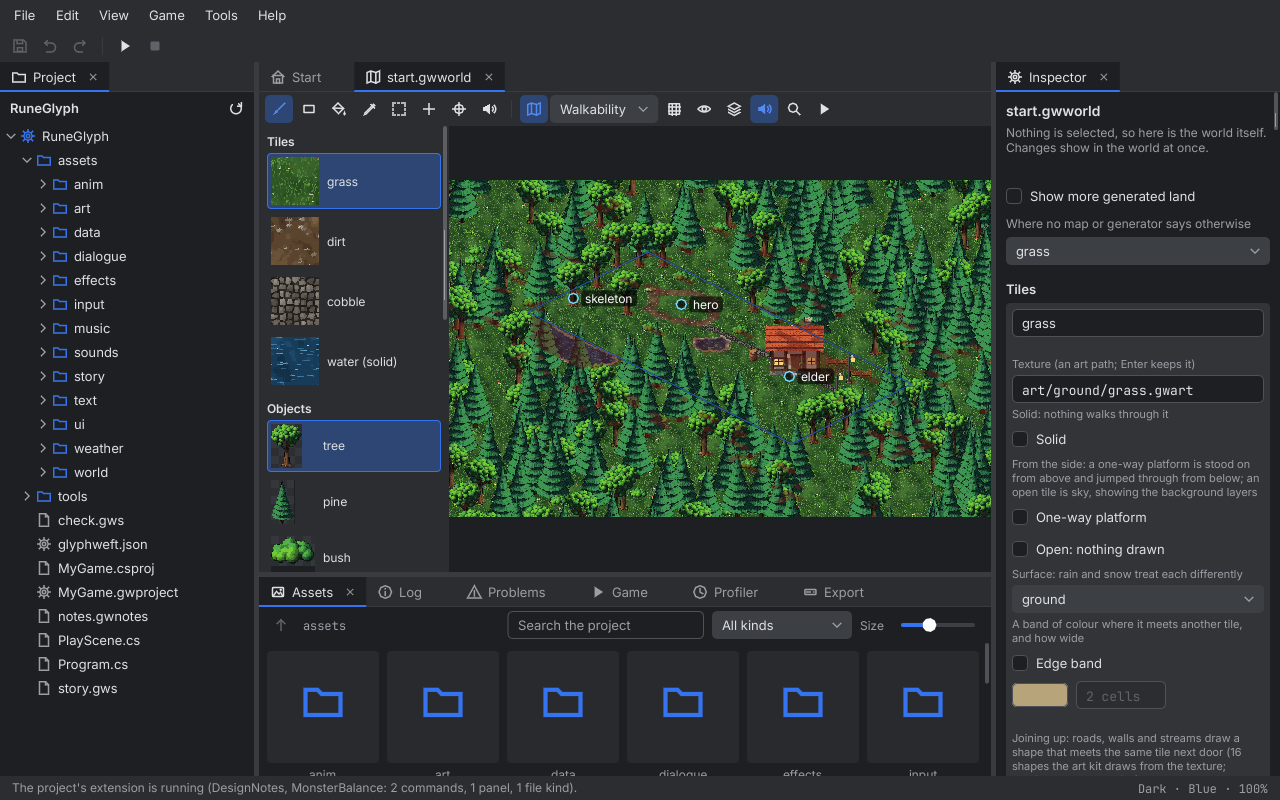
it chooses an overlay. Collision colours solid tiles red and draws every object's collider, which is what stops
the player. Walkability colours red the tiles a game's pathfinding cannot cross (NavGrid: solid ground, and
tiles an object's collider fills, less a few pixels at its edges), so you can see where monsters and villagers can
walk. Both follow your changes as you make them.
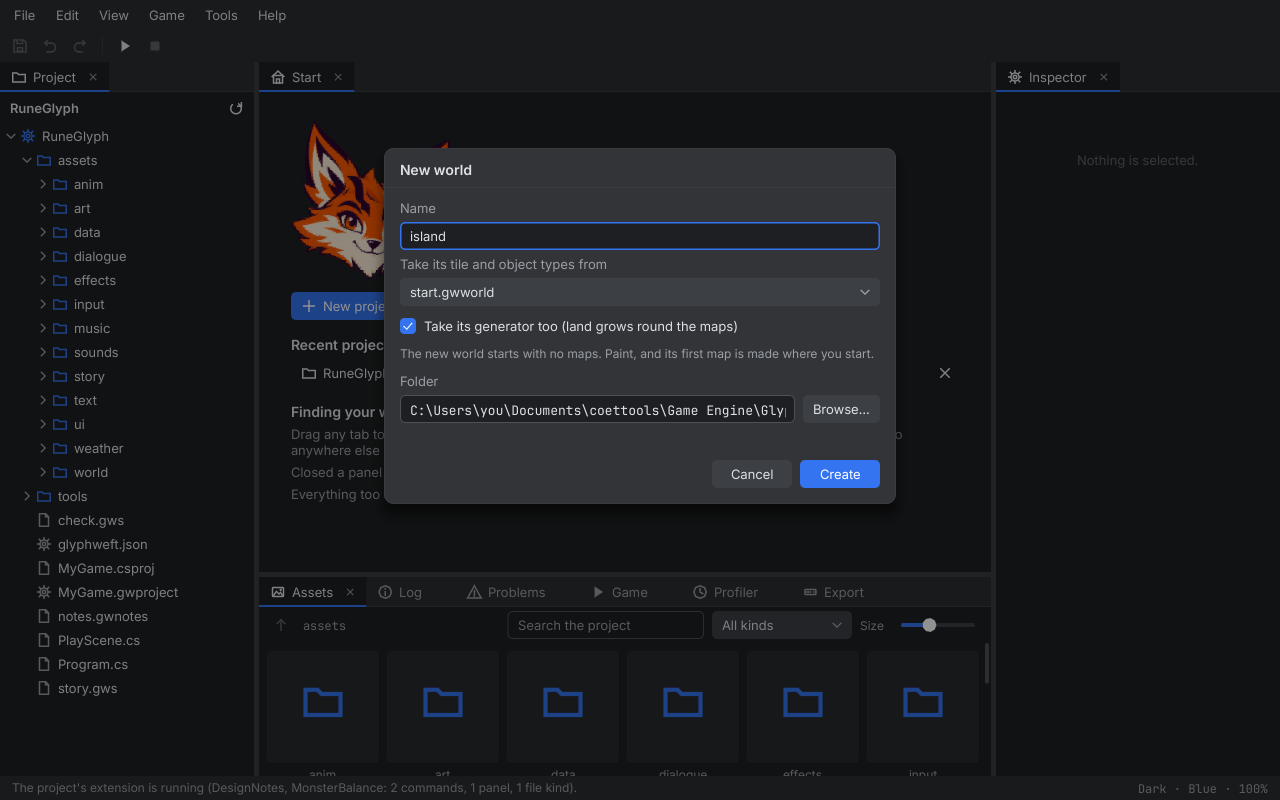
A new world#
File, New world asks for a name, a world to take tile and object types from (and, if you like, its generator), and a folder. The new world has no maps yet: paint, and its first map is made where you start.
12. Data tables#
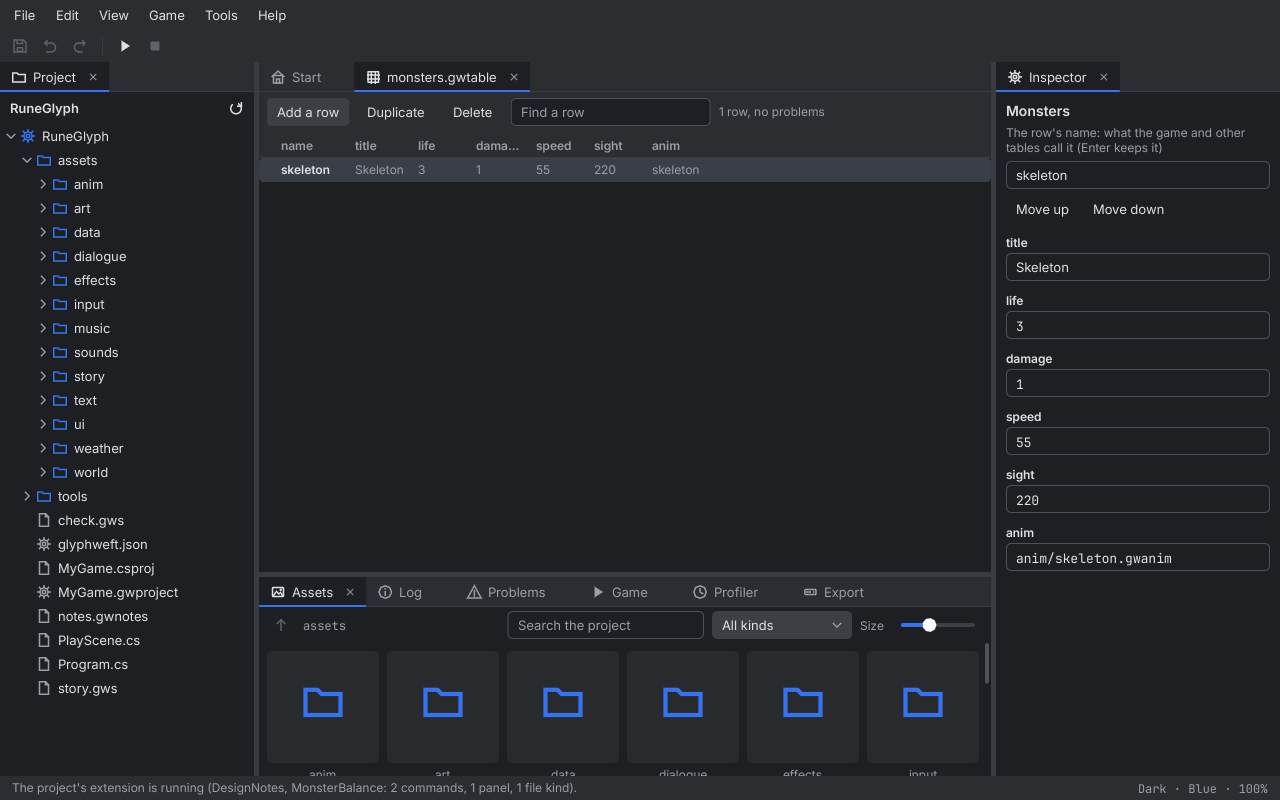
A data table (.gwtable, see Game data: tables in the Engine manual) opens in the table editor; so does its
.gwschema, which opens the table beside it. The rows are listed one a line, a column for each field; a value a row
leaves out shows its default, dimmed. A row the game would not read has a warning mark, and the toolbar counts the
table's rows and problems. Find a row keeps the rows whose name or values contain what you type.
File, New table... (or New, Table... in a folder's right-click menu) asks for a name (small letters,
digits and _) and makes the table and its schema in the project's data folder, where the game reads its tables:
a schema with one text field, title, and a table with no rows. It opens here, its schema in the Inspector, ready
for its fields.
- Add a row asks for its name (Enter makes it). It goes after the selected row, every field at its plainest value or its default; what still needs filling in shows as problems until it is.
- Duplicate copies the selected row right after it (
skeleton_2). Delete (or the Delete key) removes it. - Click a row to see its fields in the Inspector: its name (Enter renames it; references to it in the same table follow), Move up and Move down, and a field for each value: text and asset paths typed in (Enter keeps them), numbers typed or dragged, tick boxes, colours, ranges as two numbers, and references and choices picked from a list of the rows or words allowed. Lists and maps add and take out entries; a map's keys are picked from a list when they are references. A field that may be left out can be left out again, or put back to its default. The row's problems show at the top, as you type.
- With no row selected (Esc), the Inspector shows the schema: the table's title, what it is for, whether it holds one row of settings, and every field: its name (renaming it renames it in every row), its type, what it means, whether it may be left out, its default, and what its type needs (lowest and highest values, the kind of asset, the table its references come from, the words allowed, how many a list holds). The parts of lists, maps and records are written as JSON, as in the file. Add a field gives every row its plainest value; Remove takes it out of every row. A change that would leave a schema the game cannot read is refused, saying why.
Problems are found as the game finds them, with the other tables in the folder as they are saved, so renaming a row that another table refers to shows that table's problem here too. Every change is a step to undo; typing in one field merges into one step. Save writes the table and its schema in their canonical form (comments are not kept).
13. Effects#
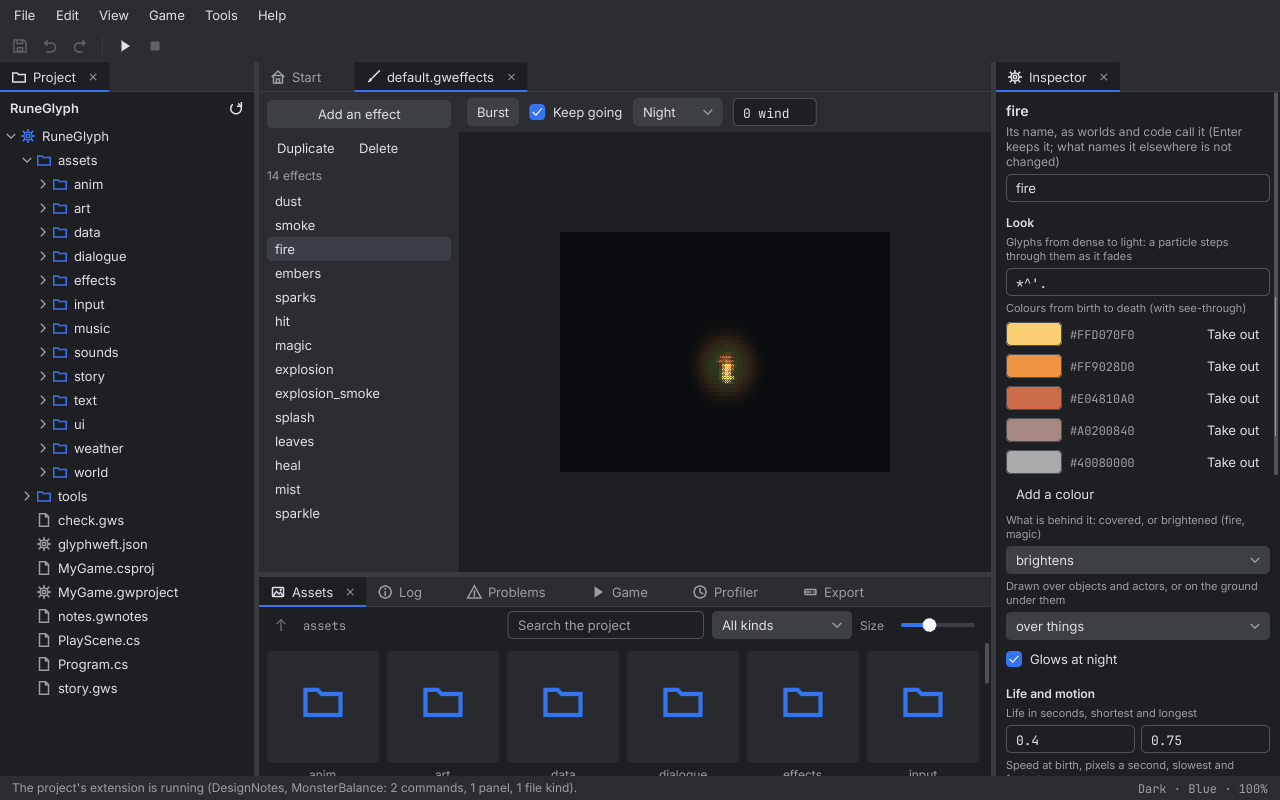
A file of particle effects (.gweffects, see Particles and effects in chapter 10 of the Engine manual) opens in the effects
editor. Its effects are listed on the left; the chosen one plays in the preview (Esc chooses none, and the Inspector lists them all), drawn by the engine's own particle
system, and its settings are in the Inspector. Burst (or a click on the preview) sets off one burst of it;
Keep going keeps it coming at its rate, as an emitter or an object's effect would. The ground can be Dark,
Light or Night (dark, lit only by what the effect gives off), and wind blows across it for effects that
the wind carries.
- In the Inspector: its name (Enter renames it; worlds and code that name it are not changed), its glyphs from dense to light, its colours from birth to death (each with how see-through it is; add and take them out), whether it covers or brightens what is behind it, whether it is drawn over things or on the ground, and whether it glows at night; its life, speed, direction and spread, gravity, drag, how much the wind carries it, how far round the spot it starts and its size at birth and death; how many come in a burst and a second; and the light each particle gives off (its colour, reach and strength).
- Add an effect asks for a name and starts from rising sparks; Duplicate copies the chosen one; Delete removes it (a file keeps at least one).
14. Weather#
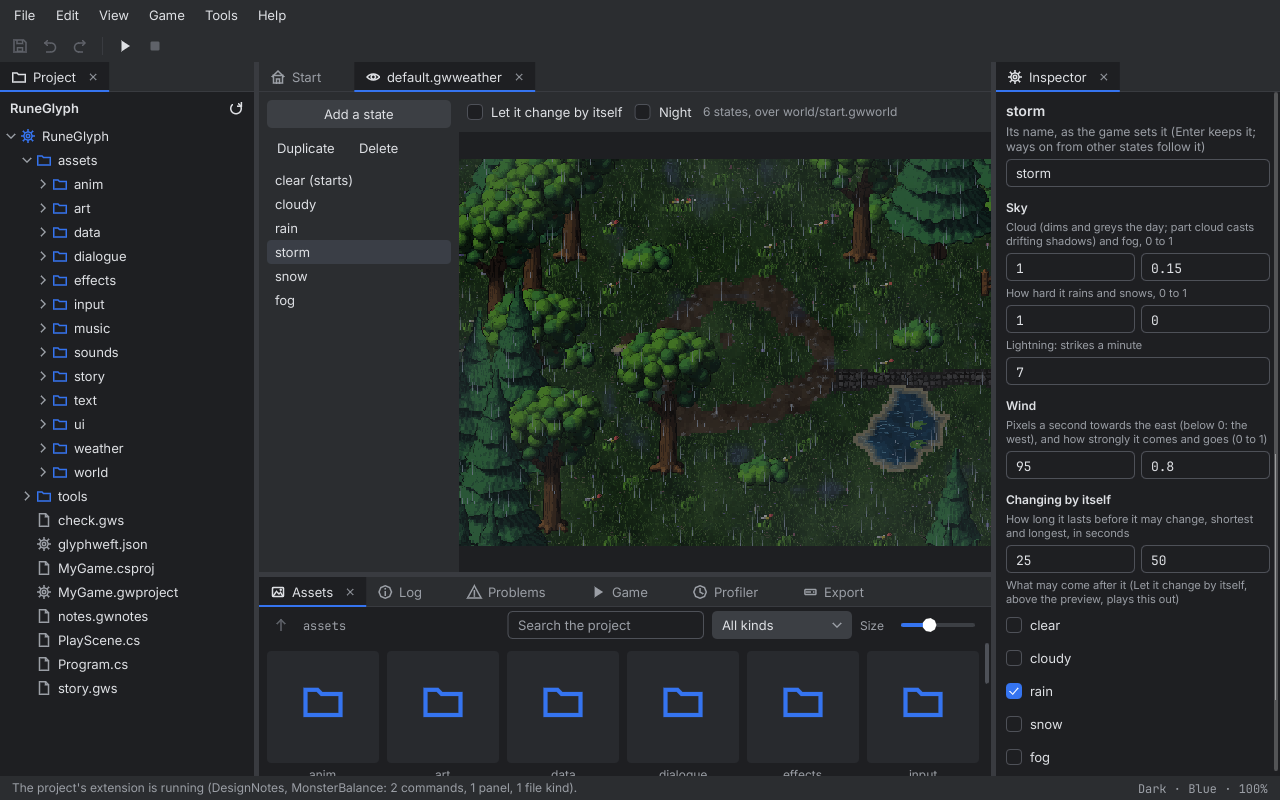
A weather file (.gwweather, see Weather in chapter 11 of the Engine manual) opens in the weather editor. Its states are listed
on the left (the one it starts in says so); the chosen one shows at once in the preview over a world of the project
(its first world; plain ground when it has none), drawn by the engine's own weather: cloud, rain and snow, fog,
the wind bending the trees, lightning, and puddles and snow gathering on the ground. Let it change by itself plays
the weather on from state to state as a game with Weather.Auto would; Night shows it after dark.
- With a state chosen, the Inspector shows its name (Enter renames it, and the ways on from other states follow), its cloud, fog, rain and snow (0 to 1), lightning (strikes a minute), wind (pixels a second, east or west) and gusts, how long it lasts before it may change, and which states may come after it.
- With none chosen (Esc), the Inspector shows the file: the state it starts in, how long a change takes, and the colours of rain and snow (with how see-through), fog, snow lying on the ground, puddles and lightning's flash.
- Add a state asks for a name and starts from a fair sky; Duplicate and Delete (which also takes it out of every state's ways on) work as for effects.
In the effects and weather editors every change shows in the preview at once and is a step to undo; typing or dragging in one field merges into one step. A change the engine cannot read (a colour that is not one, a negative blend) is not made, and the Inspector and the log say why. Save writes the file in its canonical form.
15. Sounds#
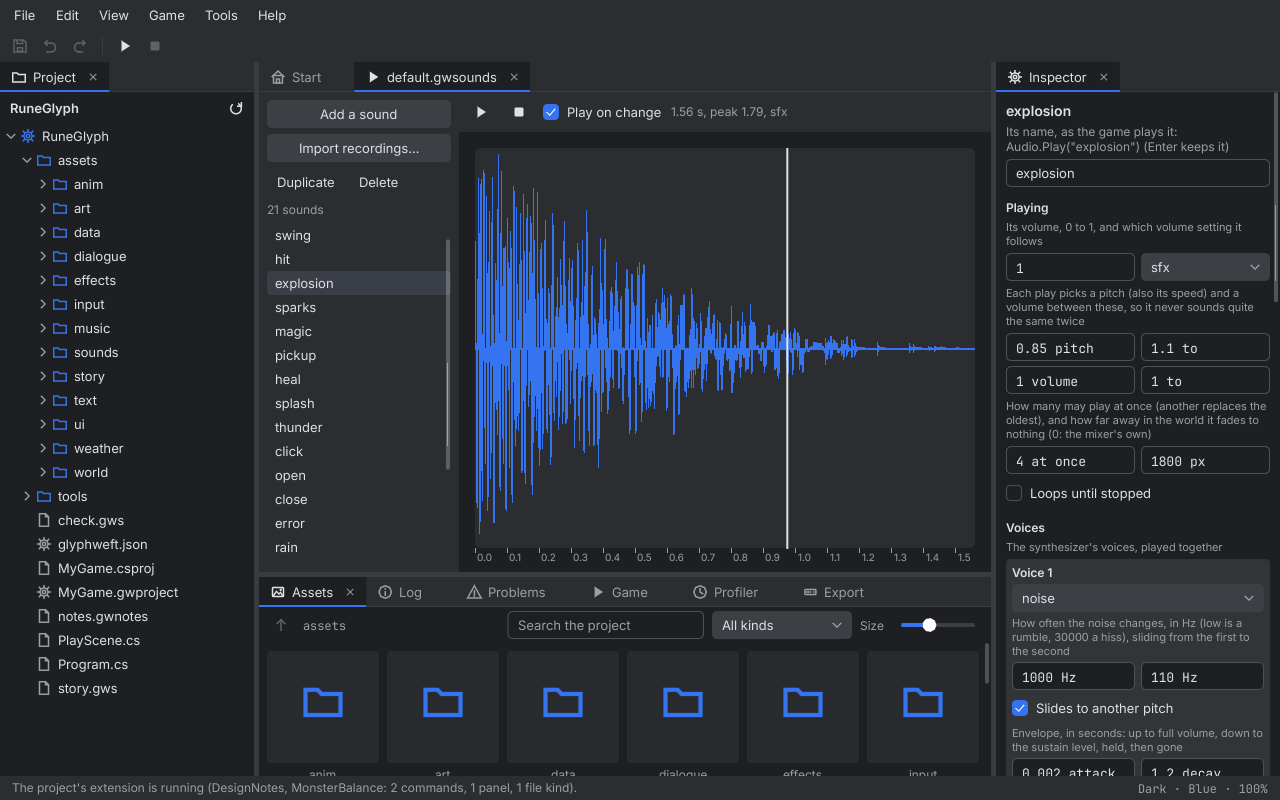
A sounds file (.gwsounds, see Audio in chapter 12 of the Engine manual) opens in the sound designer. File, New sounds
makes one (a name and a folder, the project's sounds folder at first) with a short blip to start from. Its sounds are listed
on the left; the chosen one is drawn as its waveform, rendered by the engine's own synthesizer, and Play (or Space)
plays it through Studio's speakers as the game would: a pitch and volume picked within its ranges, and a loop going
round until Stop. With Play on change on, every change is heard at once. The Inspector shows its settings:
its name (Enter renames it; code that plays it by name is not changed), its volume and bus, the ranges of pitch and
volume each play picks from, how many may play at once and how far away it fades, and whether it loops (a
synthesized loop's length). Below them are its voices, played together, each with its wave (sine, triangle,
square, saw, noise or crackle), its pitch and whether it slides to another, a square wave's duty, its envelope
(attack, decay, sustain level, hold, release, and a delay before it starts), its volume, and vibrato, tremolo, a
low-pass that can sweep, and a high-pass. Add a voice, Duplicate and Take out change the voices; Add a
sound, Duplicate and Delete the sounds; right-click a sound in the list for Play, Rename...,
Duplicate and Delete. Every change is a step to undo; one the engine cannot read is
refused, saying why. Save writes the file in its canonical form.
Import recordings... brings in sound effects, music and ambience made in other programs: WAV, Ogg or MP3 files,
several at once. Each is copied beside the sounds file (a different recording with the same name gets a number) and
becomes a sound named after it, playing that file. Tracks of 15 seconds or more come in as looping music on the music
bus, one at a time; shorter ones as effects. Change the bus, the loop and the rest in the Inspector like any sound.
A looping sound has a loop start: where it goes round to after the first time through, so an intro plays once.
Type it in seconds, or play the loop and press Loop from the playhead when it reaches the right place. The
waveform marks it, and the playhead goes round from there. A game plays the imported track with
Audio.PlayMusic("town"), by the sound's name.
16. Music#
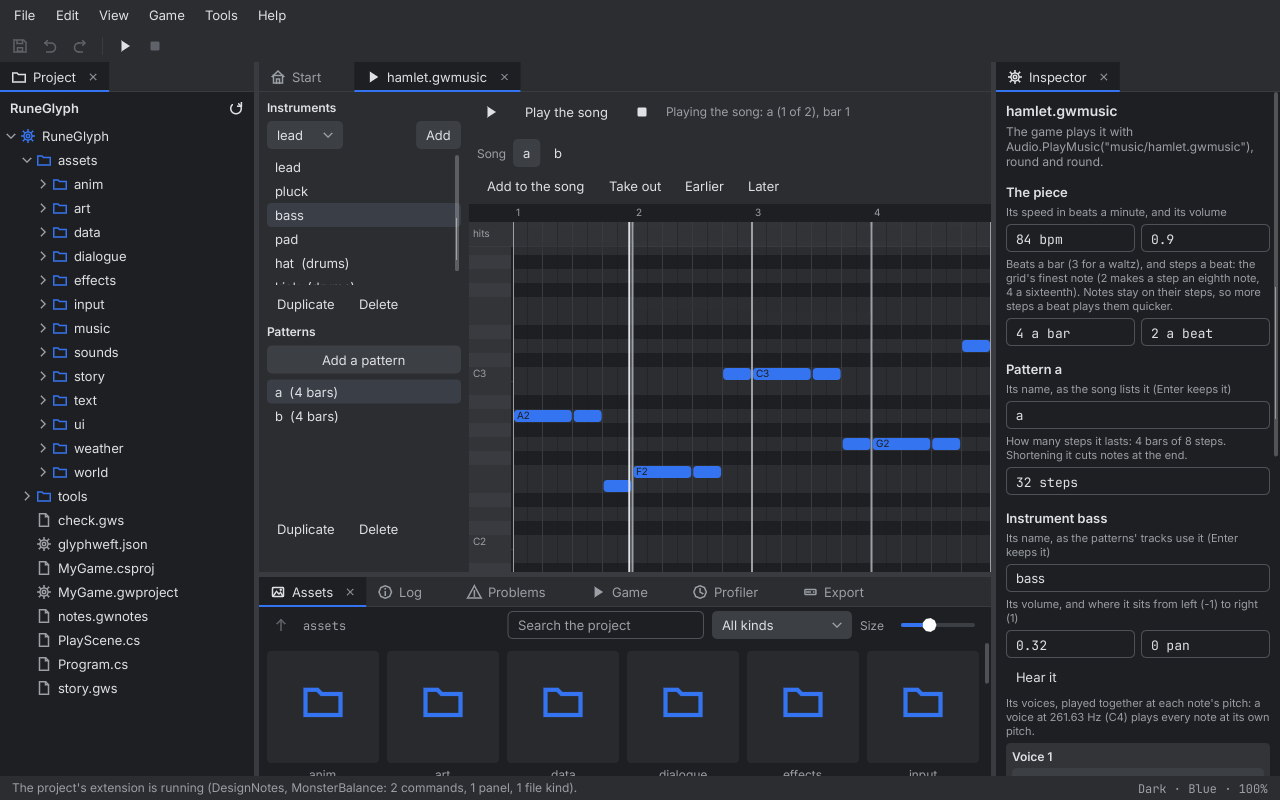
A music file (.gwmusic, see Audio in chapter 12 of the Engine manual) opens in the music composer. File, New music makes
one with a lead, a bass and a kick and one empty pattern of four bars. On the left are its
instruments and patterns; above the roll is the song, the patterns in the order they play. The middle is a
piano roll of the chosen instrument's part in the chosen pattern: a row for each pitch from C1 to C7, a column for
each step, with beats and bars marked and the other instruments' notes faint behind. Click to place a note, and drag
right while holding the button to make it longer. Drag a note to move it, or drag its right end to make it longer or
shorter. Right-click a note, or choose it and press Delete, to take it out. Every note you click or draw is played
so you hear it. An instrument plays one note at a time, so a note placed over another cuts that one short; for
chords, give each line its own instrument. Drums play as hits, in the lane above the pitches. An instrument whose
part is only hits is shown with just that lane.
Add makes an instrument from a preset (lead, pluck, bass, pad, kick, snare or hat). Duplicate copies one with its parts, to double a line. Add a pattern makes a silent one as long as the chosen one. A duplicated pattern is a start for a variation. Choose a place in the song to edit its pattern there; Add to the song puts the chosen pattern after it, and Take out, Earlier and Later change the order. The ▶ button (or Space) loops the chosen pattern, Play the song plays the whole piece round and round as the game does, and Stop (or Esc) stops. Changes are heard straight away, from the same place in the music.
The Inspector holds the piece: its speed in beats a minute, its volume, beats a bar (3 for a waltz), and steps a
beat (the finest note on the grid). Below that is the chosen pattern's name and length, and the chosen instrument:
its name, volume, pan and Hear it, then its voices as in the sound designer. In an instrument, a voice's pitch is
its pitch at C4 (261.63 Hz), and each note plays it higher or lower. Every change is a step to undo. One the engine
cannot read is refused, with the reason. Save writes the file in its canonical form, with a | between bars.
17. Screens#
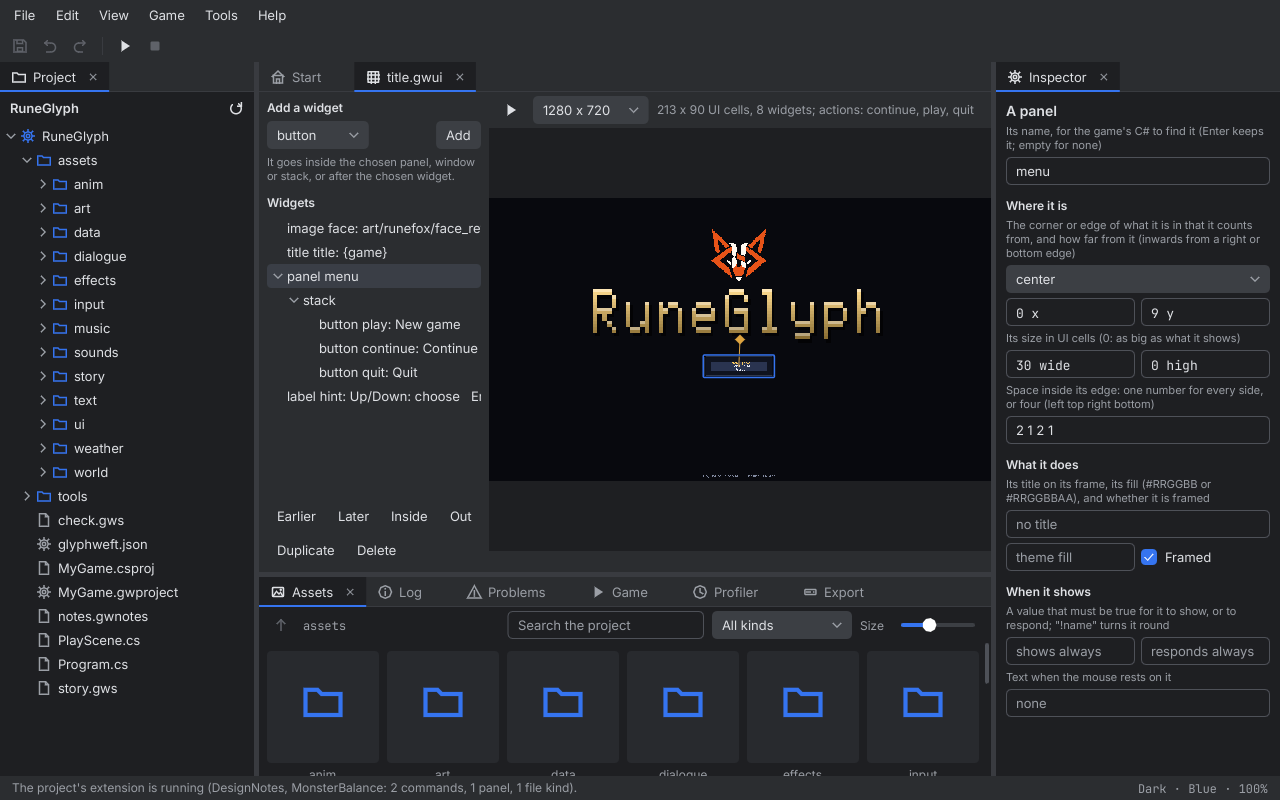
A screen layout (.gwui: a title, a menu, a HUD; see Screens from layouts in chapter 20 of the Engine manual) opens in the
layout editor. The middle shows the screen as the game draws it, by the engine's own UI renderer, with its pictures at
full detail, at the window size chosen above it (1280 x 720 at first; the wheel zooms, F fits). On the left are its
widgets as a tree, with what each holds inside it. File, New screen... (or New, Screen... in a folder's
right-click menu) makes an empty screen in the project's ui folder and opens it here.
- Choose a widget by clicking it on the screen or in the tree. It is outlined, and a line runs from its anchor (the corner or edge of what it is in that it counts from, marked with a diamond) to the same point on the widget. Esc lets it go, and the Inspector then shows the screen.
- Move it by dragging it, or with the arrow keys (Shift: 4 cells). Its offset counts inwards from a right or bottom anchor, so a hint on the bottom edge moves up as the number grows. A widget in a stack has no place of its own: Earlier and Later change its order, which is also how widgets are drawn over one another.
- Add a widget of the kind chosen above the tree: it goes inside the chosen panel, window or stack, or after the chosen widget. Inside puts the chosen widget into the panel, window or stack just before it, and Out takes it out to just after what it was in. Duplicate (Ctrl+D) copies it without its name (names are unique), and Delete takes it out with what it holds.
- The Inspector holds the chosen widget's fields: its name, anchor, offset, size and padding, what its kind shows
and does (text with
{values}, a colour, the action a button runs, the value a tick box or slider changes, a list's rows, a picture), when it shows or responds (showIf,enabledIf) and its tooltip. With nothing chosen it holds the screen: whether it is drawn over the game (a pause menu) and how much it dims it, its background, the action Esc runs, and its sample values. Those are what the screen shows here, and what it starts with in the game until the C# sets them; the Inspector lists the values it shows without a sample and the actions the C# should bind.{game}shows the project's name, as the game shows its title. - Try it (the ▶ button, or Ctrl+P) gives the screen the mouse and keys as the game would. Buttons light up and press, Up and Down move between them, sliders and tick boxes change, and Esc runs the back action. An action says what it is ("It ran "play"") instead of doing anything, since the game's C# decides that. Trying changes nothing in the file.
Every change is a step to undo. One the engine cannot read is refused, saying why: a field a kind does not take, a colour that is not one, a picture that is not in the project's assets. Save writes the file in its canonical form.
18. Dialogue#
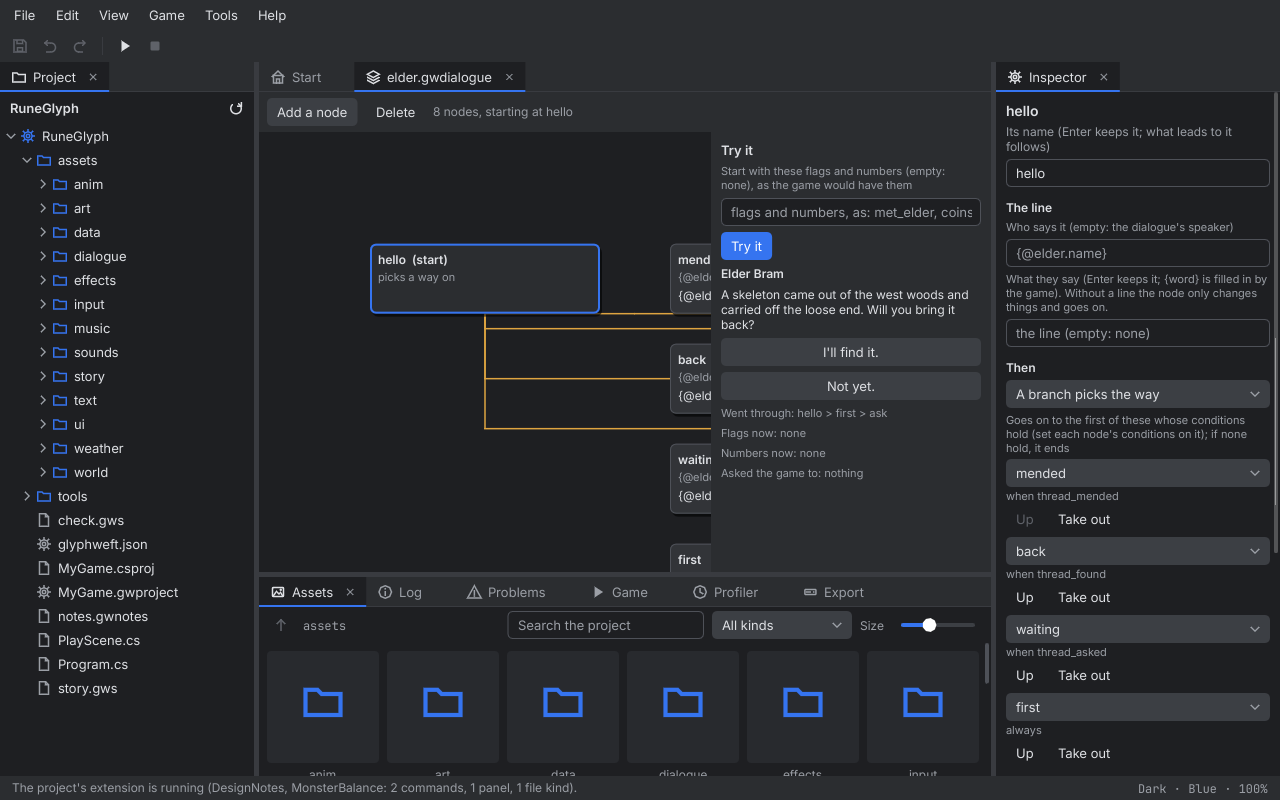
A dialogue file (.gwdialogue, see Dialogue and quests in the Engine manual) opens in the dialogue editor as a
graph: a box for each node with its name, who speaks, its line and its choices, and wires to where it goes on (grey
for next, amber for a branch, the accent colour from each choice). Drag a box to move it (Studio keeps where you put
it); drag the background to look round, or use the wheel (Shift: sideways). Click a box to change it in the
Inspector:
- its name (Enter renames it; whatever leads to it follows), who says it (empty: the dialogue's speaker) and its line;
- Then: it ends here, goes on to one node, lets a branch pick the way (the first node whose conditions hold, in an order you set), or asks with choices (each with its text, where it leads, and when it is offered);
- the story: when a branch may take it, the flags it sets and clears, what it adds to numbers (
visits 1), and what it asks the game to do.
Add a node asks for a name; Delete (or the Delete key) removes the chosen node, and whatever led to it ends
there (the start cannot be deleted). With no node chosen (Esc), the Inspector shows the dialogue: who speaks by
default and where it starts. Try it plays the conversation as the game would, starting with the flags and numbers
you give (thread_asked, visits = 2): pick choices and go on, and see the way it went, the flags and numbers now, and what
it asked the game to do.
19. Quests#
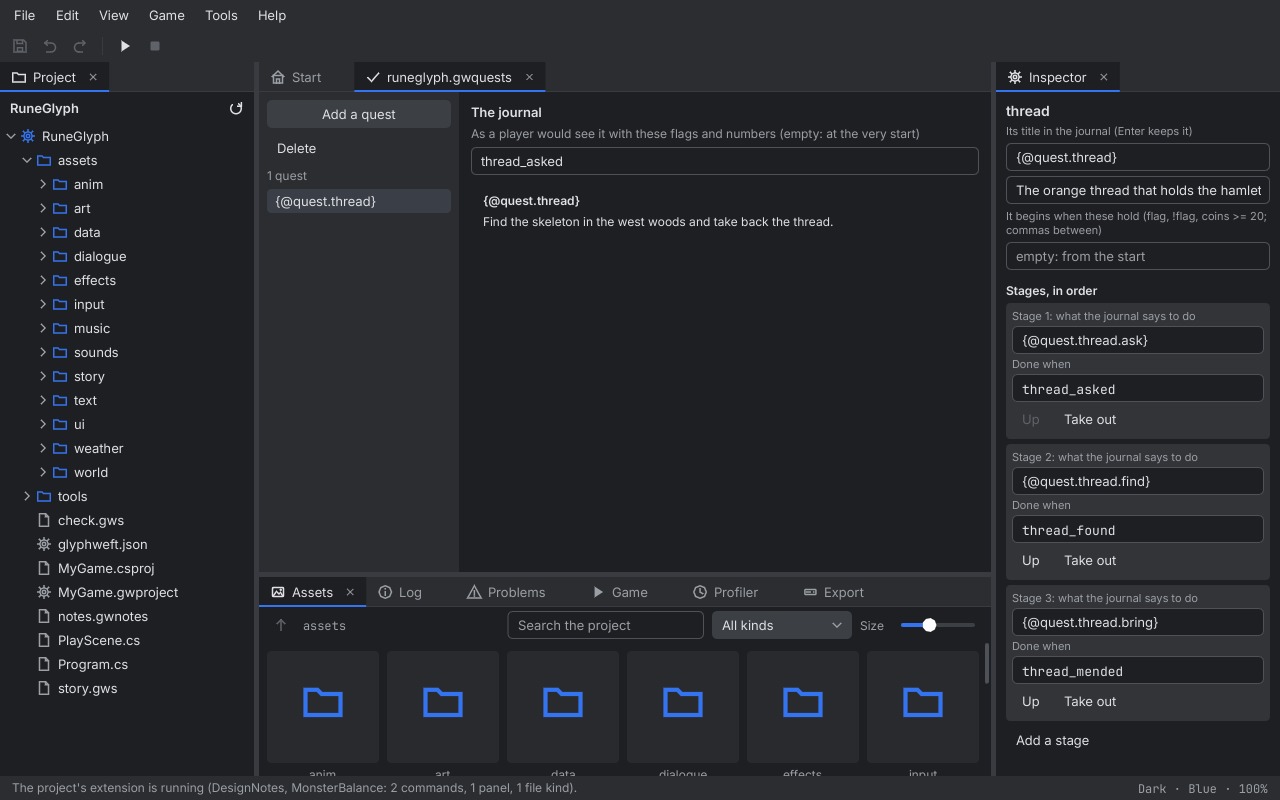
A quest file (.gwquests) opens in the quests editor: the quests on the left, and in the middle the
journal a player would see with the flags and numbers you type. Choose a quest to change its title, what it is about,
when it begins and its stages (what to do, and when it is done; add, take out and move them). Add a quest and
Delete do what they say.
In the dialogue and quests editors every change is a step to undo; one that would leave a file the engine cannot read (a condition that is not one, two ways on from one node) is refused, saying why. Save writes the file in its canonical form.
20. Texts#
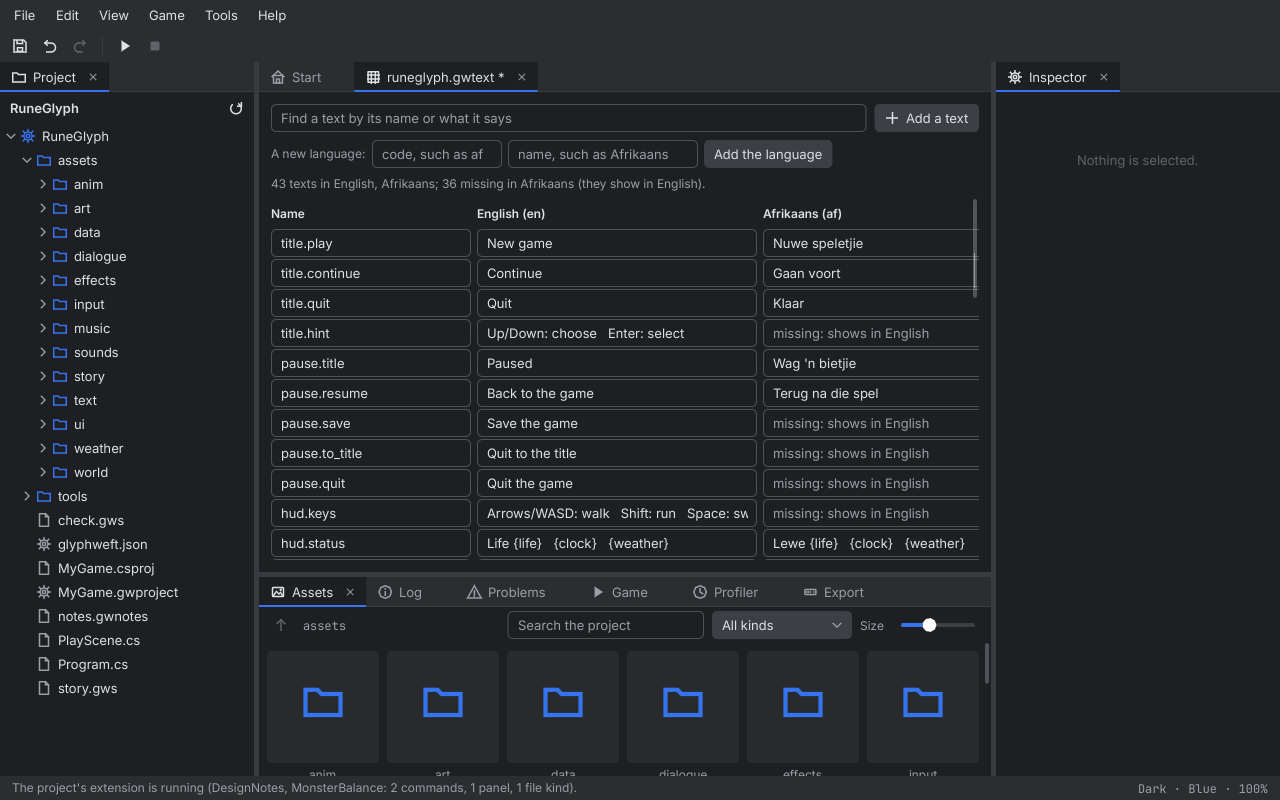
The words a game shows, in every language it has, are a texts table (.gwtext; see Texts in every language in
chapter 4 of the Engine manual). File, Game texts opens the game's table; a game without one
gets text/<game id>.gwtext first, in English with the game's title as its one text, named in its glyphweft.json.
A .gwtext in the Assets panel opens the same way.
The texts editor is a grid: a row for each text, its name first, then a column for each language. The first language is the one every text needs; the line above the grid says how many texts each other language still lacks, and an empty cell says missing: shows in English (or whichever language is first), because that is what players see there.
- Type in a cell to change a text. A text can hold values the game fills in, such as
{gold}. - Rename a text in its name box and press Enter. Screens, dialogue and quests name texts as
{@title.play}, so rename the mentions too; the asset check lists any it can't find. - Add a text makes
new.textwith the words "New text"; Remove at the end of a row takes it out. - A new language: type its code (
af,es,pt-BR) and its name as players see it (Afrikaans), then Add the language. Remove in a language's heading takes it and its texts out; the first language stays. - Find a text by its name or its words in the search box.
Every change is a step to undo, and typing in one cell is one step. When the table would not read in the game (a first-language text left empty, a character the fonts can't draw), the editor says why under the search box and won't save until it is fixed. Saved, the running game shows the new words at once. Studio's own previews (the screens editor, trying a conversation, the quest journal) show the game's words in its first language, and follow the texts editor as you type.
21. The game's settings and controls#
glyphweft.json opens as a form (double-click it, or choose the project in
the Project panel and Game settings and controls in the Inspector): the title and id, the window and cells, the
assets folder and how saves are written, the volumes, the icon, the splash cards and the loading screen with its
tips. Input actions lists the actions of the game's input file: each with its keys (separated by commas: W, Up, Ctrl+Z, MouseLeft) and what it does, to rename, change, take out, or add. Below them are the actions only the code
defines (with Actions.Define), with their keys; Move into the file copies one in to change it here. A game with
no input file yet gets one with Make an input file, holding the actions found in its code. Every change is a step
to undo; one the game could not read (a pixel scale of 40, a key called Jay) is refused, saying why. Save writes
glyphweft.json and the input file.
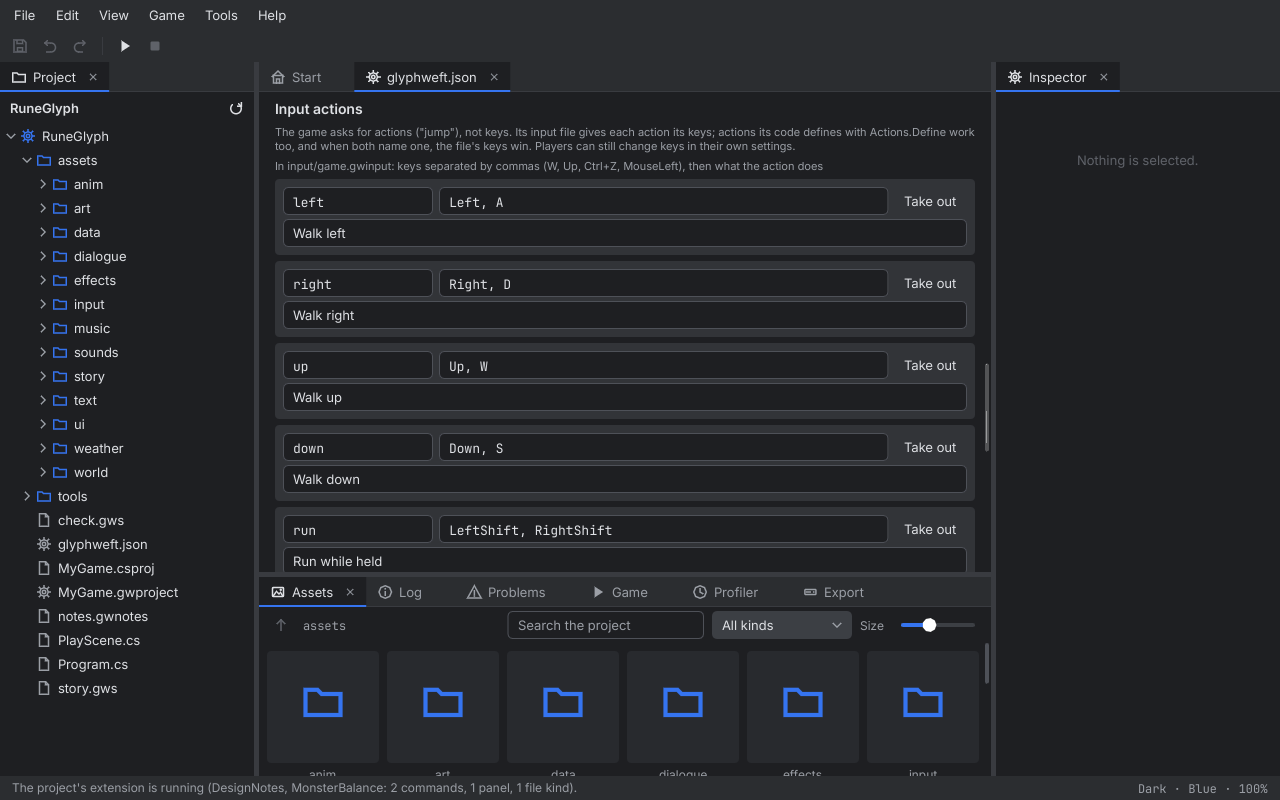
22. Walk-throughs#
Making a walk, from nothing to the game#
With a project made from RuneGlyph open:
- File, New animation. Name it
bat, keep the first clipwalkwith 2 frames and four directions, and make it 8 x 10 cells. Create opens it. - In the Direction list, choose down. Double-click frame 1 in the strip; its art opens. Draw the bat with its wings up, then go back to the animation and draw frame 2 with its wings down. The preview shows your strokes as you paint. Do the same facing right and up. Left mirrors right, so it is already done.
- Press Play (Space) in the animation's toolbar to watch the walk at real speed, or turn on all directions (A) to see every side at once. Change a frame's time if it flaps too fast.
- RuneGlyph's hero also plays
idle: New clip..., name itidle. It starts with a copy of the frame shown. - File, Save all (Ctrl+S). In
PlayScene.cs, setHeroArtto"anim/bat.gwanim", and changenew() { SwordArt }tonew()so the bat starts without the sword (a bat carries none). - Play (F5). Walk with the arrow keys: the bat flaps its way round the clearing and down the lane. Keep the game running, change the walk in Studio, and watch the game follow.
A new monster, from nothing to the game#
RuneGlyph puts one of every kind in its monsters table at each spawn point named after it, so a new monster needs no code:
- File, New animation. Name it
wisp, keep the first clipwalk, give it 2 frames and four directions, and make it 12 x 14 cells. Draw it as in the walk above, then add the clips the monster code plays: New clip...idle(a copy of a walk frame) andattack(set it to play once and go on toidle, and give one frame the eventhit, the moment it strikes). - Open
data/monsters.gwtable. Add a row, name itwisp, and fill in its title (Wisp), life, damage, speed, how far it sees, and its animation,anim/wisp.gwanim. Anything missing shows on the row until it is filled in. - Open
world/start.gwworld. With the Spawn tool (P), click where it should live, and in the Inspector rename the spawn pointwisp. - File, Save all and Play (F5). Walk to it: it waits there, chases Runefox when she comes within its sight,
and strikes on its
hitframe. Change its speed in the table while the game runs, and the next wisp to load follows.
A tower in the tilted village, from nothing to the game#
With a project made from FoxVillage open (File, New project, FoxVillage):
- Open
world/village.gwworld. It opens tilted: the houses stand up round the square and the woods shrink into the distance. - With nothing selected (Esc), the Inspector shows the world's settings. Under Tiles, Add a tile type named
tower. In its card set the texture toart/roofs/slate.gwart(the top), tick Solid, set height to 180, and set the face toart/walls/stone.gwart(the walls). - Choose
towerin the tile palette and paint a block of 3 x 3 tiles on the lawn beside the square. It rises as you paint, taller than the stone house, and hides what stands behind it. - Under Camera (tilted view), lean the camera to 60 degrees: it sees further ahead and the tower stands taller. Put it back to 50 if you like it better.
- File, Save all and Play (F5). Walk Runefox behind the tower: it hides her, and she comes out the other side drawn a little smaller, further from the camera.
A new room in the dungeon, from nothing to the game#
With a project made from RuneDungeon open (File, New project, RuneDungeon):
- Open
world/dungeon.gwworld. It opens flat, with its 3D preview beside it showing the corridor through the hero's eyes. - Choose floor in the tile palette and paint a room of 4 x 3 tiles just left of the start room (the hero's spawn point), outside the map: the map grows to take it in, and the stone round it stays solid. Then paint one floor tile in the start room's left wall as a doorway. The new room appears in the preview as you paint, under the same ceiling.
- Click the preview, then walk through the doorway with W and look round the new room with the mouse; Q and E turn.
- With the Object tool (O), place a torch in the new room, and look at it in the preview: it stands at its size, hidden behind the walls as you walk past.
- File, Save all and Play (F5): walk from the start into your room.
The next five each start from one of the kind-of-game starters (File, New project and the starter's name) and add
something with art and table rows only, no code. Each ends by playing the starter's own check.gws, which shows the
new thing in the game.
Gold in the factory, from nothing to the game#
With a project made from GlyphFactory open:
- In the Project panel, right-click
art/ground/copper_ore.gwart, Duplicate it, and Rename the copygold_ore.gwart. Open it and paint its flecks gold with the brush (a bright yellow glyph colour, a dark gold background): that is how a patch of gold ore looks on the ground. - File, New glyph art in
art/items:gold_ore, 5 x 3 cells, a lump of gold; thengold_plate, 5 x 3, a flat bar. These ride on the belts. Duplicateart/icons/copper_ore.gwartandcopper_plate.gwartasgold_oreandgold_platetoo, and paint them gold: the icons in the depot's list. - Open
data/items.gwtable. Add a rowgold_ore(titleGold ore, its icon and art), and onegold_plate(Gold plate). Opendata/recipes.gwtableand addgold_plate: 4 seconds, ingold_ore, outgold_plate. Indata/settings.gwtable, set the goal's item togold_plateand its count to 10. - Open
world/factory.gwworld. With nothing selected, the Inspector shows the world's settings: Add a tile type namedgold_ore(the name of the item it holds) and set its texture toart/ground/gold_ore.gwart. Choose it in the palette and paint over the copper patch north-east of the depot. - File, Save all and Play (F5). Build a drill on the gold, a furnace beside it and a belt to the depot (the
starter's
check.gwsbuilds the same line): the drill digs gold ore, the furnace smelts gold plates, and the depot counts them towards the goal.
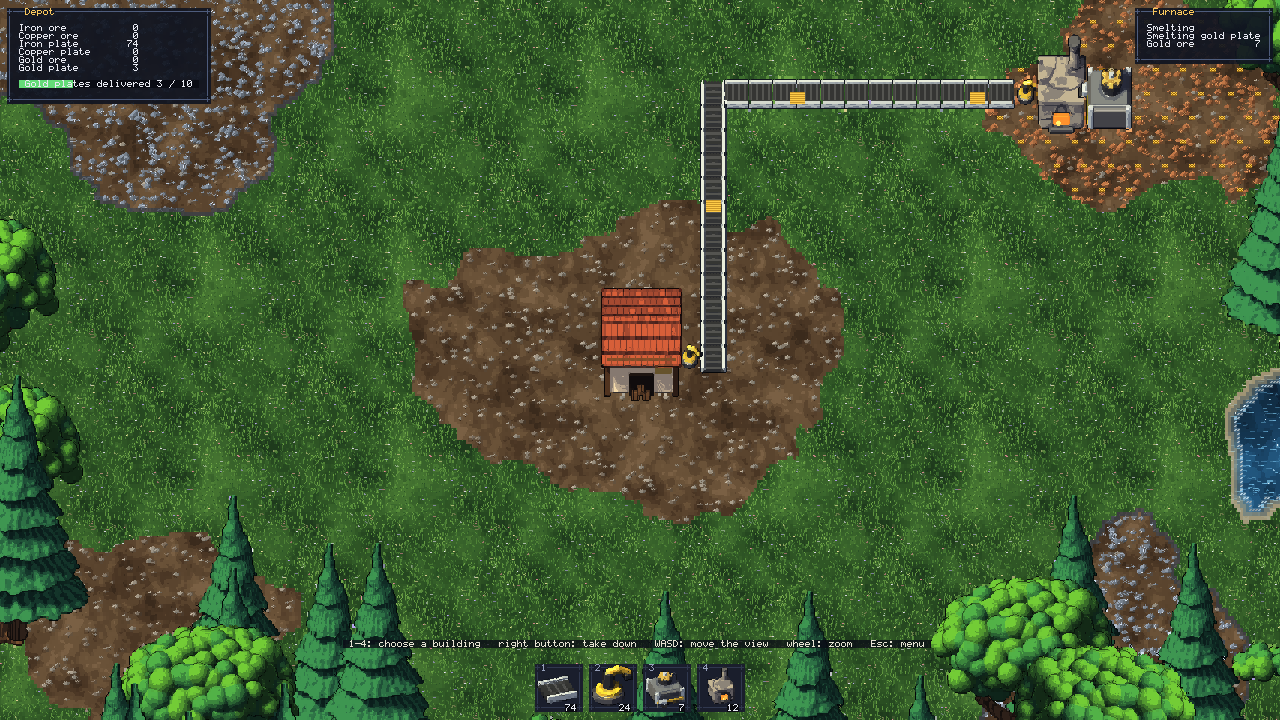
A ghoul in the crypt, from nothing to the game#
With a project made from RuneCrawler open (monsters stand wherever the world has a spawn point named after a row of the monsters table):
- File, New animation. Name it
ghoul, keep the clipwalk, choose Facing down only (the other directions use it), 2 frames, 10 x 14 cells. Draw a hunched figure in green and grey rags, the feet apart in one frame and together in the other. - New clip...
idle, and New clip...attack. Setattackto play once and go on toidle, and give its first frame the eventhit, the moment the blow lands. - Open
data/monsters.gwtableand Add a rowghoul: titleGhoul, life 24, damage 2 to 5, speed 60, experience 20, range 34, how close the hero must come (aggro) 260, and its animationanim/ghoul.gwanim. - Open
world/crypt.gwworld. With the Spawn tool (P), click just beside the skeletons on the path nearest the camp, and in the Inspector rename the spawn pointghoul. - File, Save all and Play (F5). Walk towards the path: the ghoul notices the hero along with the skeletons
(the log says
Ghoul sees the hero), and its name shows over its life bar when the mouse is on it.
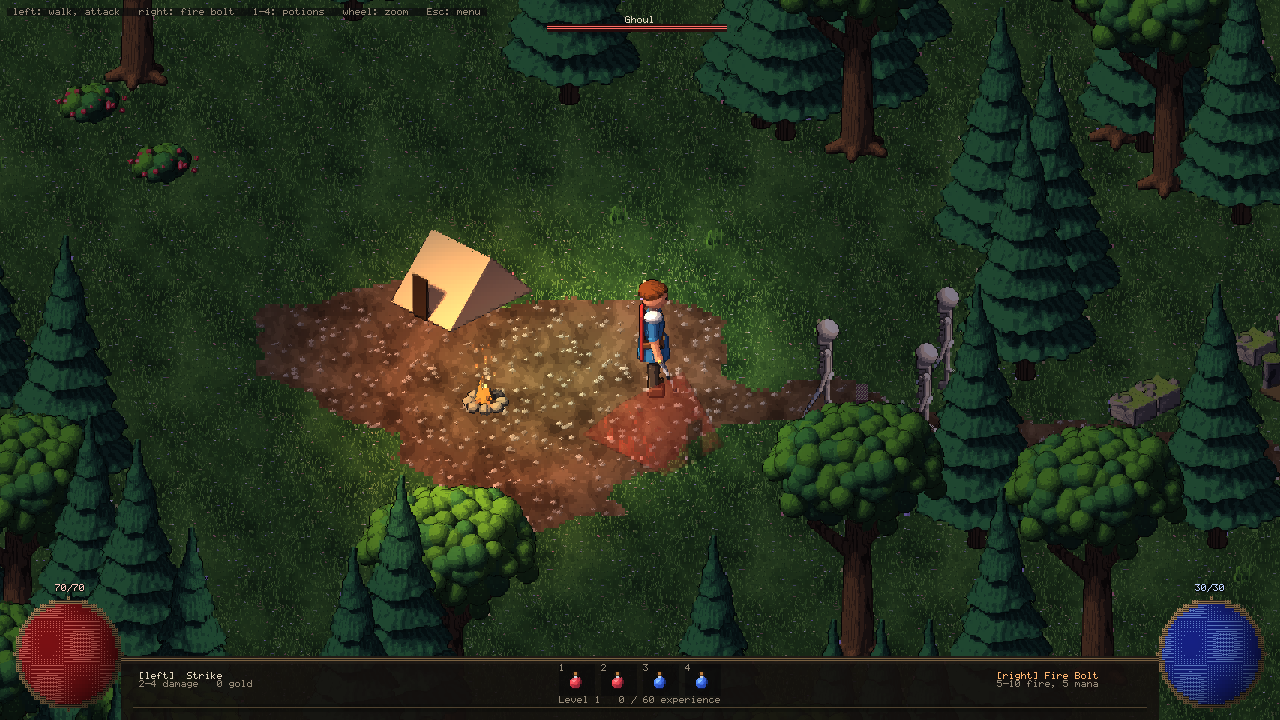
A spearman for the kingdom, from nothing to the game#
With a project made from RuneKingdoms open (cities can train every row of the units table):
- In the Project panel, Duplicate
art/units/warrior_blue.gwartand rename the copyspearman_blue.gwart. Open it and paint a long spear up one side with a bright point. Do the same fromwarrior_red.gwartforspearman_red.gwart: each kingdom draws its units in its own colour. - Open
data/units.gwtableand Add a rowspearman: titleSpearman, cost 10, strength 3, moves 1, defends 25 (percent added when it holds a city), and artart/units/spearman.gwart(the game adds_blueor_red). - File, Save all and Play (F5). Found a city with your settler (B): its window lists Spearman after Horseman. Choose it and end turns (Enter); five turns later the news says the city has trained a spearman.
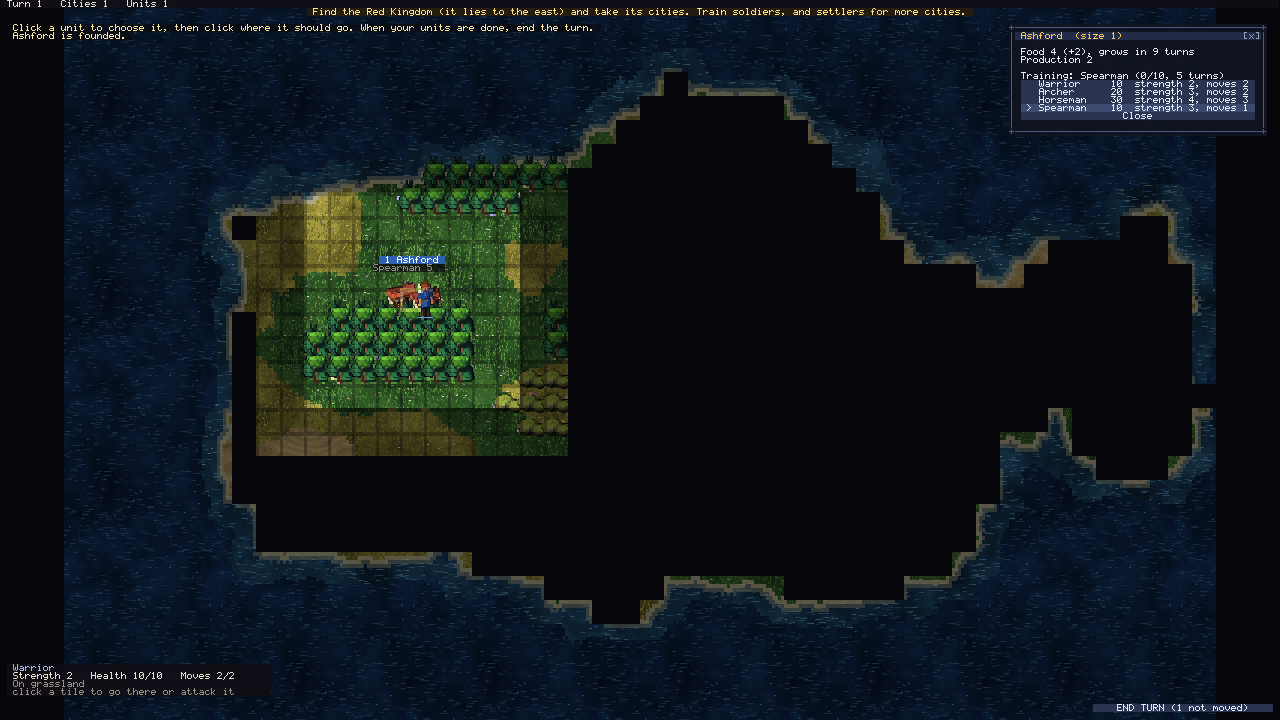
A wildling in the grass, from nothing to the game#
With a project made from GlyphMonsters open:
- File, New glyph art in
art/wildlings:glimmoth_front, 21 x 12 cells, a moth with two pale wings and a dark body, as the player meets it; thenglimmoth_back, the same from behind, as it looks when it is the player's own. - Open
data/species.gwtableand Add a rowglimmoth: titleGlimmoth, typenormal, its hit points, attack, defence and speed, how each grows (growth), the moves it learns at level 1 (tackle,growl), how easy it is to catch (catchRate 200 is easy), the experience it gives, and its two pictures. - Open
data/wild.gwtable. Inroute1, set the species toglimmothalone and the chance to 100, so every step in the tall grass meets one. (Put the others back afterwards, with the glimmoth among them.) - File, Save all and Play (F5). Choose your first wildling and walk up into the grass: a wild Glimmoth appears.
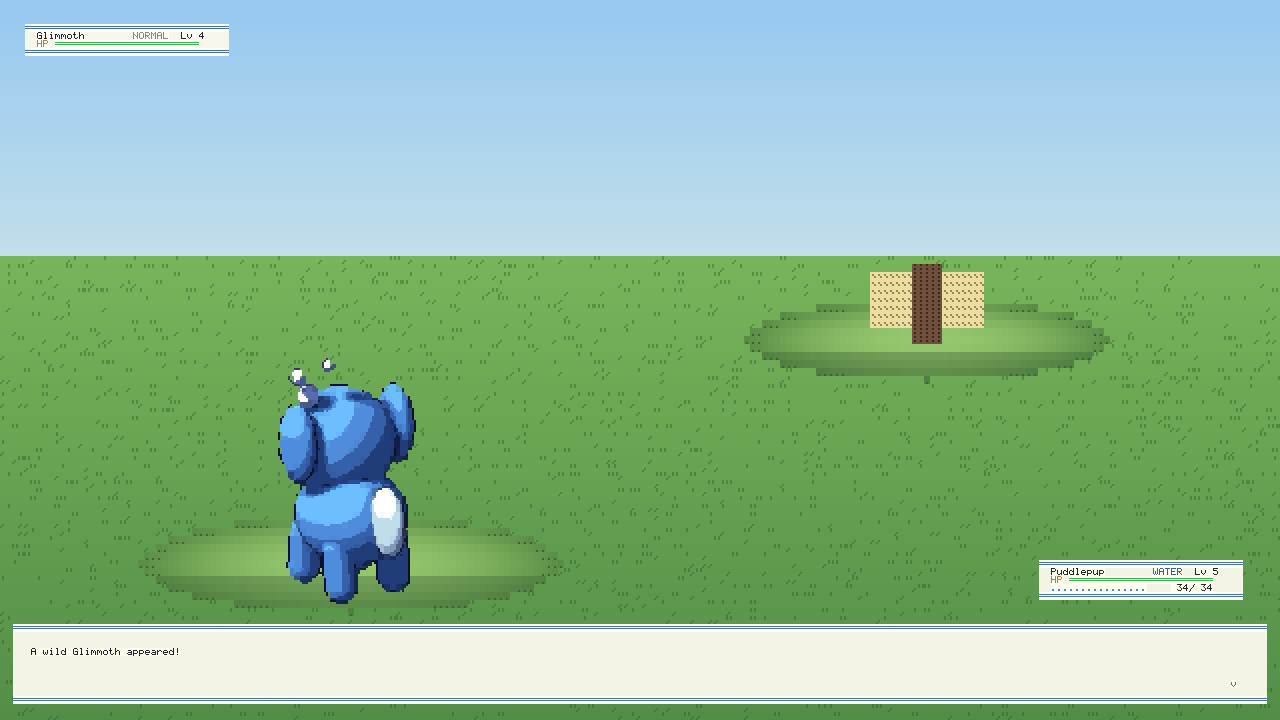
A new grown-up pet, from nothing to the game#
With a project made from GlyphPet open (the pet grows into the first form in the adults table that allows its care
mistakes; its pictures are art/pet/<form>_happy.gwart and the rest):
- In the Project panel, Duplicate each of Starwing's six pictures (
starwing_happy,_neutral,_sad,_asleep,_leftand_right) and rename the copiessunbloom_happyand so on. Open each and paint a ring of petals round the head. - Open
data/adults.gwtableand Add a rowsunbloom: titleSunbloom, mistakes 0. It is for the pet that was never left hungry or sad. - To meet it without waiting the game's 40 minutes, open
data/settings.gwtableand set the speed to 120 and the adult stage to 60 minutes (it must come after the child's 45). Put them back to 6 and 240 for the real game. - File, Save all and Play (F5). Look after the pet (1 feeds it, 3 plays): it hatches, grows up, and a pet with no care mistakes becomes a Sunbloom.
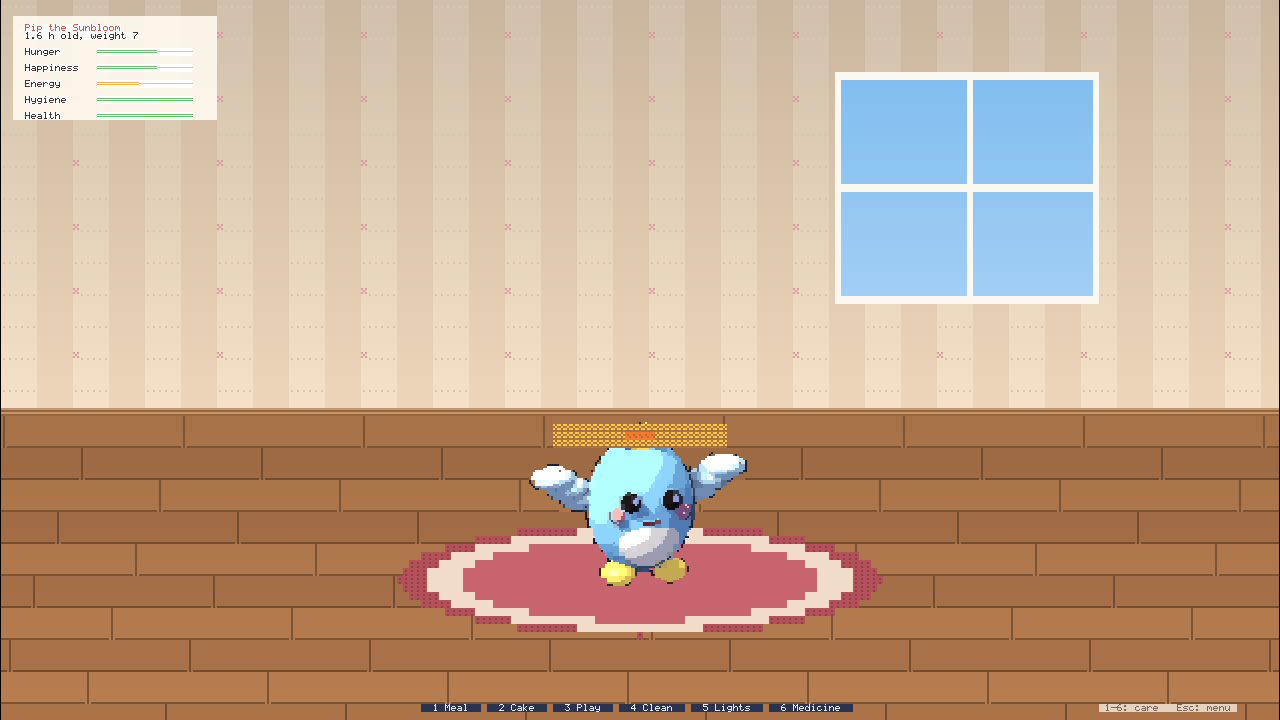
23. Settings, logs and screenshots#
Studio keeps its own settings, never in a project and never read by games, in
%APPDATA%\coettools\Glyphweft Studio\settings.json: the theme, accent, UI scale, panel layout, the window size
it returns to when un-maximized, the recent projects and folders, and the keys you changed in the Keyboard shortcuts
tab (only those; the rest keep their usual keys). The first run picks the UI scale nearest the
display's. If the file cannot be read, Studio starts with its defaults, says why in the log, and keeps the file as
settings.bad.json. Logs go to logs\ beside it (the last ten runs), and if Studio stops after an error, a report
goes to crashes\.
Every picture in this manual and the Engine manual can be taken again with docs/capture.ps1: it plays RuneGlyph
and the starters through their input scripts and opens Studio on RuneGlyph for each editor, then puts the pictures in
docs/images. -StudioOnly or -GamesOnly takes only Studio's or only the games' pictures. The pictures show the
computer's user name in paths as you (C:\Users\you\Documents\...), so they can be published as they are.
powershell -ExecutionPolicy Bypass -File docs\capture.ps1
For screenshots, --shot file.png saves a frame and quits without saving the settings (and shows the user name in
paths as you, in Studio and in a game it starts),
--size WxH sets the window (not maximized), --settings file.json uses another settings file, and --sim view,
--sim about or --sim grid opens the View menu, the About box or the grid on the art shown; --sim newart opens
New glyph art; --sim select shows a selection on the art shown and --sim pixels paints a ball with the pixel brush; --sim marks adds a socket and lights the art's palest cells; --sim anim shows the open animation's walk, facing down right, on its third frame with onion skin, --sim animall shows it in all directions and --sim newanim opens New animation; --sim model makes the open Runefox model a frost fox and waits for its preview, and --sim newmodel opens New model; --sim world digs a pond and lays a path in the open world and --sim worldobjects places a spawn point and rocks, gives every tree a light and selects one with colliders shown; --sim worldsettings shows more land with the generator's lakes grown, --sim newworld opens New world, --sim worldjoin makes the dirt path join up and paints a crossroads, --sim worldiso and --sim worldcollision show the open world isometric with walkability, or flat with collision, --sim table chooses the open table's second row (its only one, if it has one), --sim effects plays the open effects' fire at night, --sim weather turns the open weather to the storm, --sim dialogue tries the open dialogue as far as its first question, and --sim quests shows the journal with the first stage done, --sim settings scrolls the open game settings to the input actions, --sim sounds chooses and plays the open sounds' explosion; --project folder
opens a project, and --sim new, --sim inspect, --sim unsaved and --sim edit show the New project dialog,
the project's settings, the unsaved-changes question and the Edit menu after two changes; --sim assets opens
the Assets panel on the project's art; --sim play and --sim crash build and run the project's game (a
normal run, and one that crashes on purpose). A screenshot run always quits by itself, within a minute at most.
--sim keyboard opens the Keyboard shortcuts tab searched for the art editor's keys, and --sim contrast shows the
window in the high-contrast theme. --sim worldsounds places a stream by something that makes a sound (a campfire, a cottage's hearth) and chooses it, and
--sim layout chooses the open screen's menu with its anchor shown.
24. How Studio draws its interface#
Glyphweft Studio is not drawn in glyphs: it has its own UI toolkit (Glyphweft.StudioUi), on MonoGame
like the engine and with no UI framework underneath. Its text comes from our own TrueType reader and rasterizer, with
two bundled typefaces under the SIL Open Font License: Inter for UI text and JetBrains Mono for numbers, paths and
code. Shapes are drawn by UiCanvas: rounded rectangles, borders, soft shadows, lines, circles, gradients, clip
rectangles and vector icons, all anti-aliased and batched together with the text, at any UI scale. Its layout is a
tree of elements (rows, columns, grids, scroll areas, labels) measured and arranged in logical pixels, so it fits any
window size and UI scale. Elements take the mouse and keyboard: hover, clicks and double clicks, drags that keep the
mouse past their edge, the wheel, the keyboard focus (by a click or Tab and Shift+Tab), typing, shortcuts such as
Ctrl+S, pointer shapes and tooltips.
Everything follows the theme. Studio has a dark and a light theme, each with one of six accent colours (blue, teal, violet, orange, green, pink) for primary buttons, selection and focus, and a UI scale from 75% to 200% (75, 90, 100, 110, 125, 150, 175 and 200%).
Last updated 2026-10-24.