
Glyphweft is a game engine by coettools for games drawn entirely in glyphs: every character, tree, window and menu is
built from printable ASCII characters in full colour, in a real window of its own. This manual covers the engine (the
runtime, Glyphweft.Runtime), the art kit that builds glyph art, and the tooling that checks, writes and exports
games: what each part does and how a game uses it. Glyphweft Studio, the editor, has its own
manual. File formats are specified in FILE_FORMATS.md.
New to Glyphweft? Make your first game builds a small game, Last Match, from an empty project in Studio, with the C# it needs explained as it goes.
The examples come from RuneGlyph, the small game in templates/RuneGlyph that new projects can start from (see
RuneGlyph in chapter 4).
Contents: 1 How a frame is drawn, 2 Fonts, 3 Project settings, 4 Writing a game (the starting points, RuneGlyph, game data, dialogue and quests, texts in every language), 5 Input, 6 Glyph art (and the art kit), 7 Animation, 8 World and camera (the views: top-down, isometric, overhead, side, tilted and 3D), 9 Lighting and time of day, 10 Particles and effects, 11 Weather, 12 Audio, 13 Moving ground and liquids, 14 Save and load, 15 Scenes and game flow, 16 Simulation, 17 Pathfinding and AI, 18 Light physics, 19 Material simulation, 20 Game UI, 21 Keys and options built into every game.
1. How a frame is drawn#
A Glyphweft game draws into cell grids. A cell is one printable ASCII glyph with a foreground colour and a background colour, both 24-bit RGB with alpha. The window has two layers:
- World: cells at the project's cell size (3x4 px by default), filling the window.
- UI: cells at the UI cell size (6x8 px by default), drawn on top. Cells with a transparent background let the world show through.
Each frame the engine compares every row of cells with the previous frame. It turns only the changed rows into pixels and sends only those rows to the GPU. Each layer is then drawn as one textured quad. A screen that does not change costs almost nothing, and a fully animated 1920x1080 screen of 3x4 cells takes about 2 ms.
Composition rules#
When you draw a cell onto a grid:
| You draw | Result |
|---|---|
| opaque background | replaces the cell |
| transparent background | keeps the cell's background; your glyph goes on top |
| partly transparent background | tints the cell's background |
| a space with a transparent background | nothing changes, so sprites can have holes |
Characters outside printable ASCII are drawn as ?.
Drawing in another program's window#
CellView shows cells inside a rectangle of any MonoGame program's window, drawn by the engine's own raster, so a
tool's canvas shows exactly what the game draws. Glyphweft Studio's canvases and thumbnails are views.
- Set
Bounds(the rectangle, in screen pixels),Zoom(screen pixels per font pixel) andPan(the point of the cells, in font pixels, at the rectangle's top-left). Nothing is drawn outside the rectangle. - Each frame, change
Cells(orShow(art)), callPrepare(device)(it uploads only the rows that changed), thenDraw(batch)inside aSpriteBatchbegun withSamplerState.PointClamp. ZoomAt(mouse, zoom)zooms about a point,FitAll()shows everything, andTryScreenToCell/CellToScreenconvert between the window and the cells.CellView.Snapshot(cells, 3, 4)draws cells to pixels on the CPU, with no window, for thumbnails and tests.
2. Fonts#
| Font | Cell | Use |
|---|---|---|
glyphweft-3x4 |
3x4 px | Densest art. Glyphs fill the whole cell, so - _ | / \ = join their neighbours. Punctuation and digits keep their shapes; 24 letters are edge pieces for art (see below), so text belongs on the UI layer. |
glyphweft-4x6 |
4x6 px | Dense art and small text. |
glyphweft-6x8 |
6x8 px | Readable text and UI. |
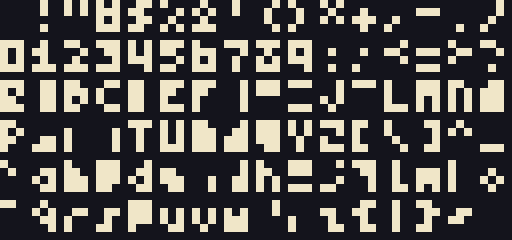
The 3x4 font is made for art. Its letters A D G H I K O Q R S V W X b c f g i k n p t x y are edge pieces: a line
down the left or right column, two-column blocks, half blocks, and full cells with one corner cut. They were chosen
by measuring which 12-pixel shapes real art needs (the art kit's font-fit). With them, silhouettes, outlines and
colour edges can fall anywhere inside a cell instead of on cell borders.
Every font also draws the accented letters of Western European languages (Latin-1): à á â ã ä å ç è é ê ë ì í î ï ñ ò ó ô õ ö ù ú û ü ý ÿ and their capitals, with ß ¡ ¿ æ Æ ø Ø. In 6x8 the mark sits above the letter (capitals
are squeezed to fit it); in 4x6 it takes the top row; 3x4 is too small for marks and draws the plain letter. They are
for text: screens, dialogue, the game's texts and CellBuffer.Text. Glyph art stays printable ASCII. A character no
font draws shows as ?.
The engine picks the font for a cell size in this order: an exact match, then the largest font the cell is a whole multiple of (12x16 uses the 6x8 font doubled), then the font with the closest shape, scaled.
3. Project settings: glyphweft.json#
glyphweft.json sits next to the game's executable:
{
  "title": "My Game",
  "window": [1920, 1080],
  "cell": [3, 4],
  "uiCell": [6, 8],
  "pixelScale": 1,
  "vsync": true,
  "fullscreen": false,
  "resizable": true,
  "clearColor": "#000000",
  "assets": "assets",
  "hotReload": true,
  "id": "my-game",
  "saves": "compressed",
  "icon": { "art": "art/icon.gwart", "background": "#2B4A2A" },
  "splash": { "cards": [ { "image": "branding/logo.png", "text": "presents" } ], "madeWith": true },
  "loading": { "accent": "#FFC45C", "tips": [ "Esc pauses." ] },
  "audio": { "master": 1, "music": 0.7, "sfx": 1, "ambient": 0.8, "ui": 0.8, "mute": false }
}
| Setting | Meaning |
|---|---|
cell |
World cell size in pixels. 3x4 for the most detail; 4x6 or 6x8 for larger glyphs. |
uiCell |
UI cell size in pixels. |
pixelScale |
Whole-number zoom of the world layer (2 = each font pixel is 2x2 screen pixels). |
window |
Window client size in pixels. |
assets |
Asset folder, relative to the executable. |
view |
How the game shows its world: "topDown" (the default), "isometric", "overhead" (straight down; things turn to any heading) "side" (a platformer: gravity down the screen, background layers behind) or "tilted" (2.5D: a camera leaning toward the ground in perspective, walls standing up, nearer things larger; see Tilted view in chapter 8), "firstPerson" or "thirdPerson" (3D: a camera standing in the world, seeing through the hero's eyes or following behind; see The 3D views in chapter 8). The starters draw through WorldView, which follows it; Studio's world editor opens in it (a 3D world flat, for now). |
hotReload |
Reload asset files that change while the game runs. |
actions |
The game's input actions: a .gwinput file in the assets (see Actions and key bindings). |
texts |
The words the game shows, in every language it has: a .gwtext file in the assets (see Texts in every language). |
audio |
Volumes 0..1: master, and one for each bus (music, sfx, ambient, ui). mute opens no sound device. |
id |
The game's id (lower-case letters, digits and -): the player's folder of saves and settings, and the game named in saves. Defaults to the title in lower case. |
saves |
How saves are written: plain, compressed or encrypted (see Save and load). |
icon, splash, loading |
The game's icon, the cards shown when it starts, and how loading screens look (see Icon, splash and loading screens). |
Setting names are not case-sensitive. Errors name the field, for example glyphweft.json: "cell" must be [width, height] with values 1..32.
Command-line options override the file: --cell WxH, --ui-cell WxH, --window WxH, --scale N, --vsync on|off, --view name (try
the game in another view, such as --view isometric), --mute, --user-dir folder.
The player's own settings.json (in their folder for the game) comes between the two; see
The player's settings.
actions names the game's input file; players rebind keys in their own settings.json. See Actions and key bindings.
The Studio project file: Name.gwproject#
Glyphweft Studio opens a game through its project file, named after the game (TideKeeper.gwproject), next to the
game's C# project and its glyphweft.json (see FILE_FORMATS.md).
A project folder has exactly one. It names the game, its
.csproj, the asset folders, the scene the game starts in and the platforms it is exported for. Every starting point
has one. GlyphweftProject.Open(folder) (in Glyphweft.Tooling) finds it, reads it and checks it; each problem
names the file.
The asset folders are merged in order, later ones replacing files of earlier ones, just as the game's build copies
them into one assets folder. A game can list a folder of art shared with other games first, then its own assets.
Checking every asset#
AssetIndex.Of(project) (in Glyphweft.Tooling) finds every asset of a project and reads each with the engine's own
loader. It knows each asset's kind, what it references (frame art, tile textures, object art, maps, WAV files, effect
names, the settings' icon and loading art, and every asset path in the data tables) and what references it. It reports every broken file and every missing
reference with the file and line, for example
anim/hero.gwanim:5: '../art/missing.gwart' does not exist (looked for art/missing.gwart).
Unreferenced() lists assets nothing points at; a game may still load them by name from code. The index of every
starting point is clean, and a test keeps it so.
Exporting a game#
An export turns the project into a folder you can hand to a player: the game, and by default .NET with it, so it runs
on a machine without Studio or the .NET SDK. GameExport (in Glyphweft.Tooling) does it in three parts:
- Checks.
GameExport.Check(project)reads the project file,glyphweft.jsonand every asset (the asset index). Any problem stops the export, each one naming its file. It also lists the assets nothing else names; that is only a hint, since your code may load them by name. - Publish.
GameExport.RunAsync(project, options, line => ...)runsdotnet publishonce for each platform inoptions.Platforms, in Release, and hands you its output line by line as it comes. Each platform goes to its own folder,export/<platform>in the project (export/win-x64), or underOutputFolderwhen you set one. An earlier export in that folder is replaced; a folder holding anything else is left alone and that platform fails. - Pack. The loose
assetsfolder in the result is replaced by one file beside the game,assets.gwpack, made from the project's asset folders merged in order (hidden files such as.vscodeare left out). The game reads the pack in place of the folder. WithEncrypt, the pack is sealed with a key made from the game's id; that stops casual copying, not a determined person, since the key ships with the game.
Each result (ExportResult) gives the folder, its size (SizeText, such as "79.2 MB") or why it failed.
| Option | Default | What it does |
|---|---|---|
Platforms |
(required) | Runtime identifiers: win-x64, win-arm64, linux-x64, linux-arm64, osx-x64, osx-arm64 |
Packaging |
SelfContained |
SelfContained brings .NET along (about 80 MB for the template); FrameworkDependent is much smaller, but the player needs the .NET 8 runtime |
SingleFile |
off | The game and its libraries in one executable; glyphweft.json, the splash logo and assets.gwpack stay beside it |
Encrypt |
off | Encrypts the asset pack |
OutputFolder |
export in the project |
Where the platform folders go |
GlyphweftProject project = GlyphweftProject.Open(@"C:\Games\TideKeeper");
ExportReport report = GameExport.Check(project);

if (report.CanExport)
{
	IReadOnlyList<ExportResult> results = await GameExport.RunAsync(project, new ExportOptions(new[] { "win-x64" }), Console.WriteLine);
}
A Windows export is a normal .exe with no console window. A Linux export's game is a file without an extension;
mark it executable (chmod +x) if the copy lost that. A macOS export is a folder like the others, not an .app
bundle, and it is not signed, so macOS asks before it runs it. Export each platform from Windows, Linux or macOS
alike; only running it needs that system.
The game's log says where its assets came from on its third line (assets from ...\assets.gwpack (encrypted)), so
a player's log shows whether it read the pack. A test exports a game made from the template for win-x64, copies the
folder away from its project, deletes the project, and starts the .exe with nothing but the Windows system folder
on its path and no .NET settings: the game plays its input script through the title, the world, a walk, a swing and
the pause menu, and quits by itself.
Writing files#
Every engine format has a writer that produces one canonical text, so a file saved twice is the same byte for byte and saved files diff cleanly. Two-space indents, short arrays on one line, properties in the format's order, and every value equal to its default left out (reading the file brings it back). Comments are not kept.
| Format | Read | Write |
|---|---|---|
.gwart + .gwcolors |
ArtFormat.Read |
ArtFormat.Write |
.gwanim |
AnimFormat.Parse |
AnimFormat.Write |
.gwworld, .gwmap |
WorldFormat.Parse |
WorldFormat.Write, WorldFormat.WriteMap |
.gweffects |
EffectLibrary.Parse |
EffectLibrary.Write |
.gwsounds |
SoundLibrary.Parse |
SoundLibrary.Write |
.gwmusic |
Music.Parse |
Music.Write |
.gwui |
UiFormat.Parse |
UiFormat.Write |
.gwweather |
Weather.Parse |
Weather.Write |
.gwtable, .gwschema |
GameTables.Read, DataSchema.Parse |
DataTable.Write, DataSchema.Write |
glyphweft.json |
GameSettings.Parse |
ToJson() |
Name.gwproject |
GlyphweftProject.Parse |
GlyphweftProject.Write |
Parse gives the file as written (the objects Studio edits); the loaders (AnimFormat.Read, WorldFormat.Load
and so on) build the game's objects from it and check what it says. Tests write every file of every format in the
repository and check that it reads back the same and writes again the same.
4. Writing a game#
Derive from GlyphHost and draw into World.Cells and Ui.Cells. Both grids keep last frame's contents, so redraw
or clear what changes. A game with several screens (a title, a pause menu) derives from SceneHost instead; see
Scenes and game flow.
Every public type and member of the runtime is documented. Visual Studio, Rider and VS Code show what it does as you
type or hover, from Glyphweft.Runtime.xml next to the runtime.
public sealed class MyGame : GlyphHost
{
	public MyGame(GameSettings settings, string[] args) : base(settings, args)
	{
	}

	protected override void OnUpdate(double dt)
	{
		if (Input.Pressed(Keys.Escape)) Exit();
	}

	protected override void OnDraw()
	{
		World.Cells.Clear(new Rgb(10, 20, 12));
		World.Cells.Text(4, 4, "/\\/\\ glyph-built", new Rgb(120, 220, 140), Rgb.Transparent);
		Ui.Cells.Clear();
		Ui.Cells.Text(1, 1, "Hello, Glyphweft", Rgb.White, new Rgb(20, 20, 40));
	}
}

// Program.Main:
GameSettings settings = GameSettings.Load(AppContext.BaseDirectory, args);
using MyGame game = new MyGame(settings, args);
game.Run();
Starting points#
New projects start from a folder in templates: templates/Empty (the empty game), templates/RuneGlyph,
templates/GlyphShip, templates/FoxPlatformer, templates/FoxVillage, templates/RuneDungeon and templates/FoxExplorer, one
for each view, and five kinds of game: templates/GlyphFactory, templates/RuneCrawler, templates/RuneKingdoms,
templates/GlyphMonsters and templates/GlyphPet (see The kind-of-game starters below). Glyphweft Studio makes new
projects from them (File, New project), naming
the game throughout and pointing it at the engine; each also builds and runs on its own from its folder. The empty
game's Program.cs has the same shape as RuneGlyph's (a host, a TitleScene and a PlayScene) with nothing in the
world, so RuneGlyph shows what to add.
They draw their world through a WorldView, made from the world and Settings.View. It keeps the same code working
in each view:
DrawGrounddraws the ground.ToPlaneturns a world position into where it is on screen (what the camera follows and draws at).StepForturns a step on the screen (the arrow keys) into a step in the world.Depthsays what is drawn in front of what.WorldAreagives the part of the world the camera sees.
RuneGlyph#
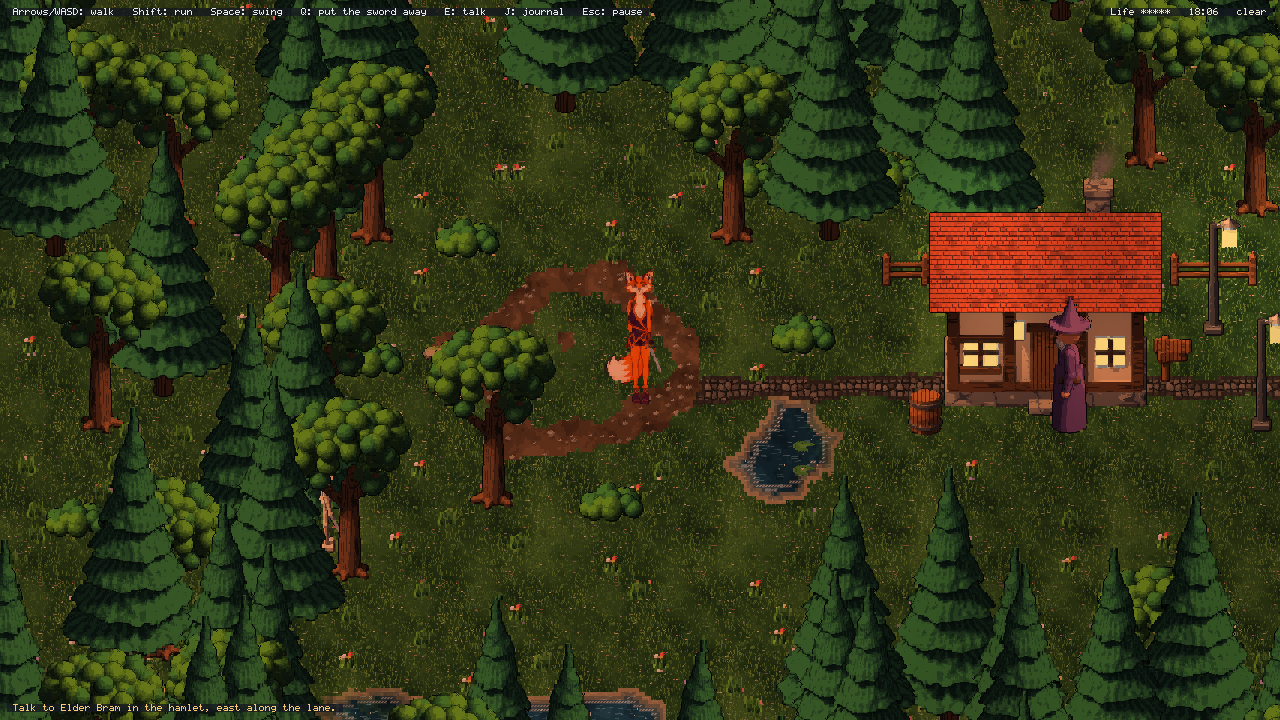
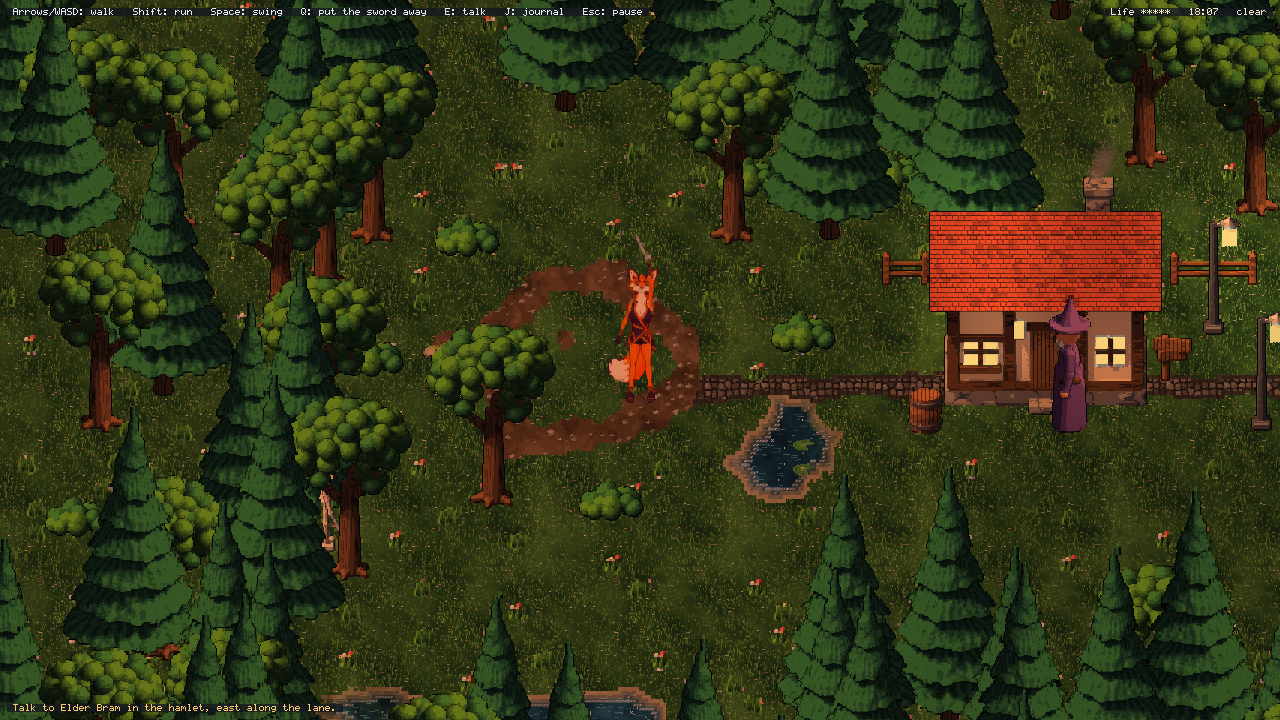
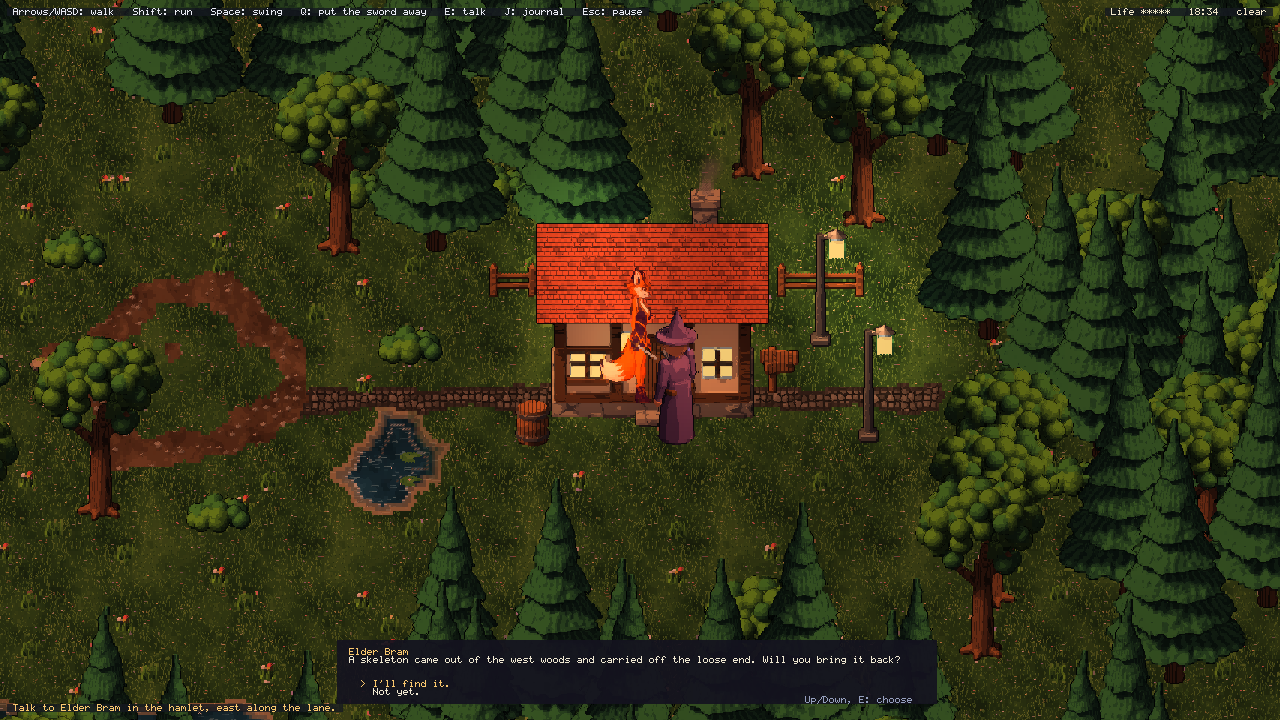
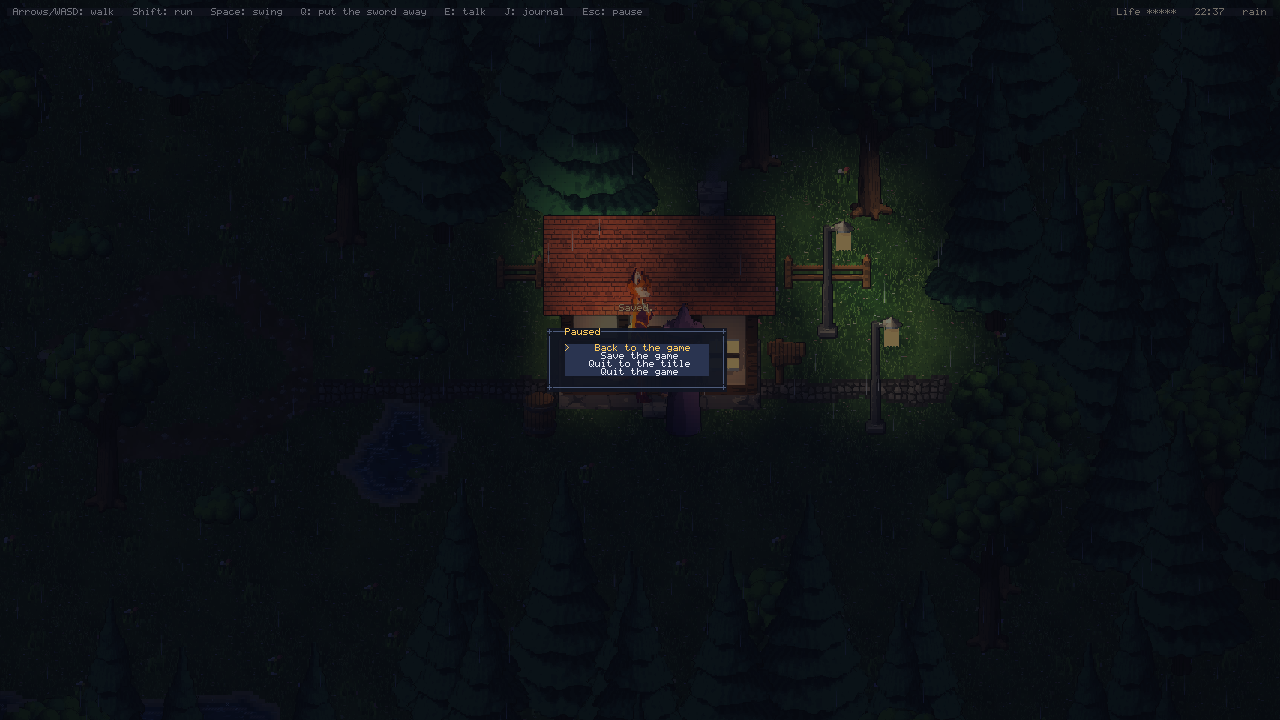
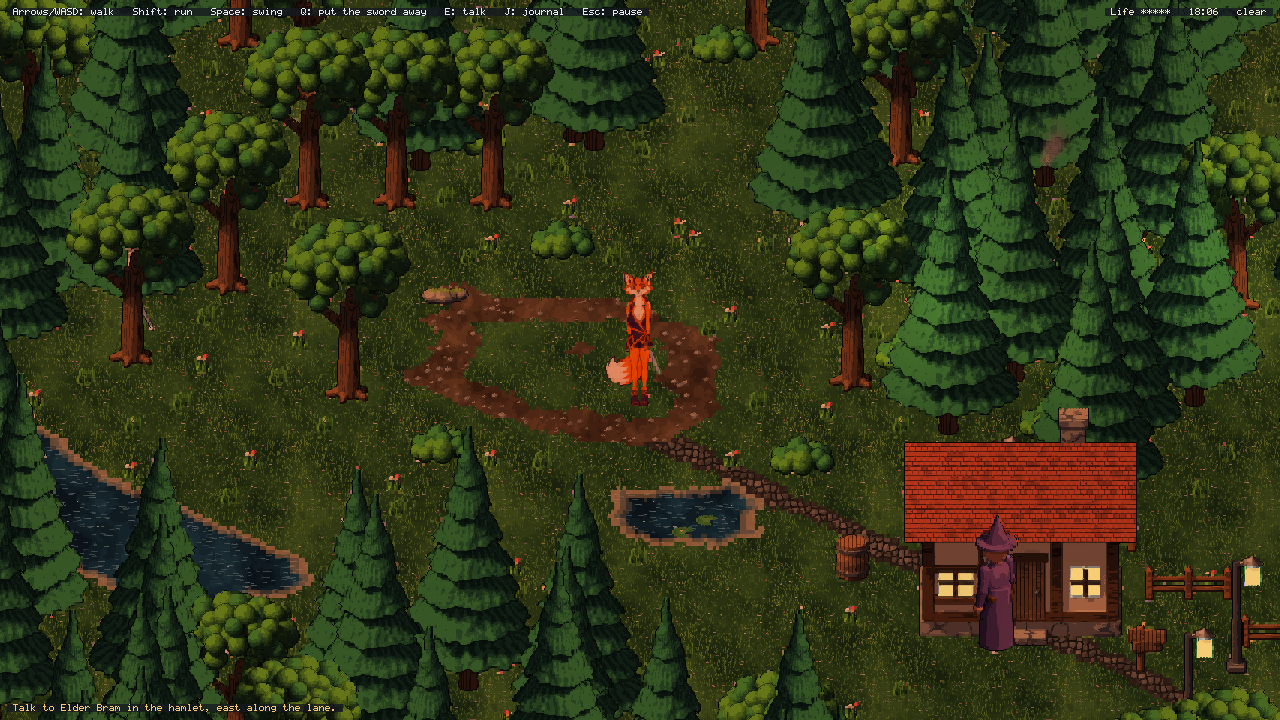
templates/RuneGlyph is a small, complete game, and the one this manual and the Studio manual show. Its hero is
Runefox, Glyphweft's glyphweaver. The orange thread that holds the hamlet's glyphs together has snapped, and a
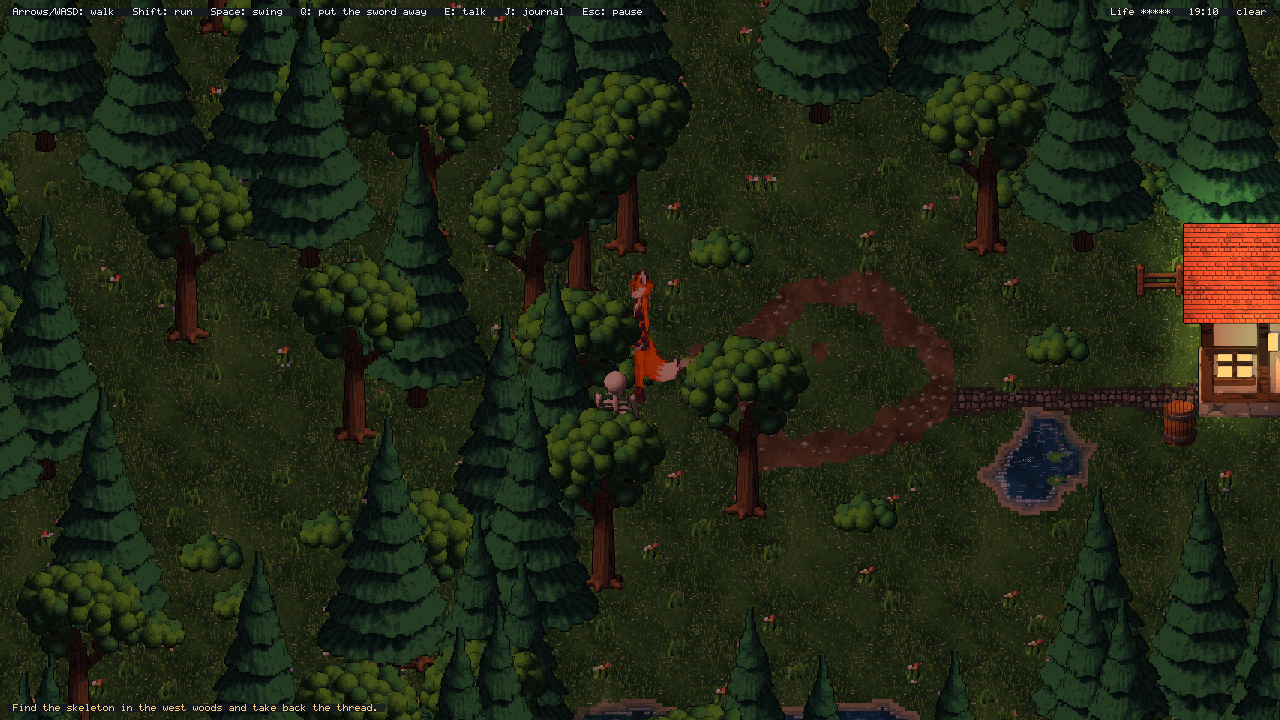
skeleton has carried off the loose end into the west woods: Elder Bram asks Runefox to bring it back. It starts on a
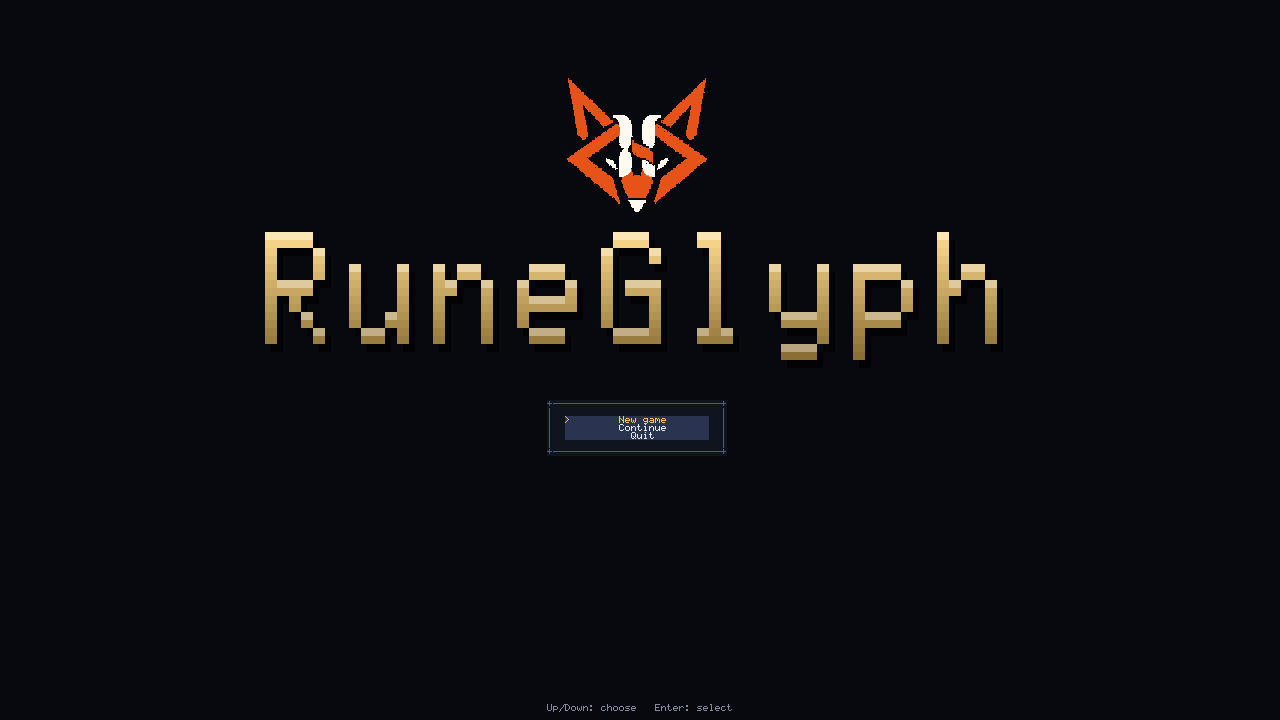
title screen with Runefox's face (New game, Continue once a game is saved, Quit), loads through a loading
screen, and plays in a clearing in woods that grow as far as you walk, with the hamlet east along the lane.
| Key | What it does |
|---|---|
| Arrows or WASD | Walk (eight directions) |
| Shift | Run while held |
| Space | Swing the sword |
| Q | Put the sword away, or draw it |
| E or Enter | Talk to Elder Bram, and go on with what he says (Up and Down pick an answer) |
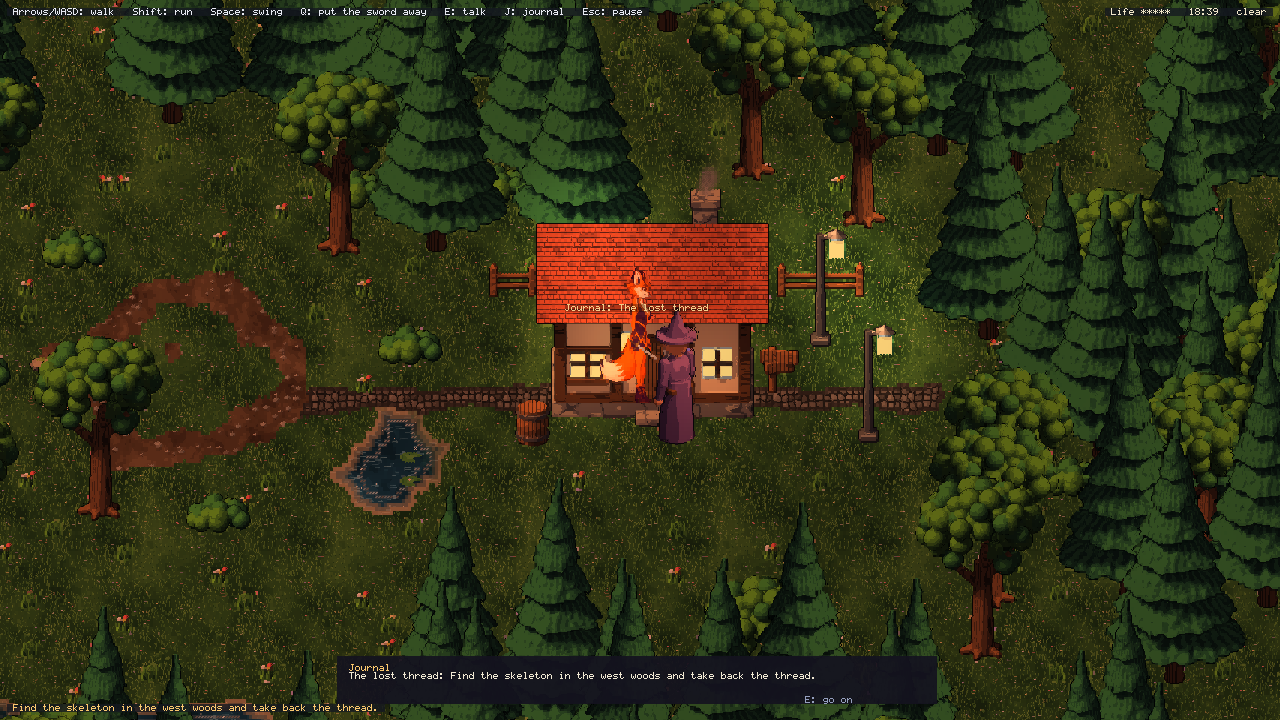
| J | Show or hide the journal |
| R | Move the weather on: clear, cloudy, rain, storm, snow, fog |
| T | Hurry time on while held |
| Esc | The pause menu: back to the game, save the game, the language (once its texts have two), quit to the title, quit |
What it shows, and where to read about it:
- Runefox is
anim/runefox.gwanim, posed from her character package: a painted rig for each of front, front right, right, back right and back, the other three directions their mirror images. Her sword is equipment, its own layer (anim/runefox_sword.gwanim, the same poses frame for frame; see Equipment and other layers in chapter 7). The same clips from her 3D model in a drawn look are there too, as another way to make a character (anim/runefox_3d.gwanimandanim/runefox_3d_sword.gwanim; setHeroArtandSwordArtinPlayScene.csto them to play with them). - The world is
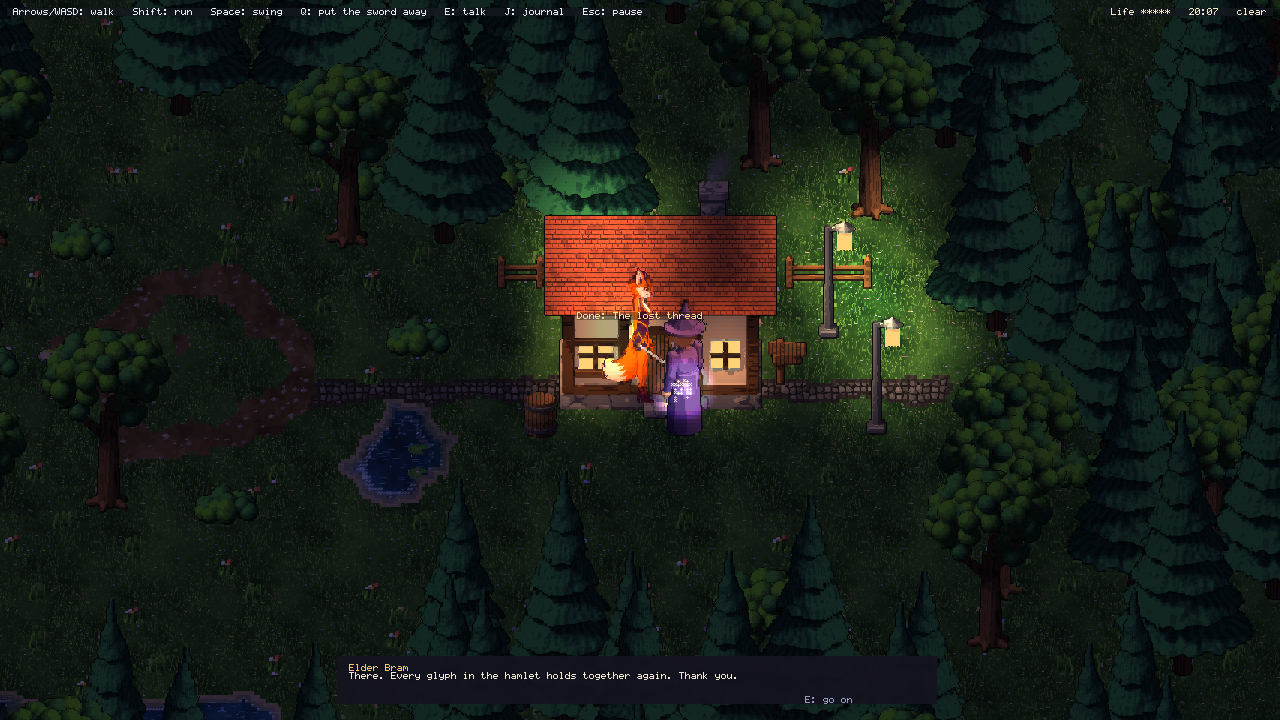
world/start.gwworldwith its hand-made mapstart.gwmap: the clearing, the lane, the hamlet's cottage, lamp posts, fence, signpost and barrel, a pond with lily pads, and spawn points for Runefox (hero), Elder Bram (elder) and the skeleton (skeleton); the generator grows the woods around it (chapter 8). - Night and lamps: the clock starts at half past five in the evening and a day lasts four minutes. The cottage's windows and lantern and the lamp posts are object lights that come on at dusk (chapter 9).
- Smoke and sparks: the chimney smokes (an object effect), a hit throws sparks and Bram's weaving bursts into
magic, from
effects/default.gweffects(chapter 10). - Weather changes by itself from
weather/default.gwweather: wind bends the trees, rain wets the ground, snow settles on roofs (chapter 11). - Sound: every sound is synthesized from
sounds/default.gwsounds(footsteps on the walk'sstepevents, the swing, hits, rain, wind, thunder, the hearth's crackle after dark), andmusic/hamlet.gwmusicplays (chapter 12). - The pond ripples, waves roll in to its edge, lily pads bob, and whoever stands at its edge is mirrored in it (chapter 13).
- Saving: the pause menu's Save the game writes the time, the weather, the story, Runefox and the monsters to
the
runeglyphslot; the title's Continue reads it back (chapter 14). - The story: Elder Bram's words are
dialogue/elder.gwdialogue, the quest isstory/runeglyph.gwquests, and the story's flags (thread_asked,thread_found,thread_mended) move it on. The journal (J) and the HUD's bottom line show what to do next (Dialogue and quests, below). - The skeleton comes from the monsters table (
data/monsters.gwtableand its schema): its life, damage, speed, how far it sees and its animation. RuneGlyph puts one of every kind in the table at each spawn point named after it. It waits at home, chases Runefox when she comes within sight, swings when close and goes home when she gets away; three hits and it falls apart, dropping the thread (Game data: tables, below). - Screens: the title (
ui/title.gwui), the pause menu (ui/pause.gwui) and the HUD (ui/hud.gwui: the keys, Runefox's life, the clock, the weather and the quest), whose layoutsUiSceneandUiScreenshow while the C# binds their buttons and sets their values (Screens from layouts in chapter 20). Change them in Studio's layout editor and the game uses them as they are, as long as their buttons keep the actions the code binds (play,continue,quit,resume,save,language,title). - Texts: every word the game shows is in
text/runeglyph.gwtext, for now in English only: the screens, Bram's lines and the quest name their texts as{@title.play}, and the C# asks for its toasts and the journal withTexts.Get. Add a language in Studio's texts editor (File > Game texts) and the pause menu offers Language, which moves on to the next one and keeps the choice (Texts in every language, above). - Its own Studio tools:
tools/studioholds a Studio extension, C# that Studio builds and runs to add a Monster balance panel and design notes (notes.gwnotes); see Studio extensions in chapter 6 of the Studio manual. The game's build leaves the folder out. - Behaviours: objects can be given C# behaviours in the world file; RuneGlyph tells them when Runefox's feet touch something (Names, tags and behaviours in the Studio manual).
- Studio's Play from here (
--world,--at) skips the title and plays that world from the spot given.
The code is in two files: Program.cs (the host, the title screen and the pause menu) and PlayScene.cs (the world,
Runefox, Elder Bram, the monsters, the story, night, weather, sound and saving). It also has its glyphweft.json,
MyGame.csproj and MyGame.gwproject (a new project takes your game's name for them), and two input scripts:
check.gws plays through the title, into the world, a walk, a swing and the pause menu, a screenshot at each step;
story.gws plays the whole story, from Elder Bram to the skeleton and home, then night falls, the rain comes and the
game is saved. Run them from the game's folder:
dotnet run --project templates/RuneGlyph -- --input-script check.gws
dotnet run --project templates/RuneGlyph -- --input-script story.gws
dotnet run --project templates/RuneGlyph -- --input-script check.gws --view isometric
The last one plays it isometric: the same world and code, drawn as diamonds. The template takes its title screen's and
loading screen's title from title in glyphweft.json, and its .csproj sets its own C# options, so a game made
from it builds anywhere.
The GlyphShip starter#
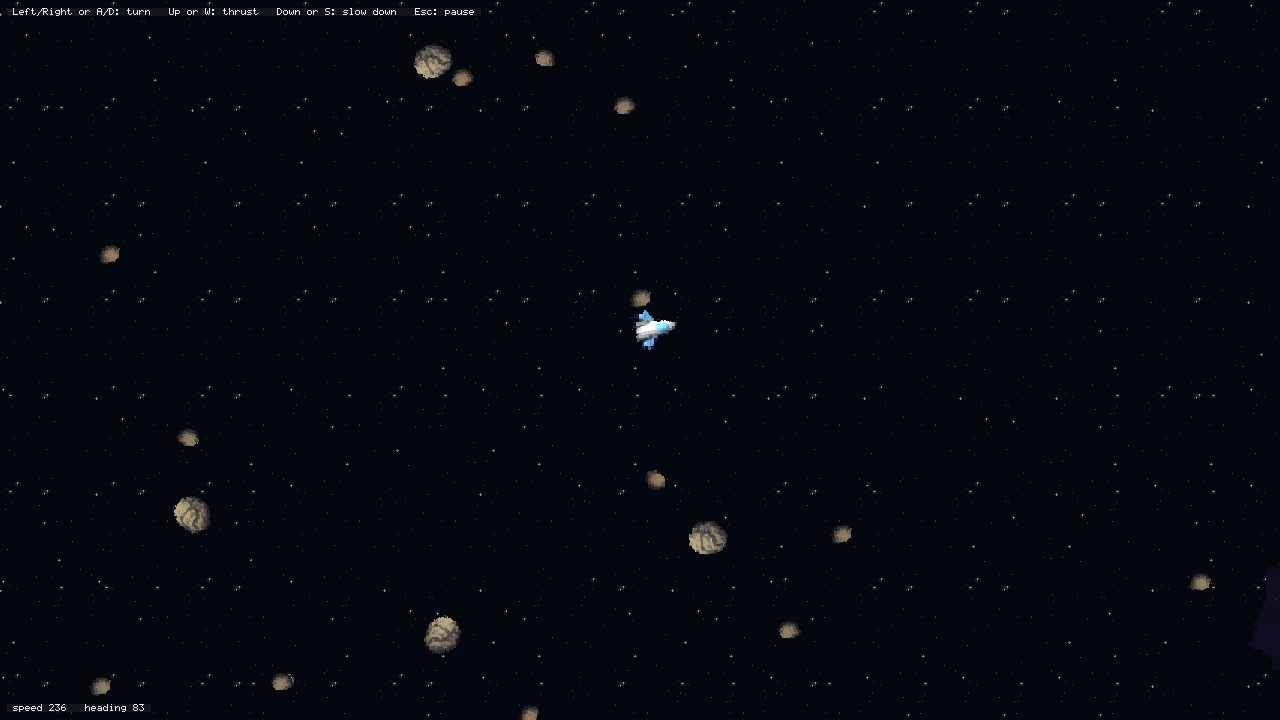
templates/GlyphShip is the starting point for the overhead view ("view": "overhead" in its glyphweft.json): a
small ship in deep space, seen straight down. Left and Right (or A and D) turn it, Up (or W) fires its engines and
Down (or S) slows it; with nothing pressed it drifts on, as things do in space. It bounces off the rocks, which tumble
slowly where they float, and Esc pauses. The HUD (ui/hud.gwui) shows its speed and heading.
Everything in it turns to a heading in degrees, 0 up the screen and 90 to the right:
- The ship is
anim/ship.gwanim, withcoastandthrustclips each drawn at the 32 headings (coast.h0tocoast.h31). The code sets the animator'sHeadingand playsthrustwhile the engines fire; the animation shows the nearest heading. To draw your own, draw it facing up in the animation editor and press Draw the headings. - The rocks are object types with
"headings": true(art/space/rock_big.gwartand its_h0to_h31beside it). Four are placed with headings of their own inworld/start.gwworld, and the generator scatters more over the star field. The code turns each one a little every frame withTurnTo. - The ground is three star fields and a violet dust, mixed by the generator so the stars never line up.
Its art is built by the art kit (the glyphship catalogue): the ship and rocks are modelled and rendered straight
down, then turned to their headings by the same heading painter Studio uses. check.gws plays it: the title, into
space, a burn and a turn, the pause menu, a screenshot at each step.
dotnet run --project templates/GlyphShip -- --input-script check.gws
To make it your own in Studio:
- File, New project, choose GlyphShip (the view is Overhead), name it and Create.
- Open
anim/ship.gwanim. Choose thrust, then a heading on the dial: each is ordinary glyph art, so double-click a frame to touch it up. To draw a ship of your own, make a clip facing up (or paint over heading 0) and press Draw the headings. - Open
world/start.gwworld. It opens straight down. Select a rock and turn it with Q and E or its Heading in the Inspector; in the world's settings, Turns to headings makes any object type turn. - Play (F5): turn, thrust and bump a rock. Esc pauses, and the log says where the ship got to.
The FoxPlatformer starter#
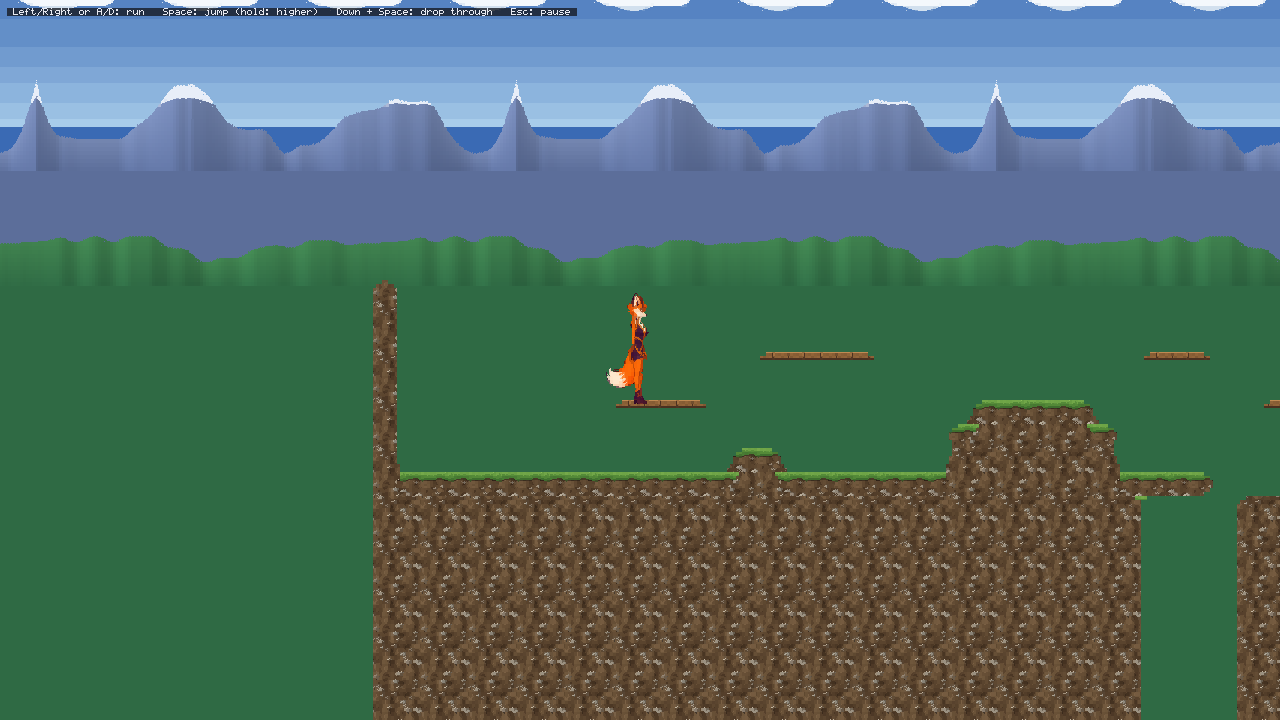
templates/FoxPlatformer is the starting point for the side view ("view": "side"): Runefox in a short platformer level.
Left and Right (or A and D) run, Space jumps (hold it for higher; W and Up jump too), and Down with Space drops
through a plank platform. She falls down the pit and starts again; Esc pauses, and the log says where she paused.
- The engine's
Platformerdoes the running and jumping (the starter gives Runefox a box 96 pixels tall and a jump a little higher than the default); the scene reads the keys, picks the clip (idle,run,jump,fall, andlandafter a long fall), turns her the way she last ran and keeps the camera on her. - Runefox is
anim/runefox.gwanim, posed from her layered right profile (see the art kit's cut-outs), drawn facing right only: facing left plays the same frames mirrored. - The level is
world/start.gwmap:.is sky (an open tile),=grass,#earth (both solid),-a plank (a one-way platform) and@where she starts. Paint it in the world editor, which shows it from the side. - Behind it, the world's
backgroundhas the sky (distance 40), the mountains (6) and the hills (2.5), each with a colour below it; change them in the world's settings. - Its art comes from the art kit's
foxplatformercatalogue.check.gwsplays it: the title, a run, a jump up onto the first plank, the pause menu.
dotnet run --project templates/FoxPlatformer -- --input-script check.gws
To make it your own in Studio:
- File, New project, choose FoxPlatformer (the view is Side view), name it and Create.
- Open
world/start.gwworld. It opens from the side with its sky, mountains and hills. Paint with grass and earth for ground, plank for platforms and sky to clear; in the world's settings, a tile's One-way platform and Open: nothing drawn say how it behaves, and Background changes the layers behind. - Open
anim/runefox.gwanimto see her clips, all facing right (left mirrors them); draw your own hero facing right in the same way. - Play (F5): run, jump up onto a plank and drop back through it. Esc pauses, and the log says where she paused.
The FoxVillage starter#
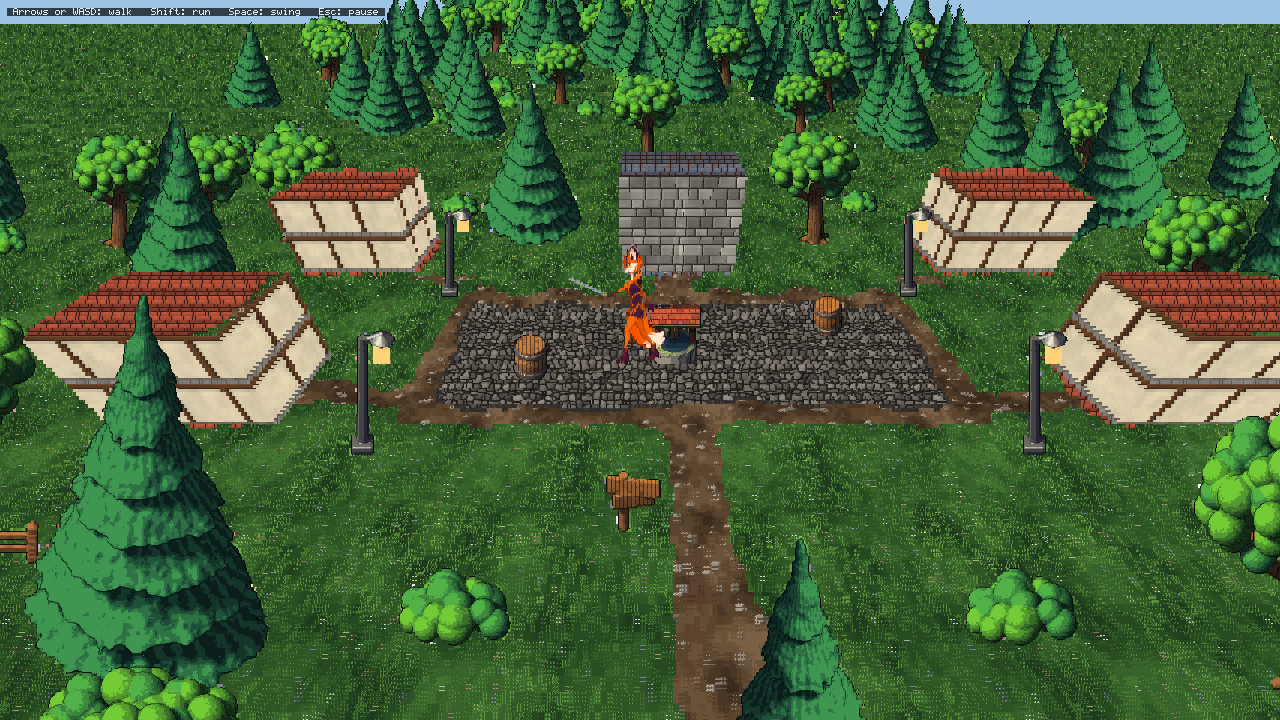
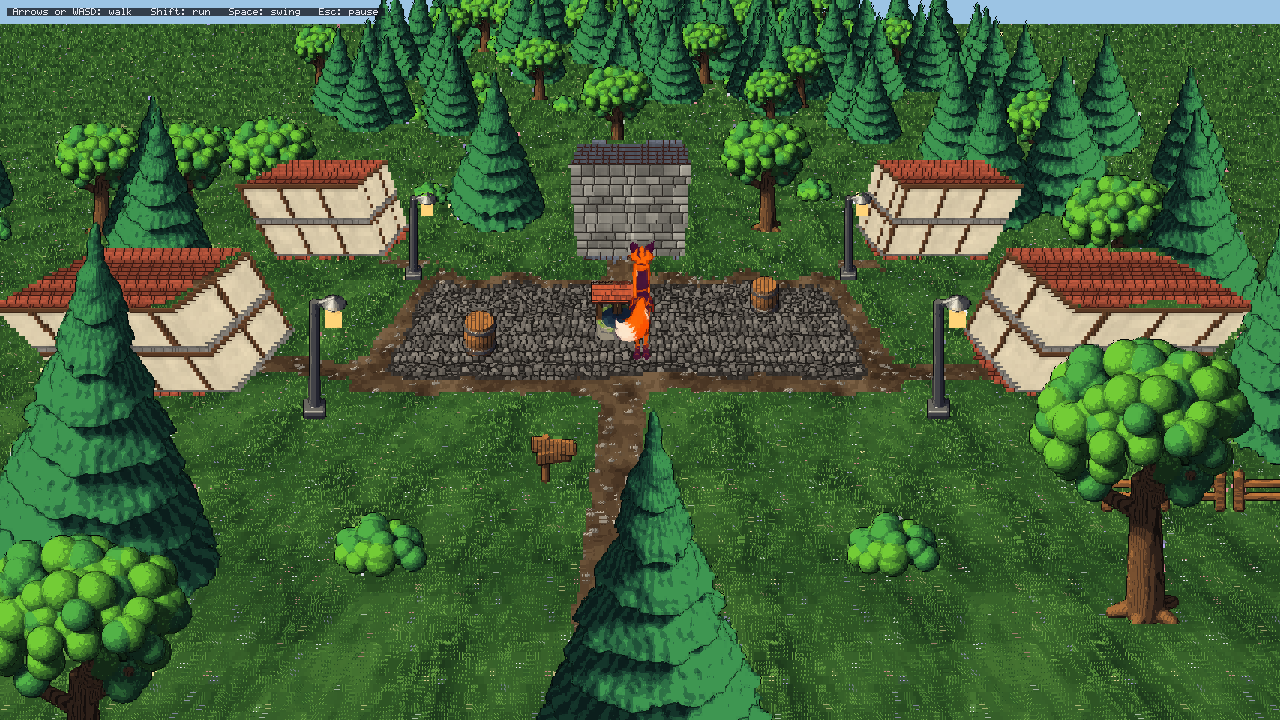
templates/FoxVillage is the starting point for the tilted view ("view": "tilted"): Runefox in a village seen from a
camera leaning toward the ground. The arrow keys (or WASD) walk her in eight directions, Shift runs, Space swings her
sword and Esc pauses; the log says where she paused.
- The village is
world/village.gwmap::cobbles round the well (W),=dirt paths,.the village's lawn,Htimber houses andSthe stone house, with lamp posts (L), barrels (b), fences (f), a signpost (s), trees (T,P) and bushes (B), and@where she starts. A house is a tile type that stands up:"height": 96(two storeys of 48 pixels; Runefox is about 120 pixels tall) with a red roof as its texture and timber-framed walls as itsface; the stone house is 120 pixels under slate. Walk behind one and it hides her. - The world's
cameraleans 50 degrees from straight down from 480 pixels away. Beyond the village, the generator grows woods ongrass; the village's own grass is a separate tile type,lawn, with the same texture, so no trees grow among the houses. - The scene follows Runefox with a position of its own, eased toward her, and sets the view's
Focusto it every frame (the focus moves in whole screen cells). It draws the ground withDrawGround, then everything standing (the world's objects and Runefox with her sword layer) back to front withDrawStanding, each at the size nearest its distance. - Its art comes from the art kit's
foxvillagecatalogue (everything standing at seven sizes).check.gwsplays it: the title, the village, a walk round the well, a swing and the pause menu.
dotnet run --project templates/FoxVillage -- --input-script check.gws
To make it your own in Studio:
- File, New project, choose FoxVillage (the view is Tilted (2.5D)), name it and Create.
- Open
world/village.gwworld. It opens tilted, the houses standing up. Paint cobble, dirt and lawn, or house to put up walls; in the world's settings, Camera (tilted view) sets the lean and distance and each tile type's height and face make it stand up. - Open
art/nature/oak.gwart: its Sizes list the oak at every size the view draws it. Openanim/runefox.gwanimfor her clips, each at the same sizes. - Play (F5): walk round the square and behind a house, and swing. Esc pauses.
The RuneDungeon starter#
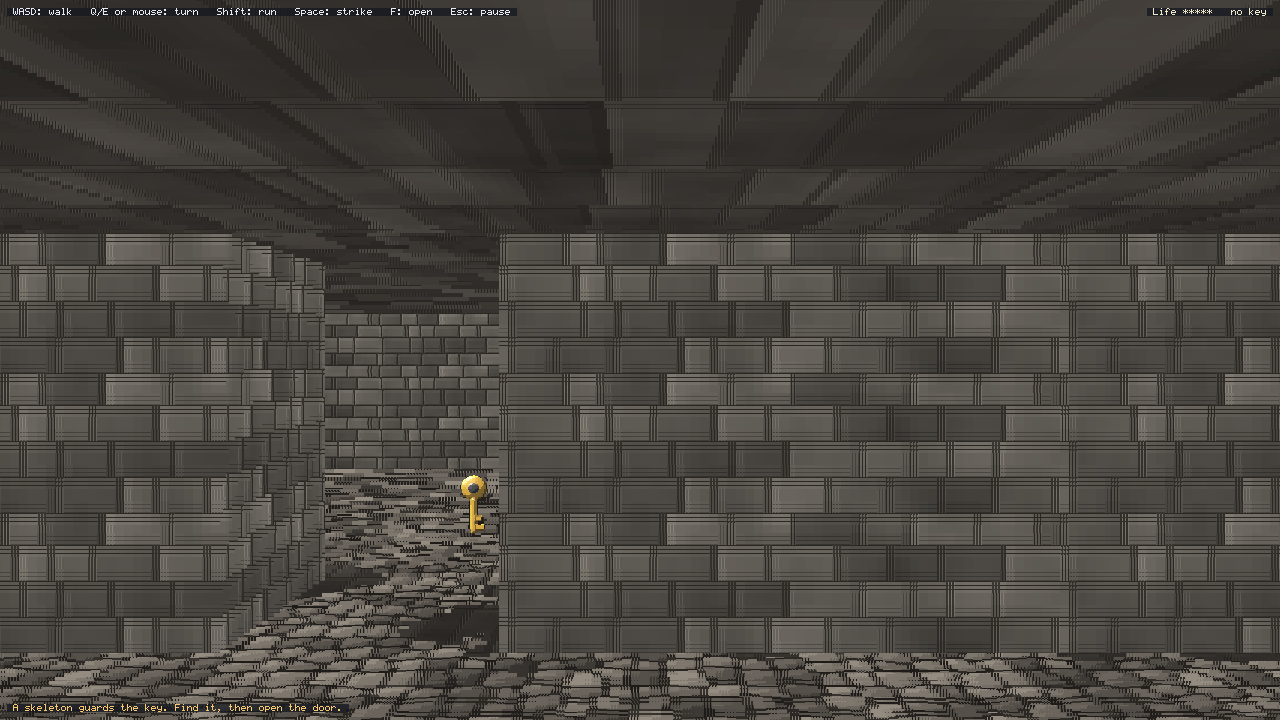
templates/RuneDungeon is the starting point for the first person ("view": "firstPerson"): a dungeon seen through
the hero's eyes. WASD or the arrows walk (A and D step sideways), Q and E or the mouse turn, Shift runs, Space strikes,
F opens a door and Esc pauses. While you play, the mouse is caught to look round (Host.MouseLook); the pause menu
and the title let it go.
- The dungeon is
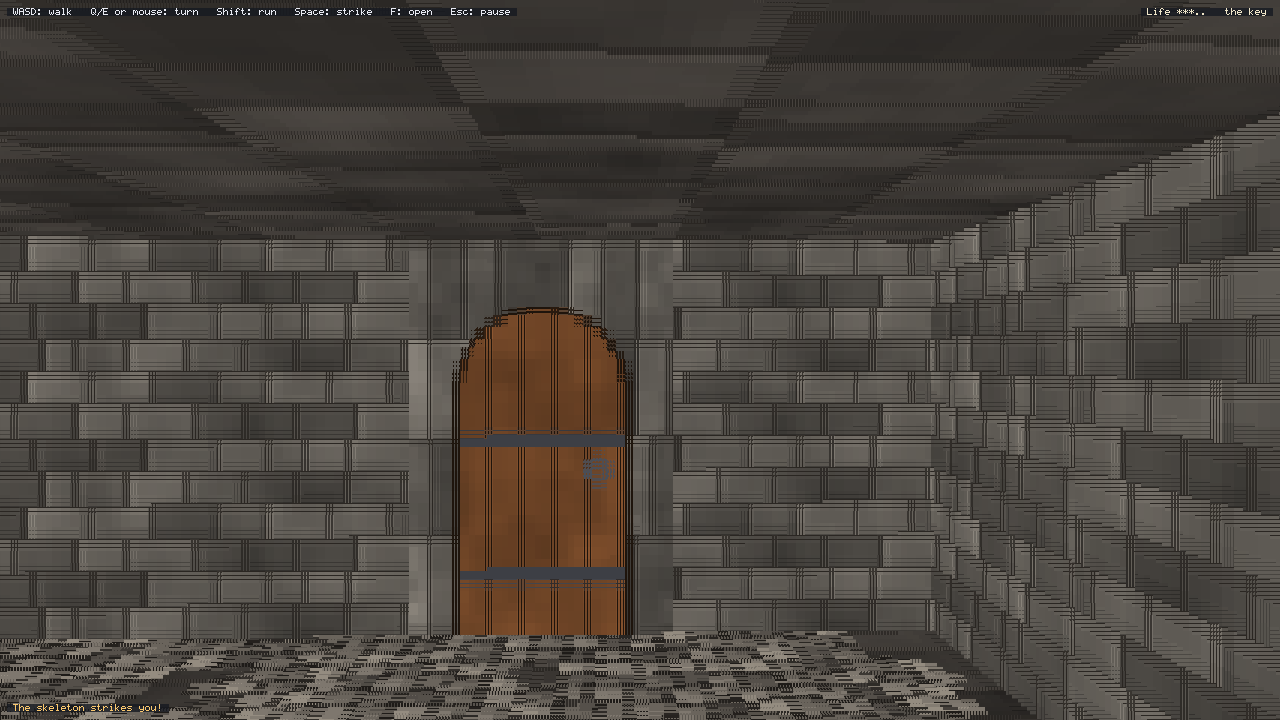
world/dungeon.gwmap:#stone walls 144 pixels tall,.flagstone floor under a ceiling at the same height,Da locked door (a wall tile with a door's face),ttorches,kthe key,Swhere the skeleton stands and@where the hero starts. A tile is 32 x 24 cells (96 x 96 pixels), the eyes 100 pixels up. - A
Walkerholds the hero: it walks the way they face, sliding along walls. Walking over the key picks it up (the key object is removed from the map); F in front of the door, with the key, turns the door tile into floor (_map[x, y] = floor), and without it says it's locked. - The skeleton walks toward the hero when they are near and strikes when close, hurting on its attack clip's
hitframe; Space hurts it when it is right in front. Three strikes and it falls apart; five hits and the hero wakes where they began. The HUD shows life, the key and what just happened. - It draws with
DrawGround, then the torches, the key and the skeleton withDrawStanding, nearest last. Its art comes from the art kit'srunedungeoncatalogue.check.gwsplays it: the title, a step left to the corridor, up it to pick up the key the skeleton guards, a turn to the locked door, a strike, the pause menu.
dotnet run --project templates/RuneDungeon -- --input-script check.gws
To make it your own in Studio:
- File, New project, choose RuneDungeon (the view is First person (3D)), name it and Create.
- Open
world/dungeon.gwworld. It opens flat with its 3D preview beside it: paint wall, floor and door and watch the rooms change in the preview; click the preview and walk them with WASD. - In the world's settings, Camera (3D views) sets the field of view, the eye height and the ceiling; a tile's ceiling sets the art over it.
- Play (F5): take the key from the skeleton and open the door. Esc pauses.
The FoxExplorer starter#
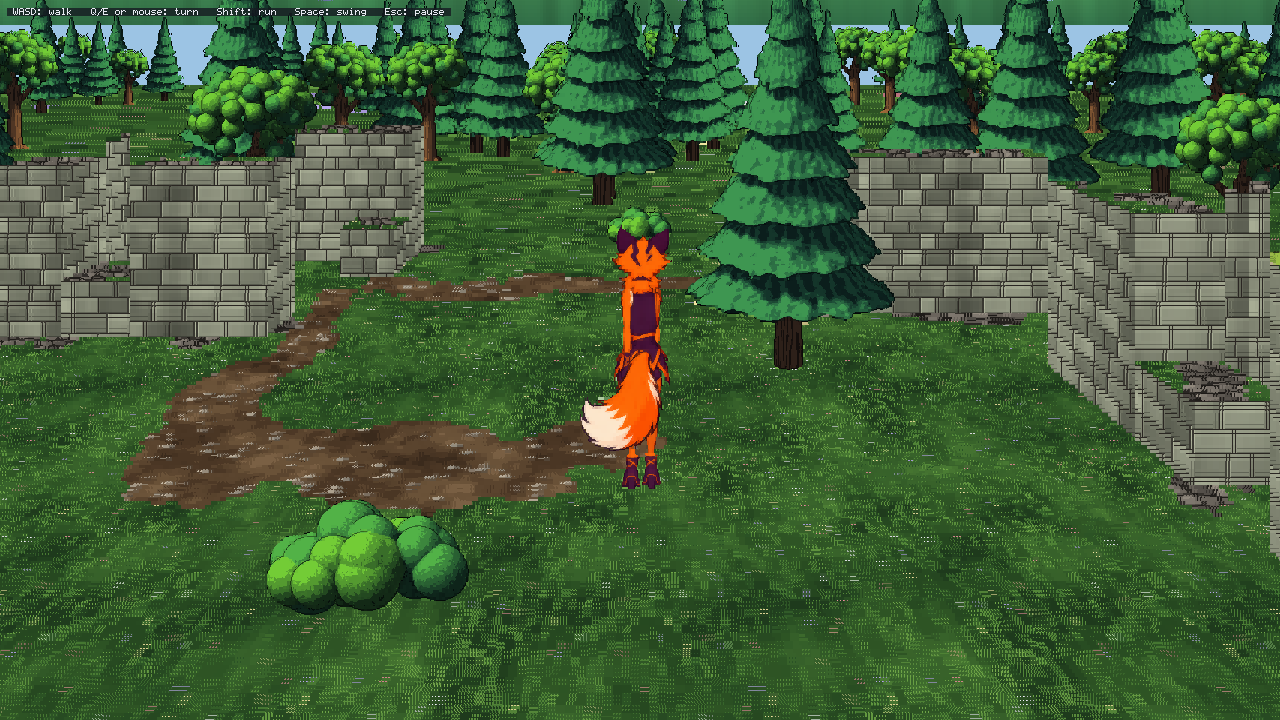
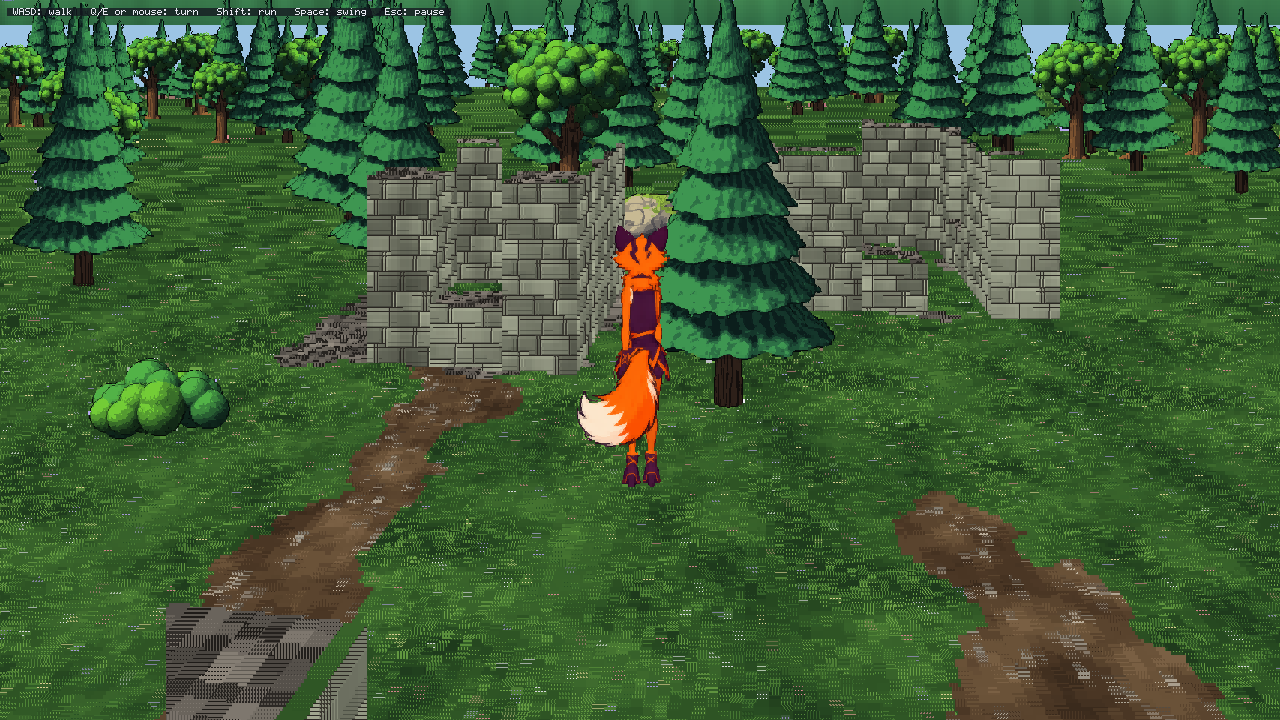
templates/FoxExplorer is the starting point for the third person ("view": "thirdPerson"): Runefox seen from
behind, exploring ruins in the woods. WASD or the arrows walk her (A and D step sideways), Q and E or the mouse turn
her and the camera with her, Shift runs, Space swings her sword and Esc pauses.
- The ruins are
world/ruins.gwmap:Rmossy walls 120 pixels tall,rlow ones 40 tall that the camera looks over,=a dirt path,.the ruins' lawn, oaks (T), pines (P), bushes (B), boulders (o), and@where she starts. Beyond them the generator grows woods ongrass; the world'sbackgroundis the sky, the mountains and the hills, all round. A tile is 16 x 12 cells (48 x 48 pixels). - The camera follows 400 pixels behind her and 220 up (the world's
cameracan change it) and comes in when a wall taller than it stands in the way. She faces the way she walks, drawn from the side the camera sees, with her sword layer. - Its art comes from the art kit's
foxexplorercatalogue.check.gwsplays it: the title, a walk up the path, a turn, a swing, the pause menu.
dotnet run --project templates/FoxExplorer -- --input-script check.gws
To make it your own in Studio:
- File, New project, choose FoxExplorer (the view is Third person (3D)), name it and Create.
- Open
world/ruins.gwworld: the 3D preview shows it in the third person, Runefox in front of the camera. Paint ruin and low walls, place trees and boulders, and walk round them in the preview. - In the world's settings, Camera (3D views) sets how far behind and how high the camera follows.
- Play (F5): walk the ruins and swing. Esc pauses.
The kind-of-game starters#
Five starters are each the playable core of a kind of game: a factory builder, a dungeon crawl, a turn-based war, a
monster catcher and a virtual pet. Each has one map or screen, its main loop, a title screen (ui/title.gwui), a pause
menu (ui/pause.gwui), a HUD, its rules in data tables (assets/data, which Studio edits) and a check.gws that plays
it; each is about a thousand lines of C# in a few files, small enough to read in an evening. They don't save, and
leave out what a full game of their kind would add next (research, an inventory, trainers, a second map), so that part
is yours. As in every starter, the game's title shows the project's name, and the keys are in input/game.gwinput.
Scripted runs (check.gws) always play the same way: the dice are seeded, and RuneKingdoms always makes the same
island.
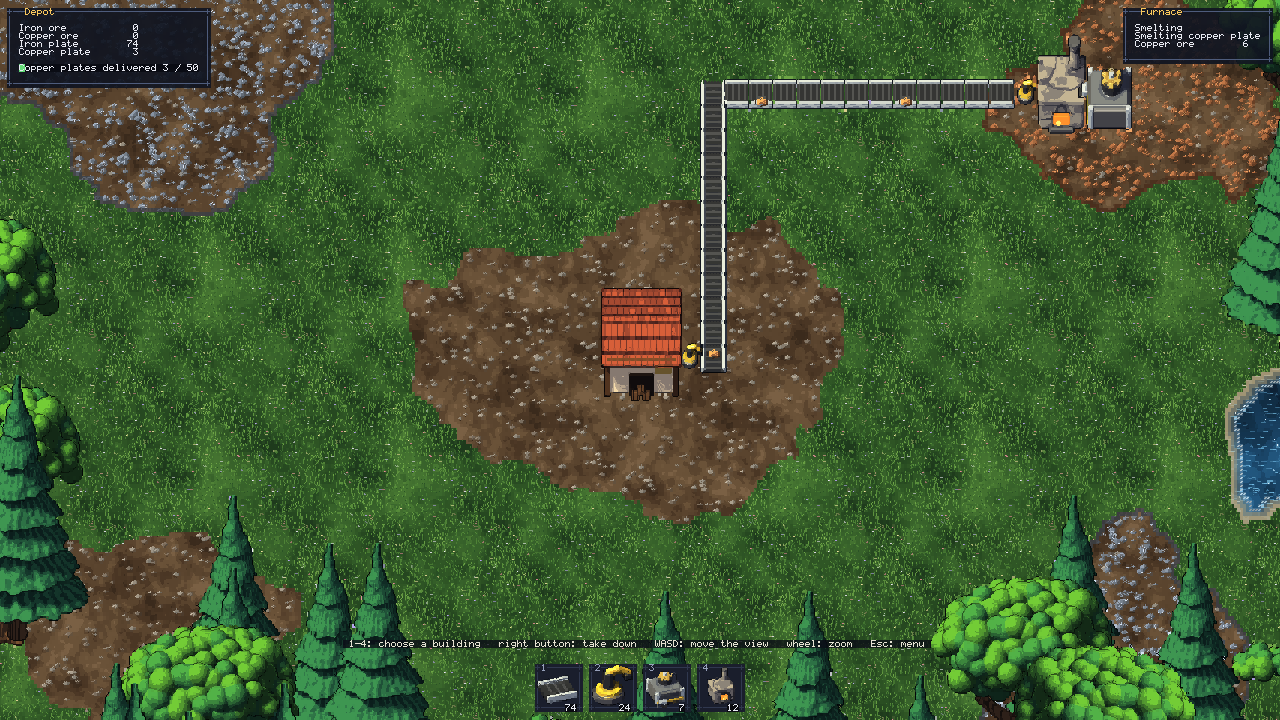
GlyphFactory#
A factory to build on open land, seen from above. Choose a building in the bar (1 to 4: belt, inserter, drill, furnace), turn it with R, build it with the left button (drag to lay a line of belts) and take it down with the right one (it also clears a tree in the way); WASD moves the view and the wheel zooms. A drill on an ore field digs and drops the ore out of its chute; belts carry it; an inserter picks things up from behind it and puts them into what is in front: ore into a furnace, plates out onto a belt, and from a belt into the depot. What reaches the depot pays for more buildings and counts towards the goal (50 copper plates).
Factory.cs: the items, recipes and buildings from the tables, and what each kind of building does (Belt,Inserter,Miner,Furnace,Depot), run in fixed steps of 60 a second.PlayScene.cs: placing, the panels and the drawing.data/buildings.gwtable(size, cost, speed, art),items,recipesandsettings(the stock to start with and the goal). The land isworld/factory.gwworld: a hand-drawn start round the depot infactory.gwmap, generated meadows, woods, lakes and more ore beyond.
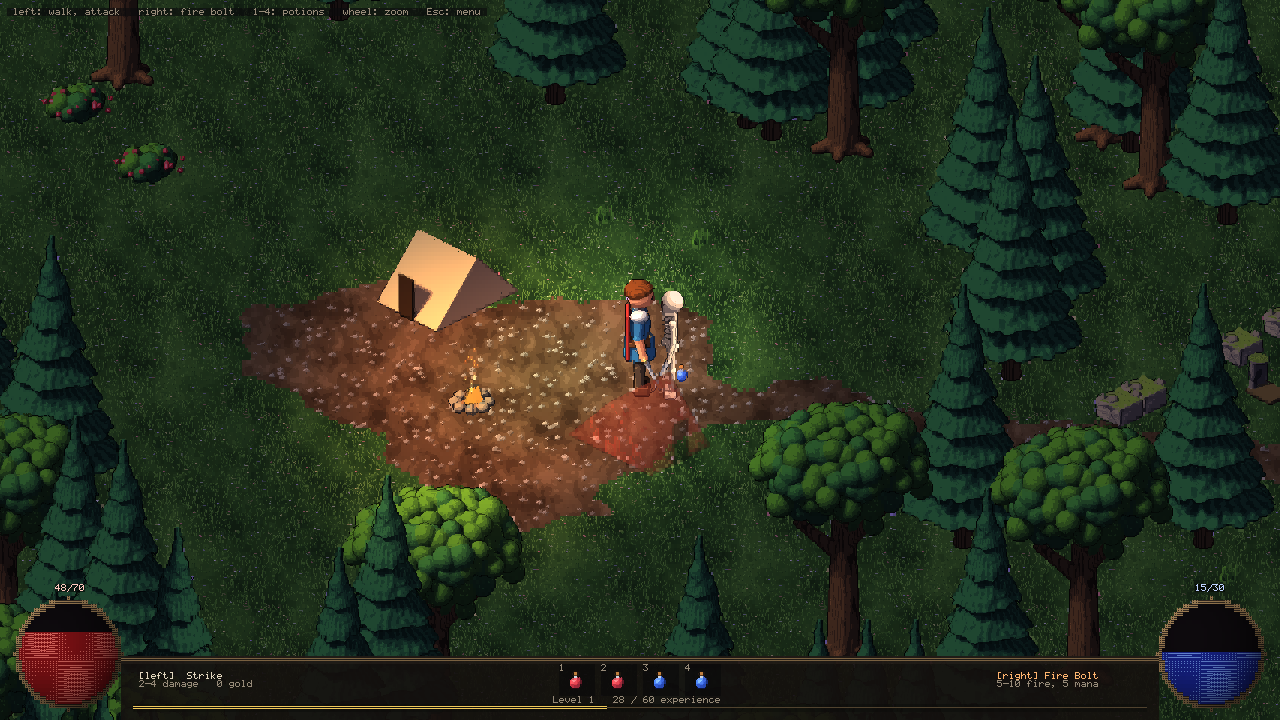
RuneCrawler#
A dungeon crawl seen at an angle ("view": "isometric"), from a campfire through a graveyard to the crypt where the
Bone Lord waits. Click to walk; click a monster to fight it (hold the button to keep fighting); the right button throws
a fire bolt, which costs mana. Walking over gold and potions picks them up, and 1 to 4 drink the potions on the belt.
Life and mana fill again slowly; a new level fills both. Skeletons wake when you come near and call the others round
them; archers shoot from afar. Dying wakes you by the campfire, a quarter of your gold lighter. The fires light the
dusk, and the music is music/runecrawler.gwmusic.
Hero.cs: the hero, the monsters and what lies on the ground.PlayScene.cs: walking, fighting, the fire bolt, the monsters' minds, the light and the HUD with its life and mana orbs.data/hero.gwtable,skills(strike and firebolt),monsters(a spawn in the world named after a row is one of them),potionsandsettings. The land isworld/crypt.gwworld.
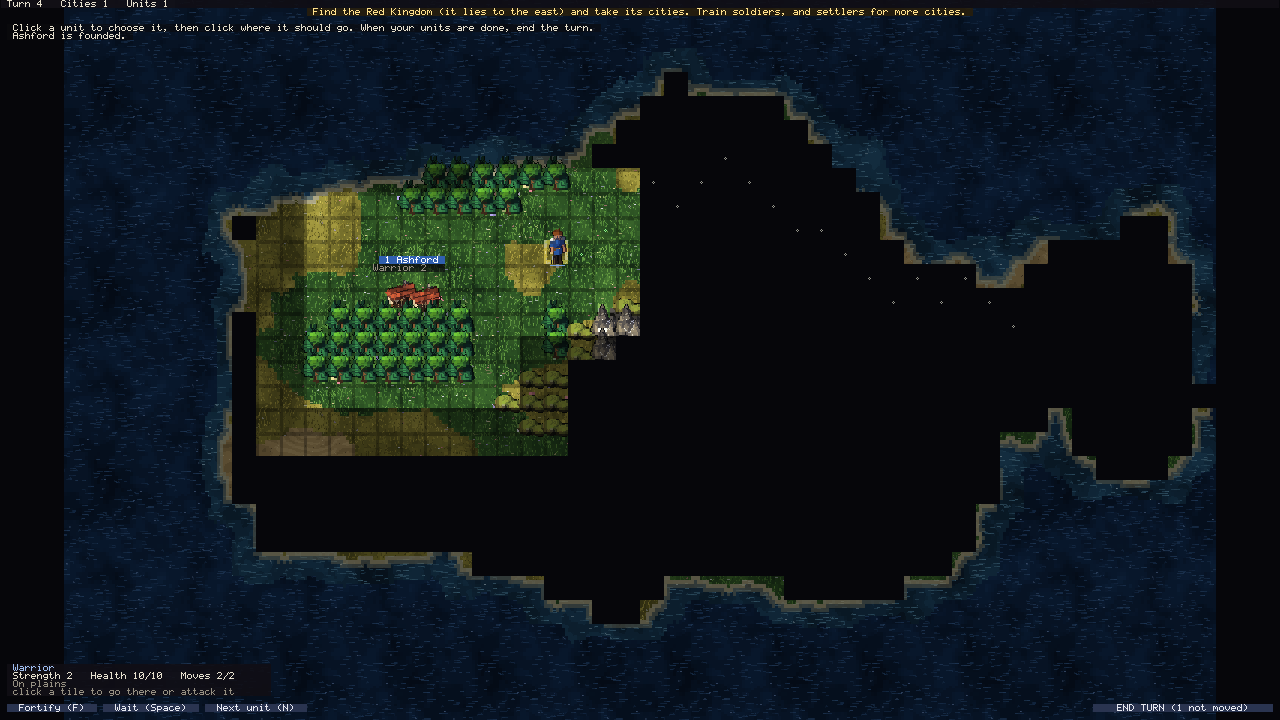
RuneKingdoms#
A turn-based war for an island between your kingdom (blue, in the west) and the Red Kingdom (in the east), on a grid of tiles. Click a unit to choose it and click where it should go (or right-click there): it walks as far as its moves allow, and attacks what stands in the way; pointing at an enemy shows your odds. A settler founds a city (B); a city works the land round it, grows, and trains the unit chosen in its window. F fortifies a unit, Space leaves it for this turn, N chooses the next one, and Enter ends the turn: the Red Kingdom moves, and the cities grow and train. Land nobody has seen is dark; land not seen now is dimmed. Take all the Red Kingdom's cities to win.
Match.cs: the map and its generator, units, cities, fighting, sight and the turn.Ai.cs: the Red Kingdom.PlayScene.cs: the map, the city window and the bars.data/terrains.gwtable(food, production, move cost and defence of each),unitsandsettings(city growth, sight, defence, what each side starts with).
GlyphMonsters#
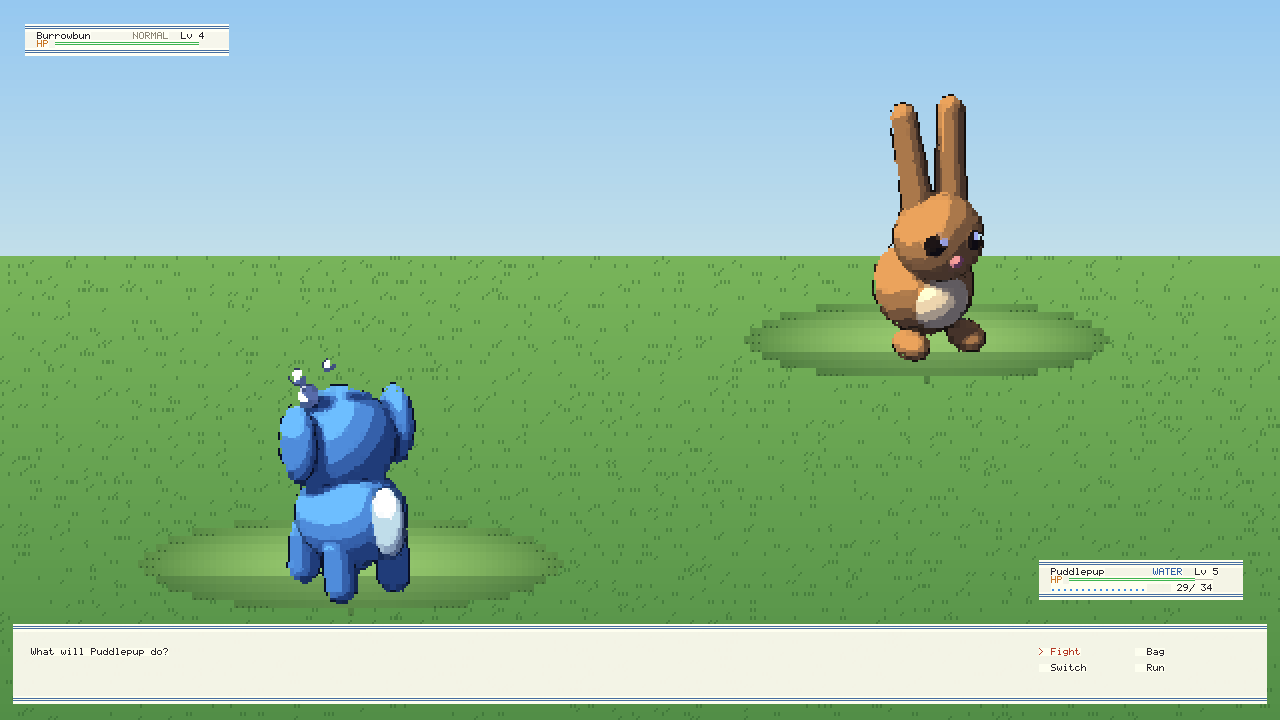
A town with tall grass beyond it, where wild wildlings live. Choose your first wildling (Left, Right, then Z), then walk (the arrow keys; Shift runs). A step on tall grass may meet a wild one, and the battle has its own screen: Fight (one of your wildling's moves), Bag (a catch orb, or a potion), Switch (another of your party) or Run; Z reads on and X goes back. Moves have types, and a type strong against another does twice the damage. Winning gives experience and levels, which bring new moves; a weakened wild one is easier to catch, and a caught one joins your party (six at most). The healer in the square heals your party (Z, facing her), and if they all faint you wake beside her.
Wildlings.cs: the data, a wildling and your party.Battle.cs: the battle's rules and the wild grass.BattleScene.cs: the battle screen.Overworld.cs: walking, the grass and the healer.data/types.gwtable,moves,species(stats, growth, the moves learnt at each level, the art),wild(who lives in the grass, and how often),itemsandsettings(the bag at the start, the wildlings to choose from). The town isworld/town.gwworld.
GlyphPet#
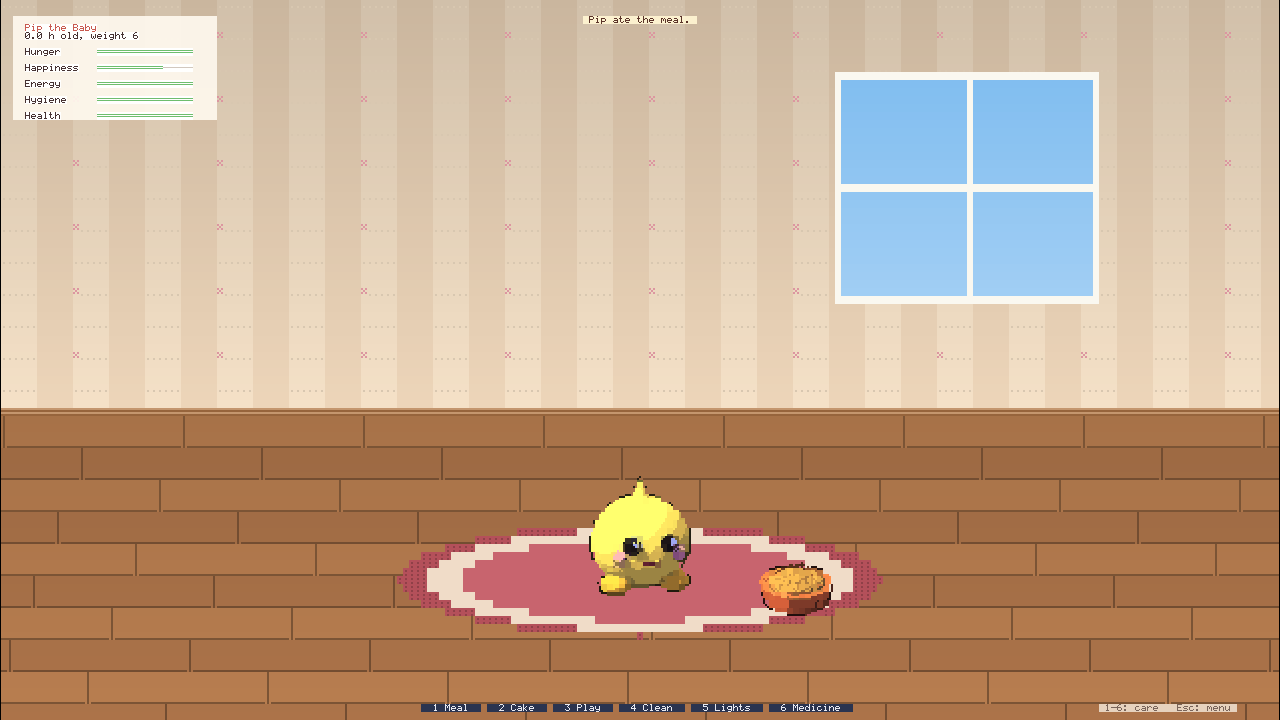
A pet to look after in its room. An egg hatches, and the pet grows from a baby to a child to one of three grown-ups; which one depends on the care mistakes it had (a need left to run out). Its hunger, happiness and energy drain as time passes, faster awake than asleep; it makes messes, falls ill when its room is dirty or it starves, sleeps when tired, and leaves for the forest if its health runs out. The buttons along the bottom, or 1 to 6, give it a meal, a cake, the guessing game (Left or Right: which way will it look?), a clean-up, lights out and medicine.
Pet.cs: the rules from the tables and the pet itself.RoomScene.cs: the room, the care and the guessing game.data/settings.gwtable(how fast time passes, the needs, health and the stages),adults(the grown-ups and the care mistakes each allows) andactions(what a meal, a cake, medicine and a game do). The pet's looks are inart/pet, one picture for each stage and mood.
To try one, make a project from it in Studio (File, New project, then Play), or run it from its folder:
dotnet run --project templates/GlyphFactory -- --input-script check.gws
Game data: tables#
A game's own data, its items, monsters, recipes or settings, goes in data tables rather than code: a .gwtable
of named rows and, beside it, a .gwschema that says what each row holds (see
FILE_FORMATS.md). The engine checks every row against its
schema when the tables load, so a misspelt field, a number out of range, a reference to a row that does not exist or a
missing art file is reported with the file, the row and the field, all at once, before the game starts.
data/monsters.gwschema:
{
  "schemaVersion": 1,
  "title": "Monsters",
  "fields": {
    "title": { "type": "text" },
    "life": { "type": "int", "min": 1 },
    "anim": { "type": "asset", "kind": "anim" },
    "boss": { "type": "bool", "default": false }
  }
}
data/monsters.gwtable:
{
  "schemaVersion": 1,
  "rows": {
    "skeleton": { "title": "Skeleton", "life": 16, "anim": "anim/skeleton.gwanim" },
    "bone_lord": { "title": "The Bone Lord", "life": 260, "anim": "anim/bone_lord.gwanim", "boss": true }
  }
}
In the game:
public sealed class Monster
{
	public string Title { get; init; } = "";
	public int Life { get; init; }
	public string Anim { get; init; } = "";
	public bool Boss { get; init; }
}

// once, while loading: every table in assets/data, checked
GameTables data = GameTables.Load(Assets);

foreach ((string name, Monster monster) in data["monsters"].Read<Monster>())
	Log.Info("game", $"{name}: {monster.Title}, {monster.Life} life");

// or one value at a time
int life = data["monsters"]["skeleton"]["life"].Int;
A table whose schema says "single": true holds one row of settings (data["settings"].Single). RuneGlyph keeps
its monsters this way: it reads data/monsters.gwtable into its own MonsterKind class and puts one of each at every
spawn point named after it. A game checks what only its code knows, such as a kind it must have, after reading.
Dialogue and quests#
What people say, and the story they move along, can be data too: .gwdialogue files of lines, choices and ways on,
and a .gwquests file of quests and their stages (see FILE_FORMATS.md).
Both read and change the story's flags (met the professor, beat the rival) and numbers (visits, orbs thrown);
a line can ask the game to do something (heal, open the shop, start a battle), which the game's C# carries out.
// the story's memory: its own flags, and the game's coins to test
StoryState story = new StoryState(values: name => name == "coins" ? player.Coins : null);
Dialogue elm = DialogueFormat.Load(Assets, "dialogue/professor.gwdialogue");
QuestBook quests = QuestBook.Load(Assets, "story/main.gwquests", story);

// talking: show each line, offer its choices, and carry out what it asks
Conversation talk = new Conversation(elm, story, word => word == "starter" ? starterName : null);
talk.Acted += act => { if (act == "heal") party.HealAll(); };
talk.Begin();
// each frame: show talk.Speaker and talk.Text; with talk.Choices, call talk.Choose(i), else talk.Next() on a key

// after anything that may have moved the story on
quests.Update();
foreach ((Quest quest, string now, bool done) in quests.Journal()) { /* the journal's lines */ }
Conversation stops at every node with a line, raises Acted as a node with do is entered, and fills {word} in
lines from the game's words or the story's numbers. QuestBook.Moved is raised when a quest begins, moves on a stage
or finishes. Flags can live in the game's own set (new StoryState(flags: player.Flags)), so they are saved with it.
Texts in every language#
The words a game shows can live in one table, text/<game>.gwtext, with a row for each text and a column for each
language (see FILE_FORMATS.md); "texts" in glyphweft.json names it. The first
language is the one every text needs. A text another language lacks shows in the first one (the log says so once per
text), and a name the table does not have shows as [name] (with a warning, once).
Screens, dialogue and quests name a text as {@name} wherever they have words: a button's text, a panel's title, a
speaker, a line, a choice, a quest's title or stage. A text can hold values, filled in as before: the HUD's
{@hud.status} is Life {life} {clock} {weather}, and the screen fills in life, clock and weather. Code
asks for a text with Texts.Get:
// a toast in the player's language, with its values filled in by name
Toast(Texts.Get("toast.weather", ("weather", next)));

// a settings button: the languages, and on to the next one (kept in the player's settings.json)
string now = Host.Languages.First(l => l.Code == Host.Language).Name;
Host.NextLanguage();          // or Host.SetLanguage("af")
The game reads the table when it starts, in the language the player chose last ("language" in their
settings.json) or, the first time, the table's first language. GlyphHost.SetLanguage changes it at once and keeps
the choice. Screens show the new words on their next frame, and the next line of dialogue is in the new language. With
hotReload on, an edit to the table shows while the game runs.
Texts.Expand("...") replaces every {@name} in a text of your own, and QuestBook.TitleOf(quest) gives a quest's
title in the language now. Values that come from data (a monster's name in its table, the weather's name) stay as the
data has them. Texts may use the accented letters the fonts draw (see Fonts).
5. Input#
Input holds the keyboard and mouse for the current frame. It is updated before OnUpdate.
Keyboard#
| Call | True when |
|---|---|
Input.Pressed(Keys.A) |
the key went down this frame |
Input.Held(Keys.A) |
the key is down |
Input.Released(Keys.A) |
the key came up this frame |
Input.Repeated(Keys.Back) |
the key went down, then repeatedly after 0.4 s, every 35 ms (cursor keys, Backspace) |
Input.Ctrl, Input.Shift, Input.Alt |
either key of the pair is down |
Input.Text is the printable text typed this frame, as the keyboard layout produced it. Use it for text fields
rather than reading letter keys. Input.PressedKeys() lists the keys that went down this frame.
Mouse#
| Call | Meaning |
|---|---|
Input.MousePressed(), MouseHeld(), MouseReleased() |
left button by default; pass MouseButton.Right, Middle, X1, X2 |
Input.DoubleClicked() |
the press that completes a double click (within 0.35 s and 4 px) |
Input.Dragging(), Input.DragStart() |
the button is held and the mouse has moved more than 4 px; where it went down |
Input.WheelNotches |
wheel notches this frame, positive when scrolling up |
Input.MousePosition, Input.MouseDelta |
screen pixels |
The mouse in cells#
The world and UI grids have different cell sizes, so ask for the mouse in the grid you are working with:
Point cell = Input.MouseCell(World);            // world cell under the mouse (may be outside the grid)
Vector2 exact = Input.MouseCellF(World);        // fractional: (10.5, 3.5) is the middle of cell (10, 3)
bool over = Input.MouseOver(Ui);                // the mouse is inside the UI grid
Rectangle pixels = World.CellToScreen(cell);    // the screen pixels of a cell
For painting, Input.StrokeCells(World) returns the cells a held button covered this frame. On the press frame it
returns the cell under the mouse, and after that every cell between the last position and this one, so fast strokes
have no gaps.
Consuming input#
When UI handles a click or a key, it calls Input.ConsumeMouse() or Input.ConsumeKey(key). For the rest of that
frame the press no longer reads as pressed, so the world behind a panel does not also react. Handle UI before the
world in OnUpdate.
Actions and key bindings#
A game asks for named actions ("jump"), not keys. Its actions and their keys come from two places, which work together:
- An input file,
.gwinputin the assets, named by"actions"inglyphweft.json. Each action has its keys and a line on what it does. Glyphweft Studio edits it (the game's settings, Input actions). - The code:
Actions.Define("name", "key", ...), usually inOnLoad.
When both name an action, the file's keys win; actions only in the code keep the code's keys. So a game can keep everything in code, everything in its file, or some of each (an extra debug key in code, say).
{
  "schemaVersion": 1,
  "actions": {
    "jump": { "keys": ["Space", "W"], "about": "Jump" },
    "undo": { "keys": ["Ctrl+Z"], "about": "Take back the last move" }
  }
}
protected override void OnLoad()
{
	// "jump" and "undo" come from the input file; this one only from the code
	Actions.Define("debug", "F3");
}

protected override void OnUpdate(double dt)
{
	if (Actions.Pressed("jump")) Jump();
}
Players rebind actions in their own settings.json ("input": { "jump": ["Up"] }); a listed action replaces its
keys. glyphweft.json itself has no "input": the game's keys belong in its input file.
A binding is a key or mouse button with optional Ctrl+, Shift+ and Alt+. Keys use their names (A, 1,
Space, Escape or Esc, F3, Left, PageUp); mouse buttons are MouseLeft, MouseRight, MouseMiddle,
MouseX1 and MouseX2. Actions.Pressed and Actions.Released need exactly the binding's modifiers, so Z and
Ctrl+Z can be different actions. Actions.Held only needs the binding's modifiers to be down, so holding Shift does
not stop W from moving. Actions.Label("rotate") gives the first binding as text for on-screen hints.
Input scripts#
--input-script file.gws replaces the keyboard and mouse with a script and runs the game at a fixed 60 Hz step,
so a run behaves the same on any machine. Use scripts for automated checks and manual screenshots. One command per
line; # starts a comment (except in type):
| Command | Effect |
|---|---|
wait N |
let N frames pass |
move X Y |
put the mouse at screen pixel (X, Y) |
down K / up K |
hold or let go of a key or mouse button |
tap K |
down for one frame, then up |
click X Y [button] |
move, press and release (left button by default) |
drag X1 Y1 X2 Y2 [N] |
left-button drag over N frames (10 by default) |
wheel N |
scroll N notches (positive is up) |
type text |
type the rest of the line |
screenshot file.png |
save the frame |
quit |
close the game |
Each command except wait takes one frame. A mistake stops the game at start with the file and line, for example
demo.gws:7: 'Spacebar' is not a key or mouse button.
6. Glyph art#
Art is drawn from glyphs and per-cell colour, stored as name.gwart (the glyphs) and name.gwcolors (size,
pivot, colours, sockets). See FILE_FORMATS.md for the exact format.
Loading#
Assets loads art from the assets folder by relative path:
GlyphArt hero = Assets.Art("art/characters/hero_down.gwart");
Art is cached; ask for it by path each time you draw it, so a reloaded version appears immediately. A missing or
broken file does not stop the game. You get a magenta ? placeholder (or the last good version after a failed
reload), and the problem appears at the bottom of the window with its file, line and column until the file is
fixed. Assets.FindArt("art") lists the .gwart files in a folder.
While the game runs it checks twice a second for files that changed on disk (turn this off with "hotReload": false in glyphweft.json). --assets a;b;c reads assets from several folders instead of the one in
glyphweft.json: a file in a later folder overrides the same file in an earlier one. Studio's Play uses this to show
what you have not saved yet.
An exported game has its assets in one file, assets.gwpack, beside it instead of the folder: when the game finds a
pack named after its assets folder, it reads that. A pack can be given to --assets like a folder, and a folder after
it overrides its files. Every loader reads through Assets (Assets.Exists, Assets.ReadText, Assets.ReadBytes
and Assets.FilesIn), so your own code should too: File.ReadAllText(Assets.FullPath(...)) works with loose files
but not with a pack. See Asset packs.
Reloading while the game runs#
Every file read through the asset store is watched: art and animations, and what the loaders read (GameTables.Load,
WorldFormat.Load with its maps, EffectLibrary.Load, sounds, music, UiScreen.Load, weather, dialogue, quests,
input). A file that changes on disk, or that a later folder starts to override, is a change.
- Art and animations reload in the store, logging
Reloaded <path>.; what draws them picks up the new art at once, and animators play the new clips. - Sounds, music, effects and screens reload themselves: the audio system reads its sounds files again and starts changed music again; an effects library reads its files again in place (the particles of the old effects go); a screen builds its widgets again, keeping the values set and the actions bound.
- Everything else is the game's to re-read.
Assets.Changedgives the changed paths after each check, andAssets.Follow(this, handler)calls a handler for as long as its owner (a scene) is alive. RuneGlyph reads its world again, keeping Runefox where she stands; a game reads its tables again the same way (GameTables.IsTablesays a path is one):
Assets.Follow(this, (scene, changed) =>
{
    if (!changed.Any(c => GameTables.IsTable(c))) return;

    scene._data = GameTables.Load(scene.Assets);   // a table that no longer reads is said in the log; the old rules stay
});
A file that no longer reads is said in the log and the game carries on with what it had.
Drawing#
World.Cells.DrawArt(hero, x, y);                                     // the pivot lands on cell (x, y)
World.Cells.DrawArt(hero, x, y, new ArtDraw { FlipX = true });       // face the other way
World.Cells.DrawArt(ghost, x, y, new ArtDraw { Tint = new Rgb(150, 180, 255), Opacity = 0.5f });
World.Cells.DrawArt(icon, x, y, new ArtDraw { Clip = panelRect });   // only inside a rectangle
Art follows the composition rules: transparent cells leave what is behind, and a glyph without its own background
keeps the background beneath. Flipping mirrors the cells and turns each glyph into the one whose shape in the 3x4
art font is its mirror image (/ and \, ( and ), and the edge pieces: a fill along a cell's left side becomes one
along its right); where the font has no exact mirror, the closest shape is used. The pivot and sockets mirror
with it: art.SocketAt("hand", at, flipX) tells you where to draw something held. ArtDrawing.Bounds(art, at)
gives the cells the art covers. ArtDraw.Depths and Depth leave alone the target's cells that something nearer
already covers (the tilted view uses them so walls hide what stands behind; see WorldView.DrawStanding).
Sizes. Art can list itself drawn at other sizes ahead of time (art.Sizes, from the .gwcolors file's
"sizes"), and an animation set likewise (set.Sizes, each another .gwanim with the same clips and frames). The
tilted view draws the size nearest how large a thing is at its distance; GlyphArt.NearestSize(sizes, scale) picks
it (by ratio, the original counting as 1), and cells.DrawAnimationIn(assets, animator, set, x, y) draws an
animator's frame from another set with the same clips, a size or a layer.
Writing#
ArtFormat.Save(art, path) writes the canonical form. Reading it back gives exactly the same cells. Glyphweft
Studio will save art this way.
The art kit#
The art kit builds glyph art from code. It is the Glyphweft.ArtKit library (src/Glyphweft.ArtKit, plain C#, no
packages beyond the runtime) and the glyphweft-artkit command-line tool (tools/Glyphweft.ArtKitTool):
- Modelling (
Shapes,Material,Textures,ModelRenderer): art is modelled from 3D shapes (spheres, ellipsoids, limbs, boxes, cylinders, cones, roofs, lumpy and carved shapes), seen from a 3/4 top-downCamera. It is lit with soft shadows and ambient occlusion and shaded with hand-tuned colour ramps of a few tones per material: bark, leaves, cloth, skin, stone, shingles, metal, glowing windows. It also gets pixel outlines. Buildings and machines use theObliqueCamera: the ground is drawn 1:1 like the square tile grid and height rises upwards, so a 2 x 2-tile furnace stands exactly on its four tiles.SampleArt.IsoCamera()matches the engine's isometric view. - Models (
Models): the standard materials (MaterialSet.Standard), people and skeletons (Props, and posed withCharacters: joints, idle, walk and attack cycles, five views), trees, rocks, bushes, grass, mushrooms, a cottage, props, factory machines and item icons. - Painting (
Painters): seamless ground tiles painted pixel by pixel (grass blades, dirt with pebbles, wind-rippled sand, burnt ash with embers, a path with ragged grassy edges, cobbles) and liquids (water in three frames, a river, a waterfall, rock, lava in three frames with a glow map, lily pads, a rowboat). - Cut-outs (
Cutout,KitCutoutSet): animation from a finished drawing, as 2D games animate illustrated characters. The drawing (a region of a PNG, its paper keyed away) is cut into parts on outlines; each part turns on its joint and carries the parts that hang from it; a part can be a darker copy of another (the far arm of a profile, drawn from the near one); and a fill carries a part's colour under what was cut from on top of it, so a limb that swings away leaves no hole. Every frame is drawn from the drawing's own pixels, then scaled and fitted to glyphs.RunefoxCutoutcuts Runefox's right profile from her eight-view reference and poses it to idle, run, jump, fall and land. Image files are read only for Runefox's owner-approved references. - Layered rigs (
LayeredRig): the cleaner way to the same frames. Each part is painted whole as its own picture (an arm, a thigh, the torso with what an arm hides painted in), so nothing needs filling when a limb swings away. A rig file (branding/mascot/character/<direction>/rig.json,schemaVersion2, one per direction) gives the bind canvas, where the feet stand, and for each part its picture, parent, joint on the canvas (bindPivot), the matrix that places the picture on the canvas (imageToBind) and its layer; it can list replacement pictures (an open hand, a gripping hand) that a pose swaps in, and can move a part on its parent (a thigh lifted, carrying the shin and boot).Attachgives a part equipment to hold (a picture with its grip, angle and layer); an equipment pose draws only the equipment, the body hiding what is behind it, so it makes an equipment layer frame for frame. AKitCutoutSetcan pose a different rig in each clip (one per direction) and give frames sockets (the top of the head). The Side view's Runefox is posed from the right profile with the same poses as the cut version, each boot turned back so her soles stay level;RunefoxRigsposes the five directions a game draws to idle, walk and attack with her sword in her gripping hand, for the game template. - Headings (
HeadingPainter): for the overhead view. Art drawn facing up is drawn as the engine shows it, turned about its pivot to each of the 32 headings (every 11.25 degrees, each pixel sampled 16 times so edges stay soft), and fitted back to glyphs and colours. Heading 0 is the art itself; every heading comes out the same size with the pivot in the same cell, and sockets turn with the art. The frames of a clip turn together, to one size. Art drawn with solid colours (backgrounds as well as glyphs) turns cleanly; thin line art on nothing gets rough on the slants, where touching up by hand helps.JoinPainterdraws the 16 shapes of a joining tile. - Writing glyph cells (
GlyphFitter,GwartWriter): for every 3x4 block it picks the glyph and the two colours that reproduce the design best, and writes.gwartfiles in the canonical form.KitAnimationSetwrites the frames of an animation set and its.gwanim. - Flat artwork (
VectorPaint,RunefoxMark): fills SVG path outlines into pixels for fitting. Runefox's face is painted from the brand mark's own paths (branding/source/runefox-master.svg), with plum details or, for dark backgrounds, paper ones as on the reverse logo. - Catalogues (
Catalogues): what gets built, and where:template(RuneGlyph's art in templates/RuneGlyph/assets: Runefox from her character package with her sword as its own layer, the same clips from her 3D model as an alternative, her face, the hamlet's cottage, lamp posts, fence, signpost, barrel, cobbles and lily pads, Elder Bram and the skeleton),glyphship(GlyphShip's ship, rocks and star fields, in templates/GlyphShip/assets), andfoxplatformer(FoxPlatformer's art in templates/FoxPlatformer/assets: Runefox from her layered right profile with idle, run, jump, fall and land facing right; grass, earth and a plank platform; and the sky, snow-capped mountains and rolling hills that repeat across as background layers), andfoxvillage(a village for the tilted view in templates/FoxVillage/assets: grass, dirt and cobbles; timber-framed and stone wall faces with red and slate roofs for standing tiles; oaks, pines, a bush, a fence, a well, lamp posts, a barrel and a signpost seen from the tilted camera's 40 degrees above; and Runefox's clips and sword layer, all at every size),runedungeon(a dungeon for the first person in templates/RuneDungeon/assets: flagstones, dark stone walls and ceiling, a door in its stone arch, standing torches, a golden key, and the skeleton's idle, walk and attack clips in every direction, seen nearly level and drawn up to four times larger) andfoxexplorer(ruins for the third person in templates/FoxExplorer/assets: grass and a dirt path, mossy ruin walls with stone tops, oaks, pines, bushes and boulders seen a little from above, the sky, mountains and hills for background layers, and Runefox with her sword at the sizes the following camera sees her at). - Sizes (
KitSized): for the tilted view, which draws nearer things larger and further ones smaller. Wrap any kit item (art, a model's animation set, a cut-out set) inKitSized(name, (name, scale) => item, scales): it makes the item again at each scale (oak_s55.gwartfor 0.55, orrunefox_s55.gwanimwith its frames inrunefox_s55/) and lists them in the original's"sizes".KitSized.TiltedScalesare the sizes the view needs from the far edge of the screen to its bottom: 0.4, 0.55, 0.7, 0.85, 1.2, 1.45 and 1.75, with the original at 1.KitSized.EyeScalesare the 3D views': 0.3, 0.45, 0.65, 1.5, 2.2, 3.2 and 4 (the original is as large as something about a screen's width away; a skeleton walking up to the camera needs four times that). Give an item only the sizes it is seen at: trees keep their distance, and the third person's hero is always about the same distance from the camera.SampleAnimations.Charactertakes the camera'spitch: nearly level (0.12) for things seen at eye height. - Walls and roofs (
Walls): seamless textures for standing tiles.TimberandStoneare wall faces as tall as a 48-pixel wall (12 rows): a timber-framed wall with a beam along the top, posts and a stone footing, or courses of rough stones, in any colour.Roofis clay tiles seen from above, in any colour.Dooris a door one tile wide and a wall tall: oak planks under a round arch with iron bands and a ring, set in stone.Props.Wellis a village well,Props.Torcha standing torch whose flame glows andProps.Keya golden key standing on its tip. - Random numbers (
KitRandom): the same sequence as numpy'sdefault_rng, from the kit's first version in Python, so the art came over unchanged.
dotnet run --project tools/Glyphweft.ArtKitTool -- list                          # the catalogues and what is in them
dotnet run --project tools/Glyphweft.ArtKitTool -- build template foxplatformer foxvillage runedungeon foxexplorer   # whole catalogues
dotnet run --project tools/Glyphweft.ArtKitTool -- build template/art/props template/anim/elder # a folder, an asset or an animation set
dotnet run --project tools/Glyphweft.ArtKitTool -- build template                # RuneGlyph's art
dotnet run --project tools/Glyphweft.ArtKitTool -- models                        # the models .gwmodel files can use
dotnet run --project tools/Glyphweft.ArtKitTool -- model assets/anim/frostfox.gwmodel   # build a model file's art
dotnet run --project tools/Glyphweft.ArtKitTool -- sheet out.png templates/RuneGlyph/assets/art/props --scale 2
dotnet run --project tools/Glyphweft.ArtKitTool -- compare old/art new/art       # same pixels? (per .gwart file)
dotnet run --project tools/Glyphweft.ArtKitTool -- font-fit --suggest            # how well the 3x4 font fits real art
dotnet run --project tools/Glyphweft.ArtKitTool -- headings art/ship.gwart art/ship   # ship_h0.gwart to ship_h31.gwart
RuneGlyph's art builds in about a minute, the tilted village's in under three (Runefox at eight sizes), the dungeon's
and the ruins' in under half a minute each, the other starters' in seconds. sheet draws .gwart files and folders side by
side, or every frame of one .gwanim set (--clips walk,attack to pick clips), exactly as the engine draws
them. compare checks art by the pixels it draws, not its text: a glyph and its complement with the colours swapped
draw the same pixels, and the fitting may choose either when they score the same.
The output is only printable ASCII glyphs with per-cell colours. Nothing is converted from image files.
7. Animation#
An animation set (.gwanim, see FILE_FORMATS.md) holds the
clips of one character: idle, walk, attack and so on, each in up to eight directions. An Animator plays one
actor's animation.
Animator hero = new Animator(Assets.Animation("anim/hero.gwanim"), "idle", Direction.Down);

// in OnUpdate
hero.FaceTowards(movement);                 // screen direction (x right, y down); keeps the facing when zero
hero.Play(movement == Vector2.Zero ? "idle" : "walk");
if (Input.Pressed(Keys.Space)) hero.Play("attack", restart: true);

foreach (string cue in hero.Update(dt))
	if (cue == "step") SpawnDust();

// in OnDraw
World.Cells.DrawAnimation(Assets, hero, x, y);
- Timing is exact.
Updatemoves time on bydtseconds (timesSpeed). It steps through every frame that time covers and returns the events of each frame started, in order, so a slow frame never loses a footstep. - Playing the clip that is already playing does nothing, so calling
Play("walk")every frame is fine. Passrestart: trueto start it again.Playreturns false and keeps the current clip if the set has no clip of that name. - Turning keeps the cycle going. Changing
Facingmid-walk keeps the frame and time, so the walk does not restart. - Directions:
FaceTowardspicks one of eight directions (passeightWay: falsefor four). A facing without its own art plays the opposite side mirrored, each glyph turned into its mirror image in the art font. - Headings (the overhead view): seen straight down, a ship has no front or back and turns to any angle. Set the
animator's
Headingin degrees (0 faces up the screen, 90 right;Headings.FromVector(velocity)gives it) and a clip drawn at headings (fly.h0tofly.h31, 11.25 degrees apart) shows the one nearest it. A clip without headings still goes byFacing, so a ship can turn while its explosion plays as drawn. - Once clips (attacks, deaths) hold their last frame and set
Finished, or go on to theirnextclip. - Hot reload: sets reload like art, and frames are loaded through
Assets.Art, so an edited frame shows up while the game runs. A reloaded set changes in place, so anAnimatoralready playing it plays the new clips without being told.
Equipment and other layers#
A sword, a hat or a cloak does not have to be part of a character's frames. Give it its own animation set with the same clips and the same number of frames, and draw it as a layer: the layer shows its own frame for the clip, facing and frame the character is on, so the sword follows the hand through every step and swing.
List<string> equipment = new() { "anim/runefox_sword.gwanim" };

// in OnDraw: the character, then each layer on top
World.Cells.DrawAnimation(Assets, runefox, x, y, equipment);

// swap the sword for an axe, or put it away
equipment[0] = "anim/runefox_axe.gwanim";
equipment.Clear();
animator.FrameIn(layerSet) gives the layer's frame without drawing it. A layer with fewer frames holds its last
one, and a layer without the current clip draws nothing, so a sword layer with no sleep clip simply disappears
while the character sleeps. Layers draw on top, so a layer's frames leave out whatever the character hides (the
blade behind the head in an overhead swing). The art kit does this for you (see below).
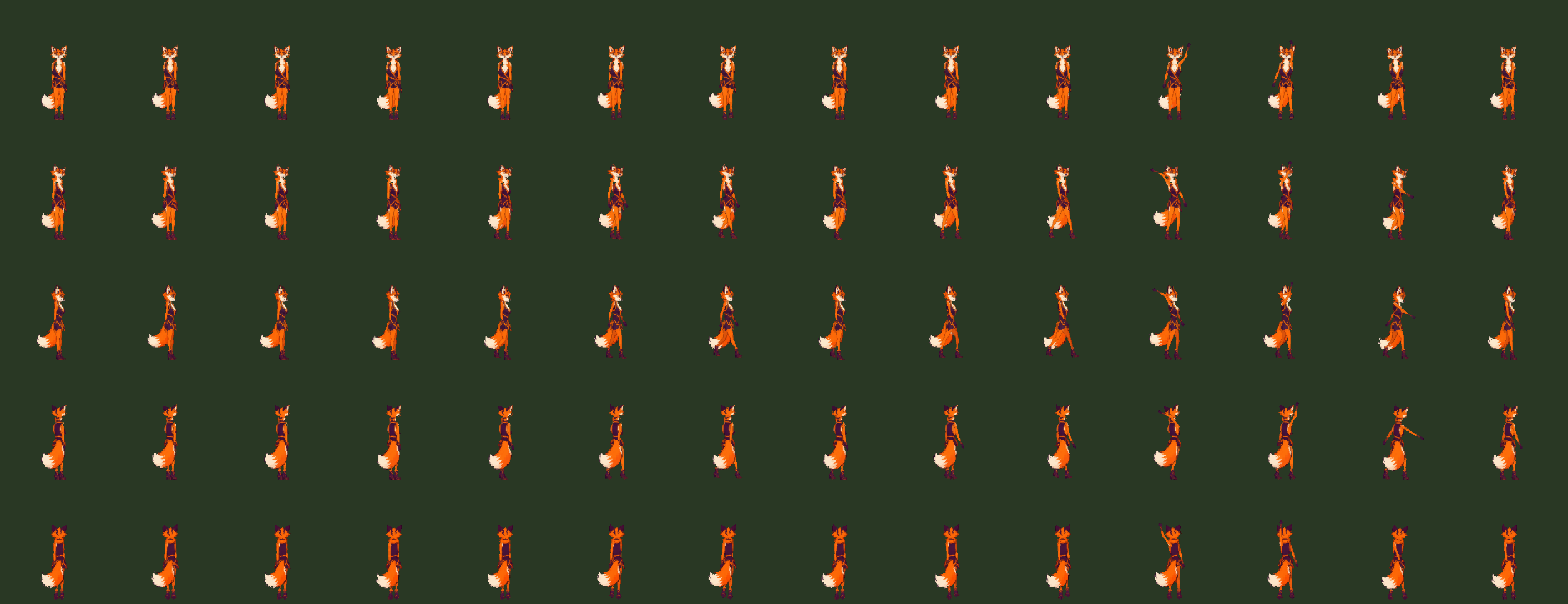
The art kit builds animated characters with Characters. A person or skeleton is posed through joint angles
(hips, knees, shoulders, elbows) and rendered for each frame and direction. The anim catalogue writes the frames and
the .gwanim sets for the hero, skeleton, farmer and wizard: idle (4 frames), walk (6 frames, step on each
footfall) and, for the fighters, attack (4 frames, swing and hit). Runefox is the template's hero, built to the owner-approved
character references in branding/mascot (an adult vixen, she/her): orange fur with a cream muzzle, cheeks, chest and
tail tip, big ears with plum backs, plum brow stripes and amber eyes, a fitted plum wrap tunic with orange trim and a
sash ringed at her left hip, split panels over shorts, plum gloves and heeled boots laced with orange crosses, and one
big brush of a tail curling out to her left. She takes the same poses, so the same cycles drive her. Her sword is
built as a layer: she is rendered in Material.Holdout, which hides what is behind her and draws nothing, so each
sword frame keeps only the blade you would see. The template catalogue writes both sets. sheet draws a set's frames
for checking:
dotnet run --project tools/Glyphweft.ArtKitTool -- sheet fox.png templates/RuneGlyph/assets/anim/runefox.gwanim --clips walk,attack
8. World and camera#
A world (.gwworld, see FILE_FORMATS.md) is tile
ground of unlimited size with objects standing on it.
public MyGame(GameSettings settings, string[] args) : base(settings, args)
{
	World.Scrolling = true;
}

// OnLoad
_map = WorldFormat.Load(Assets, "world/start.gwworld", new Point(World.CellWidth, World.CellHeight));
_ground = new WorldRenderer(_map, Assets);
_hero = _map.Spawn("hero");

// OnUpdate
_hero = Collision.Move(_map, _hero, direction * speed * (float)dt, new RectangleF(-8, -6, 16, 8));
_camera.Follow(_hero, dt);

// OnDraw
_camera.Apply(World, screenSize);
_ground.DrawGround(World.Cells, _camera.TopLeftCell);

foreach (WorldObject worldObject in _map.ObjectsIn(_camera.Visible(300)).OrderBy(o => o.Position.Y))
{
	Point at = _camera.WorldToCell(worldObject.Position);
	World.Cells.DrawArt(Assets.Art(worldObject.Art), at.X, at.Y, new ArtDraw { FlipX = worldObject.FlipX });
}
Coordinates#
| Unit | What | Converting |
|---|---|---|
| World pixels | positions of actors and objects (floats; the feet or base) | map.TileAt(p), map.CellAt(p), camera.WorldToCell(p) |
| Tiles | the ground grid; a tile is tile cells (8 x 6 = 24 x 24 px) |
map.TileCenter(t), map[t.X, t.Y] |
| World cells | glyph cells counted from the world origin | camera.TopLeftCell is the world cell in the layer's top-left |
| Screen pixels | the window | camera.ScreenToWorld(mouse), camera.WorldToScreen(p) |
| Plane pixels | the isometric view's picture plane (see Isometric view) | iso.Project(p), iso.Unproject(plane) |
Chunks and the generator#
The world is stored in chunks of 32 x 32 tiles, made the first time anything needs them. The generator runs first,
then any hand-made map on top. map.LoadedChunks lists the chunks made so far. map[tx, ty] = id changes a tile,
and its ground is redrawn on the next frame. Objects are kept per chunk, so map.ObjectsIn(area) only looks at the
chunks the area covers.
Ground#
WorldRenderer draws each chunk's ground once into a buffer and copies rows from it every frame. It rebuilds a chunk
only when a tile in or next to it changes or a ground texture is reloaded. Each tile type takes its cells from its own
seamless texture, so ground of one type has no seams. Where types meet, each cell chooses its type from the four
nearest tiles, nudged by smooth noise. Borders therefore curve and wander instead of following the tile grid, and
a pond drawn as a staircase of tiles comes out round. A type with an edge colour gets a band of it along its
border.
Camera and scrolling#
Camera has a centre (Position, world pixels) and a whole-number Zoom. Apply works out which world cell is at
the top-left of the screen and how many pixels to shift the layer. A scrolling layer (World.Scrolling = true) has
one extra column and row, so the picture moves pixel by pixel. When the camera moves less than a cell, nothing is
redrawn and only the layer's position changes. Follow eases towards a target (half the distance every 0.12 s by
default). Set WorldZoom on the game to change the world layer's magnification, and set the camera's Zoom to match.
Isometric view#
The same world can be shown isometrically, as in Diablo: each square tile becomes a 2:1 diamond, the world's x axis runs down to the right and its y axis down to the left. Game logic does not change: positions, tiles, collision, paths and bodies stay in world pixels. Only the picture is projected.
IsoProjection.For(map)makes the usual projection: a 24-pixel tile becomes a 48 x 24 diamond (16 x 6 cells).Project(world)gives the plane position (pixels in the flat picture plane the diamonds lie in) andUnproject(plane)the world position on the ground under it.Depth(world)is the drawing order (sort by it, so nearer things are drawn last),TileCentre(tile)a tile's plane position, andWorldBounds(planeRect)the world area that may be visible.- The ordinary
Cameraworks in plane pixels: setcamera.Position = iso.Project(focus), and the mouse's world position isiso.Unproject(camera.ScreenToWorld(mouse)). IsoGroundRendererdraws the ground:new IsoGroundRenderer(new WorldRenderer(map, Assets), iso, cellSize), thenDrawGround(World.Cells, camera.TopLeftCell). Every plane cell looks up the world point under it, so the ragged borders and edge bands are the same as in the flat view. Textures are sampled in plane cells: grass and dirt look right from any angle, and a texture made for the diamond grid (16 x 6 cells) lines up with the tiles. The ground is cached in blocks of 64 x 48 cells and rebuilt only where tiles change.- Standing things are drawn at
camera.WorldToCell(iso.Project(position)). Draw them back to front byDepth; for a building, use the middle of its collider, so people beside it fall on the right side of it. - Anything drawn in screen space (particles, lights, floating text) is simply given plane positions, so smoke rises straight up the screen.
- Art for the view comes from the art kit's isometric camera (
SampleArt.IsoCamera()). Characters seen from 3/4 above work as they are; they face the direction they move on screen (animator.FaceTowards(screenDirection)).
Not isometric yet: animated water and lava (GroundAnimation), weather on the ground, the material simulation's
drawing, and object lights and effects from world files. They follow when a game needs them.
Overhead view#
Seen straight down, as in a space shooter: the ground is drawn flat as in the top-down view, but nothing stands up, so nothing is in front of anything by where it stands, and things have no front or back. They turn to a heading in degrees instead: 0 faces up the screen, 90 right, 180 down, 270 left.
"view": "overhead"inglyphweft.json, andnew WorldView(map, Assets, cellSize, Settings.View).view.Overheadsays so, andview.Depthgives everything the same depth, so sorting by it keeps the order things are given in: draw the ground things first and the ship last.Headingsdoes the sums:Headings.FromVector(velocity)is the heading of a movement,Headings.ToVector(heading)the way a heading points (a unit vector, x right and y down),Headings.Nearest(heading)the nearest of the 32 drawn headings,Headings.Between(a, b)how far apart two headings are, andHeadings.Normalizekeeps one within 0 to 360.- An animation drawn at headings has clips named
fly.h0tofly.h31(11.25 degrees apart). Set the animator'sHeadingand it shows the nearest one the clip has; clips without headings still go byFacing. - An object type with
"headings": trueturns: its art is drawn facing up and its 32 headings sit beside it (rock_h0.gwarttorock_h31.gwart). A placed one has its ownheadingin the world file, andobject.TurnTo(degrees)turns it while the game runs (itsArtbecomes the nearest heading's). - The art for headings comes from the art kit's heading painter: Studio's Draw the headings (animations) and
Turns to headings (object types), or
glyphweft-artkit headings. The GlyphShip starter shows all of it.
_heading = Headings.Normalize(_heading + turn * 200 * dt);      // left and right turn it
if (thrusting) _velocity += Headings.ToVector(_heading) * 260 * dt;
_ship.Heading = _heading;                                        // the animation shows the nearest heading
rock.TurnTo(rock.Heading + 10 * dt);                             // a rock tumbles slowly
Side view#
Seen from the side, as in a platformer: gravity pulls down the screen, characters run and jump, and the world's background layers are drawn behind the ground.
"view": "side"inglyphweft.json, and aWorldViewmade from it:view.Sidesays so,DrawGroundclears the cells and draws the ground, leaving the open sky clear for the background layers, andDepthkeeps the order things are drawn in.- Open tiles (
"open": true, no texture) draw nothing: they are the sky, and the background shows through them. The ground's ragged edge against an open tile makes an uneven skyline. - One-way platforms (
"platform": true) are stood on from above and passed through from below and the sides.map.IsPlatform(tx, ty)tells them apart;Collisionignores them, thePlatformerlands on them. - Background layers (
"background"in the world file): art repeated left and right, scrolled by the camera divided by itsdistance(far mountains at 8 hardly move, hills at 2 move at half speed), with afillcolour below.view.DrawBackground(camera, Backdrop)draws each into its own layer behind the world (a scene'sBackdrop(i), 0 the farthest), scrolled to the pixel, so every layer glides smoothly at its own speed; call it beforeDrawGround.WorldView.DrawBackground(map, assets, cellPixels, cells, topLeftCell)draws them into one buffer to the nearest cell, for a still picture of the world such as Studio's editor. - The
Platformeris a ready platformer character: give it the run direction (-1 to 1), whether jump was pressed this frame and is held, and whether down is held. It runs with acceleration and friction, jumps with coyote time (a moment after running off a ledge) and a jump buffer (a moment before landing), makes a shorter hop when jump is let go early, stands on solid tiles, colliders and platforms, and drops through a platform with down and jump. It reportsOnGround,OnPlatform,Jumped,Landed,BumpedandFacing. Its numbers (Gravity,RunSpeed,JumpSpeed,CoyoteTimeand the rest) are properties to tune.
_fox = new Platformer(_map.Spawn("hero")) { JumpSpeed = 330 };

// Update
float run = (Actions.Held("right") ? 1 : 0) - (Actions.Held("left") ? 1 : 0);
_fox.Update(_map, (float)dt, run, Actions.Pressed("jump"), Actions.Held("jump"), Actions.Held("down"));
_hero.Facing = _fox.Facing > 0 ? Direction.Right : Direction.Left;
_hero.Play(!_fox.OnGround ? (_fox.Velocity.Y < 0 ? "jump" : "fall") : Math.Abs(_fox.Velocity.X) > 10 ? "run" : "idle");
Tilted view (2.5D)#
A camera leaning toward the ground, as in Octopath Traveler or the Link's Awakening remake: the ground is drawn in perspective, narrowing toward the horizon, and walls, trees and people stand up out of it, nearer ones larger. Everything is still glyphs: nothing is scaled or filtered after drawing.
"view": "tilted"inglyphweft.json, and aWorldViewmade from it:view.Tiltedsays so andview.Camerais itsTiltedCamera. Each frame, point it at what it follows withview.Focus = heroand put the view's ordinary camera onview.ToPlane(hero), which is the same point: in the tilted view the plane is the screen, the focus drawn at its own world position and everything else where the perspective puts it. The focus moves in whole screen cells (it is rounded to them): moved by a fraction of a cell each frame, the whole ground would be drawn again from a slightly different place and swim. To follow something smoothly, ease a position of your own toward it and set the focus to that.- The camera leans
leandegrees from looking straight down (10 to 80, default 50) fromdistanceworld pixels away (100 to 5000, default 480), set in the world file's"camera". More lean shows more of what lies ahead and makes standing things taller; a nearer camera makes the perspective stronger. At the focus one world pixel is one screen pixel.Camera.Project(point)gives a world point's screen offset from the focus and its depth,Camera.Ground(offset)the ground under a screen offset (null above the horizon),Camera.ScaleAt(position)how large something standing there is drawn, andCamera.HorizonYwhere the horizon is. - The ground:
DrawGroundcasts a ray for every screen cell and looks up the ground where it lands, the same cells the top-down view draws (ragged borders, edge bands, joins), so the ground narrows into the distance. Above the horizon, and beyond six camera distances, cells are left empty, showing the game's clear colour. Far away a screen cell covers several cells of the ground: the ground there is split into blocks that many cells across, and each block always shows the same one of its cells, picked by its place in the world, so the distance neither stripes nor sparkles as the camera moves.ToPlaneandFromPlaneturn world positions into screen positions and back (a click lands on the ground under it), andWorldAreais all the ground the camera shows, for finding what to draw. - Walls: a tile type with a
height(world pixels) stands up. Its top is drawn that high and its sides as faces taking their cells from itsfaceart (its texture when it has none), by where along the wall and how far down it each ray hits. Other views draw a standing tile flat.DrawGroundloads the chunks its picture covers before it looks for standing tiles, so walls show in the very first picture, and in one drawn only once (as Studio draws it). - Standing things: draw them with
view.DrawStanding(cells, camera, artPath, position)for art andview.DrawStanding(cells, camera, animator, position, layers)for animations with their equipment layers. Every cellDrawGrounddrew keeps how far away it is (view.DepthsDrawn), and standing things leave alone the cells something nearer covers, so a wall hides what stands behind it. Sort them byview.Depth(position)(world y, as top-down) so nearer ones are drawn over further ones. - Sizes: nearer things are larger and further ones smaller. Glyphs can't be scaled, so the art kit draws art and
animation sets at a few sizes ahead of time and lists them in the file's
"sizes"(each a scale and a file; see File formats).DrawStandingpicks the size nearestview.ScaleAt(position), by ratio, the original counting as 1. Art without sizes is drawn as it is at every distance. Near the border between two sizes, a thing keeps the size it was drawn at in the last picture until another is nearer by more thanWorldView.SizeGive(10%), so it doesn't flicker between them as the camera moves; things are told apart by their animator, or for art by where they stand.
_view.Focus = _heroAt;                                          // the tilted camera looks at the hero
_camera.Position = _view.ToPlane(_heroAt);                      // the view's camera sits on the same point
_camera.Apply(World, Screen);
_view.DrawGround(World.Cells, _camera.TopLeftCell);             // ground in perspective, walls standing up
foreach (WorldObject o in _map.ObjectsIn(_view.WorldArea(_camera.Visible(300))).OrderBy(o => _view.Depth(o.Position)))
	_view.DrawStanding(World.Cells, _camera, o.Art, o.Position);  // at the size nearest its distance, hidden behind walls
_view.DrawStanding(World.Cells, _camera, _hero, _heroAt, _equipment);
The 3D views (first and third person)#
A camera standing in the world: "view": "firstPerson" sees through the hero's eyes, "view": "thirdPerson" follows
behind and above them. Both draw the world's ordinary tile map, raycast: tiles with a height are walls, the ground
runs to the horizon, and above it is a ceiling or the sky. Everything is still glyphs; nothing is scaled or filtered
after drawing.
- The camera (
view.Eye, anEyeCamera) stands at a position, faces a heading (degrees, 0 up the map, clockwise) and looks up or down by a pitch of at most 35 degrees, which moves the horizon rather than tilting the picture, so walls stay upright. The world file'scamerasets its field of view (fov, 40 to 120 degrees, default 75), the first person's eye height (eye, default 100 pixels: Runefox is about 120 tall), how far behind and how high the third person follows (behind400 andabove220 by default: Runefox is then drawn about twice her size, a third of the screen's height) and theceilingheight (144). Every frame callview.Look(hero, heading, pitch), then put the view's ordinary camera onview.Focus(the hero's position, drawn in the middle of the screen). In the third person the camera stands behind the hero, looks down at their middle, and comes in closer when a wall as tall as it stands in the way. - Walls, floors, ceilings and sky:
DrawGroundcasts one ray per screen column across the tiles and fills the column nearest first: a standing tile's face (itsfaceart, by where along the wall and how far down), the top of one lower than the eye (and what lies beyond it, above its top), then the ground, the same cells the top-down view draws. Above the horizon, a tile type withceilingart is roofed over at the camera'sceilingheight, and the ceiling hides any wall above it; elsewhere the cells are left empty, so the game's clear colour and the world'sbackgroundlayers show as the sky. Background layers stand on the horizon (raised by theiry), turn past as the camera turns and move a little as it walks, less the further away they are. Far ground is picked per block of the world, so it keeps still as the camera moves. Floors are flat; walls can be any height. Nothing further than 3000 pixels is drawn. - Standing things: draw them with
view.DrawStandingas in the tilted view: at the size nearest their distance, sorted byview.Depth(position)(nearer the camera, later), and hidden behind nearer walls. An animated thing shows the camera the side it would see: its own facing (or heading) turned by the direction from the camera to it, so someone walking toward the camera shows their front and someone walking away their back (WorldView.Seen). Anything behind the camera or nearer than 16 pixels (WorldView.Near) is left out. In the first person, don't draw the hero. - Walking and looking round: a
Walkerholds a position, a heading and a pitch. Each frame give it the keys (up forward, down back, left and right sideways), a turn (-1 to 1, for turn keys) and how far the mouse moved; it turns, then walks the way it faces, sliding along walls with a box round its feet (Feet, ending at its position as the other views' feet boxes do, so it can start on a spawn point at a tile's lower edge).view.StepForturns a step on the screen into a step in the world the same way. Set the host'sMouseLookto capture the mouse: the pointer is hidden and put back in the middle of the window every frame, andInput.Lookis how far it moved (without it, the same asInput.MouseDelta). It lets go while the window is not active.
_walker.Update(_map, (float)dt, move, turn, Input.Look);        // keys walk, the mouse looks round
_view.Look(_walker.Position, _walker.Heading, _walker.Pitch);   // first person: through her eyes; third: behind her
_camera.Position = _view.Focus;
_camera.Apply(World, Screen);
_view.DrawBackground(_camera, Backdrop);                        // the sky all round
_view.DrawGround(World.Cells, _camera.TopLeftCell);             // walls, floor, ceiling
foreach (WorldObject o in _map.ObjectsIn(_view.WorldArea(_camera.Visible(300))).OrderBy(o => _view.Depth(o.Position)))
	_view.DrawStanding(World.Cells, _camera, o.Art, o.Position);  // facing the camera, at its size, hidden behind walls
At 1280 x 720 (77,000 cells of 3 x 4 pixels) a frame takes about 4 ms in the first person and 5 to 7 ms in the third (release build, a village with houses and trees). The RuneDungeon and FoxExplorer starters (chapter 4) show both views.
Collision#
Collision.Move(map, position, delta, box) moves a box (world pixels, relative to the position: keep it to the
feet) one axis at a time, so it slides along walls and stops flush against them. It checks at most 4 px at a time,
so fast movers cannot pass through thin obstacles. Solid tiles and object colliders block; how big the art is does
not matter. Collision.Blocked(map, box) tests a box without moving.
9. Lighting and time of day#
Lighting lights the world layer after everything in it is drawn. Each cell's colours are multiplied by the light
reaching it: the ambient light (daylight or moonlight) plus every point light near it. Cells that glow keep their
full brightness, so lit windows, fires and lamps stand out at night.
Lighting lighting = new Lighting();
TimeOfDay time = new TimeOfDay { Hours = 17.5, DaySeconds = 180 };

// OnUpdate
time.Advance(dt);

// OnDraw, after the ground, objects and actors are drawn
lighting.Ambient = time.Ambient;
lighting.ClearLights();
lighting.AddObjectLights(map, camera.Visible(150), time.Darkness);       // lamps and windows from the world file
lighting.Add(new Light(hero + new Vector2(0, -34), new Rgb(255, 186, 110), radius: 150, intensity: 1.1f, flicker: 0.5f));
lighting.Apply(World.Cells, camera, totalSeconds);
Light: a position (world pixels), a colour, a radius in pixels, an intensity (1 is as bright as daylight) and an optional flicker (0..1) for flames. Light falls off smoothly to nothing at the radius. Lights add up, and a cell gets at mostMaxLight(1.35 by default), so strong lights brighten colours a little.- Light per cell: light is worked out for each glyph cell, so pools of light fade over the 3x4-pixel grid. Lights entirely off screen are skipped.
- Glowing cells: art marks them in its
glowMap(see FILE_FORMATS.md), and the art kit fills it in from its glowing materials: fire, lit windows, lamps, magic orbs, skeleton eyes. Glow survives being drawn and shaded; anything drawn over a glowing cell replaces it. - Object lights: a world object kind can list
lightsin the world file, for example a lamp post's lantern or a cottage's windows. Lights marked"night": truefade in at dusk withTimeOfDay.Darkness. TimeOfDay: a clock from 0 to 24 hours that advances one whole day everyDaySeconds.Ambientfollows a curve of key points (Keys): deep blue night, rose dawn, white day, amber dusk.Darknessgoes from 0 in daylight to 1 at night.Clockgives "hh:mm" andDaycounts days.
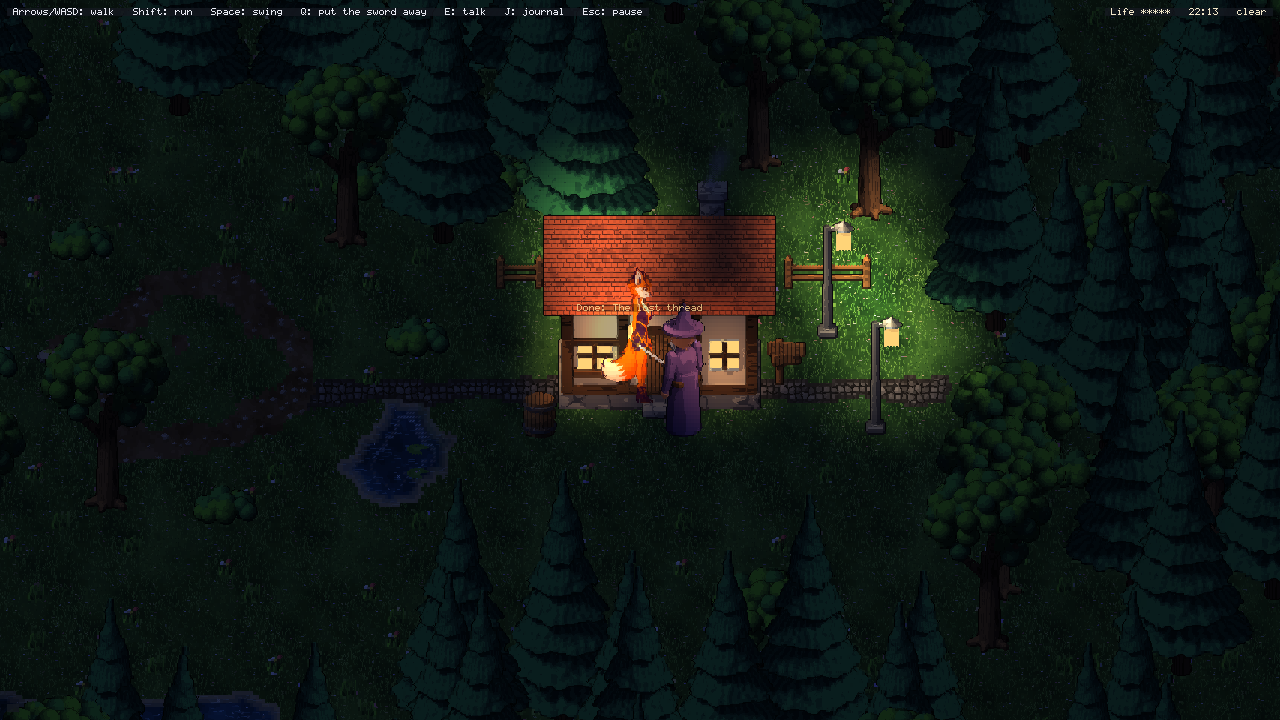
10. Particles and effects#
ParticleSystem runs smoke, sparks, dust, fire, magic and other effects as glyph particles in the world layer. The
looks are data: a .gweffects file names each effect and its glyphs, colours, life, motion and size (see
FILE_FORMATS.md). RuneGlyph's effects/default.gweffects has dust, smoke, fire, embers,
sparks, hit, magic, explosion, explosion_smoke, splash, leaves, heal and sparkle.
EffectLibrary effects = EffectLibrary.Load(Assets, "effects/default.gweffects");
ParticleSystem particles = new ParticleSystem(effects, capacity: 20000);
Emitter campfire = new Emitter(effects.Get("fire"), firePos);      // keeps burning at the effect's rate

// OnUpdate
particles.Burst("sparks", hitPos);                                  // a one-off burst of the effect's count
particles.Run(ref campfire, dt);
particles.RunObjectEffects(map, camera.Visible(250), dt, time.Darkness);   // chimney smoke from the world file
particles.Update(dt, wind: new Vector2(16, 0));

// OnDraw
particles.BeginFrame();
particles.Draw(World.Cells, camera, EffectLayer.Ground);            // after the ground: dust, splashes
// ... objects and actors ...
particles.Draw(World.Cells, camera, EffectLayer.Air);               // over everything: smoke, fire, sparks
particles.AddLights(lighting, area);                                // before lighting.Apply
- Pooled: the system holds a fixed number of particles (
Capacity) in flat arrays and makes no garbage while it runs. When it is full, new particles are dropped and counted inDropped. - Motion: each particle starts at a random speed and direction within the effect's ranges, then falls (or rises,
with negative gravity), slows by drag and drifts with the wind passed to
Update. - Look: a particle's colour moves through the effect's colour list over its life, alpha included, and its glyph
steps through
glyphsfrom dense to light. Particles with a size of 2 px or less fill one cell; larger ones are soft puffs over several cells, solid in the middle and tinting at the edge. - Blending:
alphaeffects (smoke, dust) cover what is behind them.addeffects (fire, sparks, magic) brighten it, andglowkeeps them at full brightness at night (see Lighting). - Light: an effect with
lightlights its surroundings.AddLightsadds one light per glowing particle, up toMaxLights(160), fading with the particle. - Layers:
groundeffects are drawn under objects and actors,aireffects above them. - Object effects: a world object kind can list
effects, such as a cottage's chimney smoke.RunObjectEffectsruns them for the objects near the view; an effect marked"night": trueruns only after dark. - Emitters: an
Emitteris a small struct: an effect, a position, a rate (0 uses the effect's own) andEnabled. Move it by settingPosition. - Costs:
Count,UpdateMsandDrawMsare there for a status line.
Hit feedback#
FloatingTexts: damage numbers and short messages that rise from a world position, drift and fade. They are drawn on the UI layer, so they stay readable over the dense world grid:texts.Add("12", pos, colour)thentexts.Update(dt)andtexts.Draw(Ui, camera).CameraShake:shake.Add(0.3f)adds trauma (0..1), which wears off over time. Addshake.Offsetto the camera position for the frame you draw, then put the position back.- Flash:
ArtDraw.Overlaywashes art with a colour by its alpha; a white overlay that fades over 0.2 s is the hit flash in RuneGlyph.
11. Weather#
Weather runs rain, snow, fog, cloud and wind over a world. The kinds of weather are data: a .gwweather file
names each state (clear, cloudy, rain, storm, snow, fog, or your own) and how cloudy, wet, snowy, foggy and windy it
is (see FILE_FORMATS.md). The weather blends smoothly from one state to the next, either when the
game says so or by itself.
Weather weather = Weather.Load(Assets, "weather/default.gwweather");
weather.Auto = true;                                       // change by itself when a state has lasted its time
weather.Set("storm");                                      // or change now, over BlendSeconds (Set("storm", 0): at once)

// OnUpdate
weather.Update(dt, camera.Visible(0), map);
particles.Update(dt, weather.Wind);                        // smoke drifts with the wind

// OnDraw
ground.DrawGround(World.Cells, camera.TopLeftCell);
weather.ApplyGround(World.Cells, camera, ground);          // wet ground, puddles, snow cover, splashes
// objects bend in the wind and take snow on top
World.Cells.DrawArt(art, at.X, at.Y, new ArtDraw
{
	Bend = weather.BendFor(worldObject),
	Frost = weather.ObjectFrost,
	FrostDepth = weather.FrostDepth,
	FrostTop = worldObject.SnowTop
});
// ... actors, particles ...
weather.Draw(World.Cells, camera);                         // rain, snow, lightning, then fog and cloud shadows
lighting.Ambient = weather.Ambient(time.Ambient);          // cloud dims the daylight, lightning flashes it
lighting.Apply(World.Cells, camera, totalSeconds);
- Rain: streaks of
|,/or\that slant with the wind. Drops splash where they land and make rings on water (tiles with"surface": "water"). The ground gets darker as it soaks, puddles fill the hollows, and it dries slowly after the rain stops (Wetness). - Snow: flakes drift down and sway. Snow settles in the hollows first until the ground is white, never on water,
and melts slowly after (
Cover). Objects take snow along their upper edges, and over the top part given by theirsnowTop(a roof). - Fog: soft banks that drift with the wind and blend everything towards the fog colour. Thick fog hides the glow of lamps behind it. Fog is drawn before lighting, so lamps light it and it is dark at night.
- Cloud: dims and greys the daylight. Part cloud also casts large, drifting shadows over the ground.
- Wind:
Windis the wind this moment, with gusts. Objects with asway(trees 1, bushes 0.5, grass 1.5) bend with it:BendForgives how far their top moves, in cells, andArtDraw.Bendbends the art, more at the top than at the base. - Lightning: storms strike now and then. The sky flashes twice, a glowing bolt runs down to the ground for a
moment, and the
Struckevent gives where it hit (for thunder, later). - Cost: rain and snow are kept around the view only, so the cost depends on the screen size, not the world.
Drops,Flakes,UpdateMs,GroundMsandDrawMsare there for a status line.
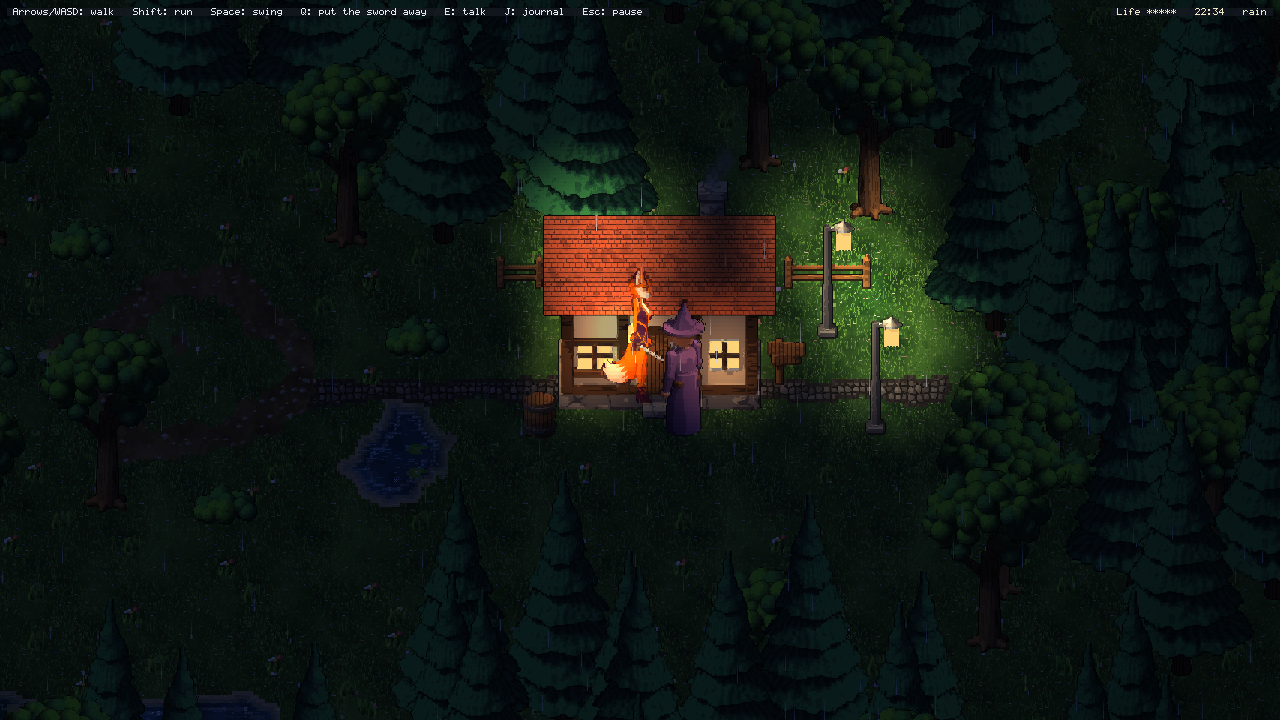
12. Audio#
Every game has Audio: named sounds, music, and a mixer that plays them through one stereo stream. Sounds are
written as text: a .gwsounds file describes each sound as synthesizer voices (a waveform, a pitch that can
slide, an envelope, filters), so RuneGlyph has no recordings at all. Recordings work too: a sound can play a WAV,
Ogg or MP3 file, for an artist's effects, a composer's track or the sound of real rain. Music is written as notes in a
.gwmusic file (Studio's music composer writes them on a piano roll), or is a recorded sound on the music bus. Both
are described in FILE_FORMATS.md.
// OnLoad
Audio.Load("sounds/default.gwsounds");
Audio.PlayMusic("music/hamlet.gwmusic");            // loops; another PlayMusic crossfades
// Audio.PlayMusic("town");                         // or a recorded track, by its sound's name
VoiceId fire = Audio.Loop("fire", campfirePos);          // a looping sound placed in the world
VoiceId rain = Audio.Loop("rain", volume: 0);            // a looping sound everywhere

// OnUpdate
Audio.Listener = hero.Pos;                               // where the ears are
Audio.PlayAt("step", actor.Pos);                         // louder near the listener, from its side
Audio.Play("click");                                     // not placed: the same everywhere
Audio.PlayAt("thunder", strike, delay: distance / 900f); // heard after the flash
Audio.Mixer.SetVolume(rain, weather.Rain);               // follow the weather
- Synthesized sounds: each voice has a wave (
sine,triangle,square,saw,noise,crackle), a pitch that slides from start to end, an envelope (attack, decay to a sustain level, hold, release), and optional vibrato, tremolo, low-pass and high-pass filters and a delay. Voices add up, so a hit can be a falling square wave plus a burst of noise. Sounds are rendered once, when the file loads. - Variety:
pitchandvarypick a random speed and volume each time a sound plays, so footsteps do not repeat exactly.maxlimits how many copies play at once; another one replaces the oldest. - Loops: a sound with
"loop": trueplays its voices steadily forlengthseconds, and its end is blended into its start, so it repeats without a seam (rain, wind, a fire, a machine's hum). - Recordings:
"file"plays a WAV, Ogg Vorbis or MP3 file instead of voices; it is read and resampled once, when the sounds file loads. With"loop": trueit plays round and round, and"loopStart"(seconds) is where it starts again after the first time through, so a track's intro plays once.Audio.PlayMusictakes a sound's name as well as a file: the sound's own clip, bus, volume and loop start are used.Audio.PlayMusic("music/theme.ogg")plays a recording by its path, looping from the beginning. - Sounds in the world: object types can list looping
sounds(a campfire's crackle) and a world can place sounds on their own (a river bend), in the world file.Audio.RunWorld(map, darkness), called every frame after settingAudio.Listener, starts each one, fading in, when the listener comes within its range and stops it on leaving. Night-only ones wait for darkness above a half.Audio.StopWorld()stops them all when the game leaves the world. - Animation events:
Audio.PlayEvents(events, position)plays every event ofAnimator.Updatethat names a sound, at the actor's position. Astepevent on the walking frames playsstep, so footsteps follow the animation. Other events are left to the game. - Several sounds files:
Audio.Loadcan be called for each; a sound named like one loaded before replaces it, so a game's own file loaded after the shared one can change a shared sound. - What played: as the game closes, the log says how many times each sound started and which music played
("Played: step 27, swing 19, ...; music: music/runecrawler.gwmusic.").
Audio.Playedhas the counts while it runs. - Distance: a positioned sound is at full volume at the listener and fades smoothly to nothing at its
range(the mixer'sRange, 900 px, unless the sound sets its own). It pans to the side it is on. Moving sounds can be moved withMixer.SetPosition. - Buses: every sound goes to one bus,
sfx,ambient,musicorui, and every bus and the master have their own volume (from theaudioblock ofglyphweft.json, see Project settings). - Mixer: up to 64 voices at once. When all are busy, the quietest that is not music makes way. Volume, pan and
fades change smoothly over a buffer, so nothing clicks. A soft limiter rounds off loud moments instead of
crackling.
PeakLeftandPeakRightgive the output level for meters. - No sound device: if there is none, or with
--mute, the game runs silently and sounds still end on time.Audio.HasOutputandAudio.OutputErrorsay why.--record-audio file.wavsaves everything the game plays to a WAV file when it closes. - Delay: sound reaches the speakers about 50-70 ms after it is played (three buffers of 1,024 frames are kept queued).
13. Moving ground and liquids#
Water, rivers, waterfalls and lava move. A tile type with animate in the world file (see
FILE_FORMATS.md) is redrawn every frame by GroundAnimation; all other ground still comes from
the chunk cache, so the cost depends only on how much liquid is on screen.
WorldRenderer ground = new WorldRenderer(map, Assets);
GroundAnimation water = new GroundAnimation(ground);

// OnDraw
ground.DrawGround(World.Cells, camera.TopLeftCell);
water.Draw(World.Cells, camera, totalSeconds);             // water, rivers, lava for this moment
water.BeginFrame();

foreach (WorldObject worldObject in nearbyObjects)         // mirrored in the water, before they are drawn
	water.Reflect(World.Cells, Assets.Art(worldObject.Art), camera.WorldToCell(worldObject.Position), worldObject.FlipX);

weather.ApplyGround(World.Cells, camera, ground);
// objects, floating ones rising and sinking
Point at = camera.WorldToCell(worldObject.Position) + new Point(0, GroundAnimation.BobOffset(worldObject, totalSeconds));
// ... before lighting:
water.AddLights(lighting, camera);                         // lava lights its surroundings
- Frames: a tile can list more textures after its own. They play in turn at
fps. The art kit makes water with three frames whose ripples drift and whose glints come and go, and lava whose cracks pulse. - Flow:
flowslides the texture a whole cell at a time, in cells per second: a river flows east at[7, 0], a waterfall falls at[0, 20]. Several tile types can share a texture with different flows, for bends. - Shimmer and glints: slow waves of light and dark roll over the surface, and a few cells sparkle at a time, each out of step with its neighbours.
- Shore waves: with a
shorecolour, lines of foam roll in from the open water to the edge band everywavesseconds and fade as they land. The chunk cache keeps how far each cell is from the border (EdgesDrawn), so this costs nothing extra to find. - Banks: liquids of the same kind (two kinds of water) form no edge band between them, so a river runs into a lake without a strip of sand across it.
- Reflections: in water marked
reflect,Reflectmirrors art standing above it, upside down below its pivot. It is faint, fades with depth, ripples from side to side, and only touches water cells. Art with no water below it is skipped after a quick check. - Floating things: an object with
bob(cells) rises and sinks slowly, each one out of step: boats, lily pads. - Lava: a
lavasurface is a liquid that rain does not wet and snow does not settle on. Its glowing cells (from the texture's glow map) stay bright at night, andlightmakesAddLightsadd a light for every patch of it on screen.
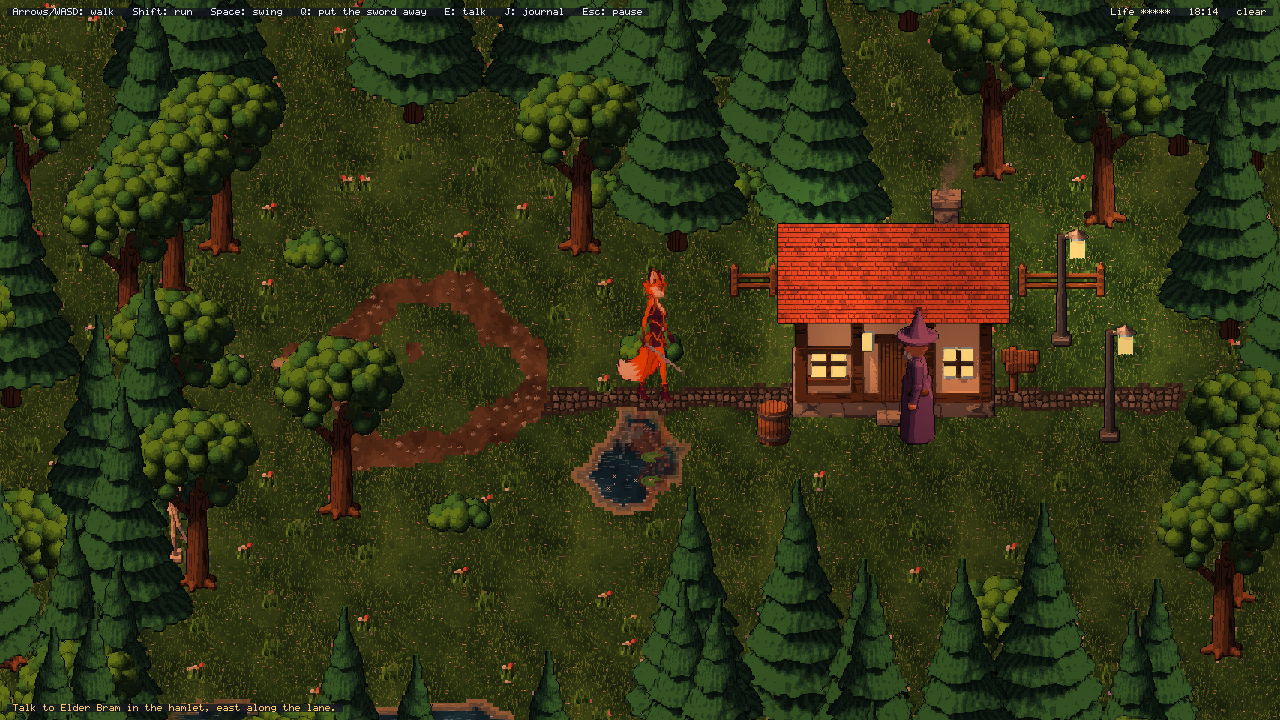
14. Save and load#
A save is a SaveGame: a few lines about it (Info: title, detail, when, play time and a thumbnail) and named
sections, each any value System.Text.Json can write. The engine has a section for each of its parts, and the game
adds its own:
// saving
SaveGame save = new SaveGame { Info = SaveInfoNow($"Day {time.Day + 1}", "by the pond", playSeconds) };
save.Put("world", map.Changes());                 // only what changed: tiles set, objects removed and added
save.Put("time", time.Save());
save.Put("weather", weather.Save());
save.Put("inventory", inventory.Save());
save.Put("player", new PlayerState(hero.Pos, hero.Health));   // the game's own record
simSaver.Save(save);                              // a Simulation: entities, components, timers, clock, random
Saves.Write("slot-1", save);

// loading
SaveGame loaded = Saves.Read("slot-1");
map.LoadChanges(loaded.Get<WorldChanges>("world"));
time.Load(loaded.Get<TimeOfDay.SaveState>("time"));
PlayerState player = loaded.Get<PlayerState>("player");
- Slots:
Saves(on everyGlyphHost) keeps slots in the player's folder for the game:name.gwsaveholds the save andname.gwinfoits information, soSaves.List()shows the saves (newest first) without reading them.Exists,Read,DeleteandReadBackupdo what they say. - Safe writing: a save goes to a temporary file first, which then replaces the old one. The old one is kept as
name.gwsave.bak. A crash or a full disk while saving never leaves a broken slot. - Formats: the
savessetting picks how saves are written:plain(readable, indented JSON),compressed(gzip, the default) orencrypted. Reading recognises all three by themselves. An encrypted save is compressed, then locked with AES-GCM usingSaves.Key = new SaveKey("passphrase", Settings.GameId). Changing a byte, or opening it with another key, makes it unreadable with a clear message. A key built into a game keeps players from reading or editing saves by hand. Someone who takes the game apart can still find the key, so it does not stop a determined cheater. - Strict: sections are read strictly. A field the game does not know is an error, so nothing is dropped
silently. Every save names its game (
id) andschemaVersion, and a save of another game is refused. - World changes: a world keeps what was changed while playing: tiles set with
map[x, y] = ..., objects added withAddObject(made by kind withmap.ObjectKinds["crate"](pos, flipX)), and objects that came with the world removed withRemoveObject. Loading puts them back as chunks are made, so a save of a huge world stays small and nothing far away is made until it is needed. - Simulations:
new SimSaver(sim).Component<Machine>("machine").Component<Drone>("drone")saves every entity with those components. Ids come back exactly (generations and free slots too), so components that point at other entities stay right, and the packed order is kept, so the game runs on exactly as it would have. A component type that is neither saved nor left out withSkip<T>()is an error. Timers are saved by name (see Simulation); commands queued for the next tick are not. - Inventories:
Inventory(incoettools.Glyphweft.Items) holds stacks in numbered slots:Add,Remove,Move(merge, swap or move),Split,Sort,CountOf, andSave/Load, which checks every slot. - Thumbnails:
SaveInfoNowtakes a 48 x 20-cell picture of the world layer.Info.Thumbnail.ToArt()makes glyph art of it, for anArtImage(itsImage) in a list of saves.
The player's settings#
Settings the player changes go in settings.json in their folder for the game, not in the game's
glyphweft.json: the window size, fullscreen, vsync, the pixel scale, audio volumes, key bindings and the language.
GameSettings.Load reads the game's file, then the player's, then the command line. Settings.SaveUser() writes
the player's file.
The player's folder is coettools/<id> in the user's local application data (on Windows
%LOCALAPPDATA%\coettools\<id>). id comes from glyphweft.json, or from the title in lower case. --user-dir
moves the folder, for tests and scripted runs.
15. Scenes and game flow#
A game with a title screen, a loading screen, the game itself and a pause menu derives from SceneHost (instead of
GlyphHost) and is made of Scenes on a stack. The top scene gets the keys and the mouse.
public sealed class MyGame : SceneHost
{
	public MyGame(GameSettings settings, string[] args) : base(settings, args)
	{
	}

	protected override void OnLoad()
	{
		Scenes.Push(new TitleScene());
	}
}

// from the title: through a loading screen into the game, an iris opening on it
PlayScene play = new PlayScene(host);
Scenes.Reset(new LoadingScene(play.LoadSteps(), () => play, Transition.Iris()), Transition.Fade());
// in the game: Esc pauses
if (Actions.Pressed("pause")) Scenes.Push(new PauseMenu(this));
Scenes: override
UpdateandDraw, and if neededEnter/Leave(put on or taken off the stack) andCovered/Uncovered(another scene went on top, or came off). A scene has the host's parts at hand:Assets,World,Ui,Detail,Input,Actions,Audio,Saves,Settings,Screen.The stack:
Pushputs a scene on top,Poptakes it off,Switchreplaces the top one, andResetempties the stack and starts again (back to the title). When the stack is empty, the game ends.Overlays: a scene with
IsOverlay(a pause menu) is drawn over the scene below it. While it is on top, the scene below stands still, unlessPausesBelowis false (a HUD that lets the game run).DimBelowdarkens what is behind a menu.Transitions: any change can take a
Transition:Fade,Wipe(from any side),DissolveorIris. The screen is covered, the change happens, then the new scene is uncovered. The edges are drawn with a ramp of glyphs (.:-=+*#%@). The scenes stand still while the screen is covered, and the new one runs while it is uncovered. Changes asked for during a transition wait for it.Loading:
LoadingSceneruns a game's loading steps (a label and some work each) a few at a time, withinBudget(12 ms) a frame, so the window stays responsive and the bar moves. It shows a big title, a bar of=, the step running, a spinner and a tip, stays at leastMinSeconds, then switches to the next scene. A step that fails stops the loading and shows the error.Timingssays how long each step took.Menus:
UiSceneshows a.gwuiscreen (see Screens from layouts in chapter 20) as a menu: a title, a pause menu, settings, a list of saves, a game-over screen. Up / Down (or W / S) move between its buttons, and the mouse chooses the one it rests on; Enter or Space presses it, Left / Right move a slider, and Esc runs the layout'sbackaction. Besides those keys, it answers the actionsmenu-selectandmenu-backwhen the game defines them (to bind, say, Z and X). A list takes Up and Down for its rows while it is chosen.Choose("continue")picks the button chosen when the menu opens. An overlay dims the scene below. Otherwise the world is cleared to the layout'sbackground; overrideDrawBackgroundto draw something there, such as a slow drift over the game's land. Bind its actions withLayout.On("play", ...)and set what it shows withLayout.Set: whether there is a save to continue (a button'senabledIf), a message, a list's rows and the chosen row's details and picture. The valuegameholds the game's title. It plays "click", "open" and "close" when the game has those sounds.C# example C#public sealed class PauseMenu : UiScene { public PauseMenu(PlayScene play) : base(play.Host, "ui/pause.gwui") { Layout.On("resume", () => Scenes.Pop()).On("save", () => { play.Save("quick"); Layout.Set("message", "Saved in 'quick'."); }); } public override void Update(double dt) { Layout.Set("saved", Saves.Exists("quick")); // "Load the quick save" has enabledIf: saved base.Update(dt); } }Big letters:
BigText.Drawwrites titles with each pixel of a font glyph as a block of cells, shaded from top to bottom, with a lighter top edge and a drop shadow.
Icon, splash and loading screens#
What a player sees first is set in glyphweft.json:
"icon": { "art": "art/nature/oak_small.gwart", "background": "#2B4A2A" },
"splash": {
  "cards": [ { "image": "branding/coettools-logo.png", "text": "presents", "background": "#2C3C44", "seconds": 2.6 } ],
  "madeWith": true
},
"loading": { "art": "art/characters/hero_down.gwart", "accent": "#FFC45C", "tips": [ "X clears what is in front of you.", "Esc pauses." ] }
- Icon: the
.exe, taskbar and window icon.artis glyph art, drawn with the game's own font.imageis a regular image instead: a PNG is scaled to every size, and an ICO is used as it is.backgroundsets the colour of a rounded square under it (corner0..0.5 sets how round). The build renders it intoIcon.ico(16 to 256 pixels) andIcon.bmp(the window icon). A game without one gets the engine's Runefox icon from the brand kit (branding/). A game project gets this by importingbuild/Glyphweft.Game.targetsat the end of its.csproj, as every sample does. - Splash: cards shown when the game starts, before its first scene. Start the game with
Start(firstScene)inOnLoad(instead ofScenes.Push). Each card has glyphartor animage(a PNG such as a studio logo, shown as real pixels), a bigtitle, a line oftext, abackground, acolorandseconds. Each card fades in and out. Any key or click moves on to the next card, and Esc skips them all.madeWithadds the engine's card: the Runefox logo on plum, "made with Glyphweft, by coettools".--no-splashskips the cards. - Loading screens:
art(glyph art) orimage(a PNG) above the title, abackground, anaccentfor the title and bar, andtipsthat take turns at the bottom. Code can still set each screen'sTitle,Tip,Art,Image,AccentandBackground. - Pictures:
LoadPicture("branding/logo.png")andShowPicture(picture, area, opacity)show a regular image over the world layer and under the UI, as real pixels: whole-number enlargements stay sharp, other sizes are smoothed. Game art stays glyph art. Pictures are for presentation that has to be a regular image: logos, icons.
16. Simulation#
Simulation runs the game's rules in fixed steps (ticks, 60 per second by default), whatever the frame rate.
Simulation sim = new Simulation(tickRate: 60, seed: 42);
sim.AddSystem("drones", simulation =>
{
	foreach (ref Drone drone in simulation.Entities.Store<Drone>().Data) drone.Pos += drone.Velocity;
});

// OnUpdate: run as many ticks as the frame's time covers
sim.Advance(dt);
Each tick#
Each tick runs, in this order:
- commands queued with
sim.Enqueue(...)(player actions, in the order they were given); - timers that are due (
sim.Schedule(ticks, "name", entity), oldest first); - the systems, in the order they were added.
Advance runs at most MaxTicksPerAdvance ticks per frame (8 by default). On a machine too slow to keep up, the game
slows down (Lagging is set) instead of freezing while it tries to catch up. Speed (0.5, 2, 4 ...) and Paused
change how fast game time goes. sim.Tick is the game's clock. sim.Alpha says how far the frame is between two
ticks, so moving things can be drawn between their last two positions.
Entities and components#
An entity is an id (EntityId); its data lives in plain structs, one store per type:
EntityId id = sim.Entities.Create();
sim.Entities.Add(id, new Machine { Kind = 1 });
ref Machine machine = ref sim.Entities.Get<Machine>(id);     // change it in place
machine.Working = true;
sim.Entities.Query((EntityId entity, ref Machine each, ref Drone drone) => { ... });   // entities with both
sim.Entities.Destroy(id);                                     // removes all its components
- Packed storage: each component type is kept in one packed array (
Store<T>().Data), so a system that loops over 100,000 machines walks memory in order. - Safe ids: an id has a generation, so an id kept after its entity was destroyed never refers to a new entity in the same slot.
- Removing while looping: removing moves the last component into the gap. To remove while looping, walk
backwards or queue the change with
Enqueue.
Sleeping with timers#
Most machines in a factory are waiting: for a job to finish, for an input to arrive. Instead of checking every machine every tick, give each one a timer. A timer has a name, set up once with what it does, and carries an entity, so waiting timers can be saved with the game:
sim.OnTimer("job-done", (simulation, id) => FinishJob(simulation, id));
sim.Schedule(180, "job-done", machine);           // rings 180 ticks from now, for that machine
A waiting machine then costs nothing at all. Timers due on the same tick run in the order they were scheduled.
Scheduling a timer with no OnTimer is an error.
Determinism#
The same seed and the same commands give the same game, tick for tick, on any machine. To keep it that way:
- use
sim.Random(seeded) for every random choice; - change game state only inside ticks (systems, timers and commands);
- never read the wall clock in game rules.
The tile grid#
GridIndex records which entity stands on which tiles, for things built on the grid such as machines, walls and
belts. Place(id, rect) fails if any tile is taken. At(tile) gives the entity on a tile, and InArea(rect) the
entities in an area, which is how a game finds the machines on screen without looking at the rest.
Crowds animated from the clock#
clip.FrameAt(ms) picks a looping clip's frame from a time, without an Animator, so 100,000 machines can animate
from one shared clock. Add a per-machine offset so they do not all flicker in step.
17. Pathfinding and AI#
coettools.Glyphweft.AI finds ways through a world: A* paths for one walker at a time, flow fields for crowds that
all head for the same place, and small steering helpers that turn a wanted direction into movement. They all work
on the world's tiles, so they reach as far as the world does, chunks and all.
The walkable map#
A NavGrid says which tiles can be walked on, and what each costs:
- Solid tile types are blocked.
- So are tiles under an object's collider.
insetshrinks each collider by that many pixels before it is laid on the tiles; a negative inset grows it. - Everything else costs 1 per step. Set
TypeCost["mud"] = 3to make walkers go round mud when they can; callInvalidate()after changing costs.
It is built a chunk at a time when first asked, and it keeps up with the world by itself. Changing a tile, adding
or removing an object, or loading a save rebuilds only the chunks involved and raises Version. LineOfSight
walks the tiles between two tiles; NearestOpen finds the closest walkable tile to a blocked one.
NavGrid nav = new NavGrid(map, inset: -8);     // colliders grow by half a pair of feet
Pathfinder paths = new Pathfinder(nav);
The inset matters: a walker's feet are wider than a point. If paths graze tree trunks and walkers catch on them, grow the colliders by about half the width of the feet.
Paths#
Pathfinder.Find(from, to) searches with A* in eight directions. A diagonal step is only taken when both tiles
beside it are open, so walkers never squeeze through a corner. The result has:
Found: whether the goal was reached.Tiles: every tile on the way.Waypoints: only the turns, with straight stretches merged by line of sight. The last waypoint is the exact spot asked for.Cost,Expanded(tiles searched),Ms, andVisited(the searched tiles, whenRecordVisitedis on).
A goal on a wall, a tree or water moves to the nearest open tile, on the side facing the walker. A goal that cannot
be reached gives a partial path to the closest tile found, with Found false. The search stays inside a window
around both ends (Margin, MaxWindow) and stops after MaxNodes tiles, so one call never stalls a frame.
A PathFollower walks the waypoints:
PathFollower follow = new PathFollower();
follow.Follow(paths.Find(hero.Pos, target).Waypoints);

// OnUpdate
Vector2 velocity = follow.Steer(hero.Pos, speed, dt);    // seek each turn, slow down at the last one
if (follow.Stuck) follow.Follow(paths.Find(hero.Pos, target).Waypoints);   // something got in the way
Stuck turns on when the walker has come no closer to its waypoint for StuckSeconds. Done is true at the end,
and Stop() clears the path.
Flow fields#
When hundreds of walkers head for the same place, one flow field serves them all. FlowField.Build(goal, radius)
works out, for every tile within the radius, the cheapest way to the goal, from the goal outwards. Each walker then
asks only for its direction:
FlowField field = new FlowField(nav);
field.Build(rallyPoint, radius: 64);                     // or Build(area, goal1, goal2, ...) for several goals

// OnUpdate, for each walker
if (field.NavVersion != nav.Version) field.Build(rallyPoint, 64);   // the world changed
Vector2 velocity = field.Direction(walker.Pos) * walker.Speed;
Distance(tile) is the cost to the nearest goal (infinite where it cannot be reached), Next(tile) the next tile on
the way, and CanReach(position) whether a walker there can get to a goal at all. Like a path's goal, a goal on a
blocked tile moves to the nearest open tile.
Steering#
Steering holds the small pieces that turn directions into movement:
Seek,Arrive(slows down inside a radius),Flee(only inside a panic radius) andWander.Separationpushes away from neighbours that are too close, so a crowd spreads out instead of piling up.Limitcaps a velocity's length.MoveOnGridmoves a point against the walkable map, sliding along blocked tiles. It is cheaper than collision against colliders, for crowds.
NeighborGrid finds neighbours quickly. Clear it and add every walker's position each frame, then ask
Near(position, radius, list) for the ones close by.
neighbours.Clear();
foreach (Walker walker in crowd) neighbours.Add(walker.Pos);

for (int i = 0; i < crowd.Count; i++)
{
	near.Clear();
	neighbours.Near(crowd[i].Pos, 18, near, self: i);

	Vector2 push = Steering.Separation(crowd[i].Pos, near.Select(neighbours.PositionOf), 18, 90);
	crowd[i].Pos = Steering.MoveOnGrid(nav, crowd[i].Pos, (field.Direction(crowd[i].Pos) * crowd[i].Speed + push) * (float)dt);
}
18. Light physics#
coettools.Glyphweft.Physics moves things that push, get pushed and fly: actors that cannot walk through each
other, knockback from hits and blasts, arrows, and bombs thrown in an arc. It is deliberately light. Everything is
top-down on the ground plane, bodies are circles, and there are no rotations, joints or stacking.
Bodies#
A Body has a position (its feet, in world pixels), a radius for touching other bodies, and a mass. It moves by
two velocities that add together:
Walk: where it wants to go. Set it every frame from input or AI; it does not fade.Velocity: what was done to it.Push(impulse)addsimpulse / Mass, andDragslows it down. The slowing is worked out exactly over each step, so a push carries the same distance at any frame rate.
Mass 0 makes a body static: it never moves but still blocks others. Bounce (0 to 1) makes a body bounce off
walls instead of stopping against them. Layer and Mask are bit masks: two bodies collide when either one's
mask includes the other's layer. Tag holds whatever the game wants to find from a body, such as its actor.
How a body meets the world is up to Collide:
Collide |
Stopped by | For |
|---|---|---|
Exact (default) |
solid tiles and object colliders, with the body's Feet box (by default a box from its radius) |
the player and a few actors |
Grid |
blocked tiles of the world's NavGrid |
crowds; much cheaper |
None |
nothing | ghosts, no-clip |
The physics world#
PhysicsWorld physics = new PhysicsWorld(map, nav);            // nav only for Grid bodies
Body hero = physics.Add(new Body(map.Spawn("hero"), radius: 8, mass: 2));

// OnUpdate
hero.Walk = direction * 110;
physics.Step(dt);                                             // move, slide along walls, push apart
Step moves every body by its walk and its velocity, sliding along walls (HitWall tells whether a wall took part
of the move), then pushes overlapping bodies apart in proportion to their masses. A body pushed by others never ends
up inside a wall. Touched reports each touching pair once a step, and Contacts and Ms say how many there were
and what the step cost.
Query(centre, radius, list, layers) finds the bodies within a distance. Blast(centre, radius, strength, layers)
pushes every body in range away from the centre, fully at the centre and fading to nothing at the edge, and returns
how many it pushed; pass a list to get them.
physics.Blast(bombPosition, 110, 1100, SkeletonLayer | BarrelLayer, hit);
foreach (Body body in hit) Hurt(body, 2);
Projectiles#
A ProjectileSystem flies shots through the physics world:
ProjectileSystem shots = new ProjectileSystem(physics);
shots.Hit += (shot, body) => Hurt(body, 1);
shots.HitWall += (shot, at) => particles.Burst("dust", at, 4);
shots.Landed += shot => physics.Blast(shot.Position, 110, 1100);

// an arrow: straight and fast, passes through one body, knocks back what it hits
shots.Fire(new Projectile(hero.Position, aim * 700) { Owner = hero, Pierce = 1, Knockback = 260, Life = 1.2f });
// a bomb: thrown in an arc to land on the spot in 0.9 seconds
shots.Fire(Projectile.Lob(hero.Position, target, 0.9f));

// OnUpdate, after physics.Step
shots.Update(dt);
A shot moves in small steps, so even a very fast one cannot skip over a thin wall or a body. It ignores its Owner
and hits each body only once. Pierce is how many more bodies it passes through after the first. It ends when it
hits a wall, runs out of bodies to pierce, or reaches its Life (Expired).
A lobbed shot (one with Gravity) has a Height above the ground. It flies over heads while higher than
BodyHeight (40 px) and over walls while higher than its WallHeight (24 px), and Landed fires when it comes
down. Draw it at Position minus its height, with its shadow at Position. Set Layers to 0 for a shot that
should hit nobody on the way and only matter where it lands.
19. Material simulation#
coettools.Glyphweft.Materials brings the ground to life:
- water flows downhill and fills hollows;
- sand and dirt slump down slopes;
- fire runs through grass and trees, faster downwind, and leaves ash;
- smoke and steam drift with the wind;
- lava creeps out, sets fire to what it touches, and cools into rock, at once and in a burst of steam where it meets water.
Everything is seen from above, one cell per world tile.
Materials#
A MaterialSet lists the materials. MaterialSet.CreateDefault() has rock, dirt, sand, ash, grass and wood on the
ground, water and lava that flow, and smoke and steam in the air. Each MaterialDef says how it behaves:
| Property | Meaning |
|---|---|
Phase |
Solid stays put; Powder slides; Liquid flows; Gas drifts |
Repose |
Powders: the steepest slope they rest on, as a height difference between neighbours (sand 0.6, dirt 1.2) |
Flow |
Liquids: how readily they flow each step (water 0.5, lava 0.12) |
Flammability, BurnSeconds, BurnsInto |
How easily fire spreads to it, how long it burns, and what it leaves (grass burns fast into ash) |
Hot, CoolRate, CoolsInto |
Hot liquids set fire to their neighbours, lose heat each second, and become a solid when cold |
Decay |
Gases: how much fades each second |
Tile |
The world tile type shown when the material covers a tile ("sand", "ash") |
Color |
How liquids and gases are drawn; a gas's alpha is how much it hides when thick |
The grid#
A MaterialGrid covers a rectangle of world tiles. Each tile has a ground height, a surface material, and may hold a
liquid (depth and, for lava, heat), gases and a fire. Blocked tiles (walls, houses) let nothing through. Springs keep
their liquid topped up: a lake fed from below, or a lava vent. You change the grid with:
| Call | Effect |
|---|---|
AddLiquid(tile, "water", depth) |
pour; a different liquid already there reacts instead |
Drain(tile, depth) |
take liquid away |
Dig(tile, amount) |
lower the ground (the bottom is dirt) |
Pile(tile, "sand", amount) |
heap up a powder |
Ignite(tile) / Extinguish(tile) |
start or put out a fire |
AddGas(tile, "smoke", amount) |
release a gas |
SetSpring(tile, "lava", depth) |
make a spring, or stop one with null |
SetObjectFuel(tile, seconds) |
trees and bushes on a tile burn longer, and burn away (BurnedOut) |
Wind (tiles per second) carries smoke and steam and makes fire run downwind. FireSpread, SmokeRate and
GasSpread tune the rest. Advance(dt) runs fixed steps at TickRate (20 a second, at most four a frame). Each step
only works on the 16 x 16 blocks where something is happening, so a calm grid costs nothing. ActiveBlocks,
Burning and Ms show what it did.
Binding it to a world#
MaterialWorld.Create(map, area, materials, mapping) builds a grid from a world:
- tile types become surfaces;
- the world's water, river and lava tiles become springs in hollows;
- solid tiles and the colliders of buildings and rocks block;
- trees, bushes and plants become fuel.
WorldMaterials.CreateDefault() maps the sample worlds. Each Update(dt) runs the grid, then puts what lasts back
into the world:
- burnt ground becomes
ashtiles; - cooled lava becomes
rock; - moved sand becomes
sand; - burnt trees are removed.
At most MaxChunksPerUpdate chunks change in one update, so the ground cache is never rebuilt all at once.
MaterialSet set = MaterialSet.CreateDefault();
MaterialWorld materials = MaterialWorld.Create(map, new Rectangle(-48, -35, 96, 70), set, WorldMaterials.CreateDefault());
MaterialRenderer drawMaterials = new MaterialRenderer(materials);

// OnUpdate
materials.Grid.Wind = new Vector2(1.5f, 0);
if (Input.MousePressed(MouseButton.Right)) materials.Grid.Ignite(map.TileAt(camera.ScreenToWorld(Input.MousePosition)));
materials.Update(dt);

// OnDraw
ground.DrawGround(World.Cells, camera.TopLeftCell);
drawMaterials.DrawGround(World.Cells, camera, totalSeconds);  // heights, spilled water and lava
// ... objects and actors ...
drawMaterials.DrawAir(World.Cells, camera, totalSeconds);     // smoke, steam, then flames
drawMaterials.AddLights(lighting, camera);                    // fire and lava light their surroundings
lighting.Apply(World.Cells, camera, totalSeconds);
MaterialRenderer draws all of it in glyphs. Liquid depth, heat, height and gas density are blended between tile
centres, so floods and smoke have soft edges instead of square tiles:
- water deepens from clear to blue, with ripples;
- lava is a dark crust broken by glowing veins that narrow as it cools;
- raised ground is lighter and dug ground darker;
- fire is tongues of flickering glyphs, white at the root and red at the tip, taller where trees burn;
- smoke and steam hang above the ground in wisps.
20. Game UI#
UiRoot and its widgets draw a game's own UI on the UI layer: HUDs, inventories, crafting, menus and dialogs.
(Glyphweft Studio, the editor, is a separate application with normal desktop controls; it does not use this.)
UiRoot ui = new UiRoot { Assets = Assets };
Window bag = ui.Add(new Window("Inventory") { Position = new Point(8, 12), Padding = Insets.All(1) });
Stack column = bag.Add(new Stack(false, 1));
column.Add(new Label("Drag items to move them."));
column.Add(new Button("Sort", Sort) { Tooltip = "Sort\nMerge stacks and order them." });

// OnUpdate: the UI goes first; it consumes the clicks and keys it uses
ui.Update(Input, Ui, dt);
if (!ui.WantsMouse && Input.MousePressed()) Build();          // a click on the world
if (!ui.WantsKeyboard && Input.Pressed(Keys.I)) bag.Visible = !bag.Visible;

// OnDraw
Ui.Cells.Clear();
Detail.Cells.Clear();
ui.Draw(Ui, Detail);
Layout#
Positions and sizes are UI cells. A size of 0 on an axis means "as big as the content".
- Placement:
Anchorplaces a widget in its parent (TopLeft, Top, Center, BottomRight ...), andPositioncounts from that corner.Paddingadds space inside. - Stacks: a
Stacklines children up in a row or a column withSpacing. Children without a set width (in a column) or height (in a row) stretch across. - Clipping and order: children are drawn inside their parent's area. A window that is clicked comes to the front.
Widgets#
| Widget | What it does |
|---|---|
Label |
text; with a width it wraps |
Panel |
a filled, framed area with an optional title; catches the mouse so clicks on it do not reach the world |
Window |
a panel with a title bar: drag the bar to move it, [x] or Esc closes it (OnClose) |
Stack |
lays children out in a row or column |
Button |
OnClick; Primary draws it in the accent colour |
Checkbox |
[x] text, OnChanged |
TextBox |
one line of text; Left, Right, Home, End, Backspace, Delete; Enter submits (OnSubmit), Esc lets go |
ListView |
rows from Count and ItemText; only visible rows are drawn, so long lists are cheap; Up, Down, Page Up/Down, Home, End, wheel; double-click or Enter activates |
ProgressBar |
Value 0..1 with optional text |
Slider |
drag the knob or use Left/Right; Min, Max, Step |
ArtImage |
glyph art at full detail inside the UI |
ItemSlot |
an inventory or hotbar slot: icon, count, corner hint, drag and drop |
Input#
- Mouse: hover, press, click (press and release on the same widget), double-click, right-click and the wheel go to the widget under the mouse, and then up to its parents until one handles them.
- Keyboard: Tab and Shift+Tab move the keyboard focus; Enter or Space presses the focused button; Esc closes the top modal or window.
- Consuming: everything the UI uses is consumed.
WantsMouseis true while the mouse is over the UI, andWantsKeyboardwhile a text field has the keys, so a game can ignore WASD while the player types.
Dialogs and tooltips#
ui.ShowMessage(title, text, ("Yes", onYes), ("No", onNo)) opens a modal dialog. It takes all input, dims
everything behind it, and gives the focus to its first button. ShowModal(window) does the same for any window. Set
Tooltip (or TooltipText for text worked out when shown) on any widget. It appears after the mouse rests on the
widget for 0.45 s, wraps at 40 characters, and its first line is highlighted.
Drag and drop#
A widget starts a drag by returning data from BeginDrag. The root carries the data under the mouse and asks the
widget below CanDrop, then Drop; the source gets DragEnded with where it landed (null outside the UI or when
refused). ItemSlot exposes these as callbacks (DragOut, Accepts, OnDropped, OnDragEnd). The slot shows and
carries; the game decides what a drop means: move, swap, merge, split or refuse.
Screens from layouts#
A screen can be written as a .gwui layout instead of code (see FILE_FORMATS.md):
its widgets, where they sit, the actions their buttons run and the values their text and bars show. UiScreen
builds it; C# binds the actions and sets the values, so the layout can change without touching the code.
UiScreen hud = UiScreen.Load(Assets, "ui/hud.gwui").On("map", ShowMap);

// OnUpdate: the values first, then the screen takes the clicks and keys it uses
hud.Set("gold", hero.Gold).Set("life", hero.Life / hero.MaxLife);
hud.Update(Input, Ui, dt);

// OnDraw
Ui.Cells.Clear();
hud.Draw(Ui, Detail);
- Values:
Set(name, value)takes a number, text, true or false, or a list of text (a list's rows). Text with{gold}shows it,{life:0%}formatted; a bar or slider shows a number, a tick box true or false.showIfandenabledIfhide or disable a widget by a value. The widgets follow the values every frame. - Changes: tick boxes, sliders, text boxes and lists change their values;
Get,NumberandIsTrueread them, andValueChangedsays which changed. A widget'sactionruns too. - Actions:
On(action, handler)binds what a button (or a closed window, an entered text, an opened list row) runs. An action with nothing bound is said once in the log.ActionsandValueslist the ones a layout uses. - Widgets:
Find<Button>("play")gets a named widget, to change it from code.Rootis the screen'sUiRoot. - Mistakes: a layout that is wrong does not load; every problem is said at once, with where it is.
For a whole menu, use UiScene (chapter 15). The game template's title screen (ui/title.gwui), pause menu
(ui/pause.gwui) and HUD (ui/hud.gwui) are layouts.
Pictures in the UI: the detail layer#
UI cells are 6x8 pixels, which is too coarse for item icons. The host has a third layer, Detail, with the world's
3x4 cells, lined up so that every UI cell holds exactly 2 x 2 detail cells. It is drawn above the UI. Widgets draw
pictures into it with canvas.Art(...), so icons keep their full art detail. Each window, tooltip and modal shade
covers the detail layer beneath it, so pictures never show through what is drawn over them.
The art kit builds item icons: ores, coal, stone, wood, plates, gears, circuits, machines, a drone, berries and a potion. Each is scaled to fill a 16 x 12-cell slot.
21. Keys and options built into every game#
| Key / option | Effect |
|---|---|
| F2 | Save a screenshot (PNG) into the player's folder's screenshots |
| F8 | Start or stop a GIF clip into the player's folder's clips (15 frames a second; it stops by itself after 30 seconds) |
| F3 | Show or hide frame metrics (fps, draw, raster and upload times, rows uploaded, the slowest frame of the last half second) and the frame graph under them |
| F5 | Reload all assets |
| F11 or Alt+Enter | Fullscreen |
| F12 | Show or hide the log |
--metrics |
Start with metrics shown |
--log-metrics |
Print metrics to standard output every 120 frames |
--frames N |
Exit after N frames |
--screenshot file.png |
Save the last frame (with --frames) |
--input-script file.gws |
Play an input script instead of the keyboard and mouse |
--mute |
No sound (no sound device is opened) |
--record-audio file.wav |
Save everything the game plays to a WAV file when it closes |
--user-dir folder |
The player's folder for saves and settings.json |
--no-splash |
Skip the splash cards (games made of scenes) |
--log-level level |
Keep log entries from this level up: Trace, Debug, Info (the default), Warning, Error or Fatal |
--log-console |
Write the log to the console's error stream as well |
--assets a;b;c |
Read assets from these folders or packs (.gwpack); a file in a later one overrides the same file in an earlier one |
--commands |
Read commands from standard input, one a line: screenshot (as F2) and clip (as F8); Studio's Game panel sends them |
--report-metrics |
Print a line of figures once a second (@metrics, then frames a second, frame, draw and worst milliseconds, cells and the scene's figures, separated by tabs), which Studio's Game panel reads, and four times a second a line of every frame since the last one (@frames, then each frame as FrameTime.ToText, separated by tabs), which Studio's Profiler reads |
--world path --at x,y |
Start in a world at a spot, in world pixels (Studio's Play from here): PlayWorld and PlayAt on the host. A game that plays that world skips its title and starts there; the template plays any world of its project |
--test-crash N |
Throw an error at frame N, to see the error screen and the crash report |
--test-stall N or --test-stall N:ms |
Wait in the update at frame N (250 ms unless given), to see a slow frame in the frame graph and Studio's Profiler; it is logged first |
The frame graph#
Under the F3 figures sits a graph of the last frames, a column a frame, newest on the right. A frame within its
budget (the time one frame has: 16.7 ms at 60 frames a second) is green, one over it amber, and one over twice it, a
frame you'd see as a hitch, red: that is a slow frame. The scale on the left goes to four budgets; a frame taller
than that ends in ^. Under each slow frame a letter says what took most of it: U the update (OnUpdate and the
sound), D the drawing (OnDraw), R rendering (turning the cells into pixels and showing them), G the
garbage collector pausing the game, and ? none of them, such as waiting for the screen or the computer being busy.
The line above the graph counts the slow frames since the game started and names the last one.
A frame's time runs from the end of the frame before to the end of this one, so waiting for the screen is in it too;
the first frame, which loads the game, isn't counted. The host keeps the last 600 frames in FrameTimes (a
FrameTimes ring of FrameTime records: the frame's number and time, its milliseconds in all and for update, draw,
render and garbage collection, and how many collections ran). FrameTime.Cause says what took most of it (the
collector when it paused for at least 40% of the frame, else the biggest of update, draw and render when that is at
least 40%, else elsewhere), IsSlow(budget) whether it was slow, and FrameTimes.BudgetMs sets the budget for a
game that runs at another rate. FrameTimes.Draw(cells, top) draws the graph into any cell buffer. With
--report-metrics the frames also go out as @frames lines for Studio's Profiler, and --test-stall makes a slow
frame on purpose to try it.
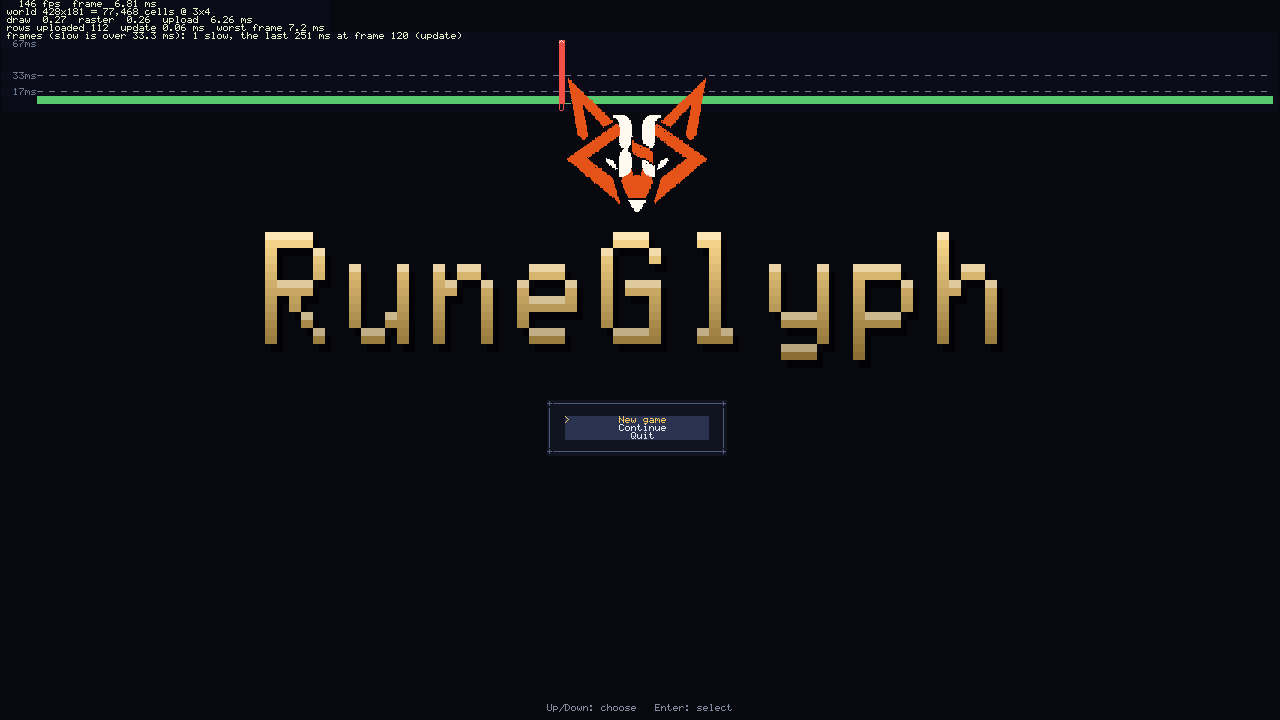
Screenshots and clips#
F2 saves the window as it is into screenshots in the player's folder (--user-dir, or user beside the game), named
after the game and the time (my-game-20261023-214502-118.png). F8 starts a clip and F8 again stops it; it goes into
clips as an animated GIF that loops. While it records, the window's title says so (nothing is drawn into the clip);
it stops by itself after 30 seconds (GlyphHost.ClipLongest), when the window changes size, or when the game closes,
and a clip still being written when the game closes is finished first. Each saved file is logged: Saved a capture:
and its path (GlyphHost.CaptureSaved). In code, TakeScreenshot() and ToggleClip() do the same, and Recording
says whether a clip is being recorded. Input scripts can press F2 and F8 like any key.
The GIF is written by the engine's own GifWriter (no library) on a thread of its own (GifRecorder), so recording
doesn't hold the game up; if writing falls behind, a frame is left out and the next one shows for longer. Each frame has
its own palette of the colours it uses most (up to 256), and every frame after the first holds only the rectangle round
what changed, the rest left transparent so the frame before shows through: a still scene costs next to nothing, a
scrolling one about 2 MB a second at 1280 x 720. GifWriter can also be used on its own: GifWriter.Create(path, width, height), then Add(pixels, delay) for each frame (pixels as MonoGame's Color.PackedValue, the delay in
hundredths of a second), then Dispose().
The log and crash reports#
Every game has a log. The engine writes to it (start-up with the engine version and the system, scenes entered, saves written and read, broken asset files, missing sounds and effects, screenshots, closing), and a game writes its own lines from anywhere, on any thread:
using coettools.Glyphweft.Diagnostics;

Log.Info("quest", "The Bone Lord is dust.");
Log.Debug("combat", $"{monster} slain");                 // kept only with --log-level debug
Log.Warning("saves", "The autosave is a day old.");
Log.Error("network", "The scores could not be sent.", exception);
Log.Once(LogLevel.Error, "audio", name, $"No sound named '{name}'.");   // a problem that would repeat every frame
Each entry has a time, a level, a category (a short name for the part of the game) and a message, and an error can
carry its exception. Entries below Log.MinimumLevel (Info unless --log-level says otherwise) are dropped.
- The log file: each run writes
logs/<game>-<date>-<time>.login the player's folder (UserFolder; the ten newest are kept). Warnings and errors are written to disk at once, so the file is complete even if the game is killed. - The log viewer: F12 shows the newest lines over the bottom half of the window, coloured by level. When an error is logged, a red note in the top-right corner says so for a few seconds.
- Your own sinks:
Log.AddSink(sink)sends entries anywhere else (anILogSinkhasWriteandFlush);Log.Recentholds the last 500 entries andLog.ErrorsandLog.Warningscount them.
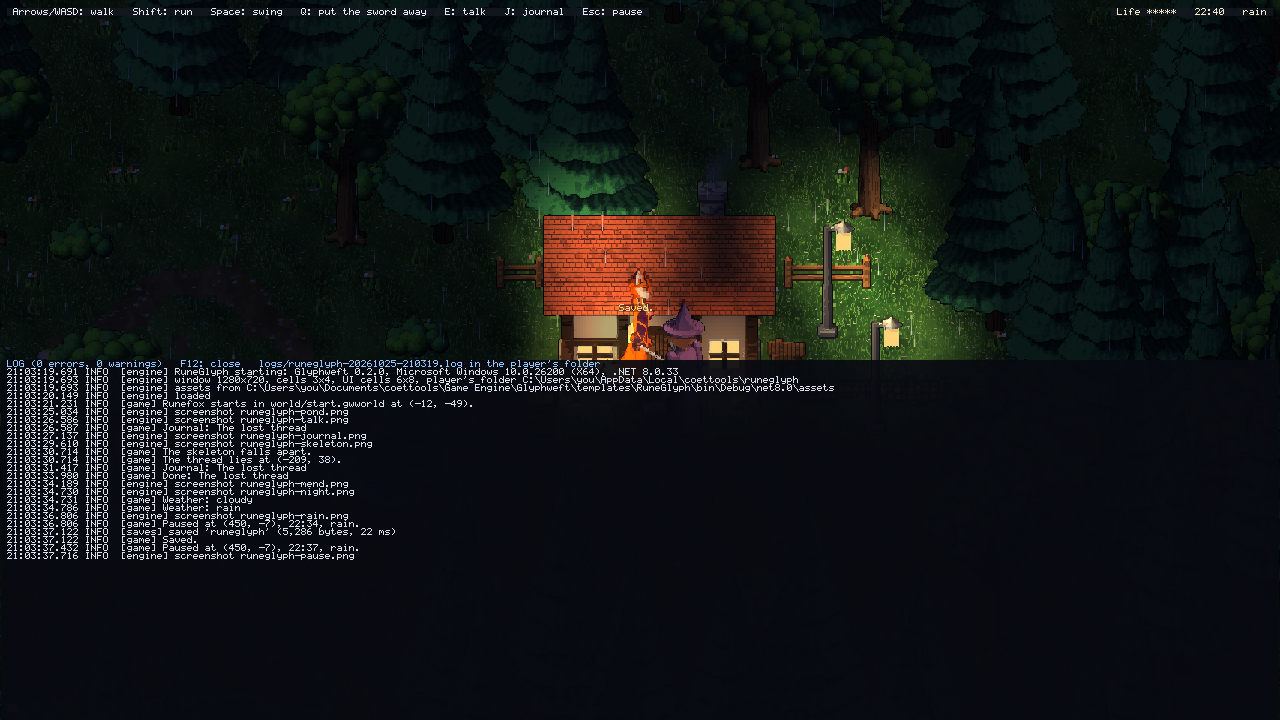
When an error escapes the game while it loads, updates or draws, the game stops on an error screen instead of
closing: it shows the error, the lines of code it came from, and where the crash report was saved. Esc quits, F opens
the report's folder and L shows the log. The report, crashes/crash-<date>-<time>.txt in the player's folder, holds
the game, the engine version, the system, the window, the frame, the scenes that were open (or what the game adds by
overriding CrashDetails), the error with its full stack, and the last 200 lines of the log: everything a developer
needs to find the problem. Errors on other threads are logged and reported too. In a scripted run (--input-script
or --frames) the game prints the error and the report's path and exits with code 1, so automated checks fail
loudly.
A sound or particle effect asked for by a name that does not exist is an error in the log (once per name), and the game carries on without it.
Last updated 2026-10-24.